
Fortinet white logo
Fortinet white logo

User Guide

Enable Log Forwarding

Enable Log Forwarding

FortiGate logs must be forwarded to FortiAIOps for seamless identification of issues and populating proper data.

FortiAIOps supports direct FortiGate log forwarding and FortiAnalyzer log forwarding. You can enable log forwarding from FortiGate or FortiAnalyser based on the log storage used.

Forwarding Logs from FortiGate

To configure direct FortiGate log forwarding to FortiAIOps on the FortiGate GUI:

  1. Navigate Log & Report > Log Settings and select the Global Settings.
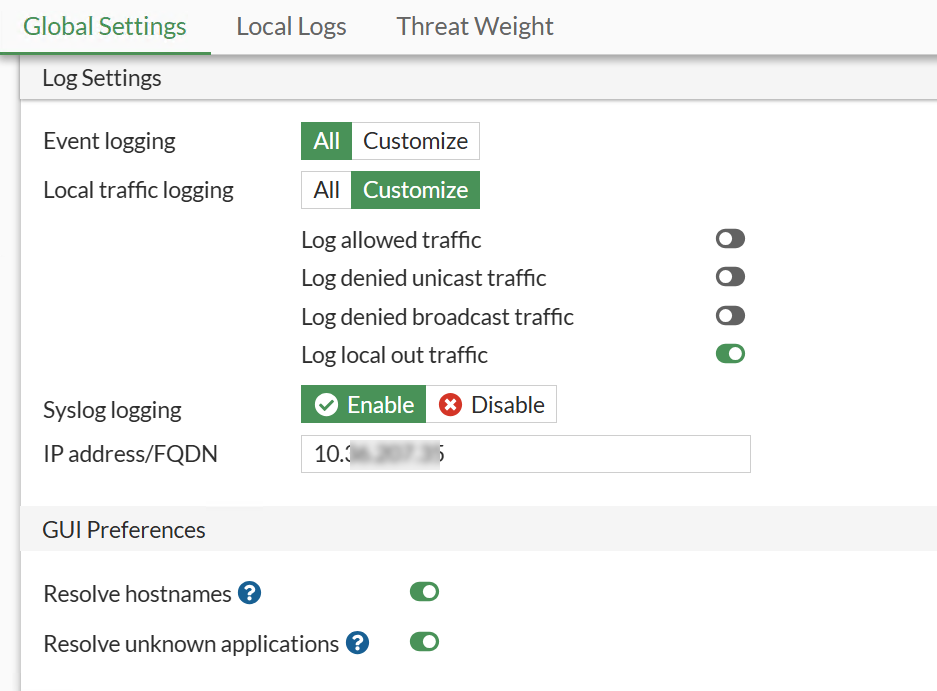
  2. Enter the IP address/FQDN with the FortiAIOps IP address.

  3. Click Apply.

To configure direct FortiGate log forwarding to FortiAIOps from FortiGate CLI, use the following commands:

config log syslogd setting

set status enable

set server 10.34.xxx.xxx

end

For more information, see FortiGate Administration Guide.

Forwarding Logs from FortiAnalyzer

For FortiGates using FortiAnalyzer as the log storage, log forwarding to FortiAIOps can be enabled directly from the FortiAnalyzer.

To configure FortiAnalyzer to forward FortiGate logs to FortiAIOps, you must first configure FortiGate remote logging to FortiAnalyzer and then forward logs from FortiAnalyzer to FortiAIOps.

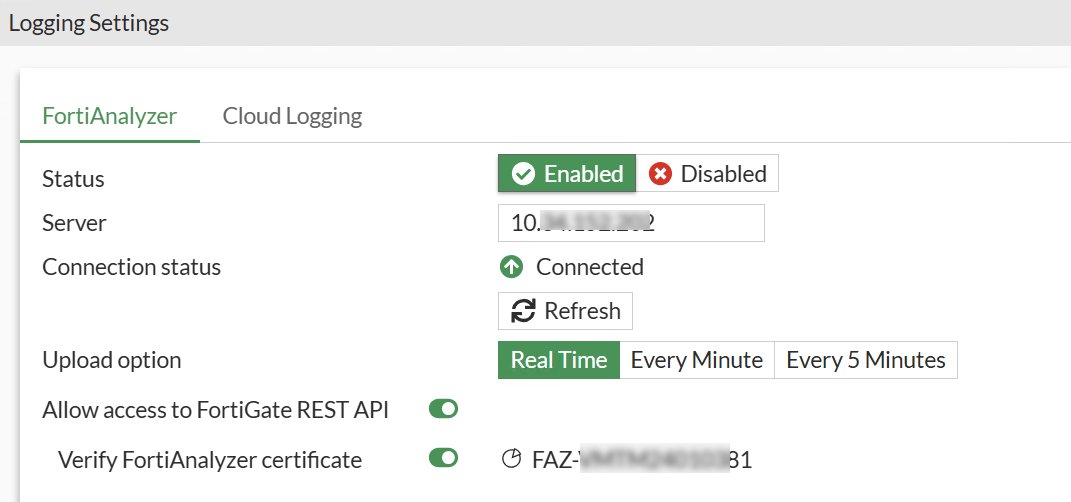
  1. On the FortiGate GUI, navigate to Fabric Connectors > Logging & Analytics > Logging Settings > FortiAnalyer and specify the FortiAnalyzer IP address.

  2. On the FortiAnalyzer GUI, navigate to System Settings >Advanced > Log Forwarding > Settings.

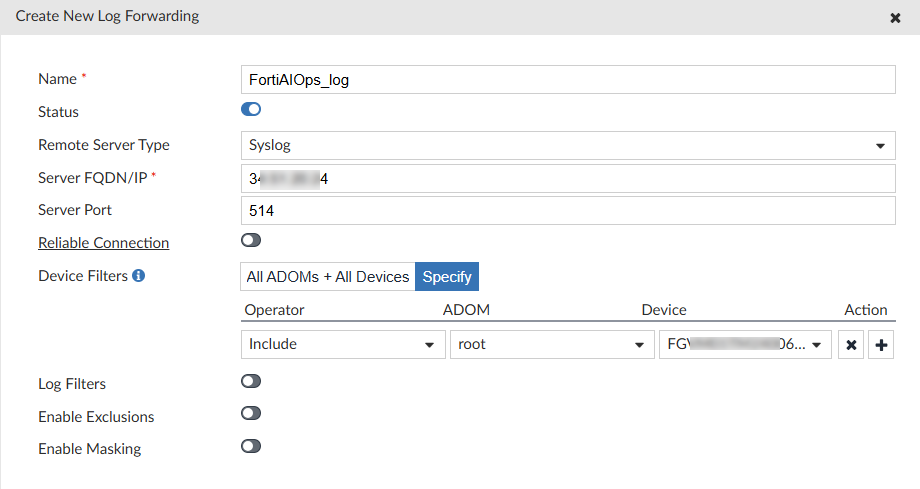
  3. Click Create New to create new log forwarding.

  4. Specify the FortiAIOps IP address and select the FortiGate controller in Device Filters.
    Note:

    • The syslog port is the default UDP port 514.

    • Enable Log Filters to choose either Traffic or Event; the remaining options are not used.

Enable Log Forwarding

Enable Log Forwarding

FortiGate logs must be forwarded to FortiAIOps for seamless identification of issues and populating proper data.

FortiAIOps supports direct FortiGate log forwarding and FortiAnalyzer log forwarding. You can enable log forwarding from FortiGate or FortiAnalyser based on the log storage used.

Forwarding Logs from FortiGate

To configure direct FortiGate log forwarding to FortiAIOps on the FortiGate GUI:

  1. Navigate Log & Report > Log Settings and select the Global Settings.

  2. Enter the IP address/FQDN with the FortiAIOps IP address.

  3. Click Apply.

To configure direct FortiGate log forwarding to FortiAIOps from FortiGate CLI, use the following commands:

config log syslogd setting

set status enable

set server 10.34.xxx.xxx

end

For more information, see FortiGate Administration Guide.

Forwarding Logs from FortiAnalyzer

For FortiGates using FortiAnalyzer as the log storage, log forwarding to FortiAIOps can be enabled directly from the FortiAnalyzer.

To configure FortiAnalyzer to forward FortiGate logs to FortiAIOps, you must first configure FortiGate remote logging to FortiAnalyzer and then forward logs from FortiAnalyzer to FortiAIOps.

  1. On the FortiGate GUI, navigate to Fabric Connectors > Logging & Analytics > Logging Settings > FortiAnalyer and specify the FortiAnalyzer IP address.


  2. On the FortiAnalyzer GUI, navigate to System Settings >Advanced > Log Forwarding > Settings.

  3. Click Create New to create new log forwarding.

  4. Specify the FortiAIOps IP address and select the FortiGate controller in Device Filters.

    Note:

    • The syslog port is the default UDP port 514.

    • Enable Log Filters to choose either Traffic or Event; the remaining options are not used.