

Using Securosys Primus HSM
A Hardware Security Module (HSM) is a specialized hardware appliance designed for secure cryptographic key generation, storage, and management. It performs critical cryptographic operations, including encryption, decryption, digital signing, and authentication, ensuring that sensitive data remains protected from unauthorized access and tampering.
FortiWeb integrates with Securosys Primus HSM, which provides a tamper-resistant environment for cryptographic key management and processing. Securosys Primus HSM is available in two deployment models:
- Primus HSM – A dedicated on-premises hardware appliance for secure key storage and cryptographic operations.
-
CloudHSM – A cloud-based HSM service that offers scalability, high availability, and reduced operational overhead by eliminating the need for on-premises infrastructure management.
By integrating with Securosys Primus HSM, FortiWeb offloads cryptographic operations to a dedicated hardware security module, ensuring robust key protection and efficient processing. Once configured, FortiWeb utilizes the HSM for SSL/TLS key management, digital signature operations, and secure encryption/decryption, leveraging hardware-accelerated cryptographic processing to enhance security and compliance with high-assurance standards.
Key Operations and Cryptographic Offloading
FortiWeb leverages the HSM for the following cryptographic functions:
-
SSL/TLS Key Protection – Private keys are securely generated and stored within the HSM, ensuring strict key isolation and mitigating the risk of unauthorized access or key extraction. The HSM enforces access control policies to prevent unauthorized use.
-
Hardware-Accelerated Cryptographic Processing – Computationally intensive cryptographic operations, such as RSA and ECC key exchanges, symmetric encryption, and hashing, are offloaded to the HSM. This reduces CPU overhead on FortiWeb and enhances overall system performance.
-
Secure Digital Signatures and Certificate Management – Cryptographic signing operations, including certificate signing and message authentication, are performed within the HSM. This ensures data integrity, non-repudiation, and compliance with security policies.
-
PKCS#11-Based Key Operations – The HSM provides a standardized PKCS#11 API for cryptographic key generation, encryption, decryption, and secure key lifecycle management. This enables FortiWeb to leverage hardware-backed cryptographic processing while maintaining strict key protection mechanisms.

|
FortiWeb does not currently support the Service Proxy feature offered by CloudHSM for key management and cryptographic operations. |
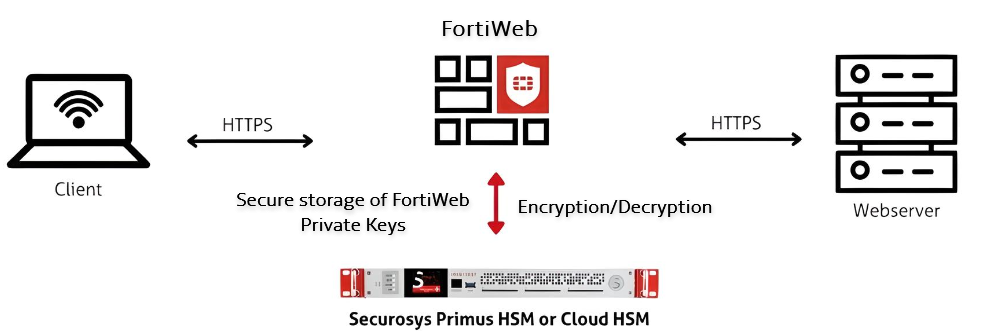
Session Establishment and Cryptographic Transactions
When an SSL/TLS session is initiated, FortiWeb interacts with the HSM as follows:
-
Session Initialization – FortiWeb establishes a secure communication channel with the HSM using the configured authentication parameters (PKCS#11 PIN and Permanent Secret).
-
Key Lookup and Validation – The system queries the HSM partition (identified by the Slot ID) to retrieve the corresponding cryptographic key.
-
Private Key Operations – SSL handshake operations (e.g., RSA decryption or ECDSA signing) are performed within the HSM, ensuring that private keys never leave the secure hardware.
-
SSL/TLS Session Completion – Once the handshake is complete, FortiWeb uses the negotiated session keys for data encryption and decryption, maintaining secure communication.
Configuration Overview
The following steps outline the process of integrating Securosys Primus HSM with FortiWeb for secure cryptographic key management and SSL/TLS operations. This workflow ensures that private keys remain securely stored within the HSM while enabling FortiWeb to utilize hardware-based encryption.
-
Enable HSM in Server Policy via CLI – Configure FortiWeb to recognize and use an HSM for cryptographic operations by enabling HSM support and specifying the manufacturer in the CLI.
-
Configure the HSM in FortiWeb — Set up the HSM connection in FortiWeb by providing authentication credentials and specifying the HSM partition.
-
Generate a Local CSR on FortiWeb — Create a CSR on FortiWeb with the Primus HSM enabled, selecting the appropriate HSM partition.
-
Obtain a Signed Certificate — Download the CSR, submit it to a Certificate Authority (CA) for signing, and retrieve the signed certificate.
-
Import the Signed Certificate into FortiWeb — Upload the signed certificate to FortiWeb for use in SSL/TLS encryption.
-
Apply the Certificate in Server Policy — Assign the imported certificate to the relevant server policy to secure traffic with HSM-backed encryption.
Prerequisites
Before configuring Securosys Primus HSM on FortiWeb, ensure the following prerequisites are met. These credentials and files are required when setting up PKCS pin authentication on FortiWeb:
-
Active account with HSM username, setup password, and PKCS#11 password.
-
PKCS#11 API provider installed on the client machine.
-
Primus HSM configuration file obtained and configured.
-
Client registered to the HSM server and permanent secret retrieved.
Enable HSM in Server Policy via CLI
Before configuring the HSM, FortiWeb must be explicitly configured to use an HSM for cryptographic operations. This is done through the CLI by enabling HSM support and specifying the manufacturer. Without this step, FortiWeb will not recognize the HSM for certificate storage and cryptographic functions.
-
Access the FortiWeb CLI via SSH or console.
-
Enter the following commands:
config server-policy setting
  set hsm enable
  set hsm-manufacturer primus
end
-
Save the configuration and verify that HSM support is enabled.
When HSM is successfully enabled, the Securosys Primus HSM page becomes accessible in the GUI, and the CLI commandconfig system nethsmcan be configured.
Configure the HSM in FortiWeb
Before FortiWeb can utilize Securosys Primus HSM, you must establish a connection between FortiWeb and the HSM. This requires uploading the Primus HSM configuration file and specifying authentication credentials, including the PKCS#11 password and permanent secret obtained during the prerequisite steps. FortiWeb uses these credentials to authenticate with the HSM, enabling secure key storage and cryptographic operations. Proper authentication ensures that only authorized systems can access and utilize the HSM.
-
Navigate to System > Config > Securosys Primus HSM.
-
Upload the Primus HSM configuration file.
-
Configure the HSM Partition.
-
Under the HSM Partition section, click Create New to add a new Primus HSM Partition.
-
Configure the following HSM Partition settings:
Name Define the partition name. This value must exactly match the
user_namefield in the uploaded Primus HSM configuration file to ensure authentication.For more information, see the Securosys documentation.
PKCS11 PIN Enter the PKCS#11 authentication PIN required to establish a secure session with the HSM. This PIN is used for cryptographic operations and must correspond to the PIN configured on the HSM. Secret Provide the Permanent Secret associated with the partition. This secret serves as a cryptographic key to authenticate and encrypt communications between FortiWeb and the HSM. Slot ID Specify the Slot ID corresponding to the HSM partition. This value must match the
iddefined in the uploaded configuration file. It corresponds to the PKCS#11 Slot ID assigned to the partition, serving as a unique identifier within the HSM. The correct Slot ID is required to establish secure access and ensure proper key management operations.For more information, see the Securosys documentation.
-
-
Enable the Status to activate the Primus HSM integration.
-
Click OK to apply the configuration.
Once saved, FortiWeb validates the configuration file and partition parameters. If all values match the expected HSM settings, the Primus HSM integration is established. At this point, cryptographic operations can be performed securely using the configured partition.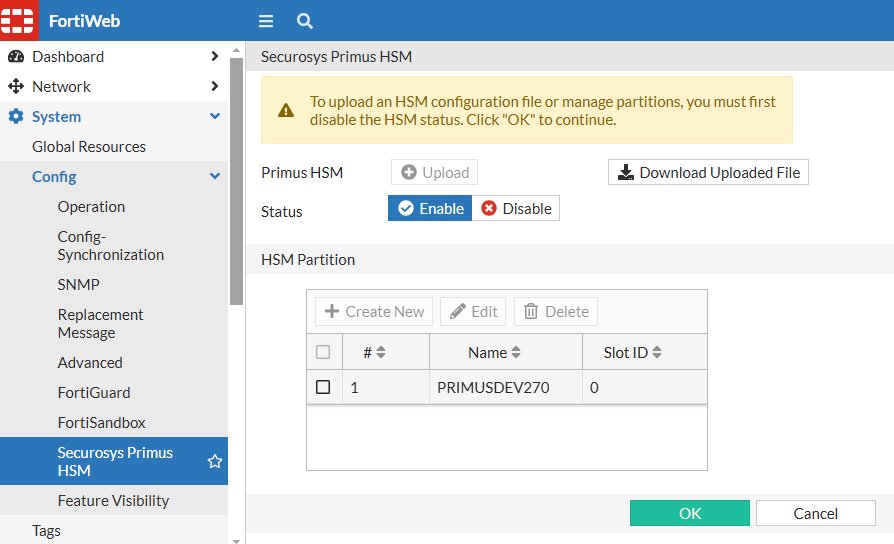

If
proxydfails to establish a connection to the Primus HSM during initialization, any policy that relies on an Primus HSM certificate will not bind to its configured service port. This can prevent affected services from accepting connections. Ensure that FortiWeb can reach the Primus HSM server and that authentication parameters are correctly configured to avoid service disruptions.

|
When Primus HSM is enabled, ASan debugging for |
Disabling the Primus HSM Configuration
Before disabling the Primus HSM configuration, you must remove all associated HSM-dependent configurations, including local certificates and CSRs of the Primus HSM type. After clearing these dependencies, you can modify or delete the HSM partition.
Generate a Local CSR on FortiWeb
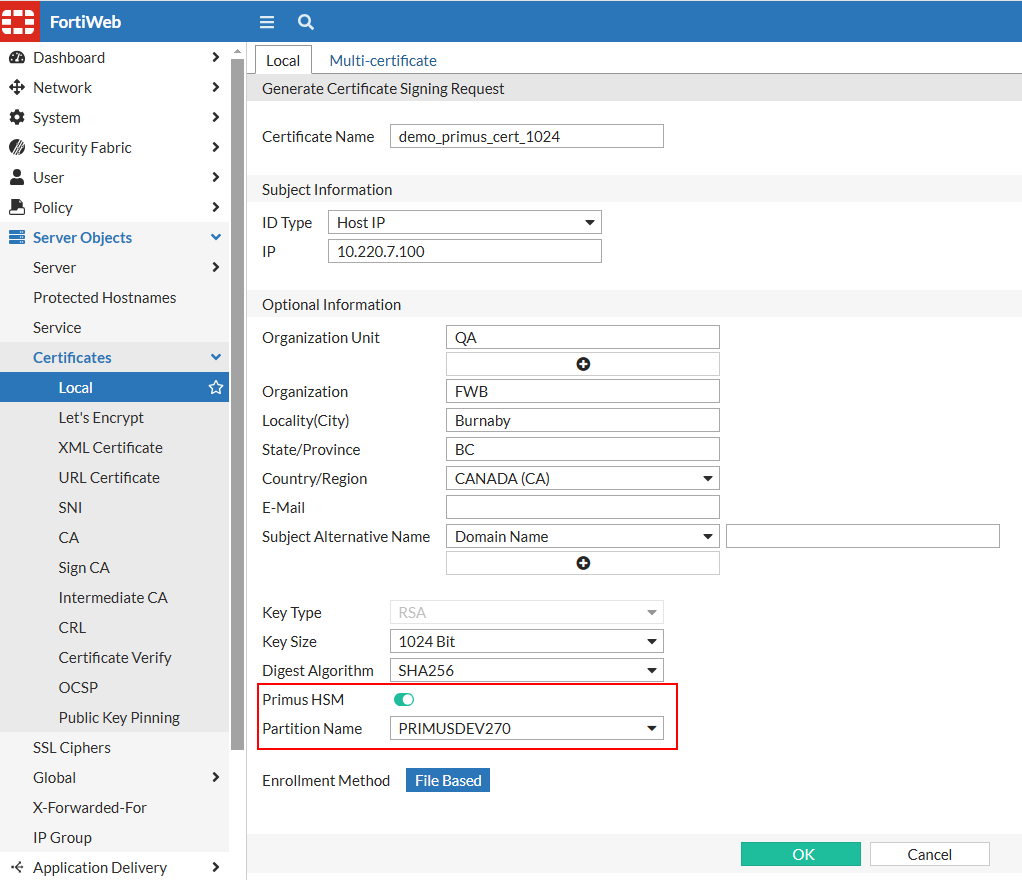
Once the HSM is configured, you must generate a CSR on FortiWeb. This CSR will be used to obtain an SSL/TLS certificate that is securely managed by the HSM. During CSR generation, the option to enable Primus HSM must be selected, and the correct HSM partition must be assigned. This ensures that the private key is stored securely within the HSM and is not exposed on FortiWeb.
-
Navigate to Server Objects > Certificates > Local.
The configuration page displays the Local tab. -
Click Generate to generate a new Certificate Signing Request.
-
Configure the following key settings:
- Primus HSM: Enable to apply the Primus HSM configuration.
- Partition Name: Select the HSM partition.
-
Click OK to save the configuration.
For details, see Generating a certificate signing request.
Obtain a Signed Certificate
After generating the CSR, it must be downloaded from FortiWeb and submitted to a trusted CA for signing. The CA will verify the request and issue a signed certificate that can be imported back into FortiWeb. This step is crucial for establishing a trusted SSL/TLS connection, as the signed certificate will be used to authenticate FortiWeb's identity to clients.
-
Navigate to Server Objects > Certificates > Local.
The Local tab displays the configuration page, where the previously generated CSR will be listed. -
Select the CSR from the list, then click Download in the top navigation. Follow the prompts to save the CSR file.
Import the Signed Certificate into FortiWeb
Once the signed certificate is obtained from the CA, it must be uploaded to FortiWeb. During the import process, FortiWeb will associate the certificate with the corresponding private key stored in the HSM. This integration allows FortiWeb to leverage the HSM for SSL/TLS encryption and decryption while maintaining strict security over private key access.
-
Navigate to Server Objects > Certificates > Local.
The configuration page displays the Local tab. -
Click Import to display the configuration page.
-
Set the Type to Local Certificate and click Upload. Follow the prompts to upload the certificate file with the private key stored in the HSM.
-
Click OK to save the configuration.
For details, see Uploading a server certificate.
Apply the Certificate in Server Policy
The final step is to apply the imported certificate in the FortiWeb server policy. This ensures that incoming SSL/TLS connections utilize the HSM-backed certificate for encryption and decryption. By integrating Securosys Primus HSM, FortiWeb enhances the security and performance of SSL/TLS transactions while maintaining compliance with strict cryptographic key management policies.
-
Navigate to Policy > Server Policy.
-
Edit an existing server policy or create a new one.
-
From the Certificate field, select the Primus HSM certificate.
-
Click OK to save the configuration.
|
|
TLS 1.0 and TLS 1.1 are not supported in the server policy when using a Primus HSM certificate. |
For details, see Configuring an HTTP server policy or Creating an HTTP server pool.
Monitoring and Troubleshooting
Effective monitoring and troubleshooting of the Securosys Primus HSM integration ensures reliable cryptographic operations and minimizes potential disruptions. The following key areas should be regularly checked:
-
Partition Status Verification — Navigate to System > Config > Securosys Primus HSM to confirm that the configured HSM partition is active and properly recognized by FortiWeb. Ensure that the partition is enabled and its status reflects successful connectivity to the HSM service.
-
Log Analysis – Review FortiWeb system logs to diagnose potential issues related to HSM authentication, key access failures, or cryptographic operation errors. Use the following CLI commands for detailed log inspection:
-
diagnose debug primuslog show– Displays debug logs related to the Primus HSM integration. -
diagnose debug pkcs11providerlog show– Shows logs for PKCS#11 provider operations, including key access and cryptographic function calls.
-
-
HSM Connectivity Checks – Verify network connectivity between FortiWeb and the Primus HSM appliance to prevent cryptographic request failures. This includes checking firewall policies, ensuring the required ports for HSM communication are open, and using diagnostic commands such as
execute pingorexecute telnetto test connectivity to the HSM endpoint.
By proactively monitoring these aspects, administrators can identify and resolve issues before they impact FortiWeb's cryptographic operations.