
Fortinet white logo
Fortinet white logo

Administration Guide

Password changing when using PAP authentication scheme through RADIUS server (7.6.0)

Password changing when using PAP authentication scheme through RADIUS server (7.6.0)

If FortiWeb is delegated to perform user authentication through a RADIUS server and you have implemented two-factor authentication with the PAP authentication scheme, previously, users could not change their passwords through your application.

Starting from version 7.6.0, this scenario is now supported. FortiWeb will display the corresponding messages to guide users through the password changing process.

This password changing process applies under the following conditions:

  • You are using RADIUS servers as the Authentication Server Pool in the Site Publish Rule.

  • In the RADIUS Server tab of User > Remote Server, PAP is selected as the Authentication Scheme .

Configurations on FortiWeb

To implement this, you need to customize the Site Publish Authentication > Token Page in System > Config > Replacement Message. This is the page FortiWeb displays to your users to guide them through the password changing process.

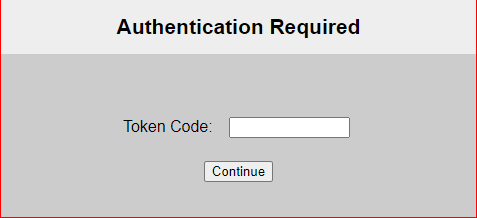
Default token page

The default token page contains a "Token Code:" text field.
Recommended customization

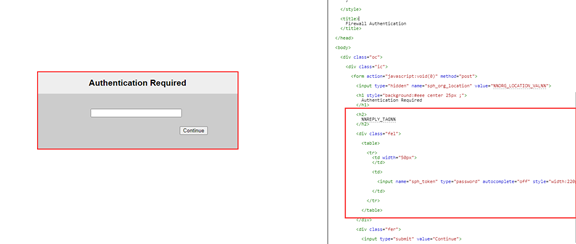
It's recommended to delete the "Token Code:" text. FortiWeb will use the variable %%REPLY_TAG%% to extract the corresponding text from the RADIUS server's responses and display it in the message. Ensure that the Reply Message setting (the name of this setting may vary depending on the server you use) in the RADIUS server is configured to include the content to be used by %%REPLY_TAG%%.
Example of the Password Changing Process

Login
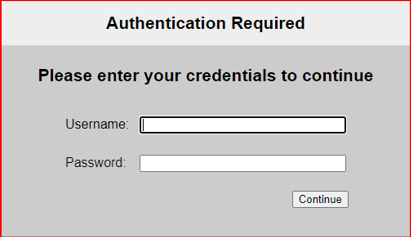
  • A user is required to enter his credentials when logging in.

  • This page corresponds to the Site Publish Authentication > Login Page in System > Config > Replacement Message.

  • The text "Please enter your credentials to continue" is extracted from the RADIUS server response by the variable %%REPLY_TAG%%.
Token Page
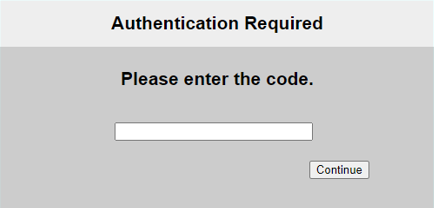
  • A token code will be required for two-factor authentication.

  • This page corresponds to the Site Publish Authentication > Token Page in System > Config > Replacement Message.

  • This is the Token page. The text "Please enter the code." is extracted from the RADIUS server response by the variable %%REPLY_TAG%%.
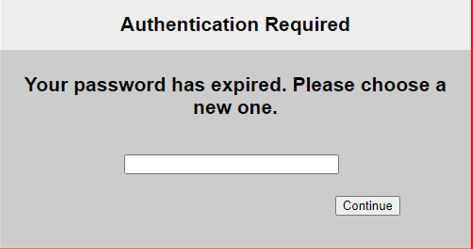
Password Expiry Notice
  • After successfully logging in, if the user's password has expired, they will see a message

  • This page corresponds to the Site Publish Authentication > Token Page in System > Config > Replacement Message.

  • The text "Your password has expired. Please choose a new one." is extracted from the RADIUS server response by the variable %%REPLY_TAG%%.
Password Confirmation
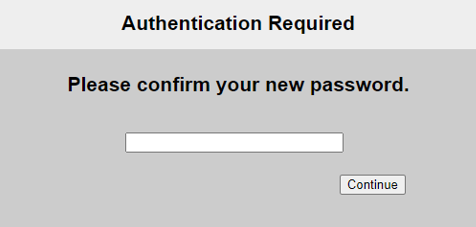
  • Another message will prompt the user to confirm the new password.

  • This page corresponds to the Site Publish Authentication > Token Page in System > Config > Replacement Message.

  • The text "Please confirm your new password." is extracted from the RADIUS server response by the variable %%REPLY_TAG%%.
Password Change Successful
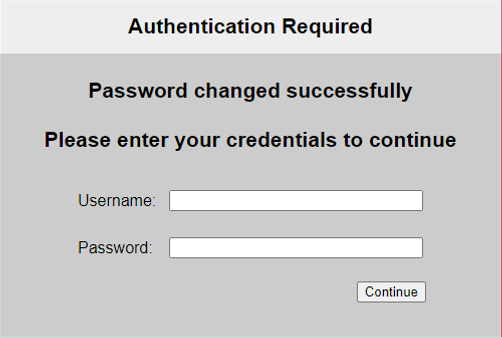
  • The user will be directed to the login page again to log in with the new password.
  • This page corresponds to the Site Publish Authentication > Login Page in System > Config > Replacement Message.
  • The text "Password changed successfully. Please enter your credentials to continue" is extracted from the RADIUS server response by the variable %%REPLY_TAG%%.
Related topics:

Password changing when using PAP authentication scheme through RADIUS server (7.6.0)

Password changing when using PAP authentication scheme through RADIUS server (7.6.0)

If FortiWeb is delegated to perform user authentication through a RADIUS server and you have implemented two-factor authentication with the PAP authentication scheme, previously, users could not change their passwords through your application.

Starting from version 7.6.0, this scenario is now supported. FortiWeb will display the corresponding messages to guide users through the password changing process.

This password changing process applies under the following conditions:

  • You are using RADIUS servers as the Authentication Server Pool in the Site Publish Rule.

  • In the RADIUS Server tab of User > Remote Server, PAP is selected as the Authentication Scheme .

Configurations on FortiWeb

To implement this, you need to customize the Site Publish Authentication > Token Page in System > Config > Replacement Message. This is the page FortiWeb displays to your users to guide them through the password changing process.

Default token page

The default token page contains a "Token Code:" text field.

Recommended customization

It's recommended to delete the "Token Code:" text. FortiWeb will use the variable %%REPLY_TAG%% to extract the corresponding text from the RADIUS server's responses and display it in the message. Ensure that the Reply Message setting (the name of this setting may vary depending on the server you use) in the RADIUS server is configured to include the content to be used by %%REPLY_TAG%%.

Example of the Password Changing Process

Login
  • A user is required to enter his credentials when logging in.

  • This page corresponds to the Site Publish Authentication > Login Page in System > Config > Replacement Message.

  • The text "Please enter your credentials to continue" is extracted from the RADIUS server response by the variable %%REPLY_TAG%%.

Token Page
  • A token code will be required for two-factor authentication.

  • This page corresponds to the Site Publish Authentication > Token Page in System > Config > Replacement Message.

  • This is the Token page. The text "Please enter the code." is extracted from the RADIUS server response by the variable %%REPLY_TAG%%.

Password Expiry Notice
  • After successfully logging in, if the user's password has expired, they will see a message

  • This page corresponds to the Site Publish Authentication > Token Page in System > Config > Replacement Message.

  • The text "Your password has expired. Please choose a new one." is extracted from the RADIUS server response by the variable %%REPLY_TAG%%.

Password Confirmation
  • Another message will prompt the user to confirm the new password.

  • This page corresponds to the Site Publish Authentication > Token Page in System > Config > Replacement Message.

  • The text "Please confirm your new password." is extracted from the RADIUS server response by the variable %%REPLY_TAG%%.

Password Change Successful
  • The user will be directed to the login page again to log in with the new password.
  • This page corresponds to the Site Publish Authentication > Login Page in System > Config > Replacement Message.
  • The text "Password changed successfully. Please enter your credentials to continue" is extracted from the RADIUS server response by the variable %%REPLY_TAG%%.

Related topics: