

Configuring SSL certificate for the administrator access to FortiWeb GUI via HTTPS
FortiWeb uses admin local certificates to establish secure HTTPS connections when an administrator accesses FortiWeb GUI. When the administrator opens the FortiWeb interface in their web browser, FortiWeb will present this certificate to authenticate itself. This process ensures that the browser can trust FortiWeb and that the communication between the browser and FortiWeb is encrypted, preventing unauthorized access or interception of data during the session.
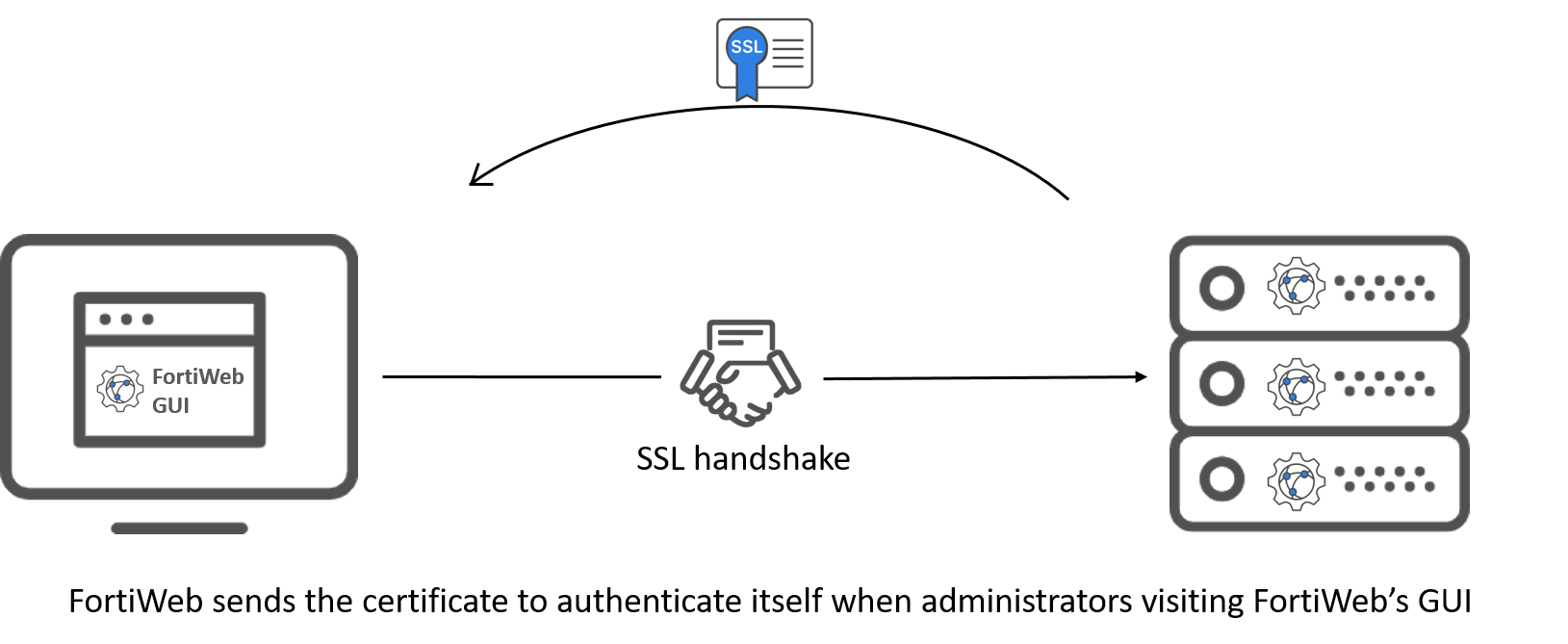
Previously, it's only allowed to upload a pre-generated Admin local certificate to FortiWeb. Starting from 7.6.1, you can generate an admin local certificate signing request (CSR) in FortiWeb, then use either of the following enrollment methods to get a signed admin certificate.
-
File based enrollment: Submit the CSR file to a certificate authority (CA) for signing. Once signed, upload the certificate to FortiWeb.

-
SCEP enrollment: FortiWeb automatically uses HTTP to submit the certificate issuing request to the SCEP server, which will validate and sign the certificate.
SCEP is Primarily used within organizations to automate the distribution and management of certificates for internal devices. It's commonly used for securing internal resources such as VPNs, Wi-Fi access, and device authentication. SCEP is focused on managing certificates in private, enterprise settings, typically through an organization's internal Public Key Infrastructure (PKI).

If you are not using a commercial CA whose root certificate is already installed by default on web browsers, you need to download the root certificate or intermediate certificate that signed the admin certificate, then install it on all computers that will be connecting to FortiWeb's GUI. If you do not install these, those computers may not trust your new certificate.
Refer to the following section for steps of configuring certificate for FortiWeb GUI access.
- Go to System > Admin > Certificates.
To access this part of the web UI, your administrator's account access profile must have Read and Write permission to items in the Admin Users category. For details, see Permissions. - Select the Admin Cert Local tab.
- Click Generate.
- Configure these settings to complete the certificate signing request:
- Host IP—Select if the FortiWeb appliance has a static IP address and enter the public IP address of the FortiWeb appliance in the IP field. If the FortiWeb appliance does not have a public IP address, use E-mail or Configuring SSL certificate for the administrator access to FortiWeb GUI via HTTPS instead.
- Domain Name—Select if the FortiWeb appliance has a static IP address and subscribes to a dynamic DNS service. Enter the FQDN of the FortiWeb appliance, such as
www.example.com, in the Domain Name field. Do not include the protocol specification (http://) or any port number or path names. - E-Mail—Select and enter the email address of the owner of the FortiWeb appliance in the e-mail field. Use this if the appliance does not require either a static IP address or a domain name.
- File Based—You must manually download and submit the resulting certificate request file to a certificate authority (CA) for signing. Once signed, upload the local certificate.
- Online SCEP—The FortiWeb appliance will automatically use HTTP to submit the request to the simple certificate enrollment protocol (SCEP) server of a CA, which will validate and sign the certificate. For this selection, two options appear. Enter the CA Server URL and the Challenge Password.
- Click OK.
| Certification Name | Enter a unique name for the certificate request, such as www.fortinet.com. This can be the name of the FortiWeb appliance. |
|
| Subject Information | Includes information that the certificate is required to contain in order to uniquely identify the FortiWeb appliance. This area varies depending on the Configuring SSL certificate for the administrator access to FortiWeb GUI via HTTPS selection. | |
| ID Type |
Select the type of identifier to use in the certificate to identify the FortiWeb appliance: The type you should select varies by whether or not your FortiWeb appliance has a static IP address, a fully-qualified domain name (FQDN), and by the primary intended use of the certificate. For example, if your FortiWeb appliance has both a static IP address and a domain name, but the local certificate is primarily used for HTTPS connections to the web UI via the domain name, it’s better to generate a certificate based on the domain name instead of the IP address. If the administrator attempts to access the GUI using the IP address, a certificate mismatch warning may occur because the certificate was issued for the domain name. Depending on your choice for ID Type, related options appear. |
|
| IP |
Type the static IP address of the FortiWeb appliance, such as The IP address should be one that is accessible to the administrator. Typically, this will either be a public IP address accessible over the Internet or a private IP address that is reachable within the administrator's private network. This option appears only if Configuring SSL certificate for the administrator access to FortiWeb GUI via HTTPS is Host IP. |
|
| Domain Name |
Type the fully qualified domain name (FQDN) of the FortiWeb appliance, such as The domain name must resolve to the static IP address of the FortiWeb appliance . For details, see Configuring the network interfaces. This option appears only if Configuring SSL certificate for the administrator access to FortiWeb GUI via HTTPS is Domain Name. |
|
|
Type the email address of the owner of the FortiWeb appliance, such as This option appears only if Configuring SSL certificate for the administrator access to FortiWeb GUI via HTTPS is E-Mail. |
||
| Optional Information | Includes information that you may include in the certificate, but which is not required. | |
| Organization unit |
Type the name of your organizational unit (OU), such as the name of your department. This is optional. To enter more than one OU name, click the + icon, and enter each OU separately in each field. |
|
| Organization | Type the legal name of your organization. This is optional. | |
| Locality(City) | Type the name of the city or town where the FortiWeb appliance is located. This is optional. | |
| State/Province | Type the name of the state or province where the FortiWeb appliance is located. This is optional. | |
| Country/Region | Select the name of the country where the FortiWeb appliance is located. This is optional. | |
|
Type an email address that may be used for contact purposes, such as This is optional. |
||
| Subject Alternative Names | Type the Subject Alternative Names to specify additional host names (sites, IP addresses, common names, etc.) to be protected by a single TLS certificate | |
| Key Type |
Displays the type of algorithm used to generate the key. This option cannot be changed, but appears in order to indicate that only RSA is currently supported. |
|
| Key Size | Select a secure key size of 1024 Bit, 1536 Bit or 2048 Bit. Larger keys are slower to generate, but provide better security. | |
|
Digest Algorithm |
Select whether to use SHA1 or SHA256 algorithm to generate the certificate signing request (CSR). |
|
| Enrollment Method |
Select either: |
|
The FortiWeb appliance creates a private and public key pair. The generated request includes the public key of the FortiWeb appliance and information such as the FortiWeb appliance’s IP address, domain name, or email address. The FortiWeb appliance’s private key remains confidential on the FortiWeb appliance. The Status column of the entry is PENDING.
If you have selected the Online SCEP enrollment method, FortiWeb will automatically retrieve certificate from the specified CA Server URL. When administrators visit FortiWeb's GUI, FortiWeb will present this certificate to authenticate itself.
If you have selected the File Based enrollment method, you need to perform the following steps to sign the CSR at a CA authority, then upload the signed certificate to FortiWeb.
- Select the CSR that has been generated by FortiWeb.
- Click Download.
- Upload the CSR to your CA.
- When you receive the signed certificate from the CA, click Import in the Admin Cert Local tab to upload the certificate.
Standard dialogs appear with buttons to save the file at a location you select. Your web browser downloads the certificate request .csr file. Time required varies by the size of the file and the speed of your network connection.
After you submit the request to a CA, the CA will verify the information in the certificate, give it a serial number, an expiration date, and sign it with the public key of the CA.
If you are not using a commercial CA whose root certificate is already installed by default on web browsers, you need to download the root certificate or intermediate certificate that signed the admin certificate, then install it on all computers that will be connecting to FortiWeb's GUI. If you do not install these, those computers may not trust your new certificate.