
Fortinet white logo
Fortinet white logo

Administration Guide

Configuring Advanced Bot Protection policy

Configuring Advanced Bot Protection policy

FortiWeb has integrated the FortiAppSec Cloud’s Advanced Bot Protection (ABP) service. It is a Fortinet SaaS advanced bot mitigation solution designed to detect and protect against sophisticated bots that may be used to conduct malicious automated attacks on your online applications, such as data harvesting, credential stuffing, account take-over attempts, DDoS attacks, and other fraudulent activities.

  • Sample Collection

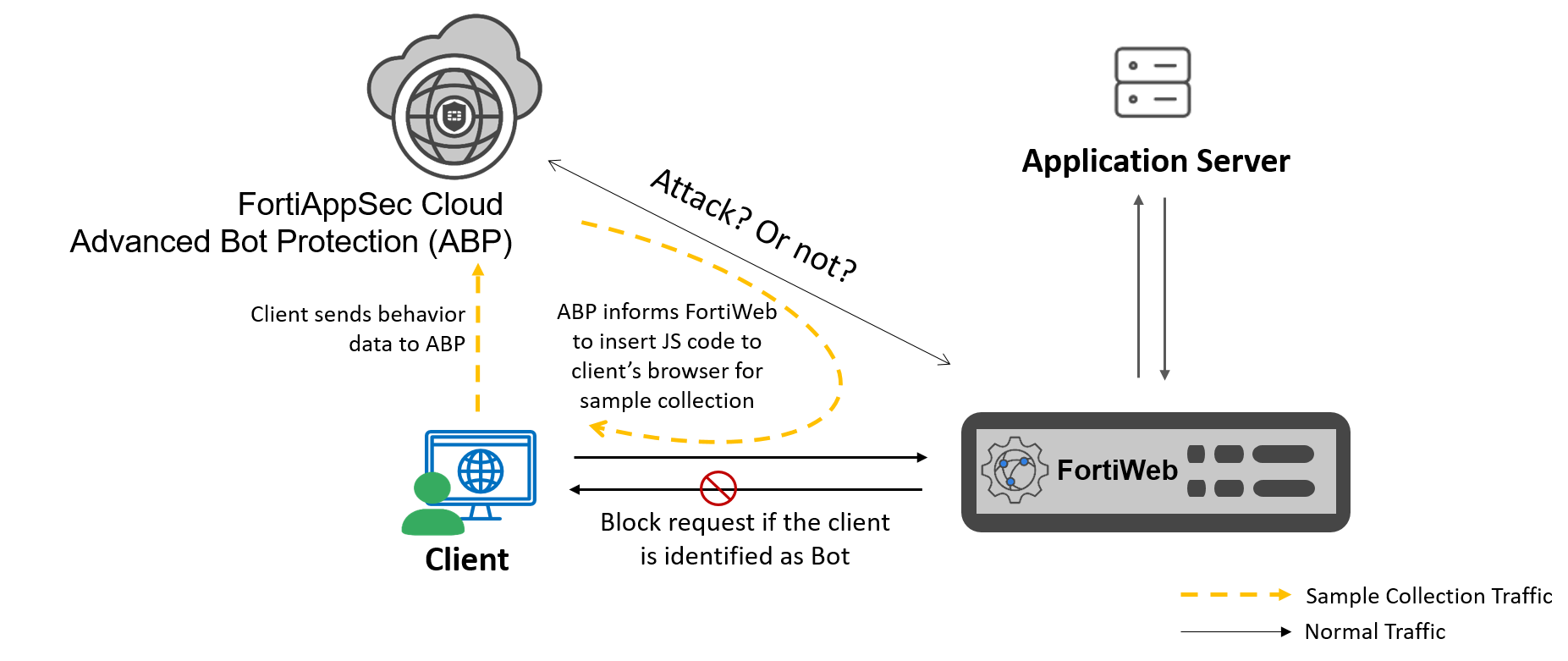
    To detect bot activity, the ABP service informs FortiWeb to inject a lightweight JavaScript into the client’s browser. This script collects behavioral data and request samples, which are then used to train a machine learning model capable of identifying patterns associated with normal user interactions. This continuous learning process enables ABP to distinguish between legitimate users and malicious bots with high accuracy.

  • Real-Time Bot Detection Workflow

    When a new request reaches FortiWeb, it is first forwarded to the ABP service for bot assessment. ABP analyzes the request behavior against its trained model:

    • Normal Behavior: If the request matches expected patterns, it is treated as legitimate, and FortiWeb proceeds with standard security processing.

    • Suspicious Behavior: If the behavior deviates significantly from learned norms, ABP flags the request as suspicious and notifies FortiWeb. FortiWeb can then respond accordingly—whether by logging the event, alerting administrators, or blocking the request outright.

  • Secure Communication with Mutual TLS

    All communication between FortiWeb and the ABP service is encrypted using Transport Layer Security (TLS). To ensure authenticity and integrity, both FortiWeb and ABP present certificates to establish mutual TLS authentication. This safeguards the attack query process from potential interception or tampering by malicious actors.

With a machine learning model at its core, combined with FortiGuard’s advanced traffic analysis capabilities, the ABP service delivers powerful, adaptive protection against evolving bot threats.
The Advanced Bot Protection feature is supported on the following hardware and cloud platforms:

  • Supported hardware models (platforms that support certificates signed by CA2):

    • FortiWeb 100E
    • FortiWeb 400E
    • FortiWeb 600E
    • FortiWeb 400F
    • FortiWeb 1000F
    • FortiWeb 2000F

    • FortiWeb 3000F

    • FortiWeb 4000F

  • Supported cloud platforms with BYOL (PAYG FortiWeb does not support Advanced Bot Protection feature):

    • AWS (Amazon Web Services)

    • Microsoft Azure

    • GCP (Google Cloud Platform)

    • OCI (Oracle Cloud Infrastructure)

  • Supported VM environments:

    • VMware vSphere Hypervisor ESX/ESXi 4.0/4.1/5.0/5.1/5.5/6.0/6.5/6.7/7.0/8.0.2/8.0.3
    • Citrix Xen Server 6.2/6.5/7.1
    • Open source Xen Project (Hypervisor) 4.9 and higher versions
    • Microsoft Hyper-V (version 6.2 or higher, running on Windows 8 or higher, or Windows Server 2012/2016/2019)
    • KVM (Linux kernel 2.6, 3.0, or 3.1)
    • OpenStack Wallaby
    • Nutanix AHV

The following sections introduce how to enable and incorporate ABP service in FortiWeb.

The email address associated with the account for logging in to FortiWeb, Support site, and ABP service must be the same.

Enabling ABP service service in FortiWeb:

  1. Contact Fortinet sales team to purchase a license with the FortiAppSec Cloud’s Advanced Bot Protection (ABP) service.
  2. Register the license on Support site (https://support.fortinet.com) with your FortiWeb account's email address. For details, see the Fortinet Knowledge Base Registration FAQ: http://kb.fortinet.com/kb/documentLink.do?externalID=12071
  3. Log in to FortiAppSec cloud (https://appsec.fortinet.com/), and navigate to Advanced Bot Protection. FortiAppSec cloud service and the support site utilize a common account management system, allowing you to log in to FortiAppSec cloud directly using your support site credentials.
    This step is to validate your FortiAppSec cloud ABP service license by logging in. It determines whether you can successfully enable ABP service in FortiWeb.
  4. Log in to FortiWeb.
  5. In the System Information Widget in Dashboard > Status, click Enable Advanced Bot Protection, then click OK in the pop-up window.
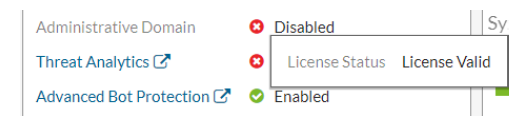
  6. Check the status of Advanced Bot Protection in the Licenses widget in Dashboard > Status. It should be displayed as Valid.

Currently, the status of Advanced Bot Protection under Licenses widget shows the contract status under the SN only, while the Status under System Information includes account service and/or SN related contract status.


Incorporating an ABP service policy in FortiWeb:

  1. Log in to FortiAppSec cloud (https://appsec.fortinet.com/), and navigate to Advanced Bot Protection.
  2. In Application, click Create New.
  3. In the Create Application wizard, configure the following:
    1. Enter the domain name of your application.
    2. Select the location that is close to your application servers. ABP service is hosted in both the EU and US regions of Google Cloud. Opting for a region near your application server can significantly decrease network latency when ABP service processes your traffic.
    3. Provide a distinctive name for your application to facilitate easy identification.
    4. Click Advanced Settings, then enter the login URLs of your application that you want ABP service to protect.
      This setting is optional. ABP service can automatically analyze your domain and identify the login URLs. However, if you wish to highlight the login URL for special attention by ABP service, ensuring it is not overlooked in the Pre-Provisioning process, please go ahead and add it manually.
    5. Click Add.
  4. Go to Application. Find the application you have added, click the Settings icon in the Action column, then click Copy Application ID. You will use this ID later when configuring the ABP service related settings in FortiWeb.
  5. Log in to FortiWeb.
  6. Go to Bot Mitigation > Advanced Bot Protection.
  7. Click Create New.
  8. Configure the following settings:

    Setting

    Description

    NameEnter a name for the Advanced Bot Protection policy. You can reference it in the Web Protection Profile.
    Application ID

    Enter the Application ID assigned to your ABP service Application.

    The Application ID is used to bind this Advanced Bot Protection policy to the ABP service Application.

    To obtain the ID, go to Application page of ABP service, under the Application ID column, copy the Application ID.

    Action

    Select which action FortiWeb will take when ABP service suggests a request is from a bot:

    • Alert — Accept the connection and generate an alert email and/or log message.

    • Alert & Deny — Block the request (or reset the connection) and generate an alert and/or log message.

    • Deny (no log) — Block the request (or reset the connection).

    • Block Period — Block subsequent requests from the same IP address for a number of seconds.

    • Client ID Block Period — Block a malicious or suspicious client based on the FortiWeb generated client ID. This is useful when the source IP of a certain client keeps changing. This option takes effect only when you enable Client Management in the Server Policy.

    The default value is Alert.

    Period Block

    Enter the number of seconds that you want to block subsequent requests from a client. The valid range is 1–3,600 seconds (1 hour).

    This setting is available only if Action is set to Period Block and Client ID Block Period.

    Severity

    When request from a bot is recorded in the attack log, each log message contains a Severity Level (severity_level) field. Select which severity level FortiWeb will use:

    • Informative

    • Low

    • Medium

    • High

    The default value is Medium.

    Trigger PolicySelect the trigger, if any, that FortiWeb will use when it logs and/or sends an alert email about ABP service violation.
    ExceptionSelect the exception policy which specifies the elements to be exempted from the ABP service scan.
    Bot confirmationEnable it to send clients bot verification requests.
    Verification Method
    • CAPTCHA Enforcement — Requires the client to successfully fulfill a CAPTCHA request. CAPTCHA verification will not pop out for the bot confirmation again for the same user within 10 mins timeout.

    • reCAPTCHA Enforcement — Requires the client to successfully fulfill a reCAPTCHA request.

    reCAPTCHA serverSelect the reCAPTCHA server you have created in the reCAPTCHA Server tab in User > Remote Server.
    Max Attempt Times

    If CAPTCHA Enforcement is selected for Verification Method, enter the maximum number of attempts that a client may attempt to fulfill a CAPTCHA request.

    Validation Timeout

    Enter the maximum amount of time (in seconds) that FortiWeb waits for results from the client.

  9. Click OK.
  10. Go to Policy > Web Protection Profile.
  11. Select the Inline Protection Profile tab.
  12. Select an existing web protection profile to which you want to include the Advanced Bot Protection policy.
  13. Click Edit.
  14. For Bot Mitigation > Advanced Bot Protection, select the Advanced Bot Protection policy from the drop down list.

    Note: To view details about a selected Advanced Bot Protection policy, click the view icon next to the drop down list.

  15. Click OK.

The Advanced Bot Protection policy does not activate until the ABP service Application is fully analyzed and Pre-Provisioned to protect the Application.

Pre-Provisioning is required to identify all URLs that should be protected in your Application domain (such as login URLs), and the locations to which JavaScript need to be inserted to collect client information. Without these resources, the system will not be able to insert the necessary JavaScript for bot detection.

Pre-Provisioning is triggered upon creating the Application, and requires 2 to 3 days to complete. During this process, your ABP service Application will be in Pending status until Pre-Provisioning is complete. Only when the Application status is Ready, Advanced Bot Protection is actually activated to process traffic.

Configuring Advanced Bot Protection policy

Configuring Advanced Bot Protection policy

FortiWeb has integrated the FortiAppSec Cloud’s Advanced Bot Protection (ABP) service. It is a Fortinet SaaS advanced bot mitigation solution designed to detect and protect against sophisticated bots that may be used to conduct malicious automated attacks on your online applications, such as data harvesting, credential stuffing, account take-over attempts, DDoS attacks, and other fraudulent activities.

  • Sample Collection

    To detect bot activity, the ABP service informs FortiWeb to inject a lightweight JavaScript into the client’s browser. This script collects behavioral data and request samples, which are then used to train a machine learning model capable of identifying patterns associated with normal user interactions. This continuous learning process enables ABP to distinguish between legitimate users and malicious bots with high accuracy.

  • Real-Time Bot Detection Workflow

    When a new request reaches FortiWeb, it is first forwarded to the ABP service for bot assessment. ABP analyzes the request behavior against its trained model:

    • Normal Behavior: If the request matches expected patterns, it is treated as legitimate, and FortiWeb proceeds with standard security processing.

    • Suspicious Behavior: If the behavior deviates significantly from learned norms, ABP flags the request as suspicious and notifies FortiWeb. FortiWeb can then respond accordingly—whether by logging the event, alerting administrators, or blocking the request outright.

  • Secure Communication with Mutual TLS

    All communication between FortiWeb and the ABP service is encrypted using Transport Layer Security (TLS). To ensure authenticity and integrity, both FortiWeb and ABP present certificates to establish mutual TLS authentication. This safeguards the attack query process from potential interception or tampering by malicious actors.

With a machine learning model at its core, combined with FortiGuard’s advanced traffic analysis capabilities, the ABP service delivers powerful, adaptive protection against evolving bot threats.

The Advanced Bot Protection feature is supported on the following hardware and cloud platforms:

  • Supported hardware models (platforms that support certificates signed by CA2):

    • FortiWeb 100E
    • FortiWeb 400E
    • FortiWeb 600E
    • FortiWeb 400F
    • FortiWeb 1000F
    • FortiWeb 2000F

    • FortiWeb 3000F

    • FortiWeb 4000F

  • Supported cloud platforms with BYOL (PAYG FortiWeb does not support Advanced Bot Protection feature):

    • AWS (Amazon Web Services)

    • Microsoft Azure

    • GCP (Google Cloud Platform)

    • OCI (Oracle Cloud Infrastructure)

  • Supported VM environments:

    • VMware vSphere Hypervisor ESX/ESXi 4.0/4.1/5.0/5.1/5.5/6.0/6.5/6.7/7.0/8.0.2/8.0.3
    • Citrix Xen Server 6.2/6.5/7.1
    • Open source Xen Project (Hypervisor) 4.9 and higher versions
    • Microsoft Hyper-V (version 6.2 or higher, running on Windows 8 or higher, or Windows Server 2012/2016/2019)
    • KVM (Linux kernel 2.6, 3.0, or 3.1)
    • OpenStack Wallaby
    • Nutanix AHV

The following sections introduce how to enable and incorporate ABP service in FortiWeb.

The email address associated with the account for logging in to FortiWeb, Support site, and ABP service must be the same.

Enabling ABP service service in FortiWeb:

  1. Contact Fortinet sales team to purchase a license with the FortiAppSec Cloud’s Advanced Bot Protection (ABP) service.
  2. Register the license on Support site (https://support.fortinet.com) with your FortiWeb account's email address. For details, see the Fortinet Knowledge Base Registration FAQ: http://kb.fortinet.com/kb/documentLink.do?externalID=12071
  3. Log in to FortiAppSec cloud (https://appsec.fortinet.com/), and navigate to Advanced Bot Protection. FortiAppSec cloud service and the support site utilize a common account management system, allowing you to log in to FortiAppSec cloud directly using your support site credentials.
    This step is to validate your FortiAppSec cloud ABP service license by logging in. It determines whether you can successfully enable ABP service in FortiWeb.
  4. Log in to FortiWeb.
  5. In the System Information Widget in Dashboard > Status, click Enable Advanced Bot Protection, then click OK in the pop-up window.
  6. Check the status of Advanced Bot Protection in the Licenses widget in Dashboard > Status. It should be displayed as Valid.

Currently, the status of Advanced Bot Protection under Licenses widget shows the contract status under the SN only, while the Status under System Information includes account service and/or SN related contract status.


Incorporating an ABP service policy in FortiWeb:

  1. Log in to FortiAppSec cloud (https://appsec.fortinet.com/), and navigate to Advanced Bot Protection.
  2. In Application, click Create New.
  3. In the Create Application wizard, configure the following:
    1. Enter the domain name of your application.
    2. Select the location that is close to your application servers. ABP service is hosted in both the EU and US regions of Google Cloud. Opting for a region near your application server can significantly decrease network latency when ABP service processes your traffic.
    3. Provide a distinctive name for your application to facilitate easy identification.
    4. Click Advanced Settings, then enter the login URLs of your application that you want ABP service to protect.
      This setting is optional. ABP service can automatically analyze your domain and identify the login URLs. However, if you wish to highlight the login URL for special attention by ABP service, ensuring it is not overlooked in the Pre-Provisioning process, please go ahead and add it manually.
    5. Click Add.
  4. Go to Application. Find the application you have added, click the Settings icon in the Action column, then click Copy Application ID. You will use this ID later when configuring the ABP service related settings in FortiWeb.
  5. Log in to FortiWeb.
  6. Go to Bot Mitigation > Advanced Bot Protection.
  7. Click Create New.
  8. Configure the following settings:

    Setting

    Description

    NameEnter a name for the Advanced Bot Protection policy. You can reference it in the Web Protection Profile.
    Application ID

    Enter the Application ID assigned to your ABP service Application.

    The Application ID is used to bind this Advanced Bot Protection policy to the ABP service Application.

    To obtain the ID, go to Application page of ABP service, under the Application ID column, copy the Application ID.

    Action

    Select which action FortiWeb will take when ABP service suggests a request is from a bot:

    • Alert — Accept the connection and generate an alert email and/or log message.

    • Alert & Deny — Block the request (or reset the connection) and generate an alert and/or log message.

    • Deny (no log) — Block the request (or reset the connection).

    • Block Period — Block subsequent requests from the same IP address for a number of seconds.

    • Client ID Block Period — Block a malicious or suspicious client based on the FortiWeb generated client ID. This is useful when the source IP of a certain client keeps changing. This option takes effect only when you enable Client Management in the Server Policy.

    The default value is Alert.

    Period Block

    Enter the number of seconds that you want to block subsequent requests from a client. The valid range is 1–3,600 seconds (1 hour).

    This setting is available only if Action is set to Period Block and Client ID Block Period.

    Severity

    When request from a bot is recorded in the attack log, each log message contains a Severity Level (severity_level) field. Select which severity level FortiWeb will use:

    • Informative

    • Low

    • Medium

    • High

    The default value is Medium.

    Trigger PolicySelect the trigger, if any, that FortiWeb will use when it logs and/or sends an alert email about ABP service violation.
    ExceptionSelect the exception policy which specifies the elements to be exempted from the ABP service scan.
    Bot confirmationEnable it to send clients bot verification requests.
    Verification Method
    • CAPTCHA Enforcement — Requires the client to successfully fulfill a CAPTCHA request. CAPTCHA verification will not pop out for the bot confirmation again for the same user within 10 mins timeout.

    • reCAPTCHA Enforcement — Requires the client to successfully fulfill a reCAPTCHA request.

    reCAPTCHA serverSelect the reCAPTCHA server you have created in the reCAPTCHA Server tab in User > Remote Server.
    Max Attempt Times

    If CAPTCHA Enforcement is selected for Verification Method, enter the maximum number of attempts that a client may attempt to fulfill a CAPTCHA request.

    Validation Timeout

    Enter the maximum amount of time (in seconds) that FortiWeb waits for results from the client.

  9. Click OK.
  10. Go to Policy > Web Protection Profile.
  11. Select the Inline Protection Profile tab.
  12. Select an existing web protection profile to which you want to include the Advanced Bot Protection policy.
  13. Click Edit.
  14. For Bot Mitigation > Advanced Bot Protection, select the Advanced Bot Protection policy from the drop down list.

    Note: To view details about a selected Advanced Bot Protection policy, click the view icon next to the drop down list.

  15. Click OK.

The Advanced Bot Protection policy does not activate until the ABP service Application is fully analyzed and Pre-Provisioned to protect the Application.

Pre-Provisioning is required to identify all URLs that should be protected in your Application domain (such as login URLs), and the locations to which JavaScript need to be inserted to collect client information. Without these resources, the system will not be able to insert the necessary JavaScript for bot detection.

Pre-Provisioning is triggered upon creating the Application, and requires 2 to 3 days to complete. During this process, your ABP service Application will be in Pending status until Pre-Provisioning is complete. Only when the Application status is Ready, Advanced Bot Protection is actually activated to process traffic.