Fortinet white logo
Fortinet white logo

User Guide

Creating and Restoring ESX Snapshots

Creating and Restoring ESX Snapshots

Create FortiSIEM VM Snapshot

Follow these steps to create snapshots for FortiSIEM nodes.

  1. ssh into the supervisor node as root.
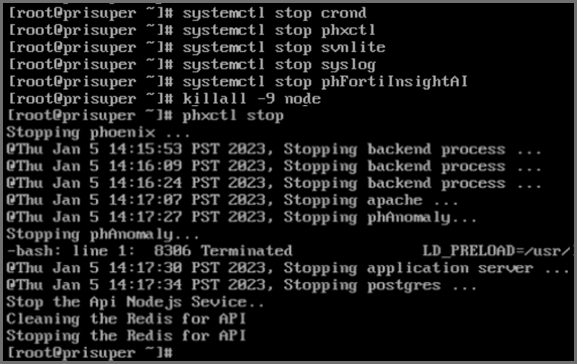
  2. Run the following commands to stop all essential FortiSIEM services.
    # systemctl stop crond
    # systemctl stop phxctl
    # systemctl stop svnlite
    # systemctl stop syslog
    # systemctl stop phFortiInsightAI
    # killall -9 node
    # phxctl stop
    

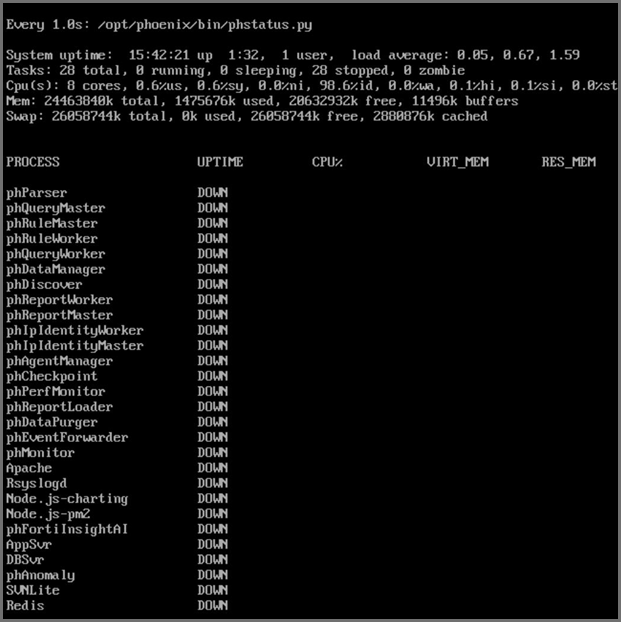
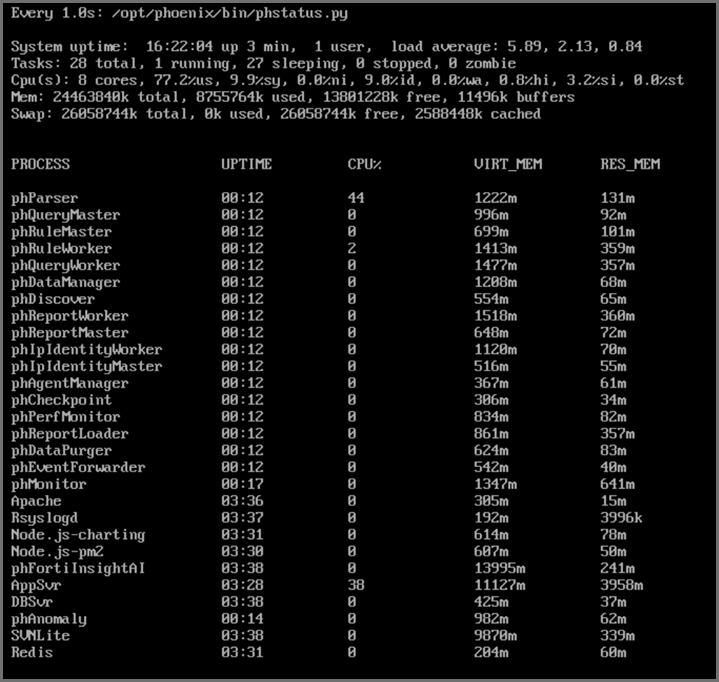
  3. Run phstatus and verify all services are down.


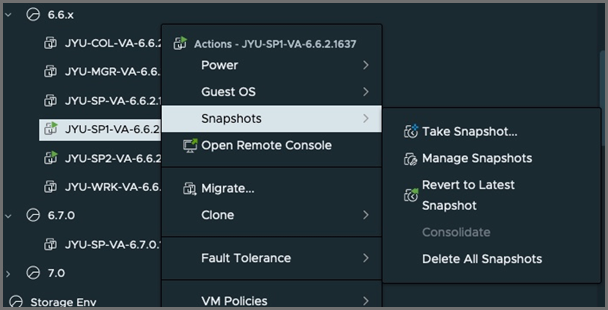
  4. Find the FortiSIEM VM inside your hypervisor and click Snapshots > Take Snapshot....

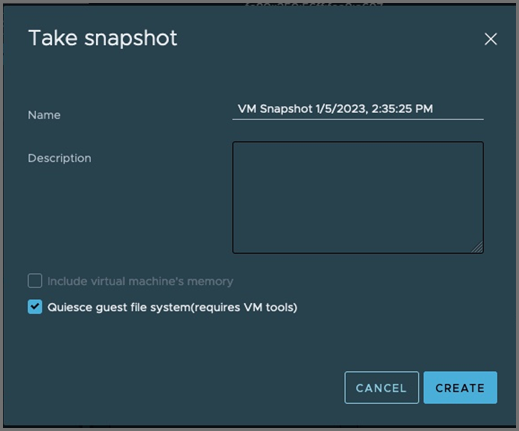
  5. In the follow up dialog, take the following steps.
    1. Uncheck the Include virtual machine’s memory checkbox for a quick snapshot.
    2. Check the Quiesce guest file system checkbox to ensure filesystem integrity.
    3. Click CREATE.


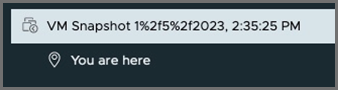
  6. Check the Snapshot section of the VM in order to verify snapshot has been taken.
  7. Restart all FortiSIEM Services after the snapshot has been taken, by running the following commands.
    # systemctl start crond
    # systemctl start phxctl
    # systemctl start svnlite
    # systemctl start syslog
    # systemctl start phFortiInsightAI
    # phxctl start
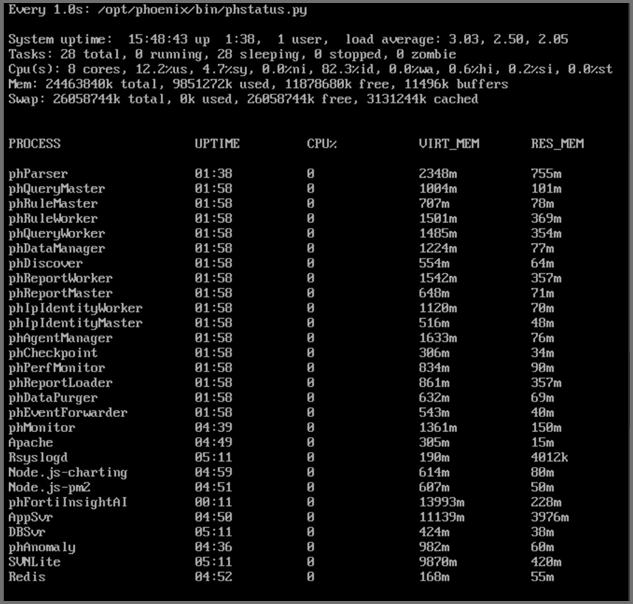
    # phstatus


Restoring FortiSIEM VM from Snapshot

Take the following steps to restore a VM from a snapshot.

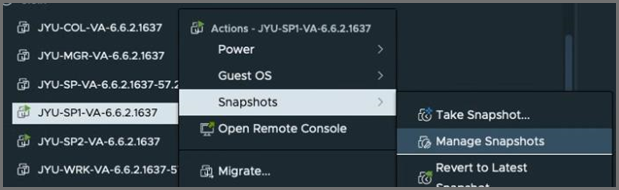
  1. Find the currently running VM in vSphere, right click on the VM, and navigate to Snapshots > Manage Snapshots.
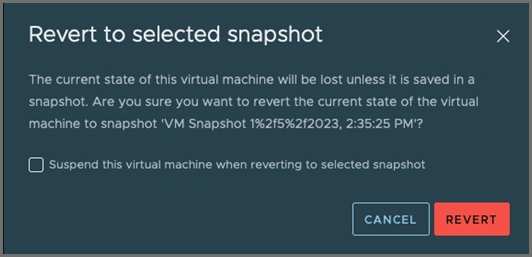
  2. Select the snapshot in the list that you want to restore, and select REVERT.
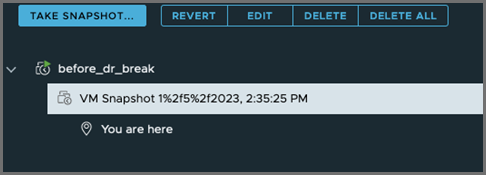
  3. On the pop-up window, select REVERT.

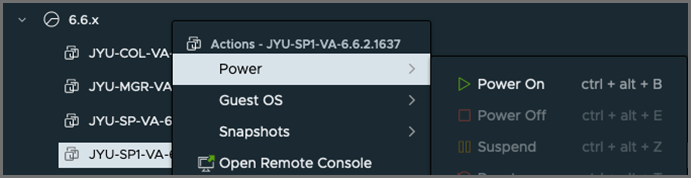
  4. The VM will be reverted to the selected snapshot and be left turned off. Right click the VM, and navigate to Power > Power On.

    This will turn the VM on from the point of the snapshot and services will start up as normal.

Creating and Restoring ESX Snapshots

Creating and Restoring ESX Snapshots

Create FortiSIEM VM Snapshot

Follow these steps to create snapshots for FortiSIEM nodes.

  1. ssh into the supervisor node as root.
  2. Run the following commands to stop all essential FortiSIEM services.
    # systemctl stop crond
    # systemctl stop phxctl
    # systemctl stop svnlite
    # systemctl stop syslog
    # systemctl stop phFortiInsightAI
    # killall -9 node
    # phxctl stop
    

  3. Run phstatus and verify all services are down.


  4. Find the FortiSIEM VM inside your hypervisor and click Snapshots > Take Snapshot....


  5. In the follow up dialog, take the following steps.
    1. Uncheck the Include virtual machine’s memory checkbox for a quick snapshot.
    2. Check the Quiesce guest file system checkbox to ensure filesystem integrity.
    3. Click CREATE.


  6. Check the Snapshot section of the VM in order to verify snapshot has been taken.

  7. Restart all FortiSIEM Services after the snapshot has been taken, by running the following commands.
    # systemctl start crond
    # systemctl start phxctl
    # systemctl start svnlite
    # systemctl start syslog
    # systemctl start phFortiInsightAI
    # phxctl start
    # phstatus


Restoring FortiSIEM VM from Snapshot

Take the following steps to restore a VM from a snapshot.

  1. Find the currently running VM in vSphere, right click on the VM, and navigate to Snapshots > Manage Snapshots.

  2. Select the snapshot in the list that you want to restore, and select REVERT.

  3. On the pop-up window, select REVERT.

  4. The VM will be reverted to the selected snapshot and be left turned off. Right click the VM, and navigate to Power > Power On.

    This will turn the VM on from the point of the snapshot and services will start up as normal.