Fortinet white logo
Fortinet white logo

User Guide

Configuring and Running Contextual Playbooks

Configuring and Running Contextual Playbooks

Contextual playbooks display only the Configure option in the Security Orchestration module. The Run Automation option for these playbooks is available only on specific FortiRecon pages.

  • You can also run predefined playbooks or create and run new contextual playbooks from Security Orchestration > Playbooks. See Playbooks.

  • For example, to configure and run the Create Ticket for EASM Security Issues playbook:

    1. Go to the Ticketing Automation collection in Security Orchestration > Home > Playbook Collections section.
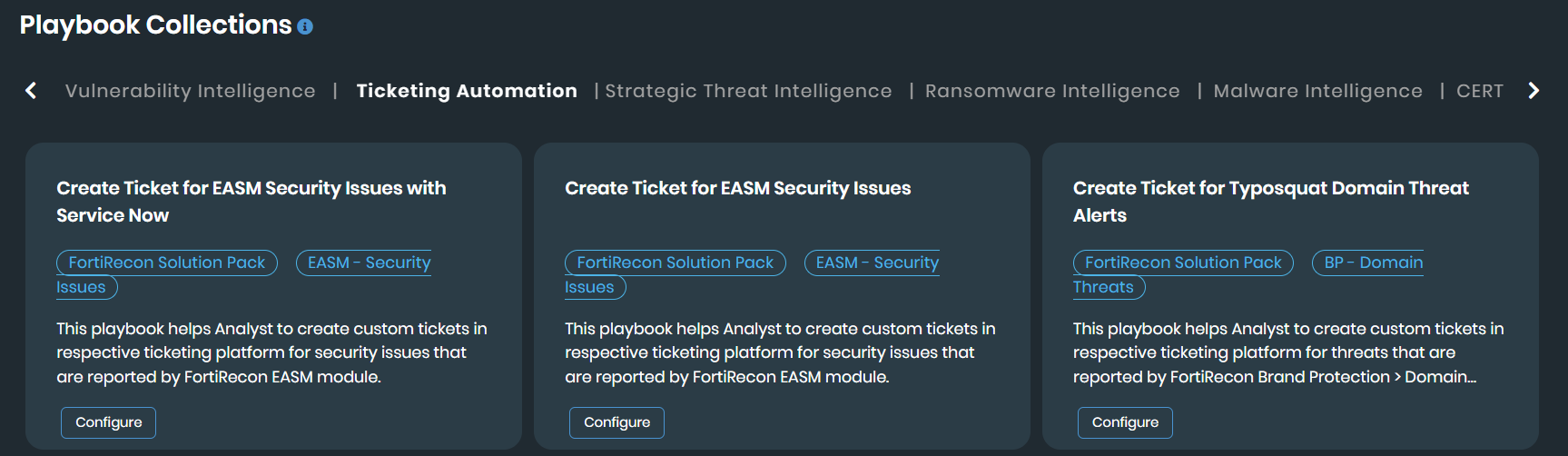
    2. Select Create Ticket for EASM Security Issues. Click Configure and then click Start.

    3. Configure the Jira connector by providing the necessary information:

      • Configuration Name: Provide a name for configuration.

      • Server URL: (e.g., https://api.test.atlassian.com/)

      • Username: Enter a username with access to the desired project for creating tickets in Jira.

      • API Token: Provide the API token for the configured user.

      • Verify SSL: Enable this toggle if required.

      • Tags: Add tags if required.

    4. Click Save.

    5. Click Next after successful configuration, then click Close. The playbook is now configured.

      Note

      By default, the solution pack includes a Jira connector. However, you can replace this with any other ticketing platform. To check the availability of other ticketing platform connectors, visit Security Orchestration > Content Hub > Discover.

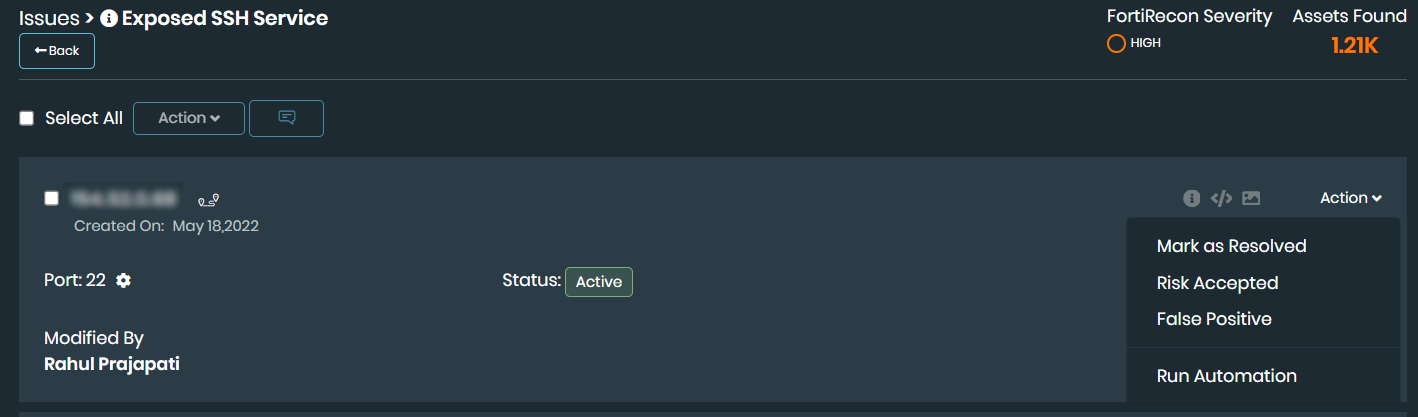
    6. To run the playbook, navigate to Attack Surface Management > Security Issues (EASM).

    7. Select any issue.

    8. Under the Action menu, click Run Automation. You will see the configured playbook listed.
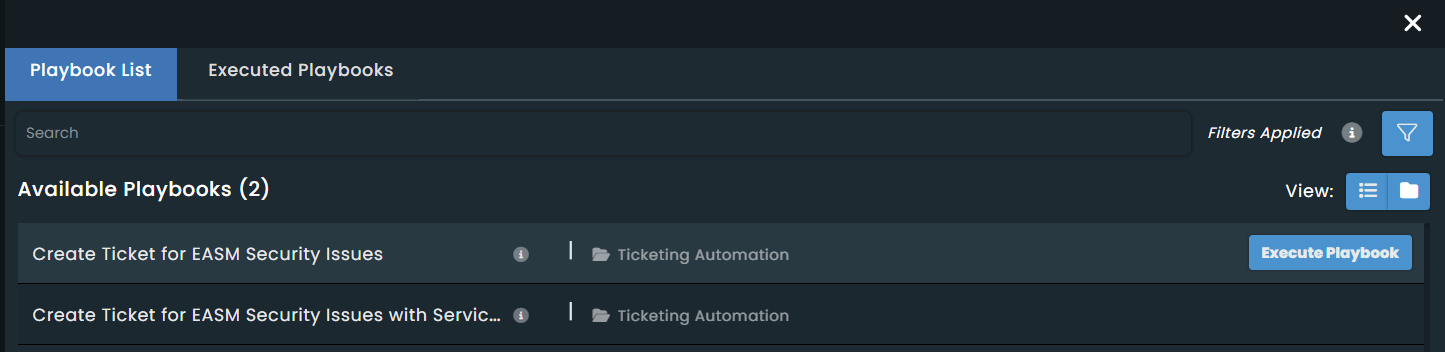
    9. Click Execute Playbook.

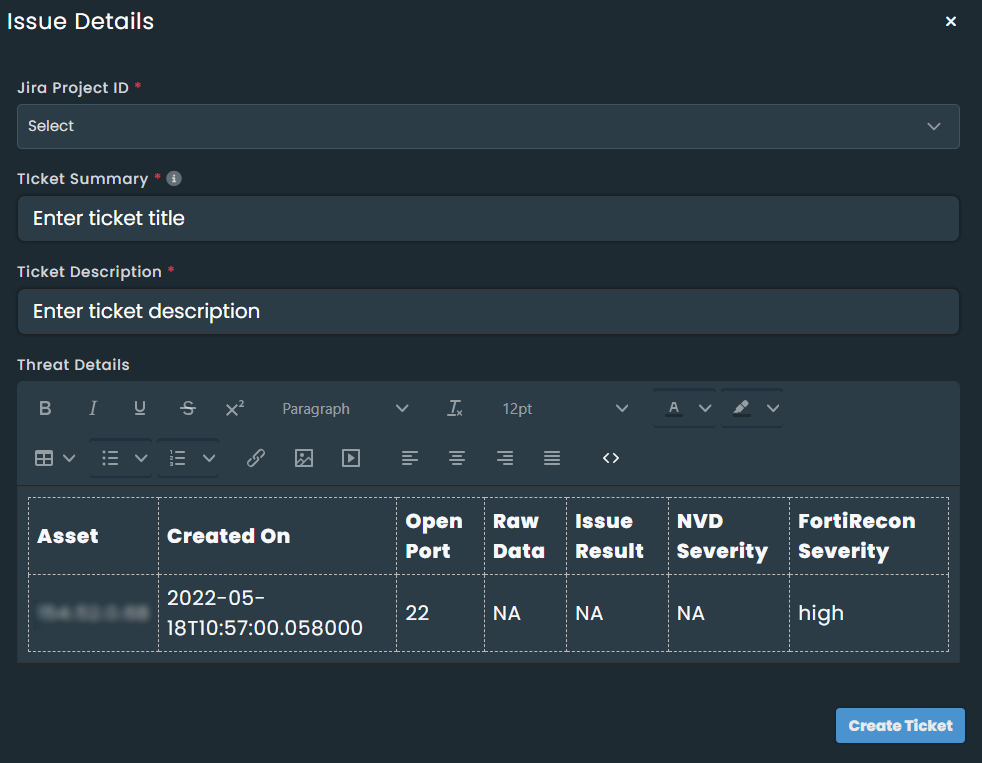
    10. The Issue Details input dialog opens. This is a step within the playbook. Provide the required information, select the project ID, enter the ticket summary and description, and then click Create Ticket.
      To view the playbook steps, navigate to Playbooks, click Ticketing Automation, and then click Create Ticket for EASM Security Issues.

    Configuring and Running Contextual Playbooks

    Configuring and Running Contextual Playbooks

    Contextual playbooks display only the Configure option in the Security Orchestration module. The Run Automation option for these playbooks is available only on specific FortiRecon pages.

  • You can also run predefined playbooks or create and run new contextual playbooks from Security Orchestration > Playbooks. See Playbooks.

  • For example, to configure and run the Create Ticket for EASM Security Issues playbook:

    1. Go to the Ticketing Automation collection in Security Orchestration > Home > Playbook Collections section.

    2. Select Create Ticket for EASM Security Issues. Click Configure and then click Start.

    3. Configure the Jira connector by providing the necessary information:

      • Configuration Name: Provide a name for configuration.

      • Server URL: (e.g., https://api.test.atlassian.com/)

      • Username: Enter a username with access to the desired project for creating tickets in Jira.

      • API Token: Provide the API token for the configured user.

      • Verify SSL: Enable this toggle if required.

      • Tags: Add tags if required.

    4. Click Save.

    5. Click Next after successful configuration, then click Close. The playbook is now configured.

      Note

      By default, the solution pack includes a Jira connector. However, you can replace this with any other ticketing platform. To check the availability of other ticketing platform connectors, visit Security Orchestration > Content Hub > Discover.

    6. To run the playbook, navigate to Attack Surface Management > Security Issues (EASM).

    7. Select any issue.

    8. Under the Action menu, click Run Automation. You will see the configured playbook listed.

    9. Click Execute Playbook.

    10. The Issue Details input dialog opens. This is a step within the playbook. Provide the required information, select the project ID, enter the ticket summary and description, and then click Create Ticket.

      To view the playbook steps, navigate to Playbooks, click Ticketing Automation, and then click Create Ticket for EASM Security Issues.