Fortinet white logo
Fortinet white logo

Using SAML authentication with FortiAuthenticator

Using SAML authentication with FortiAuthenticator

This example shows how to configure SAML authentication with FortiAuthenticator on a FortiProxy unit. You need to configure both FortiProxy and FortiAuthenticator to allow SAML authentication to work.

FortiProxy configuration

Step 1: Configure SAML

To configure SAML from the GUI:
  1. Select User & Authentication > SAML and click Create New.

To configure SAML from the CLI:

config user saml

edit "wadtest_FAC"

set cert "Fortinet_CA_SSL"

set entity-id "https://fpx222.domain.local:7831/XX/YY/ZZ/saml/metadata/"

set single-sign-on-url "https://fpx222.domain.local:7831/XX/YY/ZZ/saml/login/"

set single-logout-url "https://fpx222.domain.local:7831/XX/YY/ZZ/saml/logout/"

set idp-entity-id "http://172.18.20.167/saml-idp/qw0uvzl3soh1o1w2/metadata/"

set idp-single-sign-on-url "https://172.18.20.167/saml-idp/qw0uvzl3soh1o1w2/login/"

set idp-single-logout-url "https://172.18.20.167/saml-idp/qw0uvzl3soh1o1w2/logout/"

set idp-cert "REMOTE_Cert_2"  FAC certificate

set user-name "username"

set group-name "groupname"

set digest-method sha256

next

end

Step 2: Configure a user group

To configure a user group from the GUI:
  1. Select User & Authentication > User Groups.
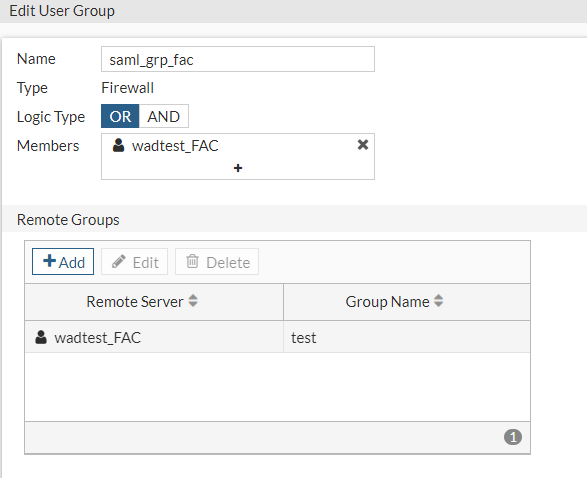
To configure a user group from the CLI:

FPX222 (saml_grp_fac) # show

config user group

edit "saml_grp_fac"

set member "wadtest_FAC"

config match

edit 1

set server-name "wadtest_FAC"

set group-name "test" [user group from FortiAuthenticator]

next

end

next

end

Step 3: Configure an authentication scheme

To configure an authentication scheme from the GUI:
  1. Select Policy & Objects > Authentication Rules and click Create New > Authentication Scheme.
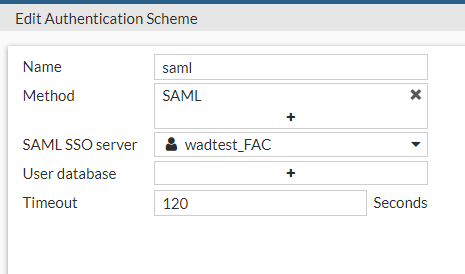
To configure an authentication scheme from the CLI:

config authentication scheme

edit "saml"

set method saml

set saml-server "wadtest_FAC"

next

end

Step 4: Configure an authentication rule

To configure an authentication rule from the GUI:
  1. Select Policy & Objects > Authentication Rules and click Create New > Authentication Rule.
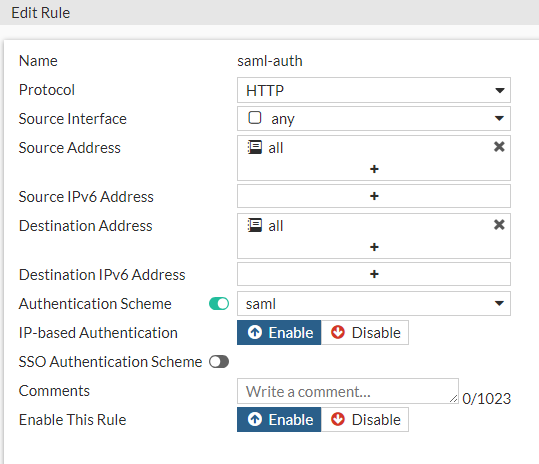
To configure an authentication rule from the CLI:

config authentication rule

edit "saml-auth"

set srcintf "any"

set srcaddr "all"

set dstaddr "all"

set active-auth-method "saml"

next

end

Step 5: Configure authentication settings

To configure authentication settings from the GUI:
  1. Select Policy & Objects > Proxy Auth Setting.
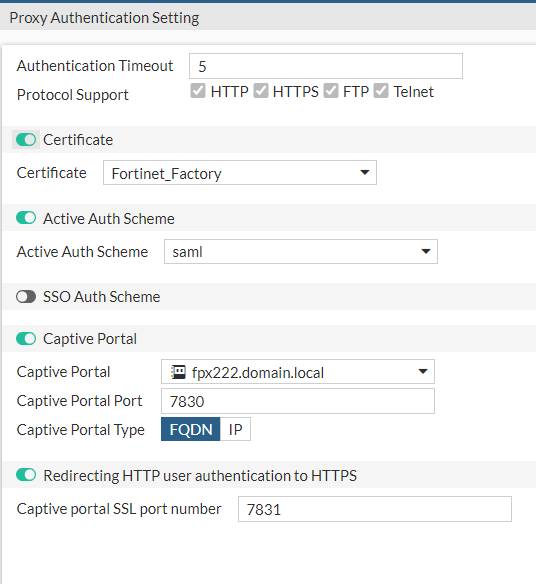
To configure authentication settings from the CLI:

config authentication setting

set active-auth-scheme "saml"

set captive-portal "fpx222.domain.local"

end

Step 6: Configure FortiAuthenticator proxy address

To configure a FortiAuthenticator proxy address from the GUI:
  1. Select Policy & Objects > Addresses and click Create New > Address.
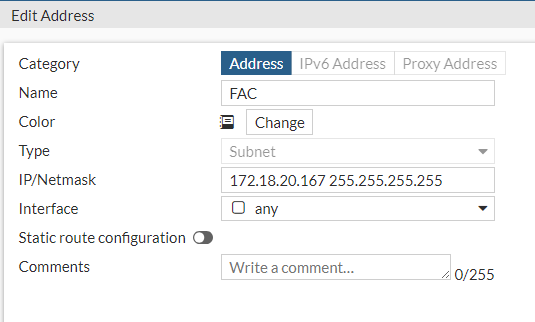
To configure a FortiAuthenticator proxy address from the CLI:

config firewall address

edit "FAC"

set uuid 3458d25e-478d-51ee-573d-6ff2acb8bba8

set subnet 172.18.20.167 255.255.255.255

next

end

Step 7: Configure a firewall policy

config firewall policy

edit 18

set type explicit-web

set name "SAML- ADFS _Access"

set uuid ceacefd8-4392-51ee-7278-44d09ef3bcd0

set dstintf "any"

set srcaddr "all"

set dstaddr "FAC"

set action accept

set schedule "always"

set service "webproxy"

set explicit-web-proxy "web-proxy"

next

end

config firewall policy

edit 16

set type explicit-web

set name "SAML_auth"

set uuid 8d2050cc-4389-51ee-b9bd-d28c45e0827d

set dstintf "any"

set srcaddr "all"

set dstaddr "all"

set action accept

set schedule "always"

set service "webproxy"

set explicit-web-proxy "web-proxy"

set groups "saml_grp_fac"

set ssl-ssh-profile "custom-deep-inspection"

next

end

FortiAuthenticator configuration

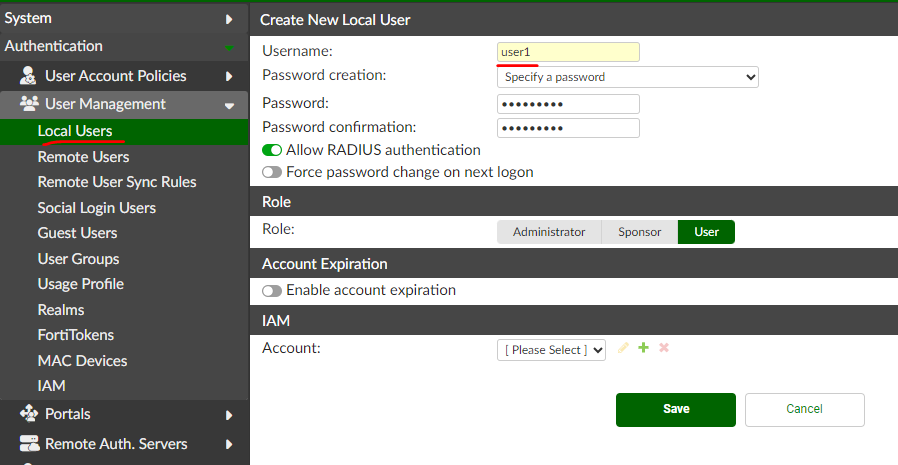
  1. Create a user, for example, "user1".

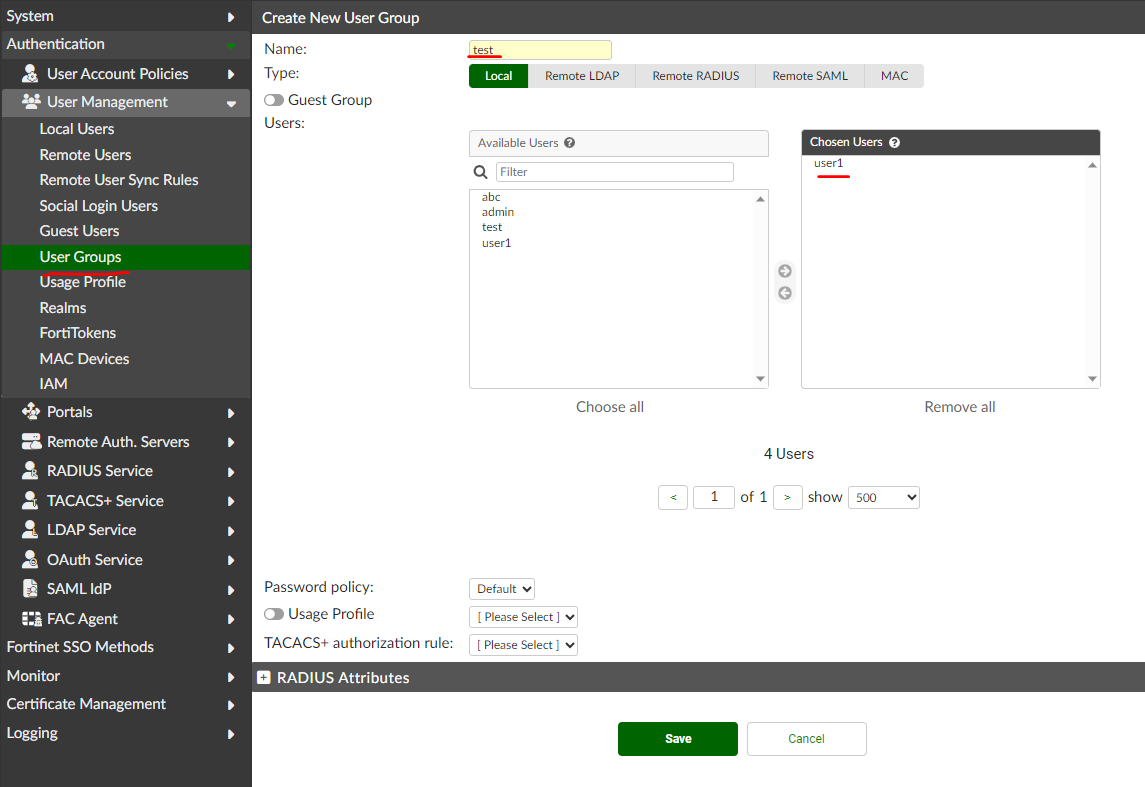
  2. 2. Create a user group, for example, “test”. Add “user1” to the group.
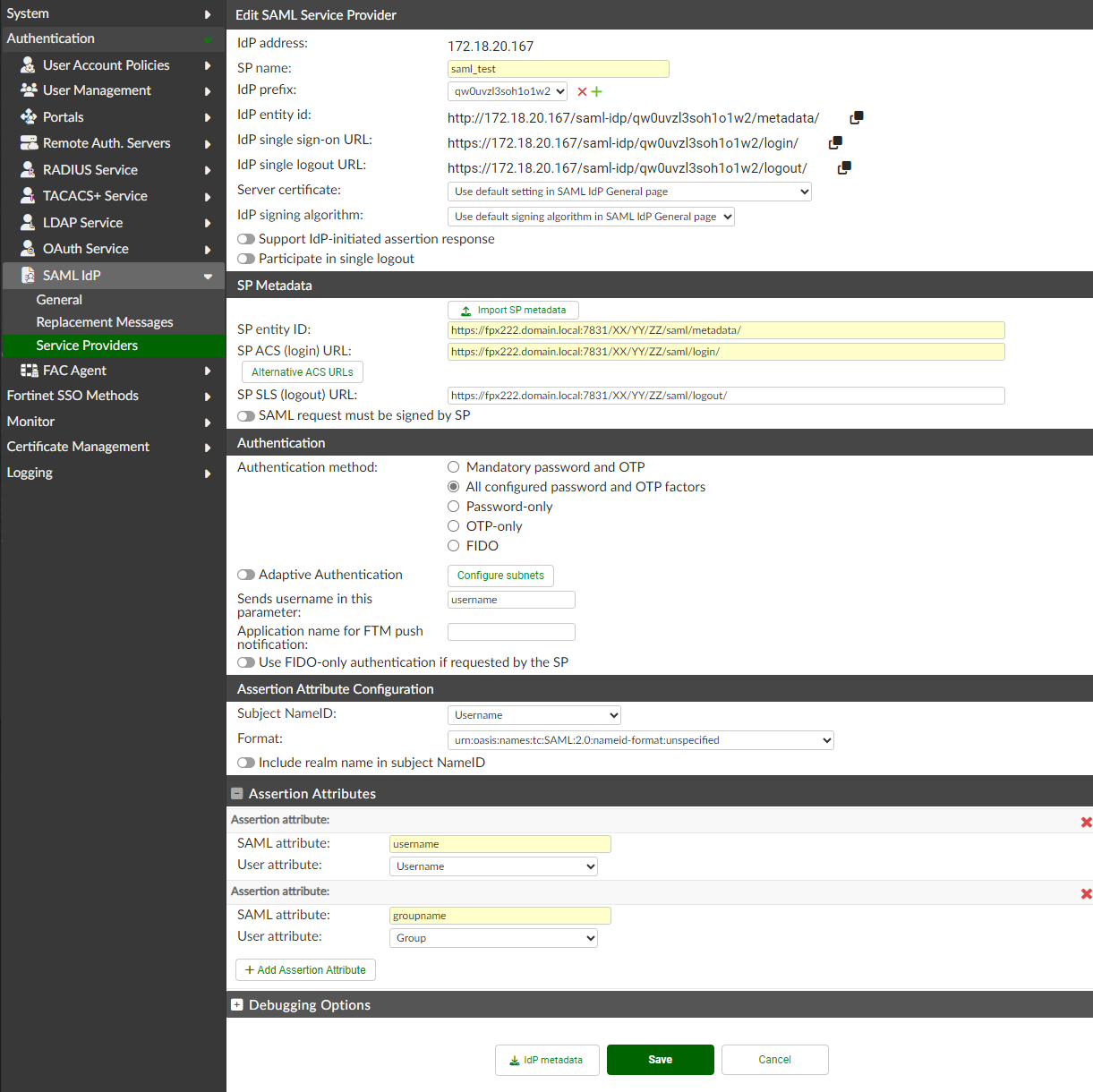
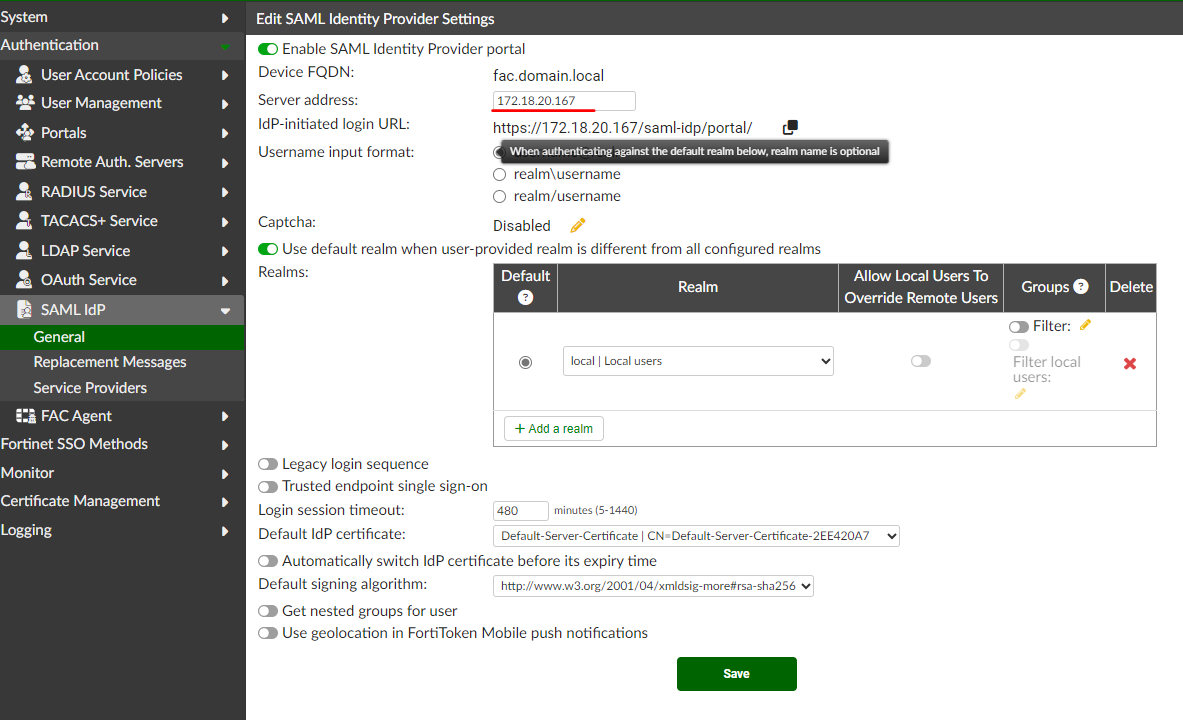
  3. 3. Enable SAML IDP portal and enter the FortiAuthenticator IP address.
  4. 4. Create a new service provider.

  5. 5. Download the FortiAuthenticator certificate used in step 3, which is Default Server Certificate in this example. Upload the certificate to FortiProxy as remote certificate.

  6. Verify that the configuration is successful by logging in from a client machine.

    1. 1. Enable proxy settings towards FortiProxy in the client browser.

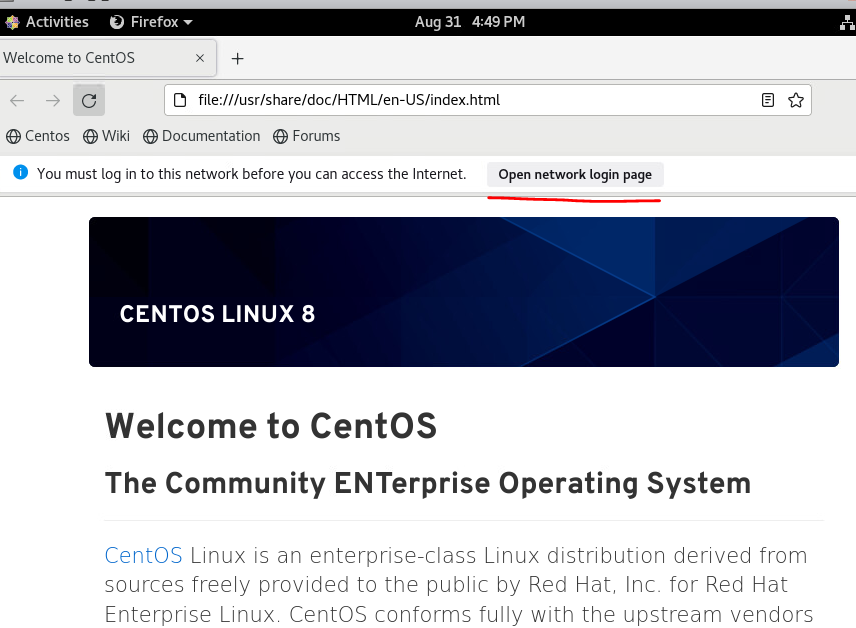
    2. Click Open network login page.

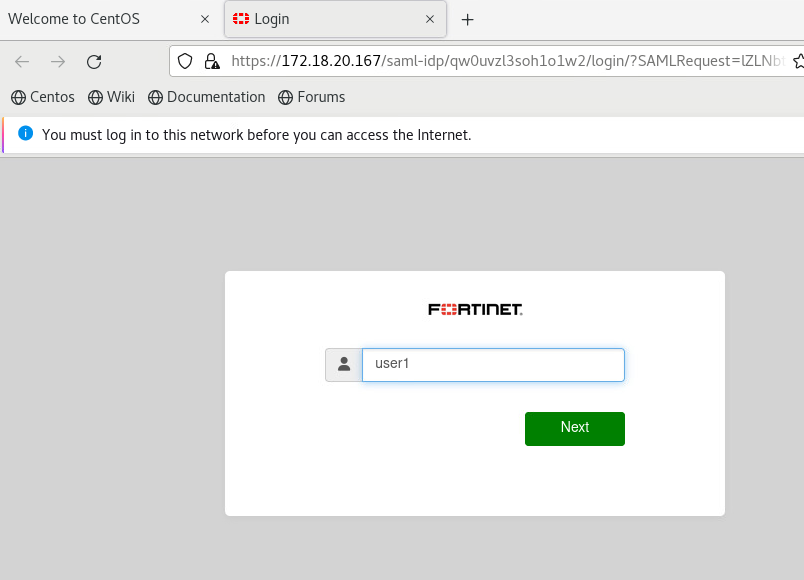
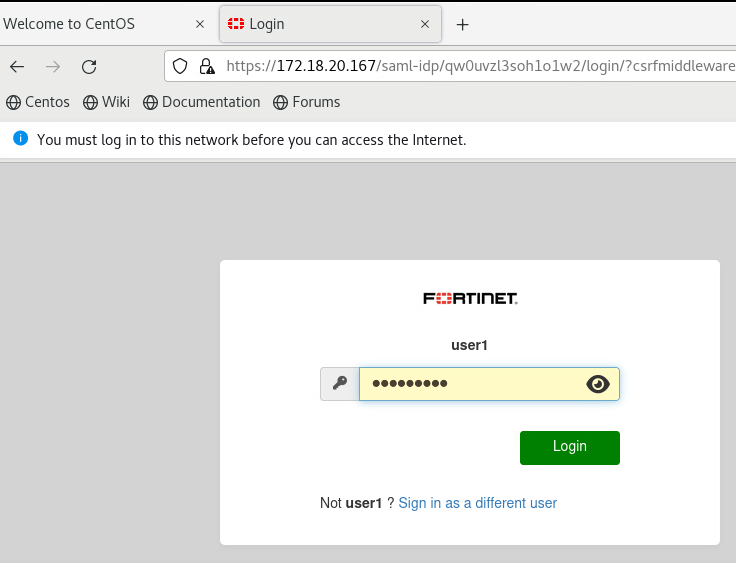
    3. 3. Enter the username (user1 in this example) and password configured in FortiAuthenticator and click Login.
    4. After successful login from the FortiAuthenticator client machine, run the following command on FortiProxy to verify that SAML authentication is successful with FortiProxy using FortiAuthenticator as the authenticator.

      FPX222 # dia wad user list

      ID: 35, VDOM: root, IPv4: 10.4.62.181

      user name : user1

      worker : 0

      duration : 41 seconds

      auth_type : IP

      auth_method : SAML

      pol_id : 16

      g_id : 5

      user_based : 0

      expire : N/A (in use)

      LAN:

      bytes_in=111547 bytes_out=3013287

      WAN:

      bytes_in=773601 bytes_out=2540

Using SAML authentication with FortiAuthenticator

Using SAML authentication with FortiAuthenticator

This example shows how to configure SAML authentication with FortiAuthenticator on a FortiProxy unit. You need to configure both FortiProxy and FortiAuthenticator to allow SAML authentication to work.

FortiProxy configuration

Step 1: Configure SAML

To configure SAML from the GUI:
  1. Select User & Authentication > SAML and click Create New.

To configure SAML from the CLI:

config user saml

edit "wadtest_FAC"

set cert "Fortinet_CA_SSL"

set entity-id "https://fpx222.domain.local:7831/XX/YY/ZZ/saml/metadata/"

set single-sign-on-url "https://fpx222.domain.local:7831/XX/YY/ZZ/saml/login/"

set single-logout-url "https://fpx222.domain.local:7831/XX/YY/ZZ/saml/logout/"

set idp-entity-id "http://172.18.20.167/saml-idp/qw0uvzl3soh1o1w2/metadata/"

set idp-single-sign-on-url "https://172.18.20.167/saml-idp/qw0uvzl3soh1o1w2/login/"

set idp-single-logout-url "https://172.18.20.167/saml-idp/qw0uvzl3soh1o1w2/logout/"

set idp-cert "REMOTE_Cert_2"  FAC certificate

set user-name "username"

set group-name "groupname"

set digest-method sha256

next

end

Step 2: Configure a user group

To configure a user group from the GUI:
  1. Select User & Authentication > User Groups.

To configure a user group from the CLI:

FPX222 (saml_grp_fac) # show

config user group

edit "saml_grp_fac"

set member "wadtest_FAC"

config match

edit 1

set server-name "wadtest_FAC"

set group-name "test" [user group from FortiAuthenticator]

next

end

next

end

Step 3: Configure an authentication scheme

To configure an authentication scheme from the GUI:
  1. Select Policy & Objects > Authentication Rules and click Create New > Authentication Scheme.

To configure an authentication scheme from the CLI:

config authentication scheme

edit "saml"

set method saml

set saml-server "wadtest_FAC"

next

end

Step 4: Configure an authentication rule

To configure an authentication rule from the GUI:
  1. Select Policy & Objects > Authentication Rules and click Create New > Authentication Rule.

To configure an authentication rule from the CLI:

config authentication rule

edit "saml-auth"

set srcintf "any"

set srcaddr "all"

set dstaddr "all"

set active-auth-method "saml"

next

end

Step 5: Configure authentication settings

To configure authentication settings from the GUI:
  1. Select Policy & Objects > Proxy Auth Setting.

To configure authentication settings from the CLI:

config authentication setting

set active-auth-scheme "saml"

set captive-portal "fpx222.domain.local"

end

Step 6: Configure FortiAuthenticator proxy address

To configure a FortiAuthenticator proxy address from the GUI:
  1. Select Policy & Objects > Addresses and click Create New > Address.

To configure a FortiAuthenticator proxy address from the CLI:

config firewall address

edit "FAC"

set uuid 3458d25e-478d-51ee-573d-6ff2acb8bba8

set subnet 172.18.20.167 255.255.255.255

next

end

Step 7: Configure a firewall policy

config firewall policy

edit 18

set type explicit-web

set name "SAML- ADFS _Access"

set uuid ceacefd8-4392-51ee-7278-44d09ef3bcd0

set dstintf "any"

set srcaddr "all"

set dstaddr "FAC"

set action accept

set schedule "always"

set service "webproxy"

set explicit-web-proxy "web-proxy"

next

end

config firewall policy

edit 16

set type explicit-web

set name "SAML_auth"

set uuid 8d2050cc-4389-51ee-b9bd-d28c45e0827d

set dstintf "any"

set srcaddr "all"

set dstaddr "all"

set action accept

set schedule "always"

set service "webproxy"

set explicit-web-proxy "web-proxy"

set groups "saml_grp_fac"

set ssl-ssh-profile "custom-deep-inspection"

next

end

FortiAuthenticator configuration

  1. Create a user, for example, "user1".

  2. 2. Create a user group, for example, “test”. Add “user1” to the group.

  3. 3. Enable SAML IDP portal and enter the FortiAuthenticator IP address.

  4. 4. Create a new service provider.

  5. 5. Download the FortiAuthenticator certificate used in step 3, which is Default Server Certificate in this example. Upload the certificate to FortiProxy as remote certificate.

  6. Verify that the configuration is successful by logging in from a client machine.

    1. 1. Enable proxy settings towards FortiProxy in the client browser.

    2. Click Open network login page.

    3. 3. Enter the username (user1 in this example) and password configured in FortiAuthenticator and click Login.

    4. After successful login from the FortiAuthenticator client machine, run the following command on FortiProxy to verify that SAML authentication is successful with FortiProxy using FortiAuthenticator as the authenticator.

      FPX222 # dia wad user list

      ID: 35, VDOM: root, IPv4: 10.4.62.181

      user name : user1

      worker : 0

      duration : 41 seconds

      auth_type : IP

      auth_method : SAML

      pol_id : 16

      g_id : 5

      user_based : 0

      expire : N/A (in use)

      LAN:

      bytes_in=111547 bytes_out=3013287

      WAN:

      bytes_in=773601 bytes_out=2540