

User Profile
The User Profile page displays the detailed information of a user.
User Information
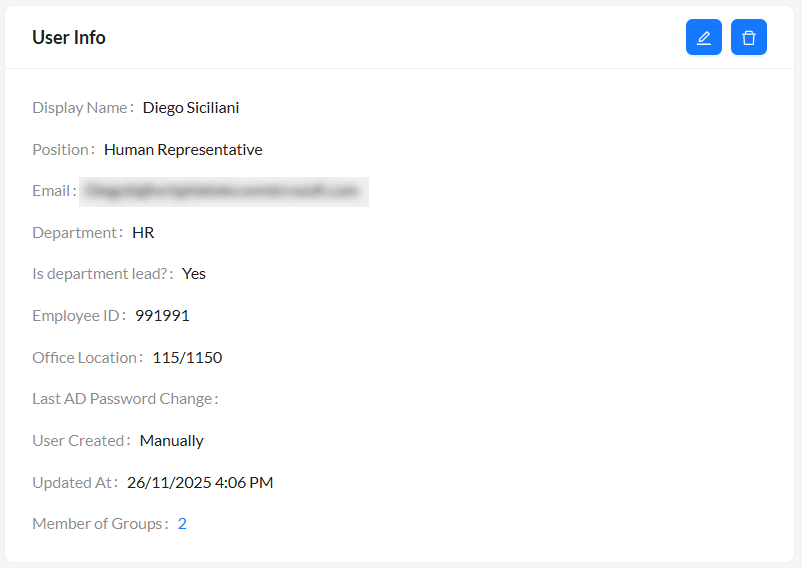
The user information section displays the following information.
|
Display Name |
The name of the user. |
|
Position |
The job title or role of the user. |
| The email address of the user. | |
| Department | The user's department. |
|
Is department lead? |
Displays Yes if user is set as a department lead; else, No is displayed. |
| Employee ID | The user's employee identification number. |
| Office Location | The user's primary office location. |
| Last AD Password Change | The timestamp of the user's last password change, available for users imported via Azure AD, SCIM, or LDAP. |
| User Created | Displays the method of user creation. |
| Updated At | Displays the timestamp of the last modification to the user's data. |
| Member of Groups |
The count of the groups the user belongs to. Click count to navigate to Member of Groups section. |
Click Edit to update the user details. Click Delete to delete the user. See Users.

|
Campaign counts exclude deleted campaigns. |
Manager Information
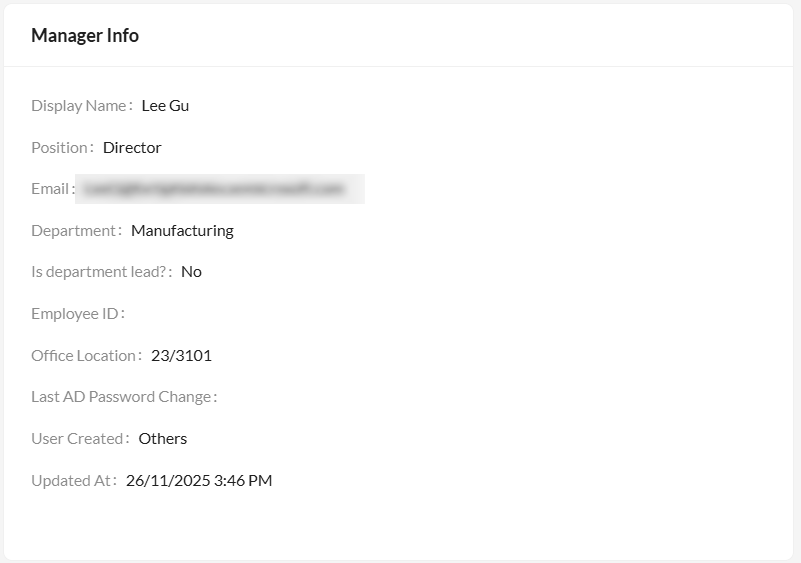
The Manager Info card is displayed if the manager's information is available. The following information is displayed.
| Display Name | The manager's name. |
| Position | The manager's job title or role. |
| The manager's email address. | |
| Department | The manager's department. |
|
Is department lead? |
Displays Yes if user is set as a department lead; else, No is displayed. |
| Employee ID | The manager's employee identification number. |
| Office Location | The manager's office location. |
| Last AD Password Change | The timestamp of the manager's last password change, available for users imported via Azure AD, SCIM, or LDAP. |
| User Created | Displays the method of user creation. |
| Updated At | The timestamp of the last modification to the manager's data. |
User Campaign Stats
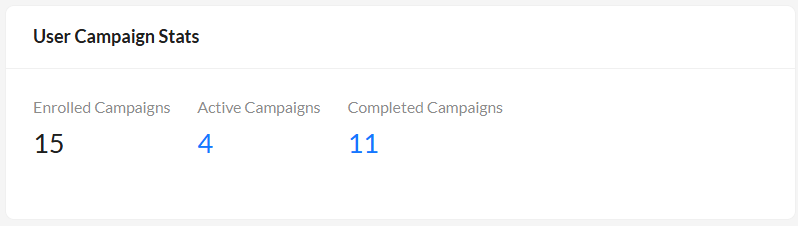
The following user campaign information is displayed.
| Enrolled Campaigns | The total count of campaigns the user is part of. |
|
Active Campaigns |
The count of active campaigns the user is part of. Click count to navigate to Active Campaigns section. |
|
Completed Campaigns |
The count of completed campaigns the user was part of. Click count to navigate to Completed Campaigns section. |
Training Stats
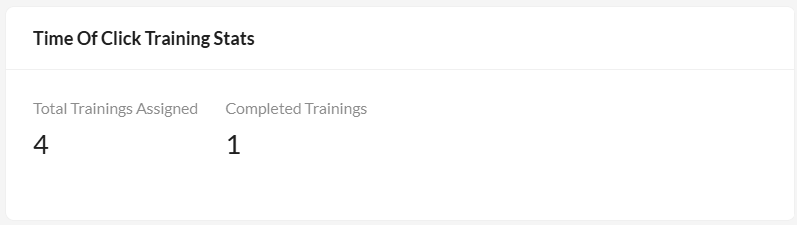
The following user training information is displayed.
|
Total Trainings Assigned |
The total count of trainings assigned to the user. |
|
Completed Trainings |
The count of trainings the user has completed. |
Risk Rating
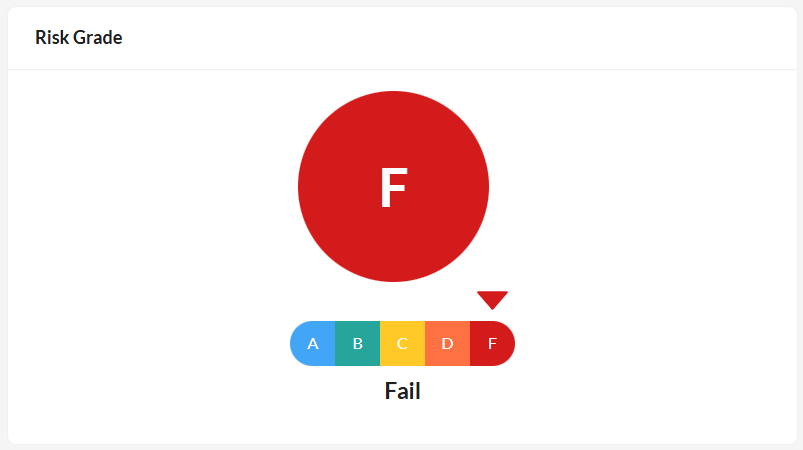
The letter grade between A and F assigned to the recipient . An A indicates the user poses minimal risk and a F grade indicates the user poses the maximum risk to the organization.
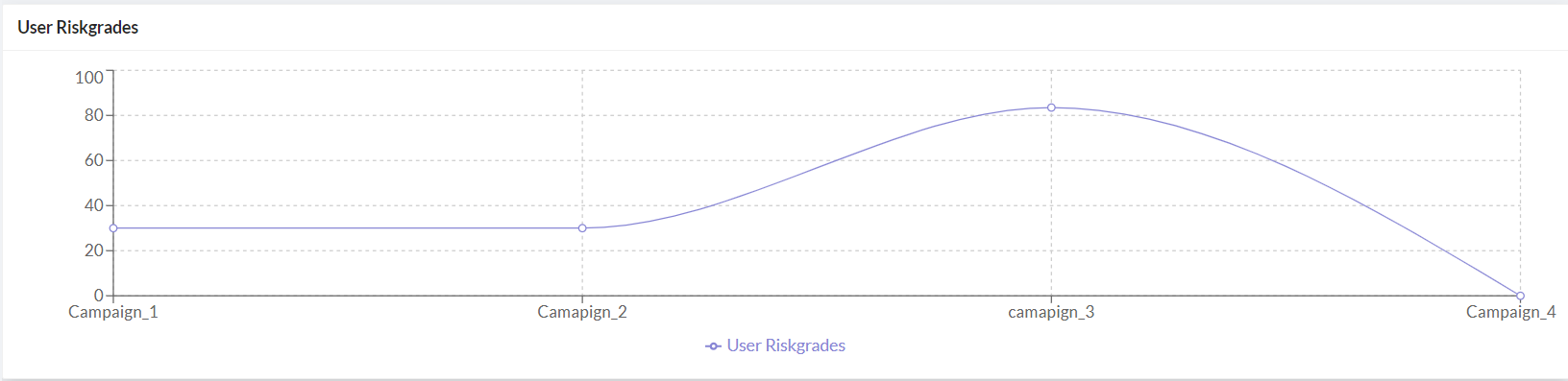
User Risk Grades
Provides a graphical representation of the user's risk score across campaigns. Hover over the graph to view the risk grade.
Member of Groups
Displays a list of groups the user belongs to. Click a group name to navigate to the corresponding group page. See Groups.

Active Campaigns
Displays a list of active campaigns the user is currently part of. Click a campaign name to navigate to the corresponding campaign details page. See Viewing campaign statistics.

Completed Campaigns
Displays a list of completed campaigns the user was part of. Click a campaign name to navigate to the corresponding campaign details page. See Viewing campaign statistics.
