Creating a secret with view permission for the sponsored group
We create a secret with view permission for the sponsored group created in Creating a sponsored group.
To create a secret with view permission:
- Go to Secrets > Secret List.
- In Secret List, select Create.
The Create New Secret in: dialog appears
- Select the folder where you intend to add the secret.
- Select Create.
The General tab opens.
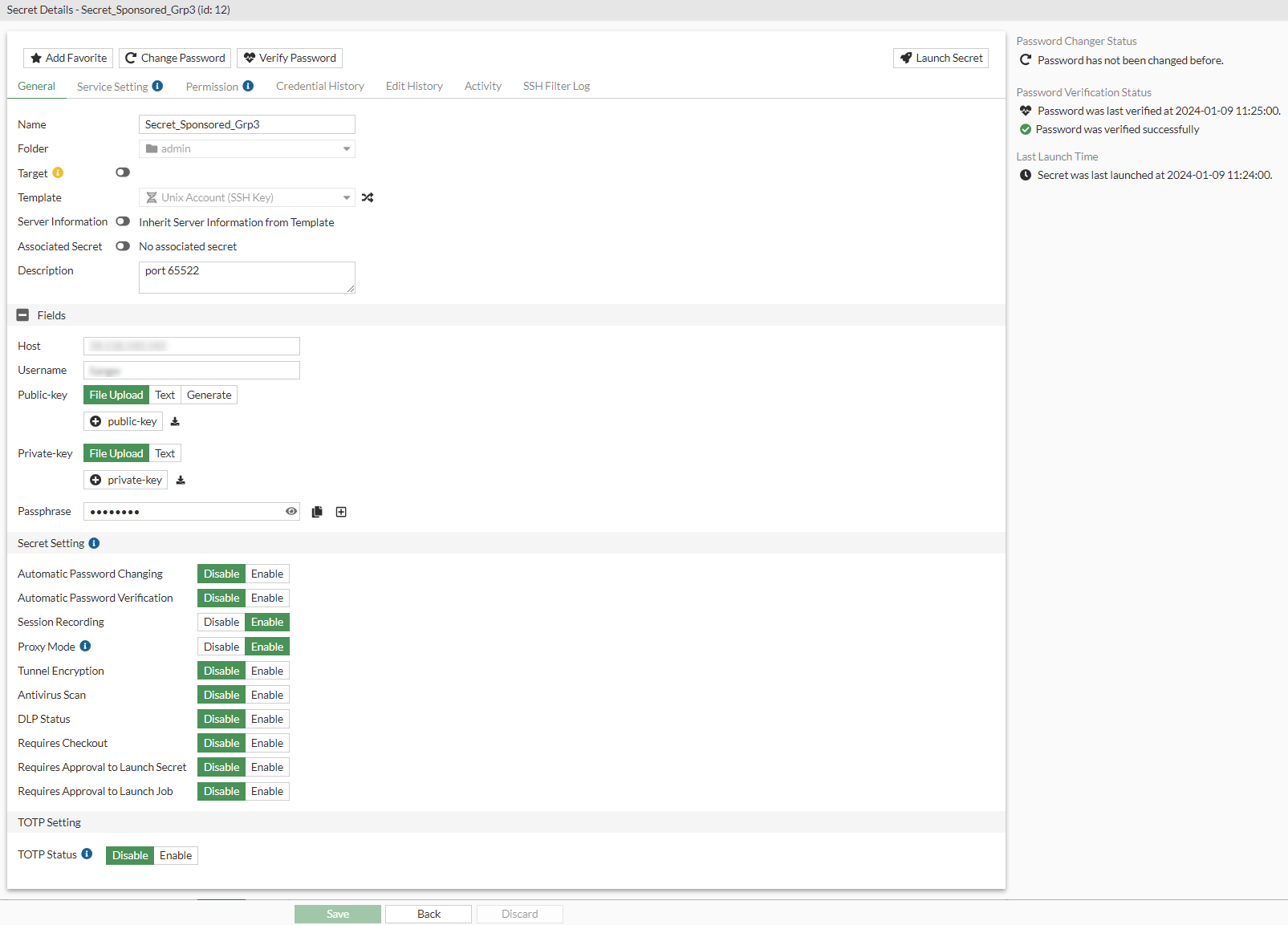
- In the General tab:
- In Name, enter a name for the secret.
- Disable Target.
- In Template, select Unix Account (SSH Key).
- In Host, enter the IP address of the server.
- In Username, enter a username.
- In Public-key, select File Upload and then select Upload to locate and upload public key file from the management computer.
- In Private-key, select File Upload, and then select Upload to locate and upload private key file from the management computer.
- In Passphrase, enter a passphrase.
- In Confirm Passphrase, reenter the passphrase.
- Enable Session Recording.
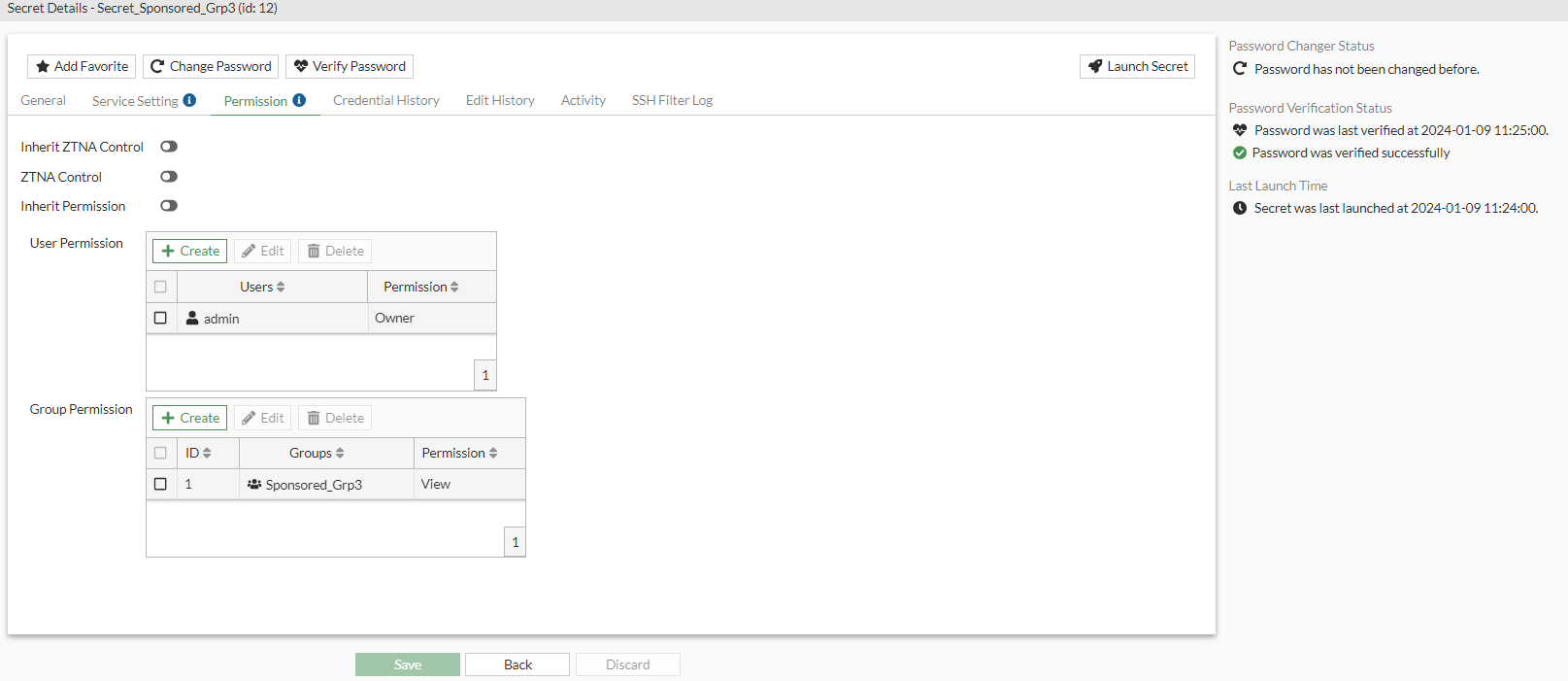
- In the Permission tab:
- Disable Inherit Permission.
- In Group Permission:
- Select Create.
The New Group Permission window opens.
- In Groups, select the sponsored group created in Creating a sponsored group.
- In Permission, select View.
- Click OK.
- Select Create.
- Click Submit.