Fortinet white logo
Fortinet white logo

Examples

Configuring ZTNA on FortiGate for FortiPAM access

Configuring ZTNA on FortiGate for FortiPAM access

For information ZTNA and web proxy forwarding, see:

  1. Basic ZTNA configuration
  2. Technical Tip: How to configure web proxy forwarding server (proxy chaining)

Prerequisites

  1. FortiGate ZTNA external IP address, e.g., 10.59.112.158.
  2. FQDN for FortiPAM, e.g., pam156b.fortipam.ca.
  3. Public DNS server:
    1. FQDN (pam156b.fortipam.ca) is resolved to the FortiGate ZTNA external IP address: 10.59.112.158.
    2. FQDN (fos58.fortipam.ca) is resolved to the FortiGate GUI IP address: 10.59.112.58.
  4. Private DNS server: FQDN (pam156b.fortipam.ca) is resolved to the FortiPAM GUI IP address: 10.1.100.156.
  5. The PC connects to the public DNS server.
  6. The FortiGate connects to the private DNS server.

Topology

Configuring ZTNA for FortiPAM access

To configure the FortiPAM FQDN:
  1. In the FortiGate GUI, go to Policy & Objects > Addresses, and select Create new to configure address for the FortiPAM FQDN.

    The New Address window opens.

  2. In Name, enter a name for the address.
  3. Ensure that Interface is any.
  4. In Type, select FQDN.
  5. In FQDN, enter the FortiPAM FQDN.
     pam156b.fortipam.ca
  6. Click OK.

Alternatively, in the CLI console, enter the following commands:

 config firewall address
  edit "pam_156b_fqdn"
   set uuid b0997e8a-7888-51f0-54aa-9b97280518cd
   set type fqdn
   set "pam156b.fortipam.ca"
  next
 end
To configure the ZTNA server:
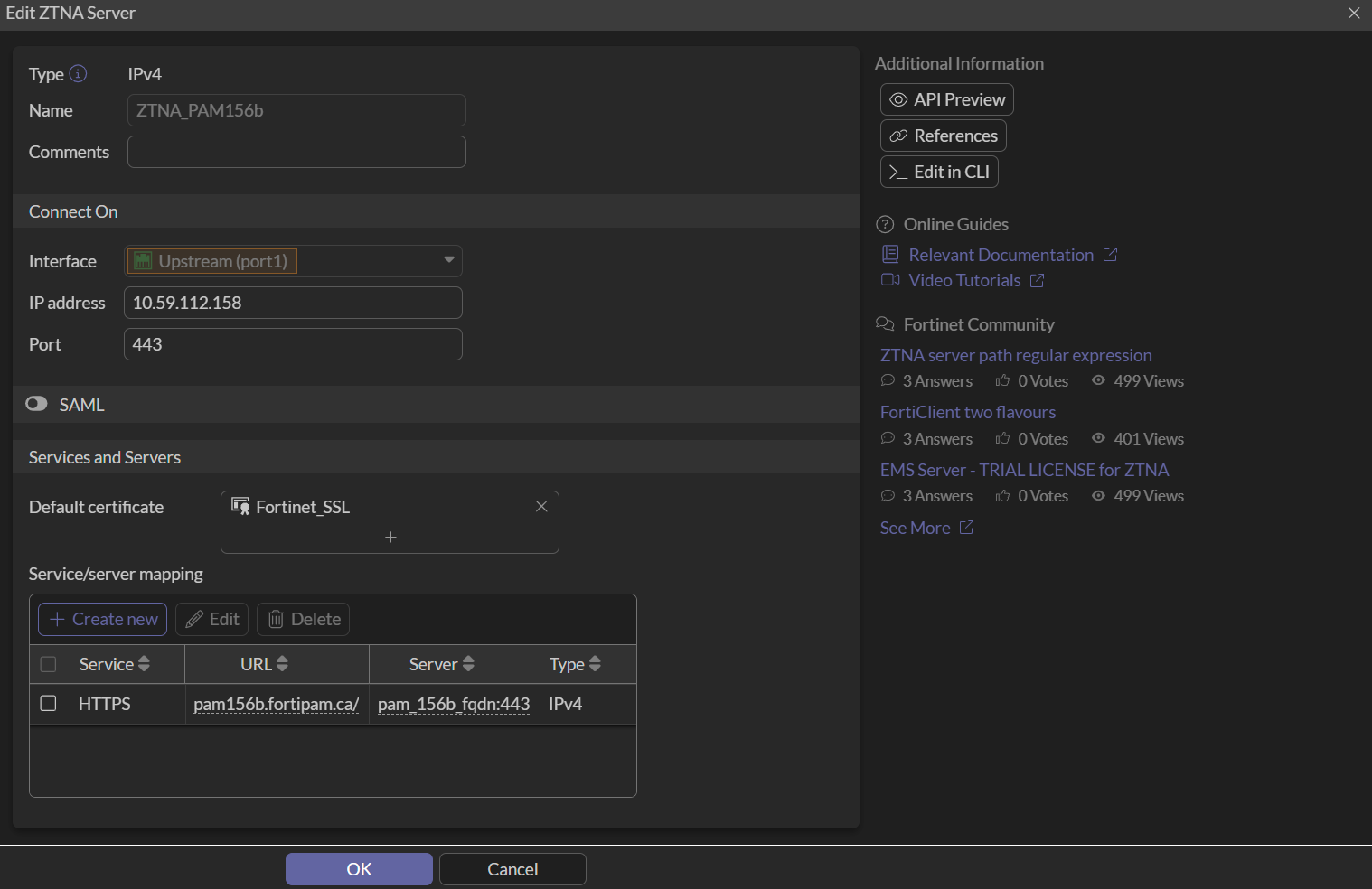
  1. In the FortiGate GUI, go to Policy & Objects > ZTNA, and select Create new in the ZTNA Server tab.

    The New ZTNA Server window opens.

  2. In Name, enter a name for the ZTNA server.
  3. In Interface, select port1.
  4. In IP address, enter the IP address for the FortiGate, e.g., 10.59.112.158.
  5. Ensure that the Port is 443.
  6. In Default certificate, select Fortinet_SSL.
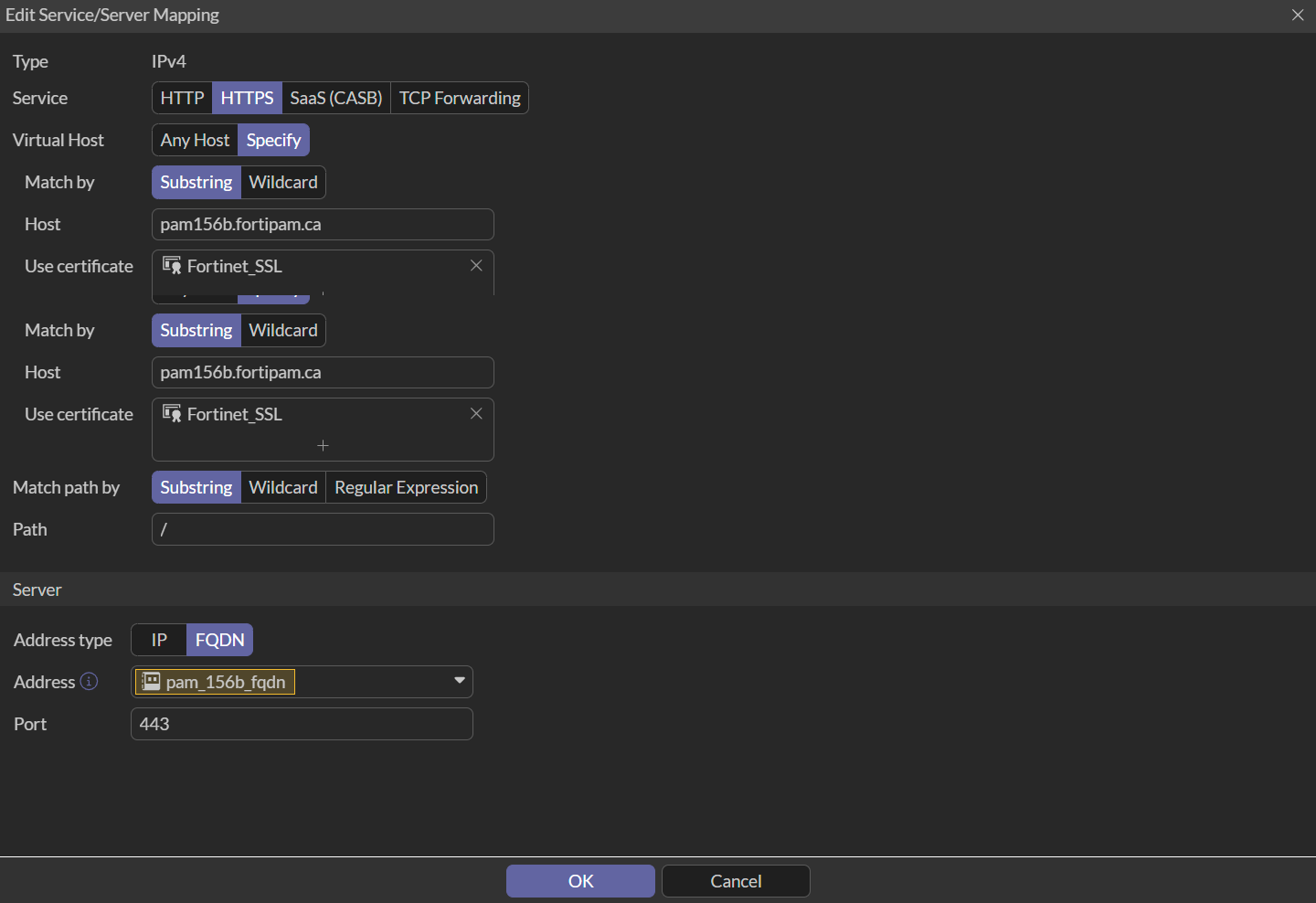
  7. In Service/server mapping, select Create new.

    The New Service/Server Mapping window opens.

    1. Ensure that the Service is set to HTTPS.
    2. In Virtual Host, select Specify.
    3. In Host, enter the FortiPAM FQDN.

      See Configuring the FortiPAM FQDN.

    4. In Use certificate, select Fortinet_SSL.
    5. Ensure that Match path by is Substring.
    6. In Address type, select FQDN.
    7. In the Address dropdown, select the FortiPAM FQDN created in Configuring the FortiPAM FQDN.
    8. Ensure that Port is 443.
    9. Click OK.

  8. Click OK.

Alternatively, in the CLI console, enter the following commands:

 config firewall vip
  edit "ZTNA_PAM156b"
   set uuid f1ecb802-7888-51f0-222d-713912cbeb51
   set type access-proxy
   set server-type https
   set extip 10.59.112.158
   set extintf "port1"
   set extport 443
   set ssl-certificate "Fortinet_SSL"
  next
 end
 config firewall access-proxy
  edit "ZTNA_PAM156b"
   set vip "ZTNA_PAM156b"
   set client-cert disable #Disable if FortiGate is not connected with the EMS
   set svr-pool-multiplex disable 
   config api-gateway
    edit 1
     set virtual-host "auto-ZTNA_PAM156b-0"
     config realservers
      edit 1
       set addr-type fqdn
       set address "pam_156b_fqdn"
      next
     end
    next
   end
  next
 end
 config firewall access-proxy-virtual-host
   edit "auto-ZTNA-PAM156-0"
    set ssl-certificate "Fortinet_SSL"
    set host "pam156b.FORTIPAM.CA"
   next
 end
To configure the firewall policy:
  1. In the FortiGate console, enter the following commands:
     config firewall policy
      edit 6
       set name "ZTNA_PAM156b_Policy"
       set uuid 5c0cf6de-7889-51f0-24ae-e45e7e6a4f12
       set srcintf "port1"
       set dstintf "any"
       set action accept
       set srcaddr "all"
       set dstaddr "ZTNA_PAM156b"
       set schedule "always"
       set nat enable
      next
     end
To configure web proxy forwarding on FortiGate:
  1. In the CLI console, enter the following commands:
     config system interface
      edit "port1"
       set  vdom "root"
       set ip 10.49.112.58 255.255.255.0
       set allowaccess ping https ssh http
       set type physical
       set explicit-web-proxy enable #enable web proxy
       set snmp-index 1
      next
     end
     config web-proxy explicit
      set status enable
      set https-incoming-port 8080 
     end 
     config web-proxy forward-server
      edit "pam156b_web_proxy"
       set addr-type fqdn
       set fqdn "pam156b.fortipam.ca"
       set port 8080
      next
     end
     config firewall proxy-policy
      edit 2
       set uuid 024adcf4-7967-51f0-01cd-00e184cc0c25
       set name "pam156b_proxy_policy"
       set proxy explicit-web
       set dstintf "any"
       set srcaddr "all"
       set dstaddr "all"
       set service "webproxy"
       set action accept
       set schedule "always"
       set logtraffic all
       set webproxy-forward-server "pam156b_web_proxy"
      next
     end
To configure FortiPAM:
  1. In the CLI console, enter the following commands to enable web proxy on the port interface:
     config system interface
      edit "port2"
       set ip 10.1.100.156 255.255.255.0
       set allowaccess ping ssh
       set type physical
       set explicit-web-proxy enable
       set snmp-index 2
      next
     end
  2. In the CLI console, enter the following commands to change the proxy-fqdn to the FortiGate GUI FQDN:
     config web -proxy global
      set proxy-fqdn "fos58.fortipam.ca"
     end
  3. In the CLI console, enter the following commands to verify the web proxy listening port number:
     config web-proxy explicit-proxy
      edit "web-proxy"
       set status enable
       set interface "any"
       set http-incoming-port 8080 #Sync with the web proxy forward port configured on the FortiGate
     next
    end
  4. In the FortiPAM GUI, go to Secrets > Secrets, from the list, open a secret:
    1. Go to the Settings tab, enable Tunnel Encryption, and click Save.

Configuring ZTNA on FortiGate for FortiPAM access

Configuring ZTNA on FortiGate for FortiPAM access

For information ZTNA and web proxy forwarding, see:

  1. Basic ZTNA configuration
  2. Technical Tip: How to configure web proxy forwarding server (proxy chaining)

Prerequisites

  1. FortiGate ZTNA external IP address, e.g., 10.59.112.158.
  2. FQDN for FortiPAM, e.g., pam156b.fortipam.ca.
  3. Public DNS server:
    1. FQDN (pam156b.fortipam.ca) is resolved to the FortiGate ZTNA external IP address: 10.59.112.158.
    2. FQDN (fos58.fortipam.ca) is resolved to the FortiGate GUI IP address: 10.59.112.58.
  4. Private DNS server: FQDN (pam156b.fortipam.ca) is resolved to the FortiPAM GUI IP address: 10.1.100.156.
  5. The PC connects to the public DNS server.
  6. The FortiGate connects to the private DNS server.

Topology

Configuring ZTNA for FortiPAM access

To configure the FortiPAM FQDN:
  1. In the FortiGate GUI, go to Policy & Objects > Addresses, and select Create new to configure address for the FortiPAM FQDN.

    The New Address window opens.

  2. In Name, enter a name for the address.
  3. Ensure that Interface is any.
  4. In Type, select FQDN.
  5. In FQDN, enter the FortiPAM FQDN.
     pam156b.fortipam.ca
  6. Click OK.

Alternatively, in the CLI console, enter the following commands:

 config firewall address
  edit "pam_156b_fqdn"
   set uuid b0997e8a-7888-51f0-54aa-9b97280518cd
   set type fqdn
   set "pam156b.fortipam.ca"
  next
 end
To configure the ZTNA server:
  1. In the FortiGate GUI, go to Policy & Objects > ZTNA, and select Create new in the ZTNA Server tab.

    The New ZTNA Server window opens.

  2. In Name, enter a name for the ZTNA server.
  3. In Interface, select port1.
  4. In IP address, enter the IP address for the FortiGate, e.g., 10.59.112.158.
  5. Ensure that the Port is 443.
  6. In Default certificate, select Fortinet_SSL.
  7. In Service/server mapping, select Create new.

    The New Service/Server Mapping window opens.

    1. Ensure that the Service is set to HTTPS.
    2. In Virtual Host, select Specify.
    3. In Host, enter the FortiPAM FQDN.

      See Configuring the FortiPAM FQDN.

    4. In Use certificate, select Fortinet_SSL.
    5. Ensure that Match path by is Substring.
    6. In Address type, select FQDN.
    7. In the Address dropdown, select the FortiPAM FQDN created in Configuring the FortiPAM FQDN.
    8. Ensure that Port is 443.
    9. Click OK.

  8. Click OK.

Alternatively, in the CLI console, enter the following commands:

 config firewall vip
  edit "ZTNA_PAM156b"
   set uuid f1ecb802-7888-51f0-222d-713912cbeb51
   set type access-proxy
   set server-type https
   set extip 10.59.112.158
   set extintf "port1"
   set extport 443
   set ssl-certificate "Fortinet_SSL"
  next
 end
 config firewall access-proxy
  edit "ZTNA_PAM156b"
   set vip "ZTNA_PAM156b"
   set client-cert disable #Disable if FortiGate is not connected with the EMS
   set svr-pool-multiplex disable 
   config api-gateway
    edit 1
     set virtual-host "auto-ZTNA_PAM156b-0"
     config realservers
      edit 1
       set addr-type fqdn
       set address "pam_156b_fqdn"
      next
     end
    next
   end
  next
 end
 config firewall access-proxy-virtual-host
   edit "auto-ZTNA-PAM156-0"
    set ssl-certificate "Fortinet_SSL"
    set host "pam156b.FORTIPAM.CA"
   next
 end
To configure the firewall policy:
  1. In the FortiGate console, enter the following commands:
     config firewall policy
      edit 6
       set name "ZTNA_PAM156b_Policy"
       set uuid 5c0cf6de-7889-51f0-24ae-e45e7e6a4f12
       set srcintf "port1"
       set dstintf "any"
       set action accept
       set srcaddr "all"
       set dstaddr "ZTNA_PAM156b"
       set schedule "always"
       set nat enable
      next
     end
To configure web proxy forwarding on FortiGate:
  1. In the CLI console, enter the following commands:
     config system interface
      edit "port1"
       set  vdom "root"
       set ip 10.49.112.58 255.255.255.0
       set allowaccess ping https ssh http
       set type physical
       set explicit-web-proxy enable #enable web proxy
       set snmp-index 1
      next
     end
     config web-proxy explicit
      set status enable
      set https-incoming-port 8080 
     end 
     config web-proxy forward-server
      edit "pam156b_web_proxy"
       set addr-type fqdn
       set fqdn "pam156b.fortipam.ca"
       set port 8080
      next
     end
     config firewall proxy-policy
      edit 2
       set uuid 024adcf4-7967-51f0-01cd-00e184cc0c25
       set name "pam156b_proxy_policy"
       set proxy explicit-web
       set dstintf "any"
       set srcaddr "all"
       set dstaddr "all"
       set service "webproxy"
       set action accept
       set schedule "always"
       set logtraffic all
       set webproxy-forward-server "pam156b_web_proxy"
      next
     end
To configure FortiPAM:
  1. In the CLI console, enter the following commands to enable web proxy on the port interface:
     config system interface
      edit "port2"
       set ip 10.1.100.156 255.255.255.0
       set allowaccess ping ssh
       set type physical
       set explicit-web-proxy enable
       set snmp-index 2
      next
     end
  2. In the CLI console, enter the following commands to change the proxy-fqdn to the FortiGate GUI FQDN:
     config web -proxy global
      set proxy-fqdn "fos58.fortipam.ca"
     end
  3. In the CLI console, enter the following commands to verify the web proxy listening port number:
     config web-proxy explicit-proxy
      edit "web-proxy"
       set status enable
       set interface "any"
       set http-incoming-port 8080 #Sync with the web proxy forward port configured on the FortiGate
     next
    end
  4. In the FortiPAM GUI, go to Secrets > Secrets, from the list, open a secret:
    1. Go to the Settings tab, enable Tunnel Encryption, and click Save.