Fortinet white logo
Fortinet white logo

Examples

Configuring the Azure portal

Configuring the Azure portal

Register an Enterprise Application

To register an Enterprise Application:
  1. In the Microsoft Entra (Azure AD) portal, go to Enterprise applications and register a new application for the password changer.
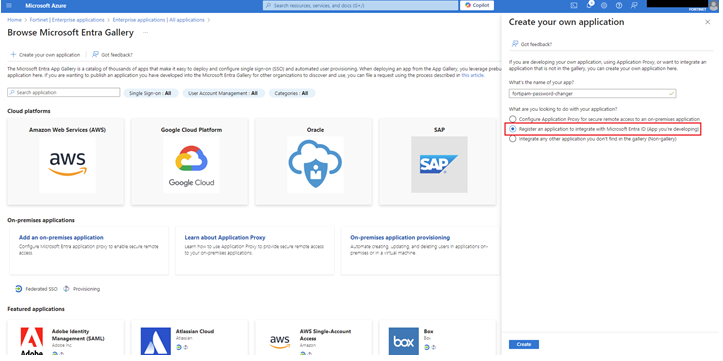
  2. In Create your own application, select Register an application to integrate with Microsoft Entra ID (App you’re developing), and select Create.
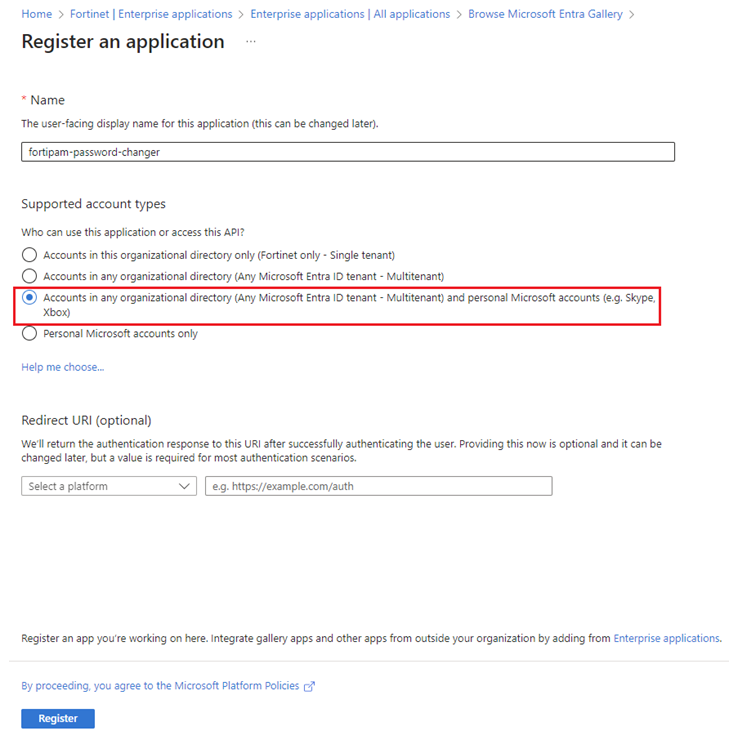
  3. In the Register an application page that opens, select the application scope based on your organization request, and select Register.

    It is recommended that you select Accounts in any organizational directory (Any Microsoft Entra ID tenant - Multitenant) and personal Microsoft accounts (e.g. Skype, Xbox).
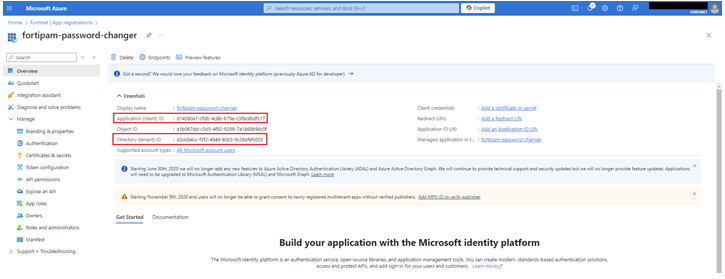
  4. After registration, record Application (client) ID and Directory (tenant) ID.

    You need these on the FortiPAM side.
Creating a client secret

To create a client secret:
  1. In the application, open Certificates & secrets > New client secret.
  2. Set an Expires value that meets your policy and save the secret value displayed after creation.
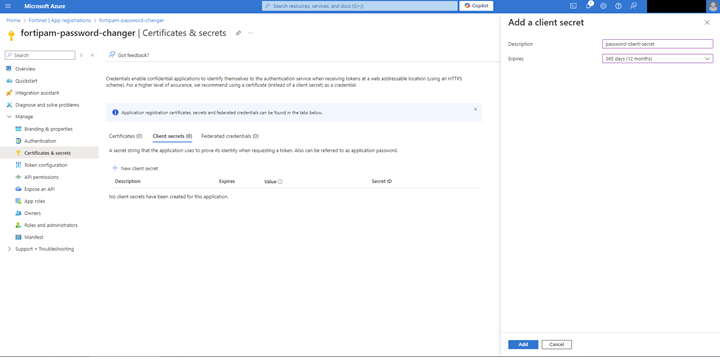
    Record the secret value as this is displayed only once after its creation.

Granting API permission

To grant API permission:
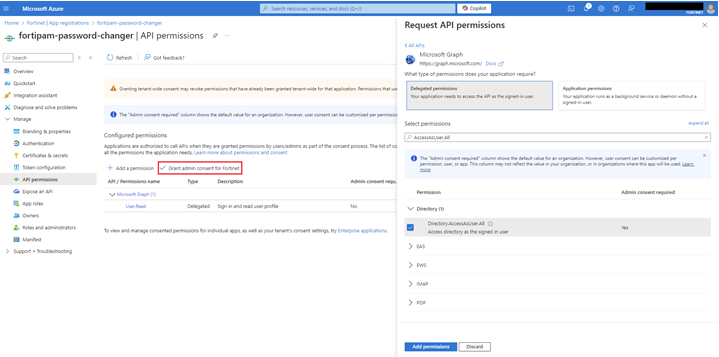
  1. In API permissions, add Directory.AccessAsUser.All to the newly created application.
  2. Click Grant admin consent to make the permission effective across your organization.

Configuring the Azure portal

Configuring the Azure portal

Register an Enterprise Application

To register an Enterprise Application:
  1. In the Microsoft Entra (Azure AD) portal, go to Enterprise applications and register a new application for the password changer.
  2. In Create your own application, select Register an application to integrate with Microsoft Entra ID (App you’re developing), and select Create.

  3. In the Register an application page that opens, select the application scope based on your organization request, and select Register.

    It is recommended that you select Accounts in any organizational directory (Any Microsoft Entra ID tenant - Multitenant) and personal Microsoft accounts (e.g. Skype, Xbox).

  4. After registration, record Application (client) ID and Directory (tenant) ID.

    You need these on the FortiPAM side.

Creating a client secret

To create a client secret:
  1. In the application, open Certificates & secrets > New client secret.
  2. Set an Expires value that meets your policy and save the secret value displayed after creation.

    Record the secret value as this is displayed only once after its creation.

Granting API permission

To grant API permission:
  1. In API permissions, add Directory.AccessAsUser.All to the newly created application.
  2. Click Grant admin consent to make the permission effective across your organization.