Configuring FortiPAM
Creating Azure Credential secret
To create an Azure Credential secret:
- Go to Secrets > Secrets, and select Create.
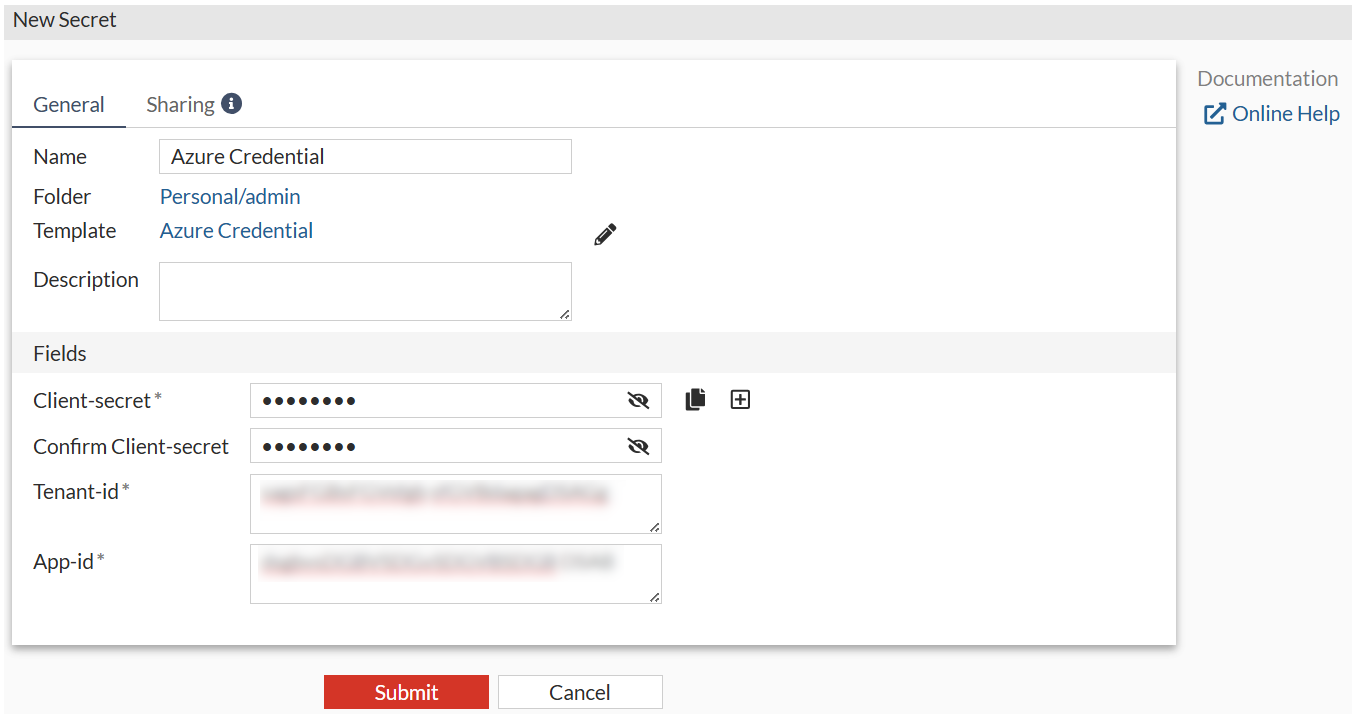
- In Select a Secret Template, select Azure Credential.
- Enter a name for the secret.
- In Fields:
- Enter the Client-secret.
The Client-secret value is from Creating a client secret.
- Enter the Tenant-id.
The Tenant-id is the Directory (tenant) ID from step 4 in Register an Enterprise Application.
- Enter the App-id.
The App-id is the Application (client) ID from step 4 in Register an Enterprise Application.
- Enter the Client-secret.
- Click Submit to save the secret.
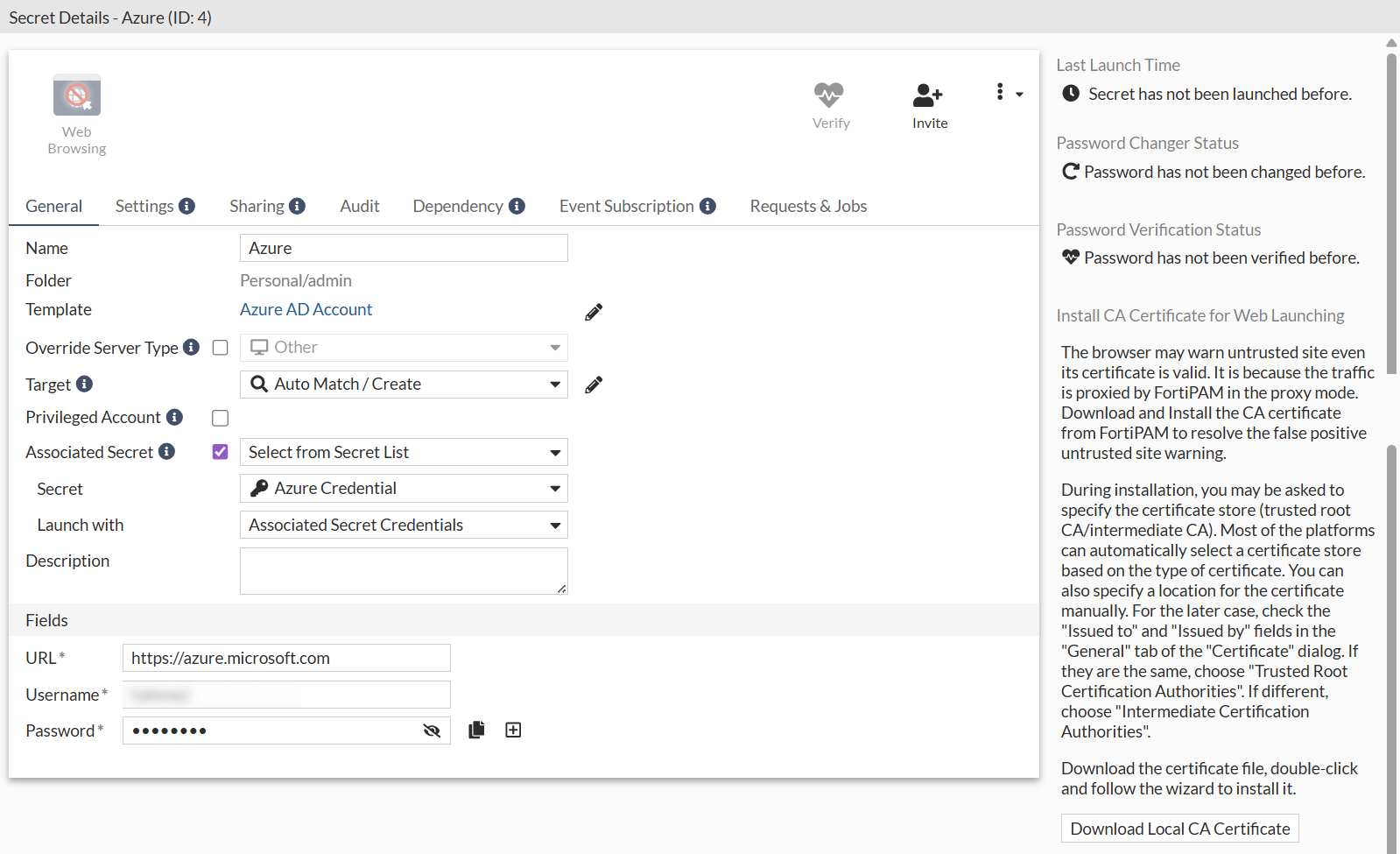
Creating Azure AD Account secret
Create another secret using the Azure AD Account template. Associate it with the Azure Credential secret created before.
To create Azure AD Account secret:
- Go to Secrets > Secrets, and select Create.
- In Select a Secret Template, select Azure AD Account.
- Enter a name for the secret.
- Select Associated Secret, from the dropdown select Select from Secret List, and select the secret created in Creating Azure Credential secret.
- In Launch with, select Associated Secret Credentials.
- In Fields:
- Enter the URL.
- Enter the Username.
- Enter the password.
- Reenter the password to confirm.
- Select Submit to save the secret.
With the association in place, password verification and change operations for the Azure AD account will succeed.