Fortinet white logo
Fortinet white logo

Examples

Creating a secret with Windows Domain Account as the secret template

Creating a secret with Windows Domain Account as the secret template

To create the secret:
  1. Go to Secrets > Secrets.
  2. In Secret List, select Create.

    The Select a Secret Template window opens.
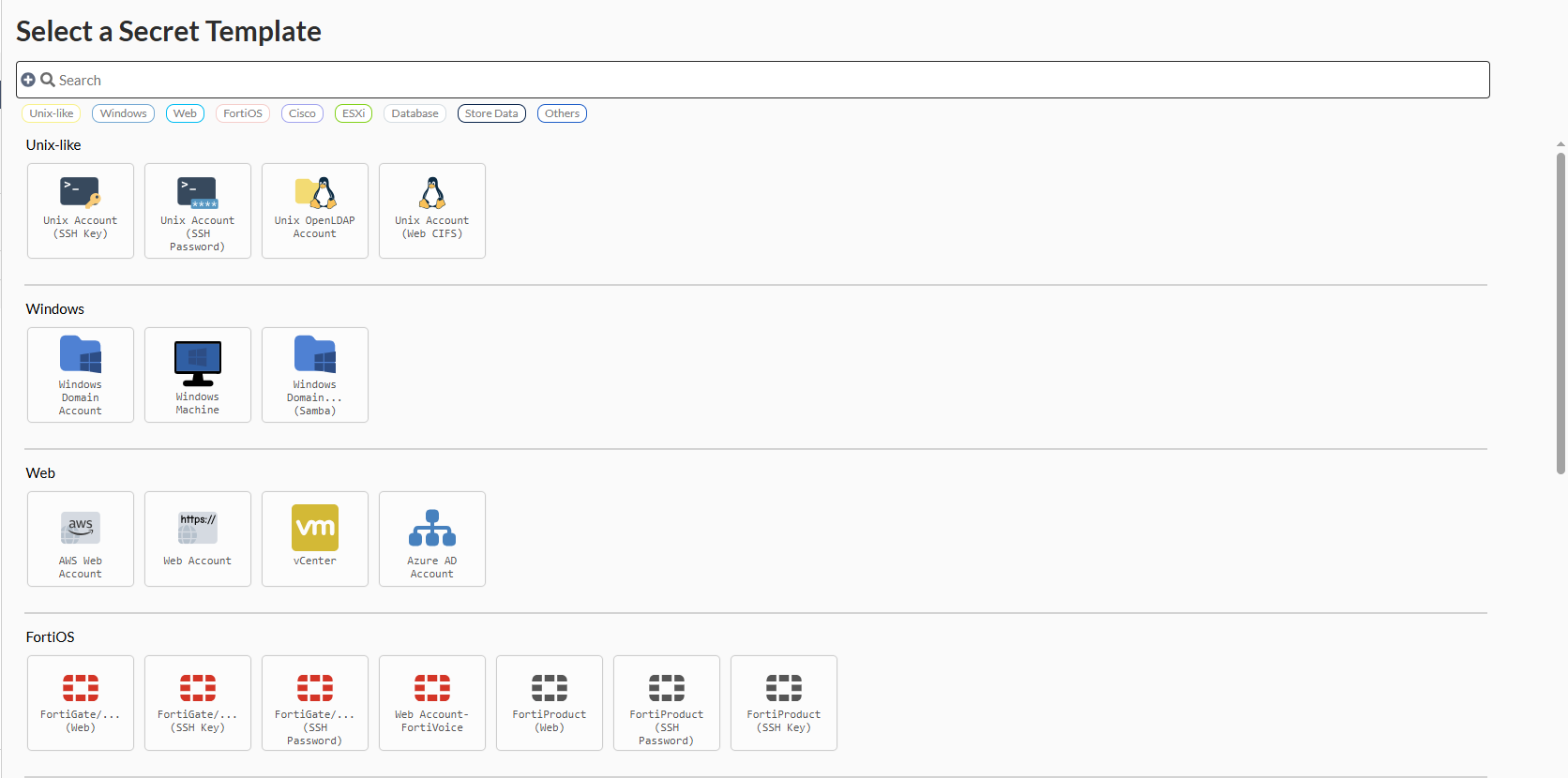
  3. In the Windows pane, select Windows Domain Account.

    The General tab opens.
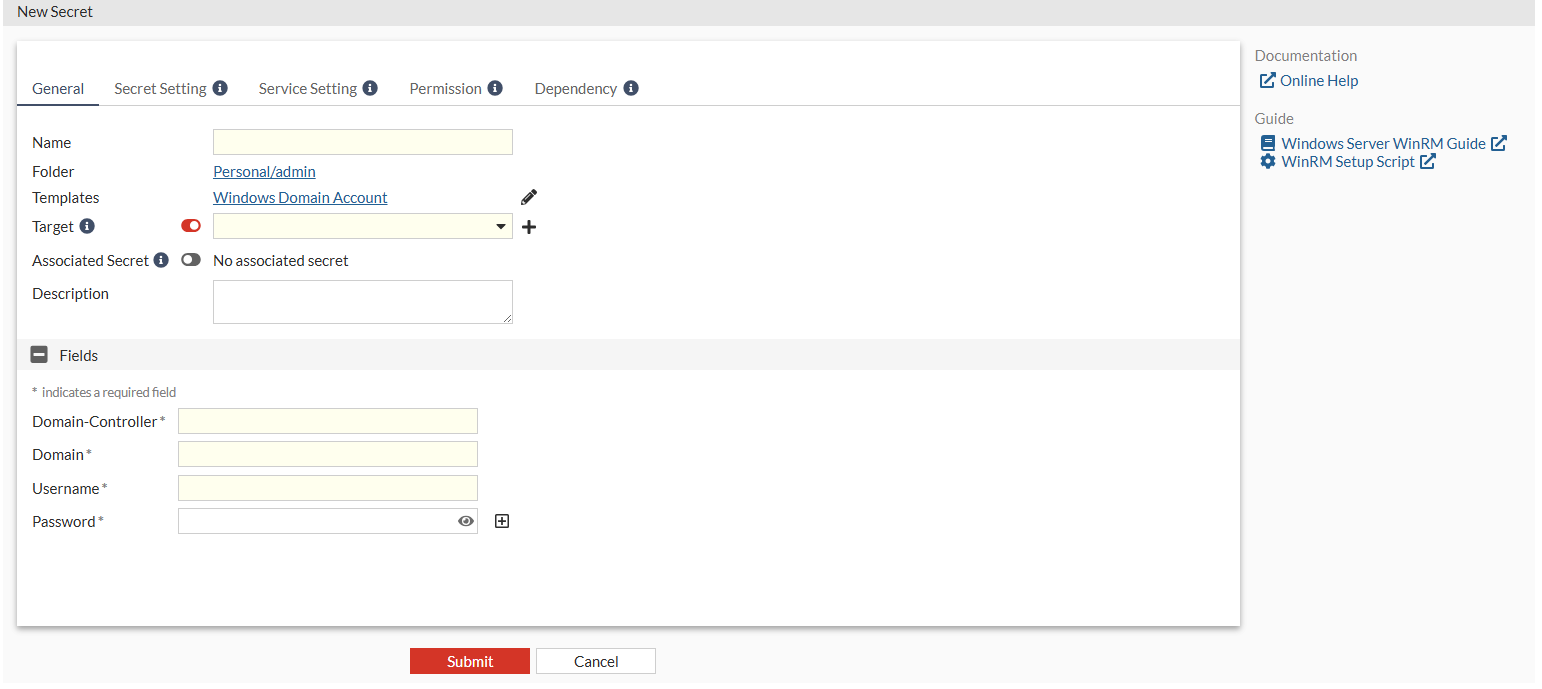
  4. In Name, enter a name for the secret.
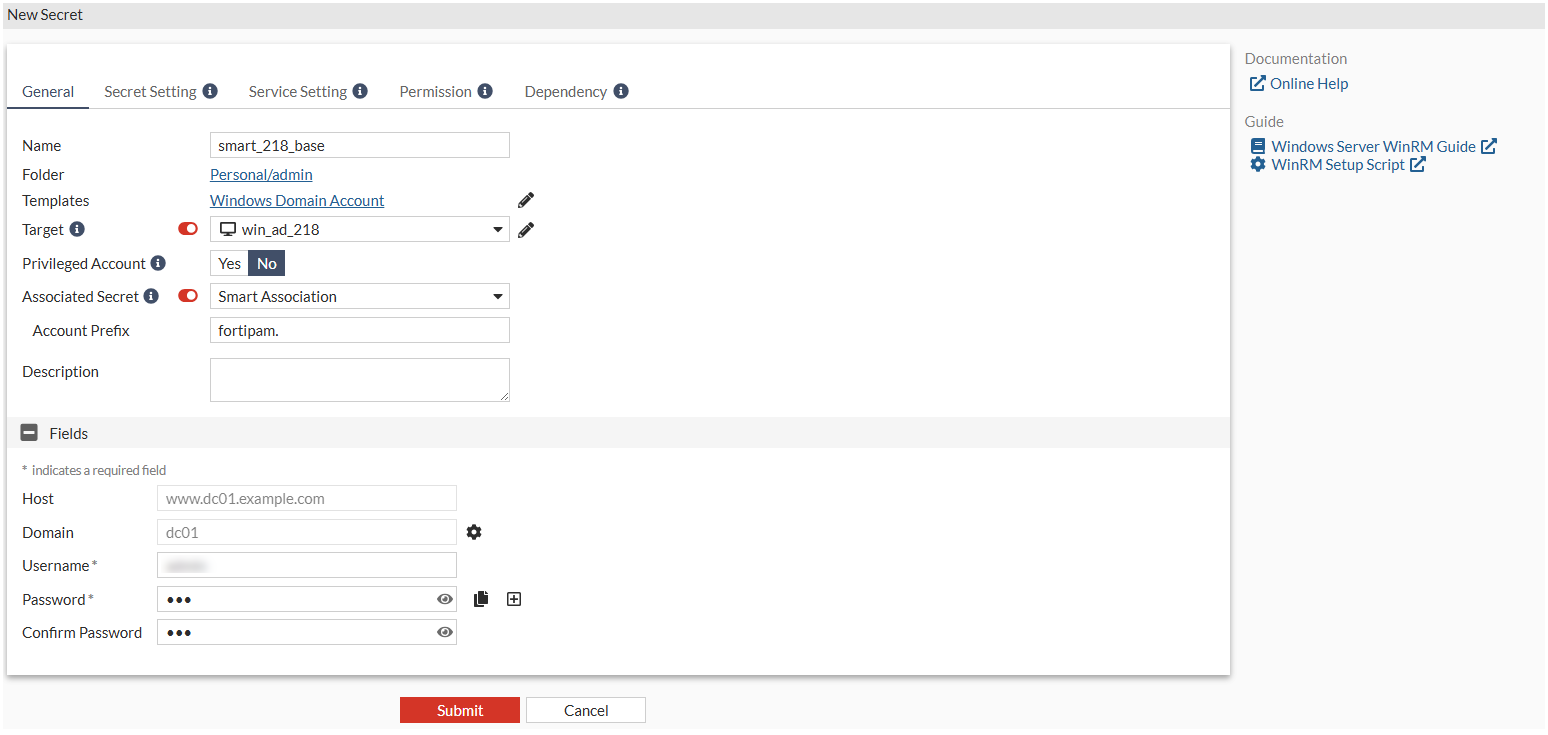
  5. In Target, select the Windows AD server.
  6. Enable Associated Secret and select Smart Association from the dropdown.
  7. In Account Prefix, enter "fortipam.".
  8. In Fields:
    1. In Username, enter a username.
    2. In Password, enter the password.
    3. Reenter the password to confirm.
  9. Click Submit.

Creating a secret with Windows Domain Account as the secret template

Creating a secret with Windows Domain Account as the secret template

To create the secret:
  1. Go to Secrets > Secrets.
  2. In Secret List, select Create.

    The Select a Secret Template window opens.

  3. In the Windows pane, select Windows Domain Account.

    The General tab opens.

  4. In Name, enter a name for the secret.
  5. In Target, select the Windows AD server.
  6. Enable Associated Secret and select Smart Association from the dropdown.
  7. In Account Prefix, enter "fortipam.".
  8. In Fields:
    1. In Username, enter a username.
    2. In Password, enter the password.
    3. Reenter the password to confirm.
  9. Click Submit.