
Fortinet white logo
Fortinet white logo

Examples

Enabling FortiAnalyzer Cloud in FortiPAM

Enabling FortiAnalyzer Cloud in FortiPAM

You can now use FortiAnalyzer Cloud on FortiPAM.

To enable FortiAnalyzer Cloud in FortiPAM:
  1. Go to Network > Fabric Connectors.

    Core Network Security opens.
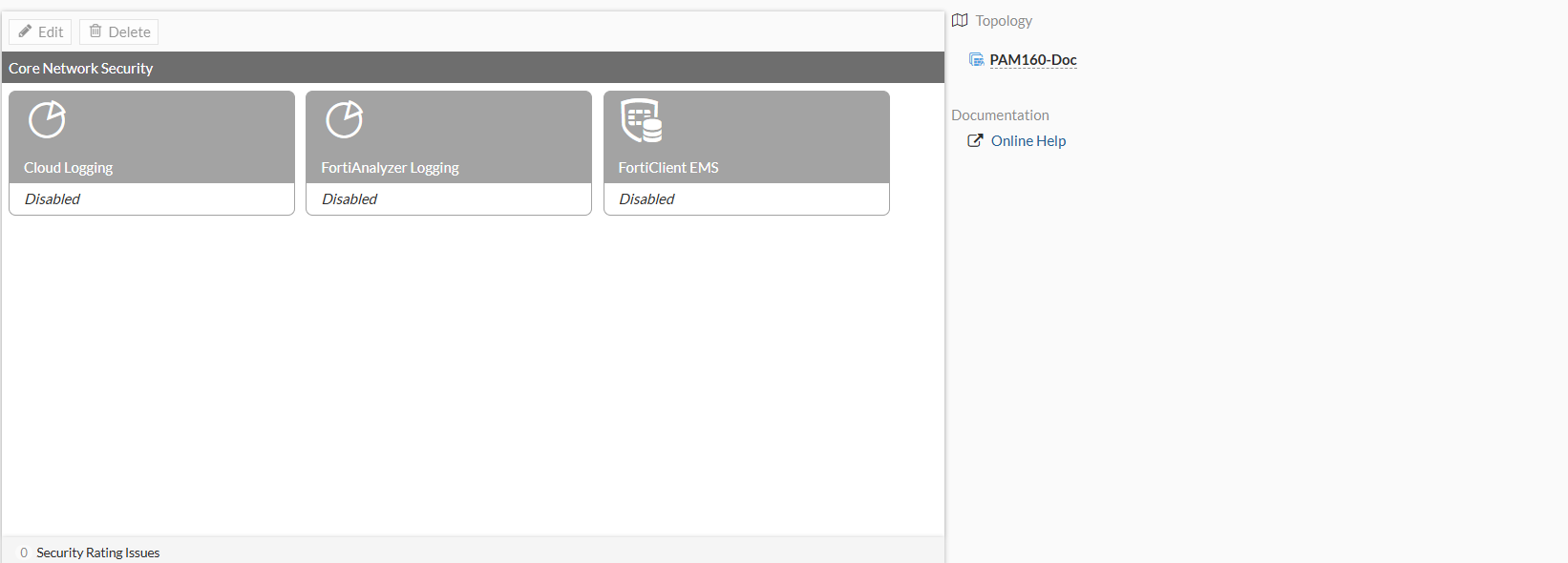
  2. Select Cloud Logging and select Edit.

    The Edit Fabric Connector window opens.
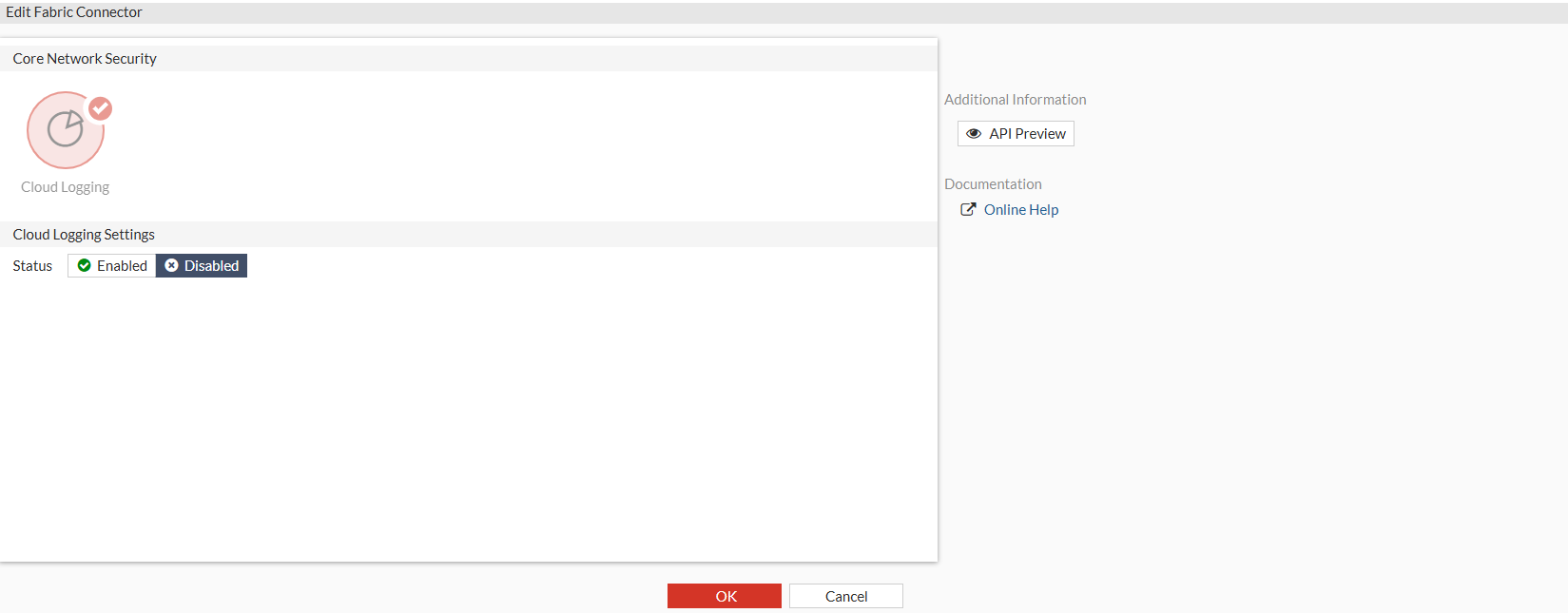
  3. In the Cloud Logging Settings pane, set Status as Enabled.

    You now see new options in the Edit Fabric Connector window.
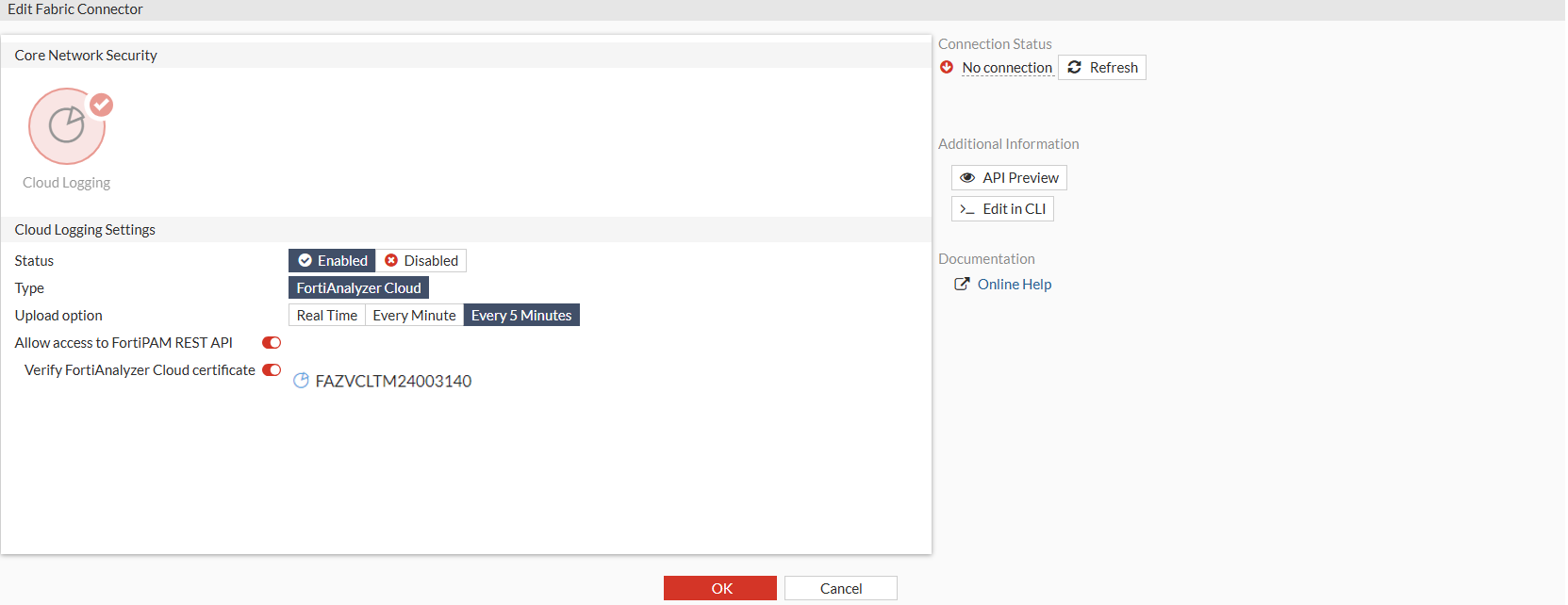
  4. In Upload option, select the frequency of log uploads to the remote FortiAnalyzer Cloud:
    1. Real Time: Logs are sent to the remote device in real time.
    2. Every Minute: Logs are sent to the remote device once every minute.
    3. Every 5 Minutes: Logs are sent to the remote device once every 5 minutes (default).
  5. In Allow access to FortiPAM REST API, you can define access to the FortiPAM API:
    1. Enable: The REST API accesses the FortiPAM topology and shares data and results.
    2. Disable: The REST API does not share data and results.
  6. In Verify FortiAnalyzer Cloud certificate, you can define the FortiAnalyzer Cloud certificate verification process:
    1. Enable: FortiPAM verifies FortiAnalyzer Cloud serial number against the FortiAnalyzer certificate. When verified, the serial number is stored in the FortiPAM configuration.
    2. Disable: FortiPAM does not verify the FortiAnalyzer Cloud certificate against the serial number.
  7. Click OK.
  8. In the window that opens, verify the FortiAnalyzer Cloud serial number and click Accept.

    The verified FortiAnalyzer Cloud certificate appears in the settings, and the Connection Status is Connected.

Enabling FortiAnalyzer Cloud in FortiPAM

Enabling FortiAnalyzer Cloud in FortiPAM

You can now use FortiAnalyzer Cloud on FortiPAM.

To enable FortiAnalyzer Cloud in FortiPAM:
  1. Go to Network > Fabric Connectors.

    Core Network Security opens.

  2. Select Cloud Logging and select Edit.

    The Edit Fabric Connector window opens.

  3. In the Cloud Logging Settings pane, set Status as Enabled.

    You now see new options in the Edit Fabric Connector window.

  4. In Upload option, select the frequency of log uploads to the remote FortiAnalyzer Cloud:
    1. Real Time: Logs are sent to the remote device in real time.
    2. Every Minute: Logs are sent to the remote device once every minute.
    3. Every 5 Minutes: Logs are sent to the remote device once every 5 minutes (default).
  5. In Allow access to FortiPAM REST API, you can define access to the FortiPAM API:
    1. Enable: The REST API accesses the FortiPAM topology and shares data and results.
    2. Disable: The REST API does not share data and results.
  6. In Verify FortiAnalyzer Cloud certificate, you can define the FortiAnalyzer Cloud certificate verification process:
    1. Enable: FortiPAM verifies FortiAnalyzer Cloud serial number against the FortiAnalyzer certificate. When verified, the serial number is stored in the FortiPAM configuration.
    2. Disable: FortiPAM does not verify the FortiAnalyzer Cloud certificate against the serial number.
  7. Click OK.
  8. In the window that opens, verify the FortiAnalyzer Cloud serial number and click Accept.

    The verified FortiAnalyzer Cloud certificate appears in the settings, and the Connection Status is Connected.