

Collector interface
The collector interface is a special type of TAP/monitoring sensor interface with the IP stack enabled. It is designed for packet-forwarding solutions that require a destination IP address, such as NetFlow and ERSPAN.
Configuring the collector Interface
The connector interface only needs to be configured when using the sensor for NetFlow or ERSPAN.
Prerequisites
Before configuring a collector interface, ensure that the following prerequisites are met regarding the number of sensor ports required for each feature you plan to enable:
|
Feature / Use Case |
Azure, OCI, AWS (VXLAN Monitoring) |
Other Platforms |
|---|---|---|
|
SPAN Only |
1 × Management |
1 × Management, Min 1 × TAP |
|
NetFlow Only |
1 × Management, 1 × Collector |
1 × Management, 1 × Collector |
|
ERSPAN Only |
1 × Management, 1 × Collector |
Sensors v2.4: 1 × Management, 1 × Collector, Min 1 × TAP Sensors v2.5: 1 × Management, 1 × Collector |
|
SPAN + ERSPAN |
1 × Management, 1 × Collector |
1 × Management, 1 × Collector, Min 1 × TAP |
|
SPAN + ERSPAN + NetFlow |
1 × Management, 1 × Collector |
1 × Management, 1 × Collector, Min 1 × TAP |
Interface requirements:
|
Interface |
Requirment |
|---|---|
| TAP | Requires a physical uplink connection to receive mirrored traffic. |
| Collector | The IPv4 stack must be enabled, and an uplink is required to receive ERSPAN and NetFlow traffic. |
To configure the collector interface:
It is best practice to keep the collector and management interfaces on separate subnets.
- From the config menu, select Set Collector Interface (Press c).
- Highlight the monitoring interface you want to use as the collector.
- Ensure this interface has an IP stack enabled on the network.
- If DHCP is available on the collector subnet, choose Configure Using DHCP and select Submit.
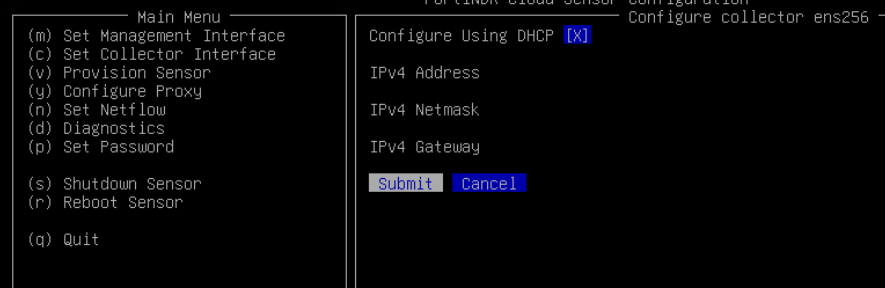
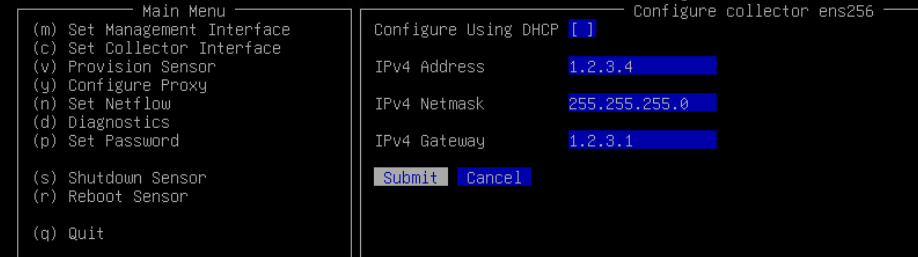
- To configure a static IP on collector interface:
- Deselect the DHCP by pressing the space bar.
- Enter the desired Address, Netmask, and default Gateway.
- Select Submit.
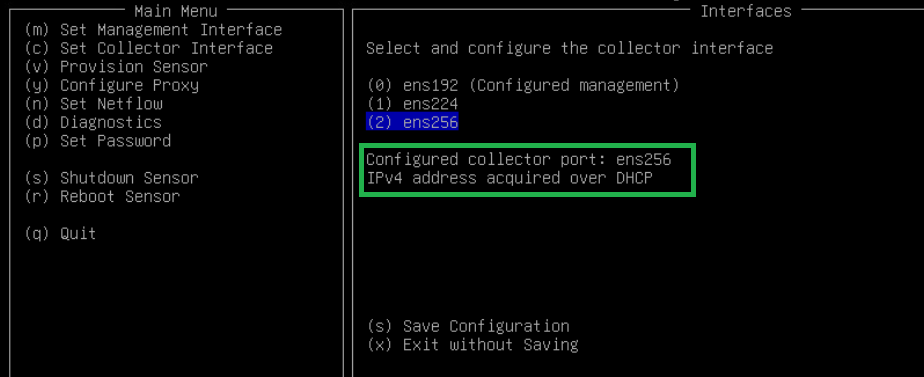
- The menu will redirect to the Interfaces section with the collector interface reflecting your settings.
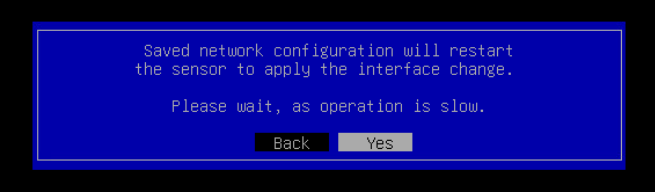
- Select Save Configuration. A confirmation dialog box will appear, requesting a sensor restart to apply the interface changes. Select Yes to proceed with the restart.
- Wait a few minutes until the restart completes and the message Successfully restarted sensord appears.

- Press Enter to return to the main menu.
- Select Save Configuration. A confirmation dialog box will appear, requesting a sensor restart to apply the interface changes. Select Yes to proceed with the restart.
The collector’s IP address will now appear in the status pane. Allow a few minutes for the sensor to update its status to Online.