

Accessing the FortiIsolator administration portal
Logging in as administrator
Steps
- Open a web browser and go to http://<management IP address>, where <management IP address> is the IP address that you configured for the administrator management portal interface. The default is 192.168.1.99.
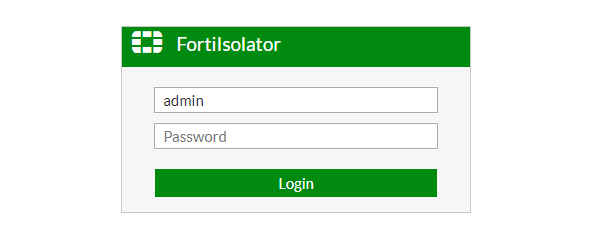
- Type in your username and password to access the administration portal. The default username is admin with no password.
- Click Login. You will be brought to the dashboard of the administration portal.
Changing the administrator password
There are two methods for changing the password.
Method 1 steps:
- In the top-right corner of the administration portal, click the admin username.
- Click Change Password.
- In the Password field, type the new password.
- In the Confirm Password field, type the new password again.
- Click OK.
Method 2: Steps
- Double-click the admin Administrator row, or select the admin Administrator row and click Edit.
- In the Password field, type the new password.
- In the Confirm Password field, type the new password again.
- Click OK.
Setting up guest administer account
A guest administer account is an account with read-only access to the administration portal. The guest user can view, but not edit, the settings and logs in the administration portal.
Steps
- Within the administration portal, go to System > Administrators and double-click the guest Administrator row, or select the guest Administrator row and click Edit.
- The guest administrator account has a preset username of guest, and defaults to no password. Add a password if desired.

- Click OK to save and apply the settings.

|
It’s recommended to configure FIS with an NTP server for the purpose of synchronizing all nodes in HA clusters. |
Upload License for FIS VM:
Follow this procedure to upload license for FortiIsolator VM.
Steps
- From the administration portaI, click Dashboard, and then Upload License.
- In the VM License Upload page, click Choose File.
- Click Submit to upload license file.It will reboot FortiIsolator
-
Login again to confirm the license is installed successfully. The bar on top will turn from red to green. A green check mark appears next to VM License on Dashboard.

|
|
Freshly install FIS 2.0.0 or later version cannot use old license from FIS 1.x.x. Please coordinate with Fortinet FortiCare to obtain the latest valid license. |