
Fortinet white logo
Fortinet white logo

Admin Guide

26.2.0

Demo: Configuring Okta as SCIM client

Demo: Configuring Okta as SCIM client

  1. Go to http://okta.com, and log in with your Corp account.
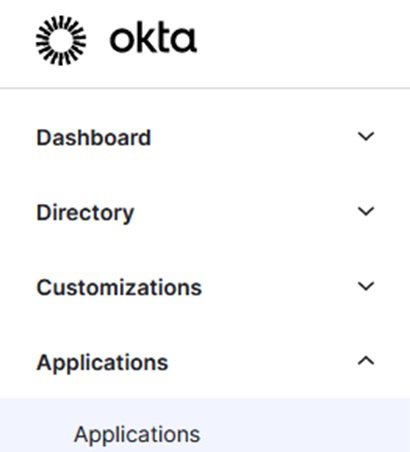
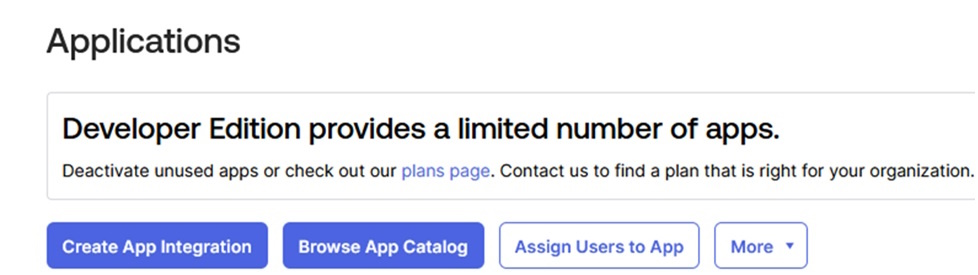
  2. Click Applications > Browse App Catalog.
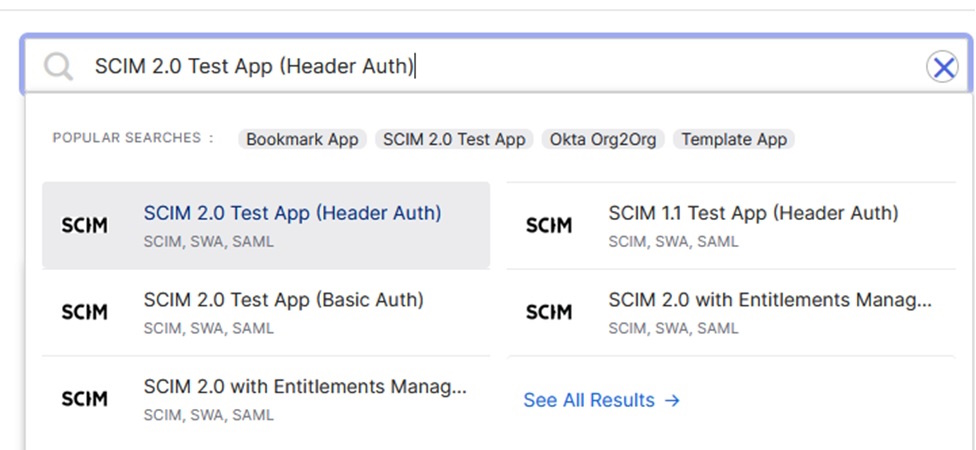
  3. Search for SCIM 2.0 Test App (Header Auth).

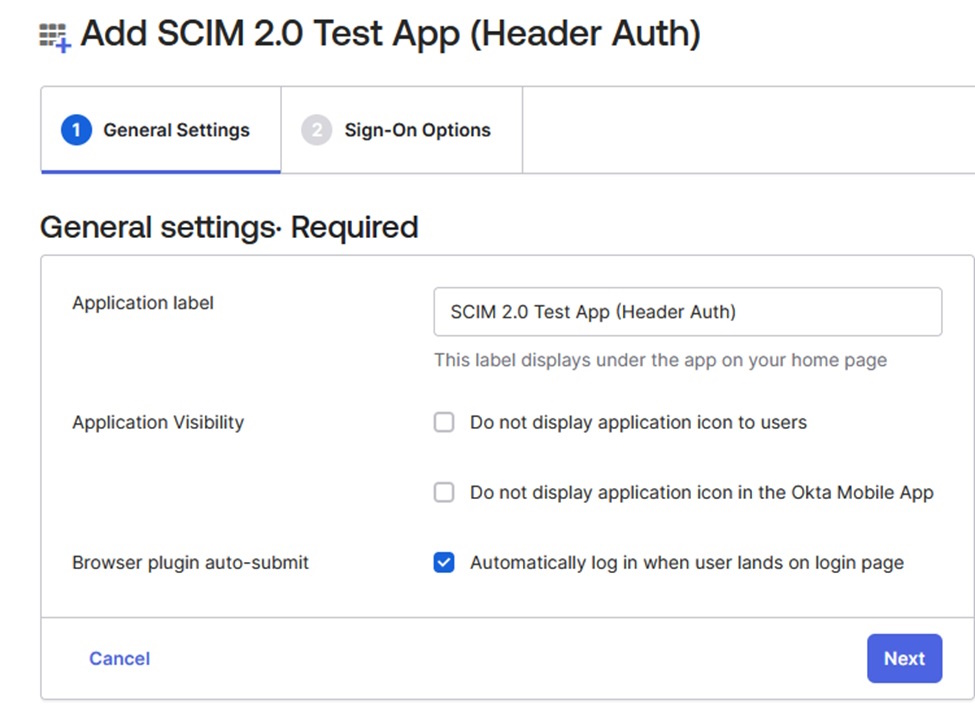
  4. Click SCIM 2.0 Test App (Header Auth) and Add Integration.
  5. Okta Add SCIM Provisioning:

    1. After your integration is created, click the General tab.

    2. Click Edit.

    3. In the Provisioning section, select SCIM and click Save.
  6. Choose Provisioning options:

    • From the integration settings page, choose the Provisioning tab. The SCIM connection settings appear under Settings Integration.
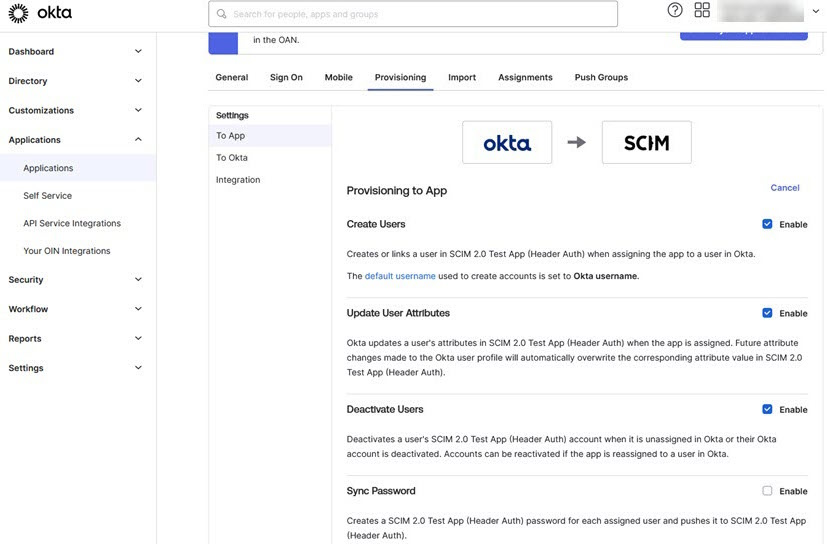
  7. Click Edit.

    • Specify the SCIM connector base URL and the field name of the unique identifier for your users on your SCIM server.
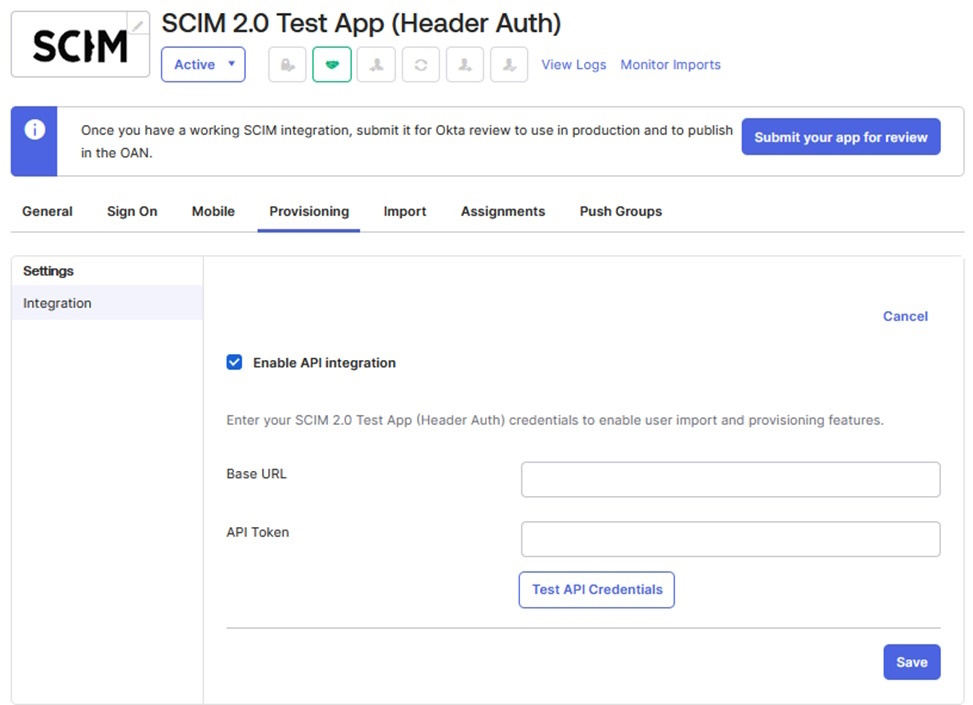
      Base URL: https://FIC.fortinet.com:9696/api/v2/scim/

      API Token: (Bearer+space-Copied Secret)

  8. Assign the users to the applications by selecting Applications > Assignments > Assign to People, and click Assign.
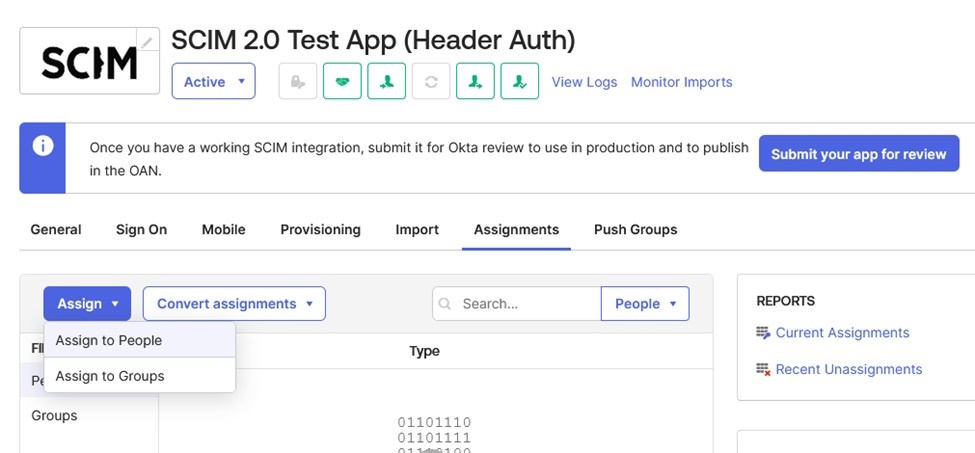
  9. Add the users:

    1. Create the Okta new user and add the email id field.
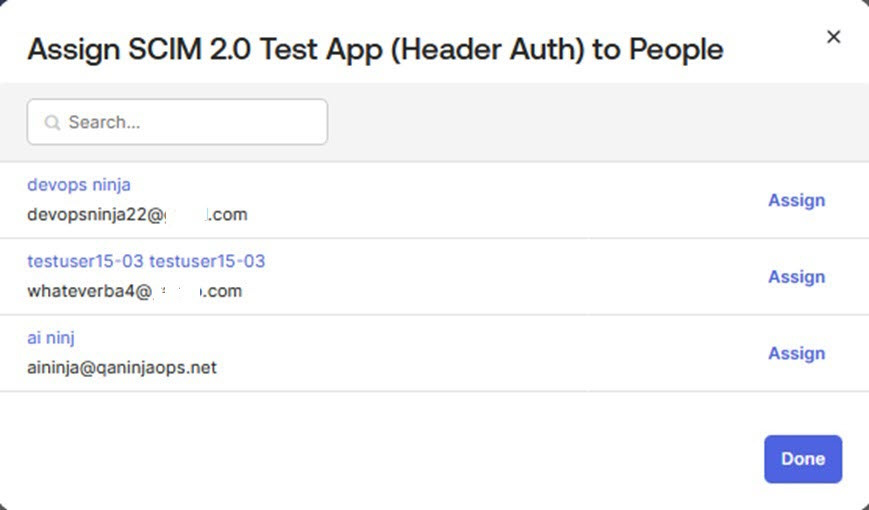
  10. Add the groups:

    1. Create the okta new group and add the user to the group

    2. Assign the users to the applications by selecting Applications > Assignments > Assign to group, and Assign.
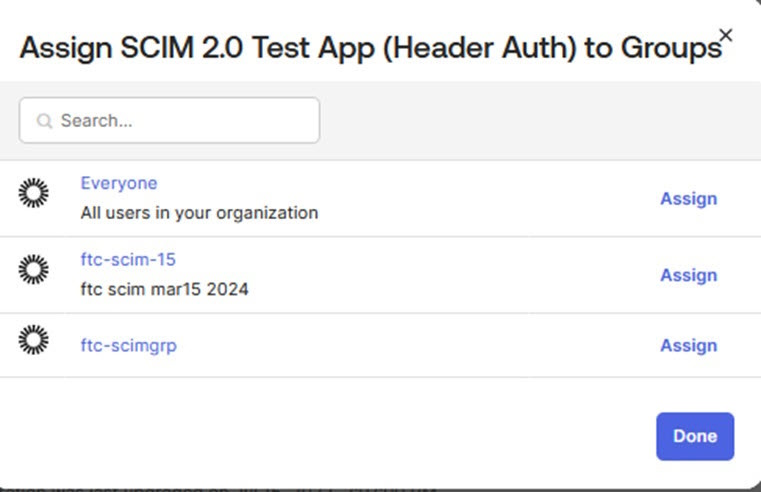
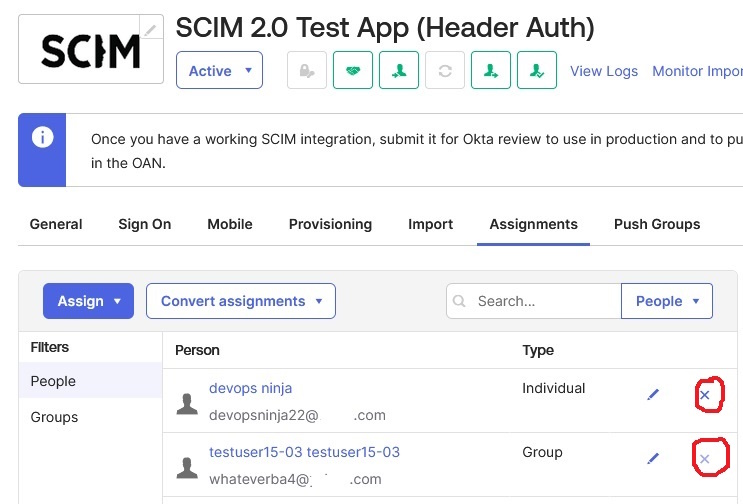
  11. Remove the users and groups from the app:
    1. Click the X button remove the user or group.
Demo: Configuring Okta as SCIM client

Demo: Configuring Okta as SCIM client

  1. Go to http://okta.com, and log in with your Corp account.

  2. Click Applications > Browse App Catalog.

  3. Search for SCIM 2.0 Test App (Header Auth).

  4. Click SCIM 2.0 Test App (Header Auth) and Add Integration.

  5. Okta Add SCIM Provisioning:

    1. After your integration is created, click the General tab.

    2. Click Edit.

    3. In the Provisioning section, select SCIM and click Save.

  6. Choose Provisioning options:

    • From the integration settings page, choose the Provisioning tab. The SCIM connection settings appear under Settings Integration.

  7. Click Edit.

    • Specify the SCIM connector base URL and the field name of the unique identifier for your users on your SCIM server.

      Base URL: https://FIC.fortinet.com:9696/api/v2/scim/

      API Token: (Bearer+space-Copied Secret)

  8. Assign the users to the applications by selecting Applications > Assignments > Assign to People, and click Assign.

  9. Add the users:

    1. Create the Okta new user and add the email id field.

  10. Add the groups:

    1. Create the okta new group and add the user to the group

    2. Assign the users to the applications by selecting Applications > Assignments > Assign to group, and Assign.

  11. Remove the users and groups from the app:
    1. Click the X button remove the user or group.