Fortinet white logo
Fortinet white logo

Admin Guide

26.1.a

Auto-Alias features—using the same email address

Auto-Alias features—using the same email address

Many FIC end users with the same email address have different usernames in different applications and different domains. FIC allows for different usernames to be attributed to the same user (i.e., same person) so that only one token (FTM or FTK) needs to be assigned to that same user. It does this using its auto-alias by email option.

Auto-alias by email is disabled by default, but you can enable it using the following procedures:

  1. Click Settings>Realm.

  2. Scroll down until you see the Auto-alias by Email option, and enable it.

Once the Auto-alias by Email feature is enabled, all newly created usernames with the same email address are automatically set as an alias under the same username. The existing usernames with the same email address will not be grouped into an alias, but you can manually set up aliased users. See Managing users.

It is important to note that aliased users must be in the same realm. Usernames with the same email address are still set as unique users if they are in different realms, even when the auto-alias feature is enabled.

FIC also allows you to set up user aliases manually. In this way, the users are not required to have the same email. To enable this feature, just follow the steps below:

  1. Click User Management >Users.

  2. Select any number of users in the same realm.

  3. Click Add User Alias on the top of the page.

  4. Select the base username when prompted, and click Yes.
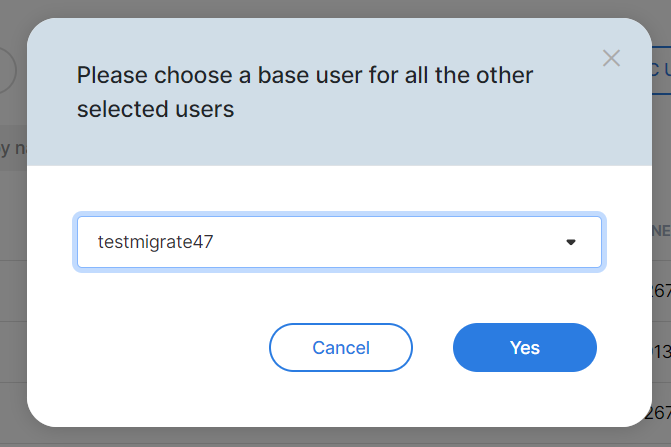
Once the user alias is formed, the base user’s username changes to boldfaced and the application Count will be increased based on how many users are selected in Step 2.

To remove the user aliases that have different email addresses:

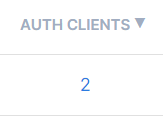
  1. Find any user alias you want to remove, and click the number in the application Count column.
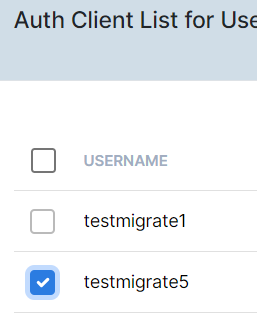
  2. Select any users you want to remove from the user alias group by clicking the checkbox.
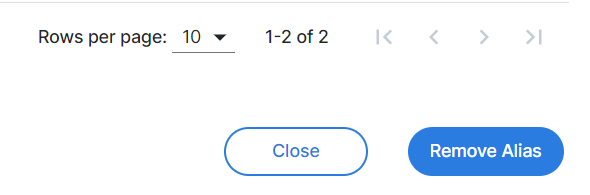
  3. Click the Remove Alias button.

To remove the user aliases that have the same email address, be sure to disable the Auto-alias by Email option first in the Settings>Realm page. Once the auto-alias feature is disabled, follow the same steps above to remove the user aliases.

Auto-Alias features—using the same email address

Auto-Alias features—using the same email address

Many FIC end users with the same email address have different usernames in different applications and different domains. FIC allows for different usernames to be attributed to the same user (i.e., same person) so that only one token (FTM or FTK) needs to be assigned to that same user. It does this using its auto-alias by email option.

Auto-alias by email is disabled by default, but you can enable it using the following procedures:

  1. Click Settings>Realm.

  2. Scroll down until you see the Auto-alias by Email option, and enable it.

Once the Auto-alias by Email feature is enabled, all newly created usernames with the same email address are automatically set as an alias under the same username. The existing usernames with the same email address will not be grouped into an alias, but you can manually set up aliased users. See Managing users.

It is important to note that aliased users must be in the same realm. Usernames with the same email address are still set as unique users if they are in different realms, even when the auto-alias feature is enabled.

FIC also allows you to set up user aliases manually. In this way, the users are not required to have the same email. To enable this feature, just follow the steps below:

  1. Click User Management >Users.

  2. Select any number of users in the same realm.

  3. Click Add User Alias on the top of the page.

  4. Select the base username when prompted, and click Yes.

Once the user alias is formed, the base user’s username changes to boldfaced and the application Count will be increased based on how many users are selected in Step 2.

To remove the user aliases that have different email addresses:

  1. Find any user alias you want to remove, and click the number in the application Count column.

  2. Select any users you want to remove from the user alias group by clicking the checkbox.

  3. Click the Remove Alias button.

To remove the user aliases that have the same email address, be sure to disable the Auto-alias by Email option first in the Settings>Realm page. Once the auto-alias feature is disabled, follow the same steps above to remove the user aliases.