

DHCPv6 stateful server
Similar to a DHCPv4 server, a DHCPv6 server is stateful. It can track client/server states, assign IP addresses to clients, and maintain full control over the process. In addition to assigning IP addresses, a DHCP server can also provide DNS server addresses. However, this IP address assignment method does not support failover protection. If the DHCPv6 server fails, hosts are unable to obtain an IPv6 address, and the network ceases to function. Furthermore, DHCPv6 does not provide gateway information. See RFC 3315 for more information.
DHCPv6 server/client can accommodate multiple DHCP options, including fqdn, hex (default), ip6, and string. Option 16 or Vendor Class Option is also supported, which allows IP pools and options to be assigned based on VCI matching for DHCPv6 server and client.
Example: basic configuration
In this example, the Enterprise Core FortiGate is connected to the First Floor FortiGate. The Enterprise Core FortiGate has a stateful DHCPv6 server configured that allows the First Floor FortiGate to automatically obtain an IPv6 address and DNS server address using the DHCP option.
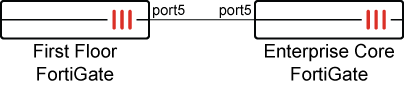
To configure a DHCPv6 stateful server in the GUI:
-
Configure the Enterprise Core FortiGate with DHCPv6 stateful server:
-
Go to Network > Interfaces and edit port5.
-
Configure the following settings:
DHCPv6 Server
Enable
IPv6 subnet
2001:db8:d0c:1::/64
DNS service
Same as System DNS
Stateful server.
Enable
IP mode
IP range
Address range
2001:db8:d0c:1::a to 2001:db8:d0c:1::f
-
Click OK.
-
-
Configure the First Floor FortiGate to obtain an IPv6 address using DHCP:
-
Go to Network > Interfaces and edit port5.
-
Set IPv6 addressing mode to DHCP.
-
Click OK.
-
-
Verify that the First Floor FortiGate obtained an IPv6 address and DNS server address from the DHCPv6 server:
-
Go to Network > Interfaces and edit port5. The Obtained IP/Netmask and Acquired DNS fields are populated with an IPv6 address.
-
To configure a DHCPv6 stateful server in the CLI:
-
Configure the Enterprise Core FortiGate with DHCPv6 stateful server:
config system dhcp6 server edit 1 set dns-service default set subnet 2001:db8:d0c:1::/64 set interface "port5" config ip-range edit 1 set start-ip 2001:db8:d0c:1::a set end-ip 2001:db8:d0c:1::f next end next end -
Configure the First Floor FortiGate to obtain an IPv6 address using DHCP:
config system interface edit "port5" config ipv6 set ip6-mode dhcp end next end -
Verify that the First Floor FortiGate obtained an IPv6 address and DNS server address from the DHCPv6 server:
# diagnose ipv6 address list | grep port5
dev=4 devname=port5 flag=P scope=0 prefix=128 addr=2001:db8:d0c:1::a preferred=4294967295 valid=4294967295 cstamp=1298969 tstamp=1298969ip6-address
# dia test application dnsproxy 3
worker idx: 0
VDOM: root, index=0, is primary, vdom dns is enabled, pip-0.0.0.0 dns_log=1
dns64 is disabled
DNS servers:
2001:db8:d0c:1::ff:53 vrf=0 tz=0 encrypt=none req=1 to=1 res=0 rt=0 ready=1 timer=0 probe=0 failure=1 last_failed=19812
Example: multiple DHCP options
The DHCPv6 server/client can accommodate multiple (more than three) DHCP options: fqdn, hex (default), ip6, and string.
To configure the options and IP range when the FortiGate is the DHCPv6 server:
config system dhcp6 server
    edit 1
        set dns-service default
        set subnet 2000:11:1:1::/64
        set interface "port3"
        config options
            edit 1
                set code 16
                set type string
                set value "vendor class option"
            next
            edit 2
                set code 15
                set type string
                set value "user class option"
            next
            edit 3
                set code 72
                set type fqdn
                set value "www.test.com"
            next
            edit 4
                set code 70
                set type ip6
                set ip6 2000:8:8:8::8
            next
            edit 5
                set code 96
                set type hex
                set value "0000013700084d53465420352e30"
            next
        end
        config ip-range
            edit 1
                set start-ip 2000:11:1:1::2
                set end-ip 2000:11:1:1::10
            next
        end
    next
    edit 2
        set subnet 2000:10:1:100::/64
        set interface "port2"
        config ip-range
            edit 1
                set start-ip 2000:10:1:100::11
                set end-ip 2000:10:1:100::11
            next
        end
    next
end
To configure the options and IP range when the FortiGate is a DHCPv6 client:
config system interface
    edit "port3"
        set vdom "vdom1"
        set allowaccess ping https ssh snmp http telnet
        set type physical
        set snmp-index 5
        config ipv6
            set ip6-mode dhcp
            config client-options
                edit 1
                    set code 16
                    set type hex
                    set value "0000013700084d53465420352e30"
                next
            end
            set ip6-allowaccess ping https ssh http telnet
        end
        set macaddr 00:09:0f:09:00:00
    next
end
Example: VCI matching in IP ranges
DHCPv6 supports option 16, also known as the Vendor Class Option. This allows IP pools and options assignment based on VCI matching for DHCPv6 server and client.
VCI matching in IP ranges
There are three cases:
-
If VCI matching is disabled in the IP range, then the DHCP client can get an IP address. This is the default.
-
If VCI matching is enabled and the VCI value matches the DHCP client, then the DHCP client can get an IP address.
-
If VCI matching is enabled and the VCI value does not match the DHCP client, then the DHCP client cannot get an IP address.
To enable VCI matching in an IP range:
config system dhcp6 server
    edit 2
        set subnet 2000:10:1:100::/64
        set interface "port2"
        config ip-range
            edit 1
                set start-ip 2000:10:1:100::11
                set end-ip 2000:10:1:100::11
                set vci-match enable
                set vci-string "PC1"
            next
        end
    next
end
VCI matching in DHCPv6 options
There are three cases:
-
If VCI matching is disabled in the option, then all options are sent back to the client. This is the default.
-
If VCI matching is enabled and the VCI value matches the DHCP client, then all options are sent back to the client.
-
If VCI matching is enabled and the VCI value does not matches the DHCP client, then the unmatched options cannot be sent back to the client.
To enable VCI matching in an option:
config system dhcp6 server
    edit 2
        set subnet 2000:10:1:100::/64
        set interface "port2"
        config options
            edit 1
                set code 16
                set type string
                set value "vendor class option"
                set vci-match enable
                set vci-string "PC1"
            next
        end
        config ip-range
            edit 1
                set start-ip 2000:10:1:100::11
                set end-ip 2000:10:1:100::11
            next
        end
    next
end