Fortinet white logo
Fortinet white logo

New Features

Add GUI support for split tunneling in LAN extension mode 7.6.3

Add GUI support for split tunneling in LAN extension mode 7.6.3

Note

This information is also available in the FortiExtender 7.6.2 Managed Administration Guide:

Note

Support for configuring split tunneling in LAN extension mode using the CLI was added in FortiOS 7.6.1. FortiOS 7.6.3 adds GUI support. For more information, see Support split tunneling in LAN extension mode 7.6.1.

This release adds GUI support for configuring split tunneling. When FortiExtender is configured in LAN extension mode, you can configure split tunneling to specify which traffic gets routed to the central FortiGate for further inspection and which traffic can be sent directly to their destination. This reduces the load on the central FortiGate by routing less traffic through the LAN extension tunnel.

To configure split tunneling - GUI:
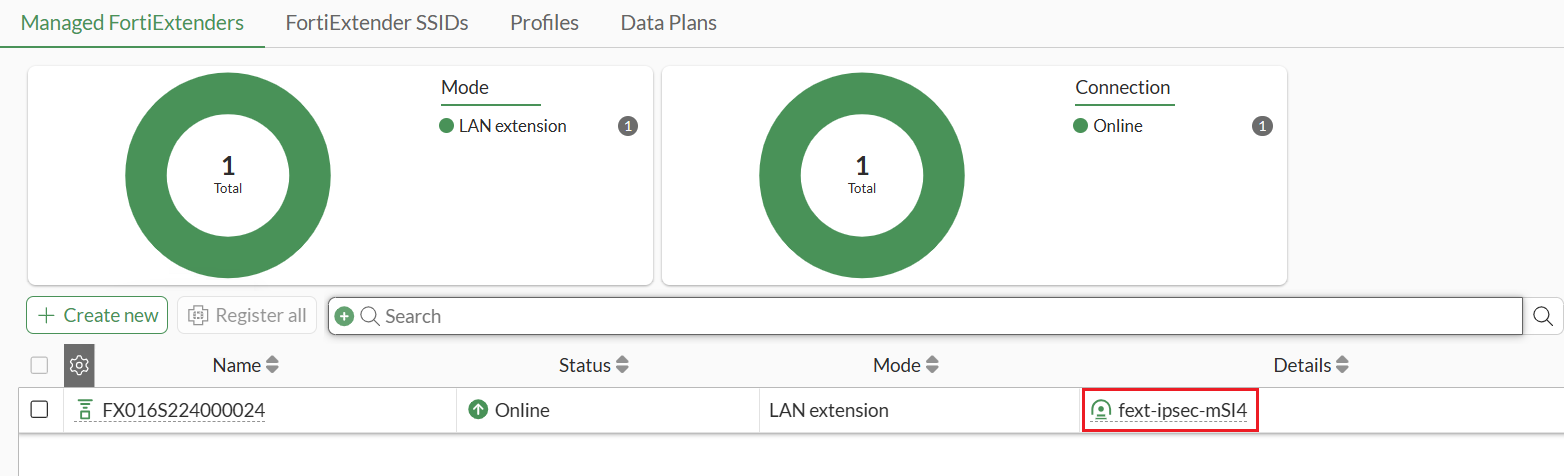
  1. From the FortiGate, go to Network > FortiExtenders > Managed FortiExtenders and locate the FortiExtender you want to configure split tunneling for.
  2. In the details column, you can find the name of the IPsec tunnel between the FortiExtender and FortiGate. In this example, the tunnel name is fext-ipsec-mSI4.
  3. Go to Network > FortiExtenders> Profiles and click Create new or edit an existing FortiExtender profile.

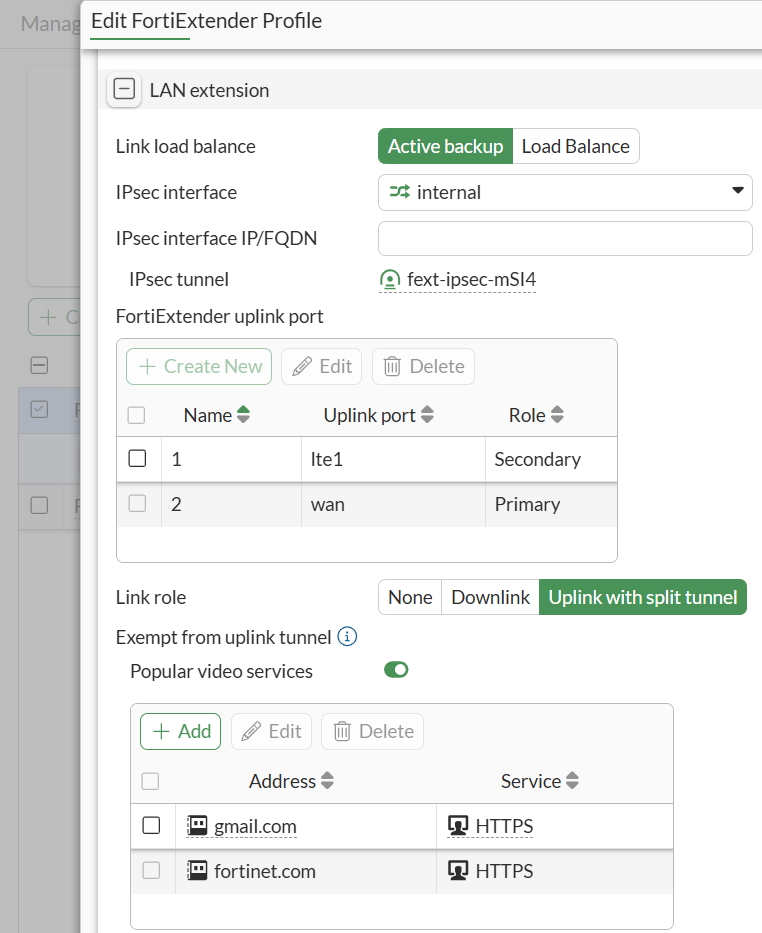
  4. Under LAN extension, you can configure the IPsec tunnel (fext-ipsec-mSI4) between the FortiGate and FortiExtender uplink port.

  5. In Link role, select Uplink with split tunnel to select which traffic you want to exempt from being sent to the IPsec tunnel. You can enable Popular video services or add specific addresses in services you want to exempt.

    In the following example, popular video services, as well as https links to specific addresses are exempted from being sent to the IPsec tunnel.
  6. When you are finished, click OK.

    FortiExtender clients will receive DHCP assignments from the FortiGate LAN extension interface (FX016S224000024).

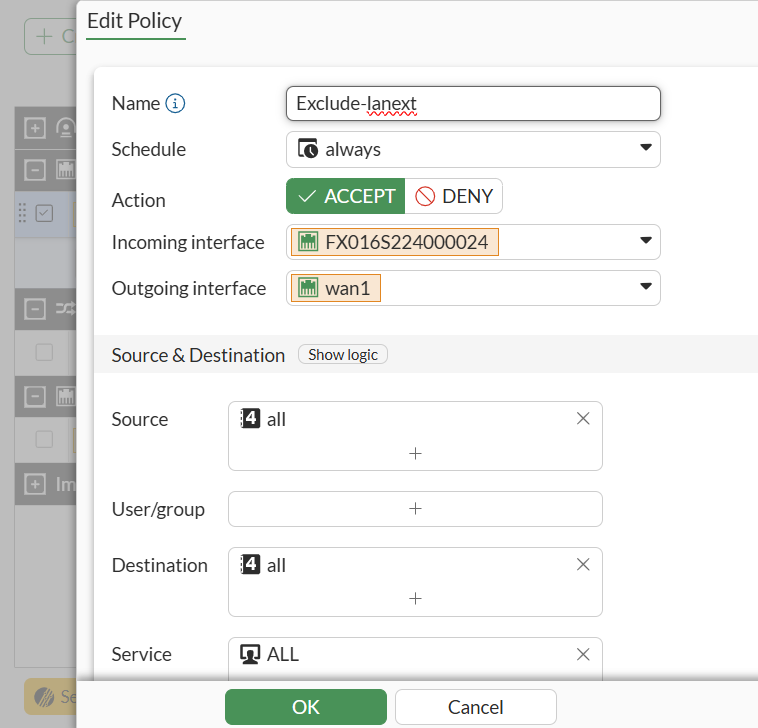
  7. To configure a firewall policy for FortiExtender clients, go to Policy & Objects > Firewall Policy, and click Create new to define a policy.

  8. Configure the following:

    1. Set the Action to ACCEPT.

    2. In the Incoming interface, set it to the FortiGate LAN extension interface (FX016S224000024).

      Note: FortiExtender clients receive DHCP assignments from the FortiGate LAN extension interface.

    3. In Outgoing interface, set it to wan1.

    4. When you are finished, click OK.

      As defined in split tunneling mode, traffic will use this firewall policy to access the internet for initialization, DNS, and etc.

  9. Once the session is established, the split traffic will be sent to the FortiExtender WAN interface via the FortiExtender firewall. This traffic will no longer use the IPsec tunnel.
    • The FortiExtender firewall only accepts the traffic from FortiExtender LAN clients, which is defined as le-ts-le-switch (the DHCP range in FortiGate LAN extension interface).
    • FortiExtender will forward the split traffic to a local interface with default gateway.

Add GUI support for split tunneling in LAN extension mode 7.6.3

Add GUI support for split tunneling in LAN extension mode 7.6.3

Note

This information is also available in the FortiExtender 7.6.2 Managed Administration Guide:

Note

Support for configuring split tunneling in LAN extension mode using the CLI was added in FortiOS 7.6.1. FortiOS 7.6.3 adds GUI support. For more information, see Support split tunneling in LAN extension mode 7.6.1.

This release adds GUI support for configuring split tunneling. When FortiExtender is configured in LAN extension mode, you can configure split tunneling to specify which traffic gets routed to the central FortiGate for further inspection and which traffic can be sent directly to their destination. This reduces the load on the central FortiGate by routing less traffic through the LAN extension tunnel.

To configure split tunneling - GUI:
  1. From the FortiGate, go to Network > FortiExtenders > Managed FortiExtenders and locate the FortiExtender you want to configure split tunneling for.
  2. In the details column, you can find the name of the IPsec tunnel between the FortiExtender and FortiGate. In this example, the tunnel name is fext-ipsec-mSI4.

  3. Go to Network > FortiExtenders> Profiles and click Create new or edit an existing FortiExtender profile.

  4. Under LAN extension, you can configure the IPsec tunnel (fext-ipsec-mSI4) between the FortiGate and FortiExtender uplink port.

  5. In Link role, select Uplink with split tunnel to select which traffic you want to exempt from being sent to the IPsec tunnel. You can enable Popular video services or add specific addresses in services you want to exempt.

    In the following example, popular video services, as well as https links to specific addresses are exempted from being sent to the IPsec tunnel.

  6. When you are finished, click OK.

    FortiExtender clients will receive DHCP assignments from the FortiGate LAN extension interface (FX016S224000024).

  7. To configure a firewall policy for FortiExtender clients, go to Policy & Objects > Firewall Policy, and click Create new to define a policy.

  8. Configure the following:

    1. Set the Action to ACCEPT.

    2. In the Incoming interface, set it to the FortiGate LAN extension interface (FX016S224000024).

      Note: FortiExtender clients receive DHCP assignments from the FortiGate LAN extension interface.

    3. In Outgoing interface, set it to wan1.

    4. When you are finished, click OK.

      As defined in split tunneling mode, traffic will use this firewall policy to access the internet for initialization, DNS, and etc.

  9. Once the session is established, the split traffic will be sent to the FortiExtender WAN interface via the FortiExtender firewall. This traffic will no longer use the IPsec tunnel.
    • The FortiExtender firewall only accepts the traffic from FortiExtender LAN clients, which is defined as le-ts-le-switch (the DHCP range in FortiGate LAN extension interface).
    • FortiExtender will forward the split traffic to a local interface with default gateway.