

Uploading files to the storage account
The template deployment creates the storage container fortigate-autoscale in the resource group you selected or created in Creating a template deployment .
To upload files to the storage container:
- From the resource group, load the storage account by clicking its name.
- From the Storage account column, under Data storage, click Containers. The fortigate-autoscale container is listed.
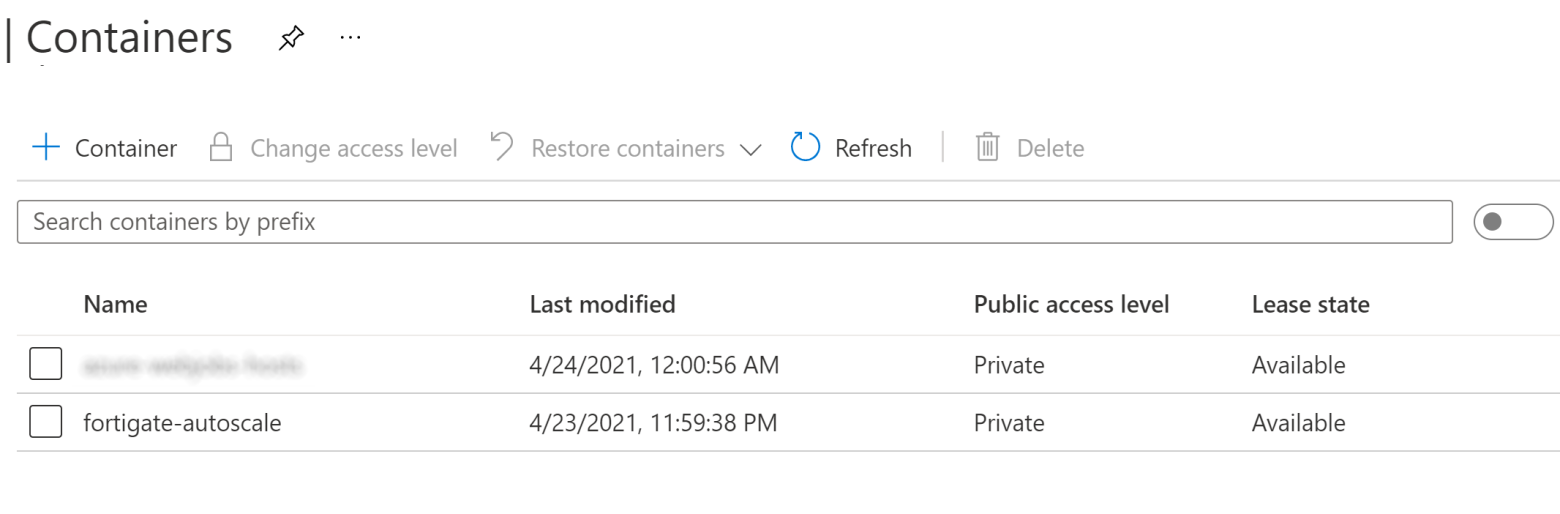
- Click the fortigate-autoscale container.
- Click Upload.
- In the Upload blob, click Advanced to display more options.
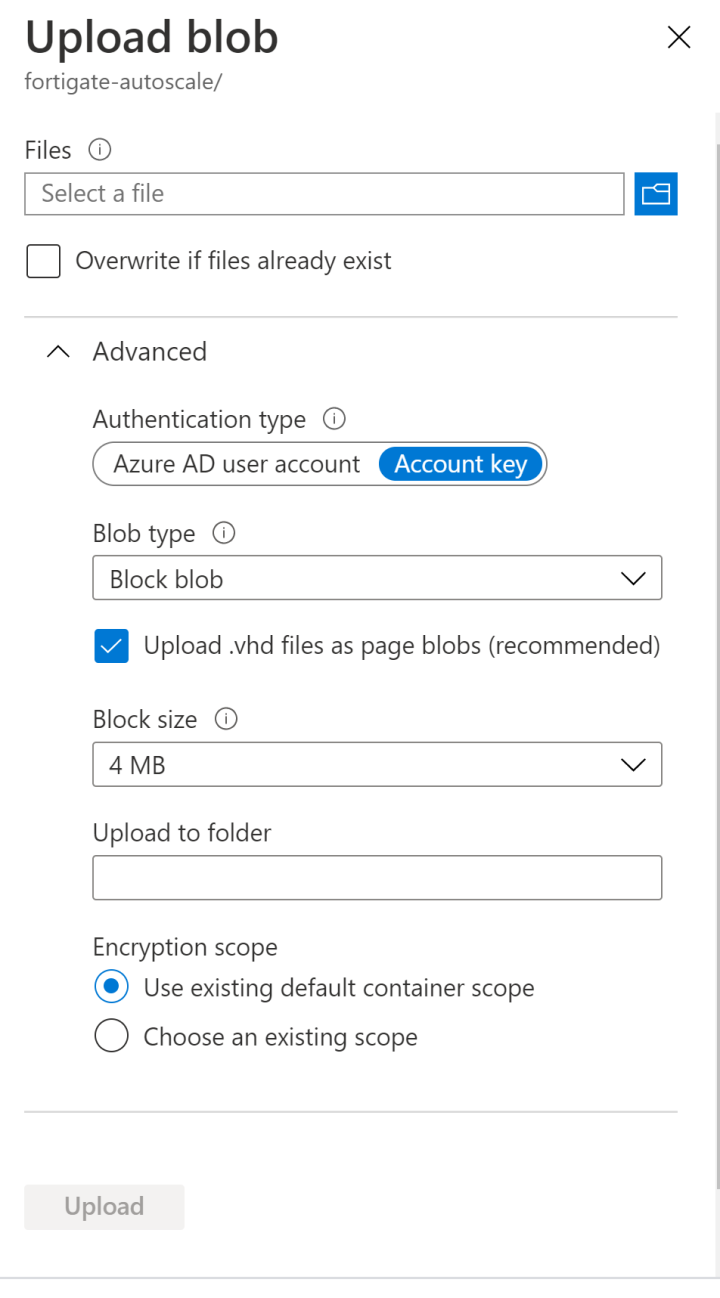
- Specify the folder to upload to in Upload to folder:
- For configset files, enter
assets/configset. - For license files, enter
assets/license-files/fortigate.
- For configset files, enter
- Select a file or files to upload:
- For configset files, select all the files in the configset folder of the deployment package.
- For license files, select your BYOL license file(s).

If you provide two license files with the same content, only one of them will be used, the other one will be ignored.
If you upload a file with the same name but different content, there are two outcomes:
- If the old license has not been distributed, the new file replaces the old one.
- If the old license has been distributed, the new file is treated as a new license. The old license is still valid, but it cannot be redistributed in the future.
- Click Upload.