
Fortinet white logo
Fortinet white logo

Administration Guide

Managing the device address book

Managing the device address book

The device address book stores addresses at the account level and makes them available for association with devices. Each address includes coordinate information that can be used for location mapping. Address book entries are static and are not automatically updated after they are created, which helps maintain consistent address data. You can manage address book entries from the Device List, Device Details, and the Device Map.

To add a device address to the address book:
  1. Do one of the following:
    • In the Device list:
      • Select a device, click the Actions menu and select Update Device Information.
      • Hover over a device to view the device details and click Update Device Information.
    • In the Device Map, hover over a device on the map to view the device details and click Update Device Information.
  2. In the Update Device Information pane, click View address book.
  3. In the address book dialog, click Create new to add a new address.
  4. Enter the Location name (such as a region or site), the device address and country, then click OK.
To associate a device with an address:
  1. Do one of the following:
    • In the Device list:
      • Select a device, click the Actions menu and select Update Device Information.
      • Hover over a device to view the device details and click Update Device Information.
    • In the Device Map, hover over a device on the map to view the device details and click Update Device Information.
  2. In the Update Device Information pane, click the Address and select a location from the list.
  3. Click OK.
To remove an associated address:

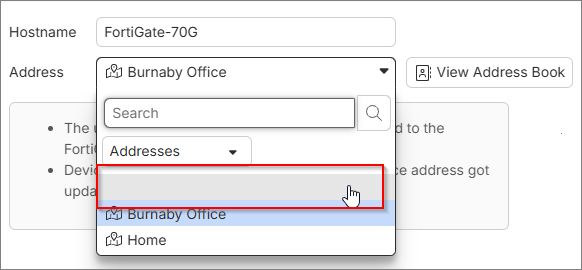
Select the top empty entry in the address drop-down list.
To edit an address:
  1. In the Update Device Information pane, click View address book.
  2. In the address book dialog, click Edit to modify an existing address.
  3. Edit the device address and click OK.

Managing the device address book

Managing the device address book

The device address book stores addresses at the account level and makes them available for association with devices. Each address includes coordinate information that can be used for location mapping. Address book entries are static and are not automatically updated after they are created, which helps maintain consistent address data. You can manage address book entries from the Device List, Device Details, and the Device Map.

To add a device address to the address book:
  1. Do one of the following:
    • In the Device list:
      • Select a device, click the Actions menu and select Update Device Information.
      • Hover over a device to view the device details and click Update Device Information.
    • In the Device Map, hover over a device on the map to view the device details and click Update Device Information.
  2. In the Update Device Information pane, click View address book.
  3. In the address book dialog, click Create new to add a new address.
  4. Enter the Location name (such as a region or site), the device address and country, then click OK.
To associate a device with an address:
  1. Do one of the following:
    • In the Device list:
      • Select a device, click the Actions menu and select Update Device Information.
      • Hover over a device to view the device details and click Update Device Information.
    • In the Device Map, hover over a device on the map to view the device details and click Update Device Information.
  2. In the Update Device Information pane, click the Address and select a location from the list.
  3. Click OK.
To remove an associated address:

Select the top empty entry in the address drop-down list.

To edit an address:
  1. In the Update Device Information pane, click View address book.
  2. In the address book dialog, click Edit to modify an existing address.
  3. Edit the device address and click OK.