

Integrate with FortiGate 6.0.3 to 7.2.3 over REST-API
The following instructions are based on FortiGate 6.0.3 to 7.2.3 and FortiDeceptor 6.2.0. For information about the versions of FortiGate and FortiDeceptor you are using, select the version in the Fortinet Document Library.
1. Configure FortiGate
1.1 Configure a new profile with minimum permissions for REST API integration
For more information about creating Administrator profiles, see the FortiGate Administration Guide.
- On FortiGate, go to System > Admin Profiles and click Create New.
- Configure the profile Access Permissions. The following are the minimum required permissions.
Access Control
Permissions
Security Fabric Read/Write FortiView Read User & Device Read/Write Firewall Read Log & Report Read Network Read System Read/Write Security Profile Read VPN Read WAN Opt & Cache Read WiFi & Switch Read 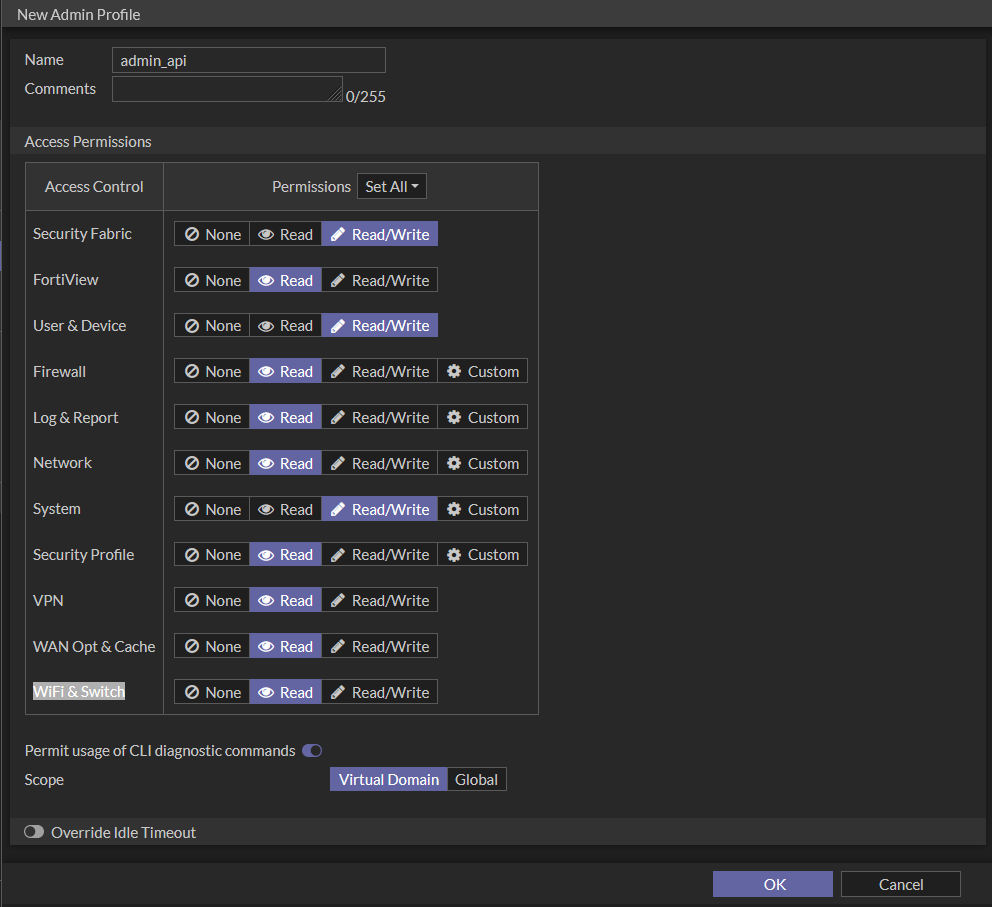
1.2 Create a new REST API admin
The administrator type will depend on the integration method you intend to use in FortiDeceptor.
- Create a new Administrator if you want the admin to log in with a username and password.
- Create a new REST API Admin if you want the user to log in with an API token.
For more information about creating Administrators in FortiGate, see the FortiGate Administration Guide.
To create a new Administrator:
- On FortiGate, go to System > Administrators.
- Click Create New > Administrator.
- Enter a Username and Password for the administrator.
- From the Administrator profile dropdown, select the profile you created in step 1.1 Create the administrator profile in FortiGate.
- Click OK.
To create a new REST API Admin:
- Go to System > Administrators.
- Select Create New > REST API Admin.
- Configure the administrator settings.
Username
The username of the administrator.
Do not use the characters < > ( ) # " ' in the administrator username. Using these characters in an administrator username might have a cross site scripting (XSS) vulnerability.
Administrator Profile
Where permissions for the REST API administrator are defined.
A REST API administrator should have the minimum permissions required to complete the request.
PKI Group
Certificate matching is supported as an extra layer of security. Both the client certificate and token must match to be granted access to the API.
CORS Allow Origin
Cross Origin Resource Sharing (CORS) allows third-party web apps to make API requests to the FortiGate using the token.
Trusted Hosts
The following can be used to restrict access to FortiGate API:
- Multiple trusted hosts/subnets can be configured
- IPv6 hosts are supported
- Allow all (0.0.0.0/0) is not allowed
You need your Source Address to create the trusted host.

The kernel's local-in policy applies the
system admintrusthosts, giving them precedence over thesystem API user.For API access, the system applies the
api-usertrusthosts. In this scenario, the API client's IP address must match both thesystem adminandsystem api-usertrusthost lists. -
Click OK. An API token is generated. Make note of the token, as it is only shown once.
2. Configure FortiDeceptor to integrate with FortiGate
-
In FortiDeceptor, go to Fabric > Quarantine Integration and click Quarantine Integration With New Device.
- Configure the integration settings and click OK.
Enabled Enable the integration. Name Enter a name for the integration. Severity Filter
Select Low Risk, Medium Risk, High Risk, or Critical. All filters are enabled by default.
Integrate Method Select one of the following:
- FortiGate-REST-API: Select this option to log in with a username and password.
- FortiGate-REST-API-TOKEN: Select this option to log in with an API key.
IP/URL Enter the IP address of the FortiGate. API Token
Enter the API Token. This option appears when the Integrate Method is FortiGate-REST-API-TOKEN.
Port Enter the Port for the FortiGate. Username Enter the username for the admin you just created. This option appears when the Integrate Method is FortiGate-REST-API. Password Enter the password for the admin you just created. This option appears when the Integrate Method is FortiGate-REST-API. Vdom
Enter the VDOM the FortiGate belongs to.
Expiry
Enter the amount of time to block the attack in seconds.
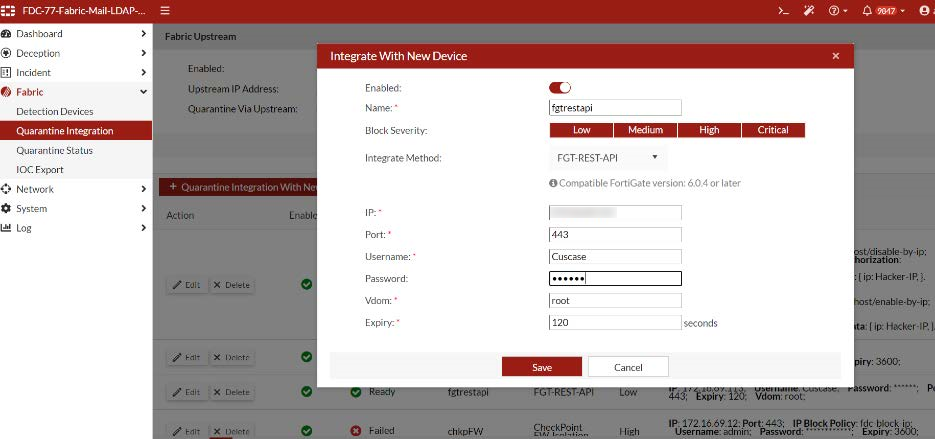
- Verify the integration Status is Ready.

3. Test the integration
- Send an attack against a decoy.
- On FortiDeceptor, check the quarantine status.
- On FortiGate, go to Dashboard > Users Device and expand the Quarantine widget to check quarantine status.
- (Optional) Check the quarantine status on FortiDeceptor after it has expired.
- On FortiDeceptor, go to Fabric > Quarantine Status to check the status.
- (Optional) Check the quarantine status on FortiGate after it has expired.
- On FortiGate, go to Dashboard > Users Device and expand the Quarantine widget to check quarantine status.