

Resource Groups
Resource groups give you precise control over user permissions and data access in FortiCNAPP. You can compose resource groups based on resource characteristics, such as cloud type, region, tags, and more, letting you grant resource access to only the teams that need it.
Within each FortiCNAPP account, it creates a default resource group for each resource type that already has an integration. A default resource group contains all assets of that type. Default resource groups cannot be deleted or edited.
When creating a resource group, you define the conditions that associate resources with a group. Resource groups support compound, nested conditions that are joined by AND or OR logical conjunctions, giving you fine-grained control over resource group composition. You can create resource groups based on properties of the resources such as their region, tags, and the cloud-specific organizational units to which they belong, such as organization (for AWS and GCP), account, folder, subscription, and more.
Console users can interact with resource groups in the following ways:
- When viewing cloud compliance and host vulnerability dashboards, you can filter the view based on resource groups. Depending on how you have created resource groups, this enables to view compliance or vulnerability data only for a region, for example, or based on a resource tag. See Controlling User Access by Resource Group for more information.
- For user access control, resource groups confirm that users can view data only for the resources to which they are entitled. See View Filtering by Resource Group for more information.
-
Use resource groups to restrict access to alerts for resources that match a resource group. See Limiting access to alerts with resource groups.
Resource groups are also available as a filter option for alerts. Only the resource groups that the user has access to are available in the filter list. See Filtering alerts.
- In the Resource Inventory, users can get a high-level view of their entire resource landscape, and view risks, utilization, user access, and much more, by resource group.
- In the Container vulnerabilities page, users can filter by Container and Kubernetes resource groups.
If you have defined Resource Groups in Terraform, see Convert Original To Newer Resource Groups in Terraform in the API Reference for information about converting to the new format.
About resource group conditions
A condition defines resource group membership criteria based on resource properties such as account ID, tags, region, and more. Resource groups are evaluated dynamically, for instance, when a user access the Cloud Compliance console. Therefore, any cloud integration resources you have added after a resource group is created that meets its conditions will be associated with that group.
A resource group condition is made up of a field, operator, and a value to be compared. The fields that are available for use in conditions vary depending on the resource group types. Operators include starts with, ends with, includes, and equals. The following example checks for resources in the us-west-2 region:

The condition builder may limit options based on the field type. For example, the only operator available when building a condition for a resource group name is equals. Resource tag options additionally include the ability to create conditions based on tags as key-value pairs.
Resource condition groups
Resource group conditions can contain nested conditions. A condition group is one or more conditions joined by AND or OR conjunctions. If the parent condition is true for a resource, any nested conditions are evaluated.
In the following example, resources in the us-west-2 region that have env tags with values starting with either dev- or staging- are associated with the resource group:
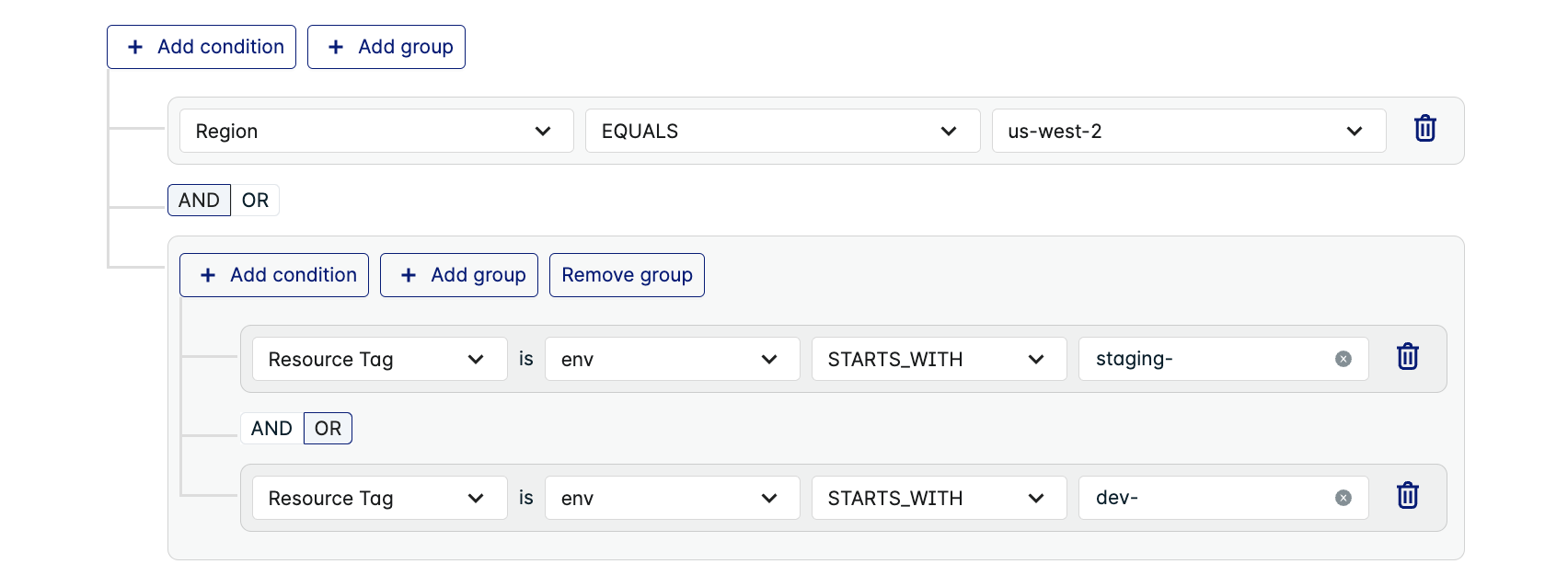
A condition can have any number of condition groups. However, condition group depth is limited to three levels. At three levels, the Add group button is disabled. Note that this limitation applies to nested resource groups as well; a resource group cannot include another resource group if it and the included resource group exceeds three levels.
Viewing resource groups
You can view, create, or modify resource groups from the Resource Group settings page.
To access the page, as a user with read permissions for resource groups, navigate to Settings > Resource groups to view the enhanced, conditions-based resource groups. See Legacy access control overview.
The FortiCNAPP console lists existing resource groups. You can edit, remove, or change the status of a resource group. You can also search for resource group by name and modify the columns shown by default.
Creating resource groups
Before creating resource groups, it's worth considering how the Lacework users in your organization will want to use them. Since you can organize resource groups by resource tags or region, consider the types of groupings that users would want to filter by and or assign permissions by. For example, you may choose to create resource groups by region or along security requirement boundaries, with groups for internal resources and others for high-value production resources.
You can replicate any logical organizational scheme that you've implemented through resource tags in your cloud environments with resource groups in FortiCNAPP.
To create a resource group:
-
Go to Settings > Configuration > Resource groups.
-
Click + Add New.
-
Choose the Resource group type from these options:
- Oracle Cloud Infrastructure
- Amazon Web Services
- Microsoft Azure
- Google Cloud Platform
- Machine
- Container
- Kubernetes
After you choose the resource group type, FortiCNAPP retrieves the properties for that type upon which you can build conditions for the group.
For Kubernetes and Container resource groups, the container images that appear for users are those that were active at the time of the most recent scan within the time frame. Kubernetes resource groups currently supports Amazon EKS only.
If you decide to change the resource group type after starting the condition configuration, click Clear query to start over.
-
Enter a name for the resource group. The name must be unique for resource groups in this FortiCNAPP instance.
-
Optionally, add a description for the resource group.
-
Add the conditions that define the group as follows:
- Select a data field on which to set a condition. The exact fields that appear in the menu depends on the resource group type you selected.
- Choose the operator, equals, starts with, and so on.
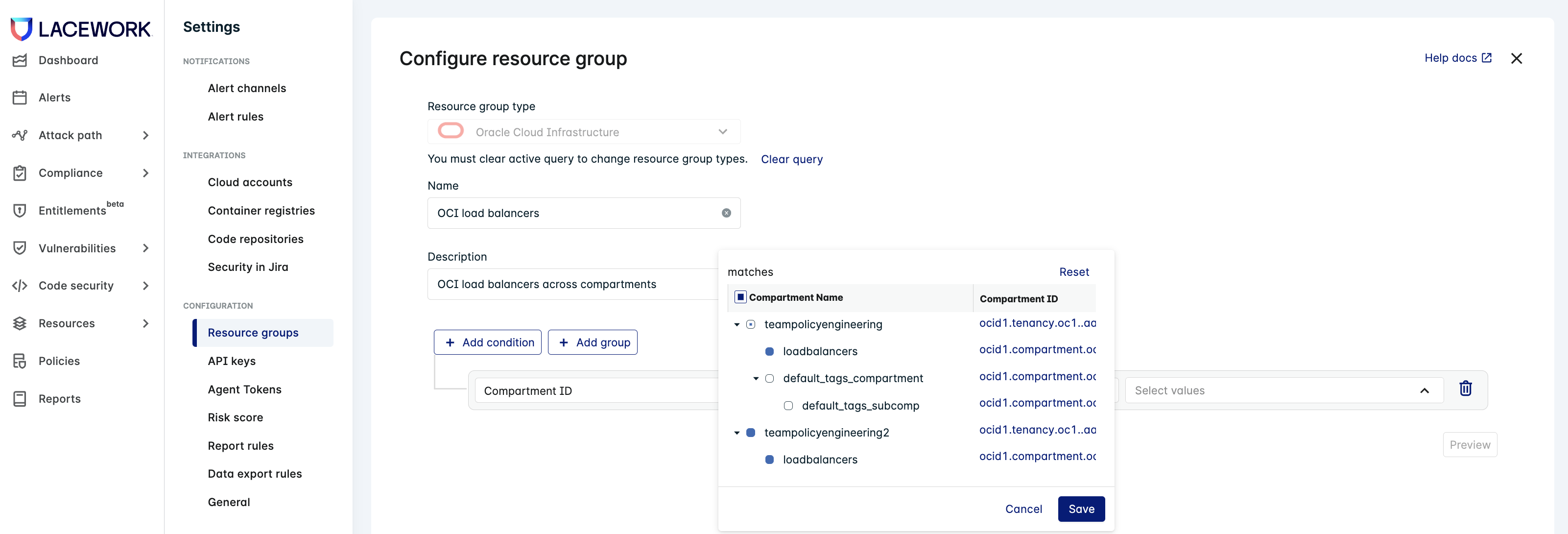
- Enter a value against which the condition is evaluated. Depending on your resource group type and field, this field may be populated with available options, such as AWS account IDs. For Oracle Cloud Infrastructure (OCI), if you select Compartment ID as the condition field, the value field contains a hierarchical tree of the resources by compartment. This lets you choose parent compartments, with all of their child compartments, or child compartments individually, as shown:
- Add another condition, choosing whether both conditions must be met (AND) or just one (OR) for the condition to be satisfied. In the case of multiple conditions, Lacework evaluates the conditions sequentially. Note that there can be only one condition type within a condition group.
- Optionally, add a nested condition by creating a group. Nested conditions are evaluated if their parent conditions are satisfied. In the following example, resource tags are evaluated for resources that belong to the us-west-2 region.
- At any time, you can preview the data set matched by the configured conditions by clicking the Preview button. The preview lets you spot check your conditions by displaying a subset of the resources that match your current conditions based on resource data from the last two days.
-
Click Save to have the save the resource group and make it available in RBAC configuration settings and resource views.
While resource collection occurs at regular intervals, the conditions associated with resource groups are evaluated at the time of use, such as when the compliance view is accessed in the console. This means that any change to the resource groups conditions take immediate effect, and against the resources collected up to the latest resource group collection cycle.
Troubleshooting resource group creation
If your resource group conditions do not return data as expected, whether when viewed using the preview feature or as a result of resource collection, confirm that you are using the latest Terraform modules and have applied the latest required permissions. If this error occurs for GCP, see Terraform upgrade information; for Azure permissions, see Create an Azure App for Integration. You may also need to update to the latest Lacework Agent version.
Modifying a resource group
You can edit or delete a resource group from the Resource Groups page by clicking the Ellipses (...) icon next to the resource group and choosing the action you want to perform.
Note that you cannot edit or delete a resource group that is used in the condition in another resource group. You must remove the nested resource group first.
Controlling user access by resource group
You can limit access to resources by creating a resource group for those resources and assigning it to a user group. By default, a user can access any resource except those that are access-restricted by resource group.
Users can belong to more than one user group, which may have different resource group associations. The resources that a user can access are cumulative among those resource groups. For example, a user who belongs to User Group 1, which has access only to development resources, and User Group 2, which has access to all production resources, will have access to all resources, both development and production.
You can assign resource groups while creating or editing the user group. When creating a new user group, assign resource group access to the group in the second new group configuration steps. For more information, see Custom User Groups.
Limiting access to alerts with resource groups
To restrict access to resource groups for alerts, create special resource groups for specific users. When the specified user access Alerts, only granted resource group are showing on the filter list.
Only alerts that apply to resources that the user has been granted access to are shown in the list of alerts.
The following exceptions apply:
-
Composite alerts: Composite alerts combine data from multiple sources and resources so they are visible to all users.
-
CIEM alerts: Identity alerts currently do not support resource groups to ensure consistency with the Identities dashboard which does not support resource groups.
Alerts generated before September 29, 2025 are not tagged with a resource group tag and are hidden for most users.
To view these alerts, log in with an administrator-level account.
Resource group settings are not re-computed for previously generated alerts.
If resource group settings are changed, only new alerts will match the new resource group settings. Existing alerts will not be restricted using the new resource group settings.
Filtering by resource group
View filtering allows FortiCNAPP console users to focus on the vulnerability or compliance data relevant to their interests.
Note that resources are unavailable if the resource groups condition do not apply to the resource type for a given view. For example, you can't filter by a container-based resource group on the Cloud Compliance page, since container resource groups are based on Image IDs and the Cloud Compliance view is based on Resource IDs.
Also, organization, tenant, or folder information is not available at the machine level for agent or agentless installations.