
Fortinet white logo
Fortinet white logo
7.4.5

Kubernetes

Kubernetes

You can migrate existing EMS 7.2.10 or 7.2.12 configurations to EMS 7.4.5 on Kubernetes (see Deploying EMS on Kubernetes).

To generate a public key and retrieve all the required DB information for migration:
  1. If you have not enabled or installed PowerShell on the Windows Server, follow the steps in Get started with OpenSSH for Windows to install OpenSSH.

  2. Generate a public key pair in PowerShell by entering ssh-keygen.exe -t rsa -b 4096.

    For all subsequent prompts, press the Enter key. As the migration tool does not support encrypted private key files, leave the prompt empty and press Enter when you are prompted for a passphrase. A key pair is generated and saved to C:\Users\Administrator\.ssh.

  3. Copy the contents of the public SSH key file (C:\Users\Administrator\.ssh\id_rsa.pub in this example) and save it in a handy location as it will be used in later steps.

  4. On the Linux environment where EMS containers are running, create a user with access to the container tools:

    sudo useradd -m -s /bin/bash <username>
    sudo usermod -aG microk8s <username>
  5. Create script to map kubectl to microk8s.kubectl:

    sudo cat <<'EOF' | sudo tee /usr/local/bin/kubectl > /dev/null
    #!/bin/bash
    exec microk8s kubectl "$@"
    EOF
  6. 4. Add execution permission to the script file:

    sudo chmod +x /usr/local/bin/kubectl
  7. Paste the EMS windows SSH public key (that you copied in step 3) to the authorized keys of the user in /home/<username>/.ssh/authorized_keys.

    If the /home/<username>/.ssh folder does not exist yet, create it using the following commands:

    sudo mkdir /home/<username>/.ssh && sudo chown <username>:<username> /home/<username>/.ssh && sudo chmod 700 /home/<username>/.ssh
  8. Create a new yaml file (eg: db_access.yaml) with following content:

    apiVersion: v1
    kind: Service
    metadata:
    name: db-mig
    annotations:
    metallb.universe.tf/address-pool: ""
    metallb.universe.tf/loadBalancerIPs: ""
    spec:
    type: LoadBalancer
    selector:
    app: db
    ports:
    - name: db
    protocol: TCP
    port: 5432
    targetPort: 5432
  9. Run the following command to allow remote access for EMS DB during migration process:

    kubectl apply -f <path to yaml file> -n <your namespace>

    To retrieve the namespace, run kubectl get namespace.

  10. Run the following command to retrieve the DB password and save it in a handy location as you will need it when specifying migration configuration on the Windows machine in later steps:

    kmicrok8s.kubectl exec -ti <pod> -n <namespace> -- env | grep POSTGRES

    To retrieve the pod name, run kubectl get pods -n <namespace>.

  11. Run the following command to retrieve the DB IP address and save it in a handy location as you will need it when specifying migration configuration on the Windows machine in later steps:

    kmicrok8s.kubectl get svc -n <namespace>
To configure the Windows Server machine with the EMS instance to migrate:

The Windows Server machine must have TLS 1.2 enabled for Client. In Registry Editor, confirm that the registry key [HKEY_LOCAL_MACHINE\SYSTEM\CurrentControlSet\Control\SecurityProviders\SCHANNEL\Protocols\TLS 1.2\Client] is set to 1 or does not exist at all. Being enabled is the default behavior.

  1. Create a user in SQL Server with the sysadmin role. You use this user to export the tables that contain EMS data:
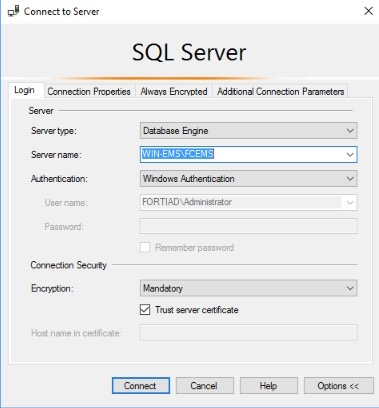
    1. Log in to SQL Server Management Studio using Windows authentication. You may need to enable Trust server certificate.
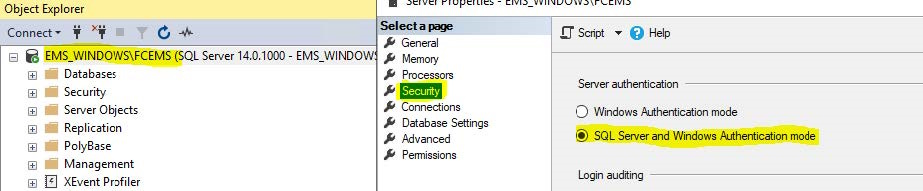
    2. In Object Explorer, right-click FCEMS and select Properties. Click Security and select SQL Server and Windows Authentication mode.
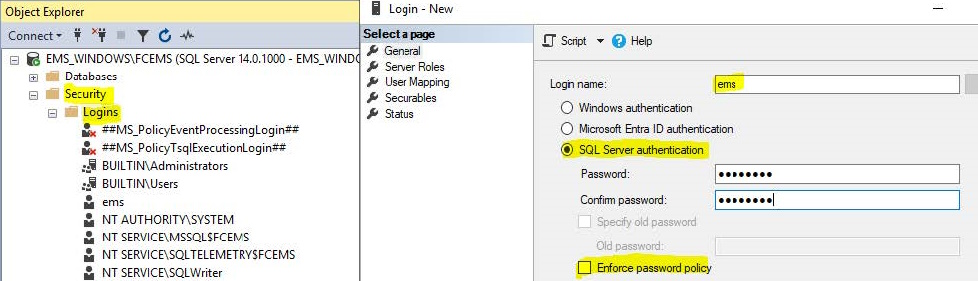
    3. In Object Explorer, go to Security > Logins. Right-click and select New login > General.
    4. In the Login name field, enter the desired login name. In this example, the login name is ems.
    5. Select SQL Server authentication.
    6. In the Password and Confirm password fields, enter the desired password.
    7. Disable Enforce password policy. Save.
    8. Go to Server Roles. Select sysadmin. Save.
    9. Restart the SQL Server (FCEMS) service. The service name may differ. Check the given name during your remote SQL install.
  2. Download the migration tool from the Fortinet Support site and extract the files. The migration tool consists of an executable and a config file.
  3. Open the config file in a text editor and specify the following parameters:

    Parameter

    Value to configure

    [sqlserver]

    host

    SQL Server IP address. If you are using a local database (DB), enter 127.0.0.1.

    port

    Microsoft SQL Server port.

    user

    User in SQL Server with sysadmin role. For an EMS with a local DB, you can leave this field blank.

    password

    Password for SQL user. For an EMS with a local DB, you can leave this field blank.

    [postgresql]

    host

    EMS Linux server IP address, which you should have retrieved in step 11 in To generate a public key and retrieve all the required DB information for migration:. In this example the DB and EMS will be on the same Linux server.

    port

    Postgres port, which is 5432 as defined in the yaml file.

    user

    Postgres default username, which is postgres.

    password

    Postgres user password, which you should have retrieved in step 10 in To generate a public key and retrieve all the required DB information for migration:.

    db_prefix

    Target database prefix. This is used when the target database has any prefix. For example, if the target database includes db1001FCM and db1001FCM_Default databases, you could enter db1001 as the db_prefix value.

    Leave this field blank.

    [linux_server]

    host

    IP address of the host where docker is running.

    ssh_port

    SSH port open in EMS Linux, which is 22.

    user

    EMS Linux Server user, which you created in step 4 in To generate a public key and retrieve all the required DB information for migration:.

    key_file

    Key file location in EMS Windows Server. For example, C:\Users\Administrator\.ssh\id_rsa.

    [site_migration]

    k8s_namespace

    Kubernetes namespace where EMS has been deployed.

    k8s_pod

    Name of the pod that runs the deploy container:

    • When EMS is deployed on Kubernetes in singlepod mode (default), the pod with the prefix ems-aio is used.
    • When deployed in multipod mode, the pod with the prefix daemons-low is used.

    The following shows an example:

    [sqlserver]

    host =172.16.1.3

    port =1433

    user =ems

    password =Test123!

    [postgresql]

    host =172.16.1.22

    port =5432

    user =postgres

    password =Test123!

    db_prefix =

    [linux_server]

    host =172.16.1.22

    ssh_port =22

    user =test

    key_file =C:\Users\Administrator\.ssh\id_rsa

    k8s_namespace = ems

    k8s_pod = ems-aio-86495ff465-dffxc

    [site_migration]

    # Update this section only if multiple source single-tenant EMS instances need to be migrated into a single EMS Linux instance.

    # To enable site migration, set 'enable = true' and specify the target site name on the destination EMS where the site should be migrated.

    enable = false

    target_site =

    # if running EMS on docker compose, use the `docker_compose` key below to specify the full qualified path to the docker compose file

    # the location of the file can be obtained by running `docker compose ls` on the host where the docker compose is running

    # docker_compose = '/home/user/docker-compose.yaml'

    # if instead of pure docker, you're using podman, `docker_compose` is still required but the podman flag below needs to be set to 1

    # podman = 0

    # if running EMS on K8S, use the `k8s_namespace` and `k8s_pod` below to specify the k8s namespace and the pod where the `deploy` service

    # is running with EMS. For single pod deployments, the pod name will always start with `ems-aio`. For multi pod deployments, the pod name

    # starts with `daemons-low`.

    # k8s_namespace = ems

    # k8s_pod = ems-aio-86495ff465-dffxc [files]

    # Copy a single file or a directory recursively to the remote server

    # follow the pattern: file_or_folder_key = {'source' : '<file_souce>', 'target' : <file_target>'}

    # multiple entries are allowed, file_or_folder_key is just a placeholder

    # Examples:

    # 1 - copying the installer directory recursively:

    # installer_dir =

    # {'source' : 'C:\\Program Files (x86)\\Fortinet\\FortiClientEMS\\Installers',

    # 'target' : '/opt/forticlientems/data'}

    # 2 - copying a specific file:

    # signatures_file =

    # {'source' : 'C:\\Program Files (x86)\\Fortinet\\FortiClientEMS\\signatures\\emsaval\\emsaval.dll',

    # 'target' : '/opt/forticlientems/data/signatures/emsaval/emsaval.dll'}

  4. Open an elevated PowerShell prompt inside the EMS Windows server and go to the directory where you extracted the migration tool. Run migration.exe:
    .\migration.exe

    Wait for the migration to complete. If there are issues, check the migration log in the same folder as the migration tool.

  5. Check that all EMS services are running using the following command:

    microk8s.kubectl exec -ti <pod name> -n <namespace> -c deploy -- emscli service get –all
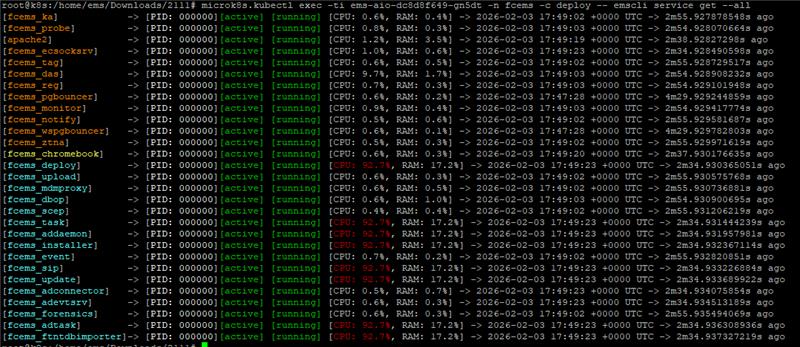
  6. Access the EMS GUI on the Linux server and verify that all configurations and data from the EMS Windows Server were migrated.

To migrate FortiClient endpoints to Linux EMS:

After EMS migration completes, do one of the following to migrate FortiClient endpoints to Linux EMS:

Method

Description

Update DNS record with Linux EMS IP address (recommended)

On the DNS server, update the DNS record for EMS with the Linux EMS IP address. FortiClient endpoints that were previously connected to Windows Server EMS resolve the new IP address to the EMS FQDN and connect to the Linux EMS. This is the recommended method to migrate FortiClient endpoints to Linux EMS.

The endpoint automatically connects to Linux EMS. Even if user verification is enabled, the migration is seamless and the user does not notice any changes on the endpoint.

Switch EMS

  1. On the Windows Server EMS, go to Endpoints > All Endpoints.
  2. Select the desired endpoints.
  3. Select Action > Switch EMS > Switch by IP/Switch by Invitation.
  4. Enter the Linux EMS IP address, FQDN, or invitation. Selected endpoints connect to the Linux EMS.
  5. If user verification is enabled, the user onboarding popup for the new invitation displays on the endpoint. The user must verify their identity to connect to Linux EMS.

Configure EMS server list on Windows Server EMS

This method only works if user verification is not enforced and FortiClient connects to EMS using an FQDN or IP address.

  1. On the Windows Server EMS, go to System Settings > EMS Settings.
  2. Enable Configure EMS server list.
  3. Add the Linux EMS IP address or FQDN and port number.
  4. Click Save.
  5. After the endpoint receives the configuration changes, disconnect or shut down the EMS Windows Server. In the next keepalive interval, FortiClient connects to Linux EMS.

After migration, the license remains active on Windows Server EMS.

Kubernetes

Kubernetes

You can migrate existing EMS 7.2.10 or 7.2.12 configurations to EMS 7.4.5 on Kubernetes (see Deploying EMS on Kubernetes).

To generate a public key and retrieve all the required DB information for migration:
  1. If you have not enabled or installed PowerShell on the Windows Server, follow the steps in Get started with OpenSSH for Windows to install OpenSSH.

  2. Generate a public key pair in PowerShell by entering ssh-keygen.exe -t rsa -b 4096.

    For all subsequent prompts, press the Enter key. As the migration tool does not support encrypted private key files, leave the prompt empty and press Enter when you are prompted for a passphrase. A key pair is generated and saved to C:\Users\Administrator\.ssh.

  3. Copy the contents of the public SSH key file (C:\Users\Administrator\.ssh\id_rsa.pub in this example) and save it in a handy location as it will be used in later steps.

  4. On the Linux environment where EMS containers are running, create a user with access to the container tools:

    sudo useradd -m -s /bin/bash <username>
    sudo usermod -aG microk8s <username>
  5. Create script to map kubectl to microk8s.kubectl:

    sudo cat <<'EOF' | sudo tee /usr/local/bin/kubectl > /dev/null
    #!/bin/bash
    exec microk8s kubectl "$@"
    EOF
  6. 4. Add execution permission to the script file:

    sudo chmod +x /usr/local/bin/kubectl
  7. Paste the EMS windows SSH public key (that you copied in step 3) to the authorized keys of the user in /home/<username>/.ssh/authorized_keys.

    If the /home/<username>/.ssh folder does not exist yet, create it using the following commands:

    sudo mkdir /home/<username>/.ssh && sudo chown <username>:<username> /home/<username>/.ssh && sudo chmod 700 /home/<username>/.ssh
  8. Create a new yaml file (eg: db_access.yaml) with following content:

    apiVersion: v1
    kind: Service
    metadata:
    name: db-mig
    annotations:
    metallb.universe.tf/address-pool: ""
    metallb.universe.tf/loadBalancerIPs: ""
    spec:
    type: LoadBalancer
    selector:
    app: db
    ports:
    - name: db
    protocol: TCP
    port: 5432
    targetPort: 5432
  9. Run the following command to allow remote access for EMS DB during migration process:

    kubectl apply -f <path to yaml file> -n <your namespace>

    To retrieve the namespace, run kubectl get namespace.

  10. Run the following command to retrieve the DB password and save it in a handy location as you will need it when specifying migration configuration on the Windows machine in later steps:

    kmicrok8s.kubectl exec -ti <pod> -n <namespace> -- env | grep POSTGRES

    To retrieve the pod name, run kubectl get pods -n <namespace>.

  11. Run the following command to retrieve the DB IP address and save it in a handy location as you will need it when specifying migration configuration on the Windows machine in later steps:

    kmicrok8s.kubectl get svc -n <namespace>
To configure the Windows Server machine with the EMS instance to migrate:

The Windows Server machine must have TLS 1.2 enabled for Client. In Registry Editor, confirm that the registry key [HKEY_LOCAL_MACHINE\SYSTEM\CurrentControlSet\Control\SecurityProviders\SCHANNEL\Protocols\TLS 1.2\Client] is set to 1 or does not exist at all. Being enabled is the default behavior.

  1. Create a user in SQL Server with the sysadmin role. You use this user to export the tables that contain EMS data:
    1. Log in to SQL Server Management Studio using Windows authentication. You may need to enable Trust server certificate.

    2. In Object Explorer, right-click FCEMS and select Properties. Click Security and select SQL Server and Windows Authentication mode.

    3. In Object Explorer, go to Security > Logins. Right-click and select New login > General.
    4. In the Login name field, enter the desired login name. In this example, the login name is ems.
    5. Select SQL Server authentication.
    6. In the Password and Confirm password fields, enter the desired password.
    7. Disable Enforce password policy. Save.

    8. Go to Server Roles. Select sysadmin. Save.
    9. Restart the SQL Server (FCEMS) service. The service name may differ. Check the given name during your remote SQL install.
  2. Download the migration tool from the Fortinet Support site and extract the files. The migration tool consists of an executable and a config file.
  3. Open the config file in a text editor and specify the following parameters:

    Parameter

    Value to configure

    [sqlserver]

    host

    SQL Server IP address. If you are using a local database (DB), enter 127.0.0.1.

    port

    Microsoft SQL Server port.

    user

    User in SQL Server with sysadmin role. For an EMS with a local DB, you can leave this field blank.

    password

    Password for SQL user. For an EMS with a local DB, you can leave this field blank.

    [postgresql]

    host

    EMS Linux server IP address, which you should have retrieved in step 11 in To generate a public key and retrieve all the required DB information for migration:. In this example the DB and EMS will be on the same Linux server.

    port

    Postgres port, which is 5432 as defined in the yaml file.

    user

    Postgres default username, which is postgres.

    password

    Postgres user password, which you should have retrieved in step 10 in To generate a public key and retrieve all the required DB information for migration:.

    db_prefix

    Target database prefix. This is used when the target database has any prefix. For example, if the target database includes db1001FCM and db1001FCM_Default databases, you could enter db1001 as the db_prefix value.

    Leave this field blank.

    [linux_server]

    host

    IP address of the host where docker is running.

    ssh_port

    SSH port open in EMS Linux, which is 22.

    user

    EMS Linux Server user, which you created in step 4 in To generate a public key and retrieve all the required DB information for migration:.

    key_file

    Key file location in EMS Windows Server. For example, C:\Users\Administrator\.ssh\id_rsa.

    [site_migration]

    k8s_namespace

    Kubernetes namespace where EMS has been deployed.

    k8s_pod

    Name of the pod that runs the deploy container:

    • When EMS is deployed on Kubernetes in singlepod mode (default), the pod with the prefix ems-aio is used.
    • When deployed in multipod mode, the pod with the prefix daemons-low is used.

    The following shows an example:

    [sqlserver]

    host =172.16.1.3

    port =1433

    user =ems

    password =Test123!

    [postgresql]

    host =172.16.1.22

    port =5432

    user =postgres

    password =Test123!

    db_prefix =

    [linux_server]

    host =172.16.1.22

    ssh_port =22

    user =test

    key_file =C:\Users\Administrator\.ssh\id_rsa

    k8s_namespace = ems

    k8s_pod = ems-aio-86495ff465-dffxc

    [site_migration]

    # Update this section only if multiple source single-tenant EMS instances need to be migrated into a single EMS Linux instance.

    # To enable site migration, set 'enable = true' and specify the target site name on the destination EMS where the site should be migrated.

    enable = false

    target_site =

    # if running EMS on docker compose, use the `docker_compose` key below to specify the full qualified path to the docker compose file

    # the location of the file can be obtained by running `docker compose ls` on the host where the docker compose is running

    # docker_compose = '/home/user/docker-compose.yaml'

    # if instead of pure docker, you're using podman, `docker_compose` is still required but the podman flag below needs to be set to 1

    # podman = 0

    # if running EMS on K8S, use the `k8s_namespace` and `k8s_pod` below to specify the k8s namespace and the pod where the `deploy` service

    # is running with EMS. For single pod deployments, the pod name will always start with `ems-aio`. For multi pod deployments, the pod name

    # starts with `daemons-low`.

    # k8s_namespace = ems

    # k8s_pod = ems-aio-86495ff465-dffxc [files]

    # Copy a single file or a directory recursively to the remote server

    # follow the pattern: file_or_folder_key = {'source' : '<file_souce>', 'target' : <file_target>'}

    # multiple entries are allowed, file_or_folder_key is just a placeholder

    # Examples:

    # 1 - copying the installer directory recursively:

    # installer_dir =

    # {'source' : 'C:\\Program Files (x86)\\Fortinet\\FortiClientEMS\\Installers',

    # 'target' : '/opt/forticlientems/data'}

    # 2 - copying a specific file:

    # signatures_file =

    # {'source' : 'C:\\Program Files (x86)\\Fortinet\\FortiClientEMS\\signatures\\emsaval\\emsaval.dll',

    # 'target' : '/opt/forticlientems/data/signatures/emsaval/emsaval.dll'}

  4. Open an elevated PowerShell prompt inside the EMS Windows server and go to the directory where you extracted the migration tool. Run migration.exe:
    .\migration.exe

    Wait for the migration to complete. If there are issues, check the migration log in the same folder as the migration tool.

  5. Check that all EMS services are running using the following command:

    microk8s.kubectl exec -ti <pod name> -n <namespace> -c deploy -- emscli service get –all

  6. Access the EMS GUI on the Linux server and verify that all configurations and data from the EMS Windows Server were migrated.

To migrate FortiClient endpoints to Linux EMS:

After EMS migration completes, do one of the following to migrate FortiClient endpoints to Linux EMS:

Method

Description

Update DNS record with Linux EMS IP address (recommended)

On the DNS server, update the DNS record for EMS with the Linux EMS IP address. FortiClient endpoints that were previously connected to Windows Server EMS resolve the new IP address to the EMS FQDN and connect to the Linux EMS. This is the recommended method to migrate FortiClient endpoints to Linux EMS.

The endpoint automatically connects to Linux EMS. Even if user verification is enabled, the migration is seamless and the user does not notice any changes on the endpoint.

Switch EMS

  1. On the Windows Server EMS, go to Endpoints > All Endpoints.
  2. Select the desired endpoints.
  3. Select Action > Switch EMS > Switch by IP/Switch by Invitation.
  4. Enter the Linux EMS IP address, FQDN, or invitation. Selected endpoints connect to the Linux EMS.
  5. If user verification is enabled, the user onboarding popup for the new invitation displays on the endpoint. The user must verify their identity to connect to Linux EMS.

Configure EMS server list on Windows Server EMS

This method only works if user verification is not enforced and FortiClient connects to EMS using an FQDN or IP address.

  1. On the Windows Server EMS, go to System Settings > EMS Settings.
  2. Enable Configure EMS server list.
  3. Add the Linux EMS IP address or FQDN and port number.
  4. Click Save.
  5. After the endpoint receives the configuration changes, disconnect or shut down the EMS Windows Server. In the next keepalive interval, FortiClient connects to Linux EMS.

After migration, the license remains active on Windows Server EMS.