
Fortinet white logo
Fortinet white logo

Product integration and support

Product integration and support

The following table lists version 7.2.12 product integration and support information:

Desktop operating systems

  • Microsoft Windows 11 (64-bit)
  • Microsoft Windows 10 (64-bit)

Server operating systems

  • Microsoft Windows Server 2022
  • Microsoft Windows Server 2019

FortiClient (Windows) 7.2.12 does not support Guiless (Core) OS.

For Microsoft Windows Server, FortiClient (Windows) supports the Vulnerability Scan, SSL VPN, Web Filter, and antivirus (AV) features, including obtaining a Sandbox signature package for AV scanning. To use SSL VPN on a Windows Server machine, you must enable your browser to accept cookies. Otherwise, tunnel connection fails.

Microsoft Windows Server 2019 supports zero trust network access (ZTNA) with FortiClient (Windows) 7.2.12.

As FortiClient does not support Application Firewall on a Windows Server machine, do not install the Application Firewall module on a Windows Server machine. Doing so may cause performance issues.

Minimum system requirements

  • Microsoft Windows-compatible computer with Intel processor or equivalent. FortiClient (Windows) does not support ARM-based processors.
  • Compatible operating system and minimum 2 GB RAM
  • 1 GB free hard disk space
  • Native Microsoft TCP/IP communication protocol
  • Native Microsoft PPP dialer for dialup connections
  • Ethernet network interface controller (NIC) for network connections
  • Wireless adapter for wireless network connections
  • Adobe Acrobat Reader for viewing FortiClient documentation
  • Windows Installer MSI installer 3.0 or later

AV engine

  • 6.00301

VCM engine

  • 2.0040

FortiAnalyzer

  • 7.4.0 and later
  • 7.2.0 and later
  • 7.0.0 and later

FortiAuthenticator

  • 6.5.0 and later
  • 6.4.0 and later
  • 6.3.0 and later
  • 6.2.0 and later
  • 6.1.0 and later
  • 6.0.0 and later

FortiClient EMS

  • 7.4.0 and later
  • 7.2.0 and later

FortiManager

  • 7.4.0 and later
  • 7.2.0 and later
  • 7.0.0 and later

FortiMonitor agent

24.3.3

FortiOS

The following FortiOS versions support ZTNA with FortiClient (Windows) 7.2.12. This includes both ZTNA access proxy and ZTNA tags:

  • 7.4.0 and later
  • 7.2.0 and later
  • 7.0.6 and later

The following FortiOS versions support IPsec and SSL VPN with FortiClient (Windows) 7.2.12:

  • 7.4.0 and later
  • 7.2.0 and later
  • 7.0.0 and later
  • 6.4.0 and later

FortiSandbox

  • 4.4.0 and later
  • 4.2.0 and later
  • 4.0.0 and later
  • 3.2.0 and later

Language support

The following table lists FortiClient language support information:

Language

GUI

XML configuration

Documentation

English

Yes

Yes

Yes

Chinese (simplified)

Yes

Chinese (traditional)

Yes

French (France)

Yes

German

Yes

Japanese

Yes

Korean

Yes

Portuguese (Brazil)

Yes

Russian

Yes

Spanish (Spain)

Yes

The FortiClient language setting defaults to the regional language setting configured on the client workstation, unless configured in the XML configuration file.

If the client workstation is configured to a regional language setting that FortiClient does not support, it defaults to English.

Conflict with third-party endpoint protection software

As a Fortinet Fabric Agent that provides protection, compliance, and secure access, FortiClient may conflict with antimalware products on the market that provide similar AV, web filtering, application firewall, and ransomware protection features as FortiClient. If you encounter a conflict, there are a few steps you can take to address it:

  • Do not use other AV products when FortiClient's AV feature is enabled.

  • If FortiClient's AV feature is disabled, configure the third party AV product to exclude the FortiClient installation folder from being scanned.

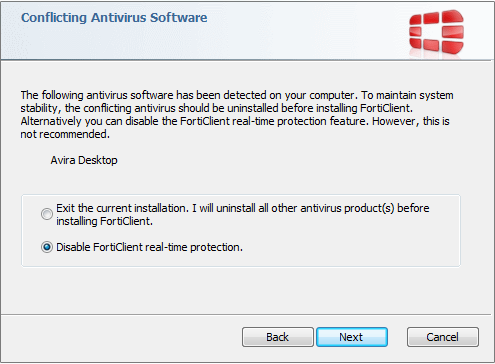
During a new FortiClient installation, the installer searches for other registered third party software and, if it finds any, warns users to uninstall them before proceeding with the installation. There is also an option to disable FortiClient real time protection.
Intune product codes

Deploying FortiClient with Intune requires a product code. The product codes for FortiClient 7.2.12 are as follows:

Version

Product code

Enterprise

B355F7F4-CE0B-443C-9DAD-BC3B0FB5C7F1

VPN-only agent

088FA2B4-49B7-4B9E-9B52-A3E163929F9B

Private access management-only agent

E635E68B-8178-44C0-BD3F-E6546322C7B8

Single sign on-only agent

EAE7425D-33D9-4D0F-89A3-A91F2B743CF3

See Configuring the FortiClient application in Intune.

Product integration and support

Product integration and support

The following table lists version 7.2.12 product integration and support information:

Desktop operating systems

  • Microsoft Windows 11 (64-bit)
  • Microsoft Windows 10 (64-bit)

Server operating systems

  • Microsoft Windows Server 2022
  • Microsoft Windows Server 2019

FortiClient (Windows) 7.2.12 does not support Guiless (Core) OS.

For Microsoft Windows Server, FortiClient (Windows) supports the Vulnerability Scan, SSL VPN, Web Filter, and antivirus (AV) features, including obtaining a Sandbox signature package for AV scanning. To use SSL VPN on a Windows Server machine, you must enable your browser to accept cookies. Otherwise, tunnel connection fails.

Microsoft Windows Server 2019 supports zero trust network access (ZTNA) with FortiClient (Windows) 7.2.12.

As FortiClient does not support Application Firewall on a Windows Server machine, do not install the Application Firewall module on a Windows Server machine. Doing so may cause performance issues.

Minimum system requirements

  • Microsoft Windows-compatible computer with Intel processor or equivalent. FortiClient (Windows) does not support ARM-based processors.
  • Compatible operating system and minimum 2 GB RAM
  • 1 GB free hard disk space
  • Native Microsoft TCP/IP communication protocol
  • Native Microsoft PPP dialer for dialup connections
  • Ethernet network interface controller (NIC) for network connections
  • Wireless adapter for wireless network connections
  • Adobe Acrobat Reader for viewing FortiClient documentation
  • Windows Installer MSI installer 3.0 or later

AV engine

  • 6.00301

VCM engine

  • 2.0040

FortiAnalyzer

  • 7.4.0 and later
  • 7.2.0 and later
  • 7.0.0 and later

FortiAuthenticator

  • 6.5.0 and later
  • 6.4.0 and later
  • 6.3.0 and later
  • 6.2.0 and later
  • 6.1.0 and later
  • 6.0.0 and later

FortiClient EMS

  • 7.4.0 and later
  • 7.2.0 and later

FortiManager

  • 7.4.0 and later
  • 7.2.0 and later
  • 7.0.0 and later

FortiMonitor agent

24.3.3

FortiOS

The following FortiOS versions support ZTNA with FortiClient (Windows) 7.2.12. This includes both ZTNA access proxy and ZTNA tags:

  • 7.4.0 and later
  • 7.2.0 and later
  • 7.0.6 and later

The following FortiOS versions support IPsec and SSL VPN with FortiClient (Windows) 7.2.12:

  • 7.4.0 and later
  • 7.2.0 and later
  • 7.0.0 and later
  • 6.4.0 and later

FortiSandbox

  • 4.4.0 and later
  • 4.2.0 and later
  • 4.0.0 and later
  • 3.2.0 and later

Language support

The following table lists FortiClient language support information:

Language

GUI

XML configuration

Documentation

English

Yes

Yes

Yes

Chinese (simplified)

Yes

Chinese (traditional)

Yes

French (France)

Yes

German

Yes

Japanese

Yes

Korean

Yes

Portuguese (Brazil)

Yes

Russian

Yes

Spanish (Spain)

Yes

The FortiClient language setting defaults to the regional language setting configured on the client workstation, unless configured in the XML configuration file.

If the client workstation is configured to a regional language setting that FortiClient does not support, it defaults to English.

Conflict with third-party endpoint protection software

As a Fortinet Fabric Agent that provides protection, compliance, and secure access, FortiClient may conflict with antimalware products on the market that provide similar AV, web filtering, application firewall, and ransomware protection features as FortiClient. If you encounter a conflict, there are a few steps you can take to address it:

  • Do not use other AV products when FortiClient's AV feature is enabled.

  • If FortiClient's AV feature is disabled, configure the third party AV product to exclude the FortiClient installation folder from being scanned.

During a new FortiClient installation, the installer searches for other registered third party software and, if it finds any, warns users to uninstall them before proceeding with the installation. There is also an option to disable FortiClient real time protection.

Intune product codes

Deploying FortiClient with Intune requires a product code. The product codes for FortiClient 7.2.12 are as follows:

Version

Product code

Enterprise

B355F7F4-CE0B-443C-9DAD-BC3B0FB5C7F1

VPN-only agent

088FA2B4-49B7-4B9E-9B52-A3E163929F9B

Private access management-only agent

E635E68B-8178-44C0-BD3F-E6546322C7B8

Single sign on-only agent

EAE7425D-33D9-4D0F-89A3-A91F2B743CF3

See Configuring the FortiClient application in Intune.