
Fortinet white logo
Fortinet white logo

User Guide

Locking an event

Locking an event

You can select important time periods on the timeline and lock them so that they cannot be overwritten or erased.

  1. On the timeline, click the video stream that you want to lock.
  2. On the left side of the timeline, click the Start Selection button.
  3. On the timeline, drag the selection marker brackets (triangles) to indicate the time range that you want to lock.


    On the left side of the timeline, click the Lock button.
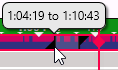
    The time range is now shaded to indicate that it is locked.

    The shaded section might be longer than the time range that you initially selected if it overlapped two video files that were stored on FortiRecorder. In this case, both files are locked.

Locking an event

Locking an event

You can select important time periods on the timeline and lock them so that they cannot be overwritten or erased.

  1. On the timeline, click the video stream that you want to lock.
  2. On the left side of the timeline, click the Start Selection button.
  3. On the timeline, drag the selection marker brackets (triangles) to indicate the time range that you want to lock.


    On the left side of the timeline, click the Lock button.

    The time range is now shaded to indicate that it is locked.

    The shaded section might be longer than the time range that you initially selected if it overlapped two video files that were stored on FortiRecorder. In this case, both files are locked.