
Fortinet white logo
Fortinet white logo

User Guide

Downloading video clips

Downloading video clips

You can download part of a video or even multiple video files to your computer so that you can play it later or on another device. Exported videos are in a standard MP4 file format. Video clips can be a maximum of 5 minutes.

To download part of a video

  1. Select the view pane that shows the camera or video that you want to download.
  2. In the timeline, go to the frame that you want to start the video.
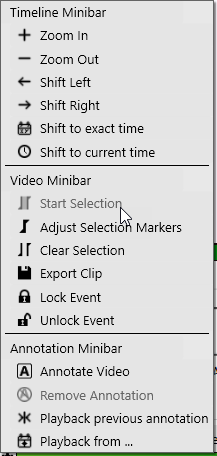
  3. On the left side of the timeline, click the Start Selection button.

    Alternatively, on the left side of the timeline, click the Settings button. In the Video Minibar section, go to Start Selection.

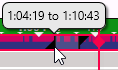
  4. On the timeline, drag the selection marker brackets (triangles) to indicate the time range for the video clip.

  5. On the left side of the timeline, click the Export Clip button.

    First, FortiCentral exports the video clip to a separate file. Progress is displayed in the Downloading panel. Then your browser will start to download the file. If your browser prompts you, select where to save the file.

To download videos from multiple cameras

  1. Click the Settings button in the top right corner.
  2. Go to Import/Export > Bulk Download.
  3. Specify the cameras, time range, video types (for example, Alarms and Continuous), and download folder.
  4. Click the Download button.

Downloading video clips

Downloading video clips

You can download part of a video or even multiple video files to your computer so that you can play it later or on another device. Exported videos are in a standard MP4 file format. Video clips can be a maximum of 5 minutes.

To download part of a video

  1. Select the view pane that shows the camera or video that you want to download.
  2. In the timeline, go to the frame that you want to start the video.
  3. On the left side of the timeline, click the Start Selection button.

    Alternatively, on the left side of the timeline, click the Settings button. In the Video Minibar section, go to Start Selection.


  4. On the timeline, drag the selection marker brackets (triangles) to indicate the time range for the video clip.


  5. On the left side of the timeline, click the Export Clip button.

    First, FortiCentral exports the video clip to a separate file. Progress is displayed in the Downloading panel. Then your browser will start to download the file. If your browser prompts you, select where to save the file.

To download videos from multiple cameras

  1. Click the Settings button in the top right corner.
  2. Go to Import/Export > Bulk Download.
  3. Specify the cameras, time range, video types (for example, Alarms and Continuous), and download folder.
  4. Click the Download button.