
Fortinet white logo
Fortinet white logo

User Guide

7.2.0

Limiting building occupancy

Limiting building occupancy

You can use FortiCentral to monitor the number of people inside your buildings so that you can comply with guidelines such as social distancing or fire safety.

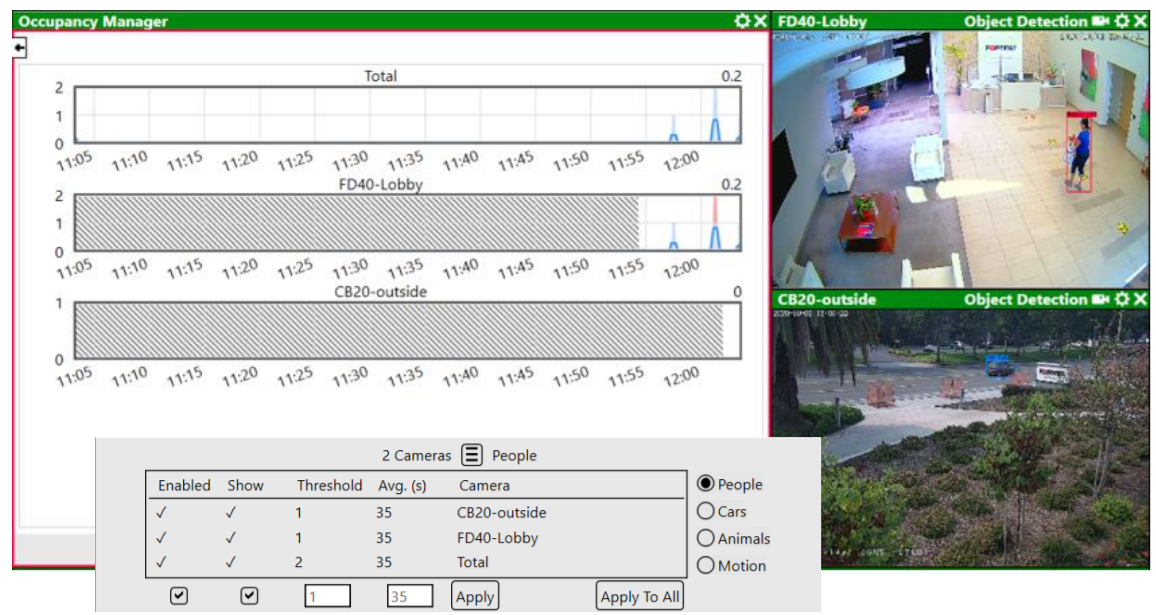
Using deep learning algorithms and object recognition, multiple cameras work together to detect each person. The count from each camera is displayed on a historical line graph. Red lines indicate when occupancy exceeds the limit.The total number of people detected in the whole building is displayed on a summary chart.
Note

Occupancy estimates can also be monitored using charts. Charts can also estimate how long people remain in the building so that you can plan.

Monitoring building occupancy

  1. On a view pane, click the Settings button.
  2. Go to Open Occupancy Manager.
  3. At the bottom of the view pane, click the menu button (it has three horizontal lines).
  4. Configure the following settings:

    Setting

    Description

    Threshold

    Enter the maximum number of people that are allowed to occupy the building.

    Avg. (s)

    Enter the amount of time in seconds over which the number of people is averaged. The occupancy limit is enforced against this average number.

    For strict enforcement, enter a smaller number. FortiCentral will then immediately react when the limit is exceeded, even if the number of people quickly returns below the limit.

  5. For each camera that you want to use with the occupancy manager, select the checkbox for that camera's row in the Enabled column, and then click the Apply button.

    All cameras that perform object detection analytics on the FortiCentral installation can be used by the occupancy manager. For a small location, you can select only one camera. For busy locations with many people such as a cashier, however, you should have multiple cameras to ensure an accurate count.

  6. If you want to display the occupancy chart for a camera, select its Show checkbox, and then click the Apply button.

Using the FortiCentral concierge

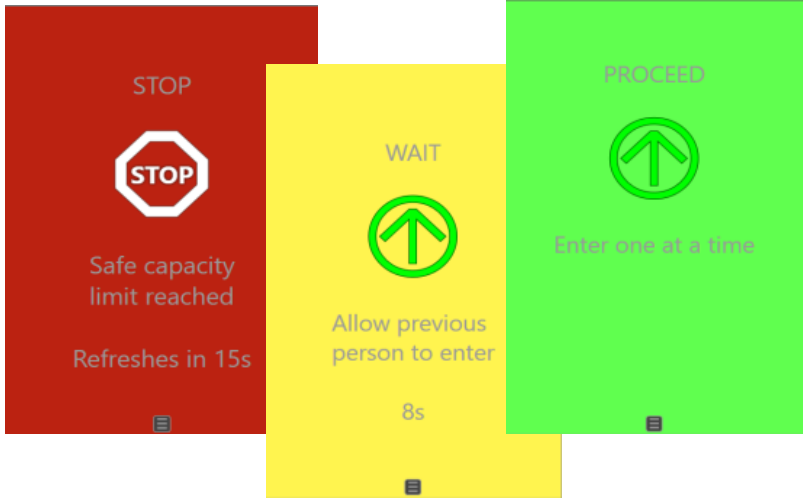
Using a FortiCentral concierge, you can ensure that your building does not exceed a maximum allowed capacity of people. The concierge works together with the occupancy manager to display messages to people that are waiting to enter the building, such as a "Stop", "Wait", or "Proceed" message, to avoid exceeding the occupancy limit.
Optionally, you can add images or movie clips next to the occupancy manager to show your company's branding and advertisements while people wait.

  1. On one of the FortiCentral installations in your SOC, start occupancy control. For details, see Monitoring building occupancy.

    This occupancy manager must remain open. If you close it, the concierges that depend on it will display Stop - Capacity control offline.

  2. Install FortiCentral on a computer near the door. Log in as an administrator.

    The screen of this computer will be used as the concierge display.

  3. Create a layout that has only one view pane. In Owner, select Public. Other layouts must not be visible to any users except the administrator. For details, see Arranging the layout.

    Alternatively, you can use a layout with more view panes, where the other view panes can be used to show advertisements, welcome messages, etc. See Adding media.

  4. On the toolbar, click the new layout to apply it.
  5. On the view pane, click the Settings button and go to Open Concierge.

    The concierge application is enabled. It displays different messages in order, and depending on input from the occupancy manager:

    1. If neither the total occupancy limit nor that of each camera is exceeded, then the concierge application shows the green Enter message.
    2. After someone enters the building, the concierge application shows the yellow Wait message to control the physical distance between each person.
    3. When the occupancy limit is exceeded, the red Stop message is displayed with a countdown timer.
    4. At the end of the timer, the concierge application either displays the Stop message again (until the number of people is below the limit), or it displays the Enter message.

    A blue Stop - Capacity control offline error message appears if the occupancy manager is disabled.

  6. At the bottom of the concierge view pane, click the menu button (it has three horizontal lines). If there are multiple installations in your FortiCentral domain, and more than one of them runs occupancy control, select which installation gives the building occupancy status to the concierge.
  7. Disable the resource column. Optionally, also hide the window title bar when in monitor wall mode. For details, see Configuring general settings.
  8. Optionally, click the Settings button in the top right corner and go to Toolbars to disable the toolbar items that concierge users do not use.
  9. In the toolbar area, click Full Screen and then click Monitor Wall View to hide the window title bar and resource column.
  10. Create a view by clicking the From Current View button. Other views should not be visible to any users except the administrator. For details, see Configuring views.
  11. Create a user account that has:

    • User Type set to Viewer (visitors must not have administrator permissions)
    • Autologin enabled
    • Startup View set to the new view

    For details, see Configuring a user account.

  12. Log out. Close FortiCentral.
  13. Start FortiCentral again.

    The concierge username automatically logs in, and FortiCentral starts the concierge in full screen, monitor wall mode.

    If you need to exit the concierge (for example, to log in as an administrator), put your mouse cursor in the upper right corner to show the Settings button. Click Settings and go to Log Out. Then you can log in as another username.

Limiting building occupancy

Limiting building occupancy

You can use FortiCentral to monitor the number of people inside your buildings so that you can comply with guidelines such as social distancing or fire safety.

Using deep learning algorithms and object recognition, multiple cameras work together to detect each person. The count from each camera is displayed on a historical line graph. Red lines indicate when occupancy exceeds the limit.The total number of people detected in the whole building is displayed on a summary chart.

Note

Occupancy estimates can also be monitored using charts. Charts can also estimate how long people remain in the building so that you can plan.

Monitoring building occupancy

  1. On a view pane, click the Settings button.
  2. Go to Open Occupancy Manager.
  3. At the bottom of the view pane, click the menu button (it has three horizontal lines).
  4. Configure the following settings:

    Setting

    Description

    Threshold

    Enter the maximum number of people that are allowed to occupy the building.

    Avg. (s)

    Enter the amount of time in seconds over which the number of people is averaged. The occupancy limit is enforced against this average number.

    For strict enforcement, enter a smaller number. FortiCentral will then immediately react when the limit is exceeded, even if the number of people quickly returns below the limit.

  5. For each camera that you want to use with the occupancy manager, select the checkbox for that camera's row in the Enabled column, and then click the Apply button.

    All cameras that perform object detection analytics on the FortiCentral installation can be used by the occupancy manager. For a small location, you can select only one camera. For busy locations with many people such as a cashier, however, you should have multiple cameras to ensure an accurate count.

  6. If you want to display the occupancy chart for a camera, select its Show checkbox, and then click the Apply button.

Using the FortiCentral concierge

Using a FortiCentral concierge, you can ensure that your building does not exceed a maximum allowed capacity of people. The concierge works together with the occupancy manager to display messages to people that are waiting to enter the building, such as a "Stop", "Wait", or "Proceed" message, to avoid exceeding the occupancy limit.

Optionally, you can add images or movie clips next to the occupancy manager to show your company's branding and advertisements while people wait.

  1. On one of the FortiCentral installations in your SOC, start occupancy control. For details, see Monitoring building occupancy.

    This occupancy manager must remain open. If you close it, the concierges that depend on it will display Stop - Capacity control offline.

  2. Install FortiCentral on a computer near the door. Log in as an administrator.

    The screen of this computer will be used as the concierge display.

  3. Create a layout that has only one view pane. In Owner, select Public. Other layouts must not be visible to any users except the administrator. For details, see Arranging the layout.

    Alternatively, you can use a layout with more view panes, where the other view panes can be used to show advertisements, welcome messages, etc. See Adding media.

  4. On the toolbar, click the new layout to apply it.
  5. On the view pane, click the Settings button and go to Open Concierge.

    The concierge application is enabled. It displays different messages in order, and depending on input from the occupancy manager:

    1. If neither the total occupancy limit nor that of each camera is exceeded, then the concierge application shows the green Enter message.
    2. After someone enters the building, the concierge application shows the yellow Wait message to control the physical distance between each person.
    3. When the occupancy limit is exceeded, the red Stop message is displayed with a countdown timer.
    4. At the end of the timer, the concierge application either displays the Stop message again (until the number of people is below the limit), or it displays the Enter message.

    A blue Stop - Capacity control offline error message appears if the occupancy manager is disabled.

  6. At the bottom of the concierge view pane, click the menu button (it has three horizontal lines). If there are multiple installations in your FortiCentral domain, and more than one of them runs occupancy control, select which installation gives the building occupancy status to the concierge.
  7. Disable the resource column. Optionally, also hide the window title bar when in monitor wall mode. For details, see Configuring general settings.
  8. Optionally, click the Settings button in the top right corner and go to Toolbars to disable the toolbar items that concierge users do not use.
  9. In the toolbar area, click Full Screen and then click Monitor Wall View to hide the window title bar and resource column.
  10. Create a view by clicking the From Current View button. Other views should not be visible to any users except the administrator. For details, see Configuring views.
  11. Create a user account that has:

    • User Type set to Viewer (visitors must not have administrator permissions)
    • Autologin enabled
    • Startup View set to the new view

    For details, see Configuring a user account.

  12. Log out. Close FortiCentral.
  13. Start FortiCentral again.

    The concierge username automatically logs in, and FortiCentral starts the concierge in full screen, monitor wall mode.

    If you need to exit the concierge (for example, to log in as an administrator), put your mouse cursor in the upper right corner to show the Settings button. Click Settings and go to Log Out. Then you can log in as another username.