

Setting up an FQDN with Generic-Host connector
The Generic-Host type connector is a third party host system that cannot communicate with the cloud directly, and must be set up with data centers.
The administrator can add the host IP address on this server and specify the health check for the host. The cloud will automatically detect the remote host, after which the administrator can configure the pool and the GSLB service.
Configuration Steps
Perform the following steps to onboard your FQDN with a Generic-Host connector.
- Before creating this fabric connector object, configure the desired data center you would like to use with this connector. For instructions on adding a data center, see Data Center.
- Navigate to GSLB > Virtual Server > Fabric Connector, and click Add Connector.
Settings Guidelines Name
The name of the connector.
Note: After you initially save the configuration, you can still edit the name later.
Type
For this use case, select Generic-Host. Refer to the table under Create Connector manually for details on the other supported Types.
Data Center
Select a data center. The data center indicates the physical geography location of the server. For instructions on adding a data center, see Data Center.
- Go to GSLB > Service > Virtual Server Pool to create a new Virtual Server Pool. For detailed configuration instructions, please seeAdd Virtual Server Pool
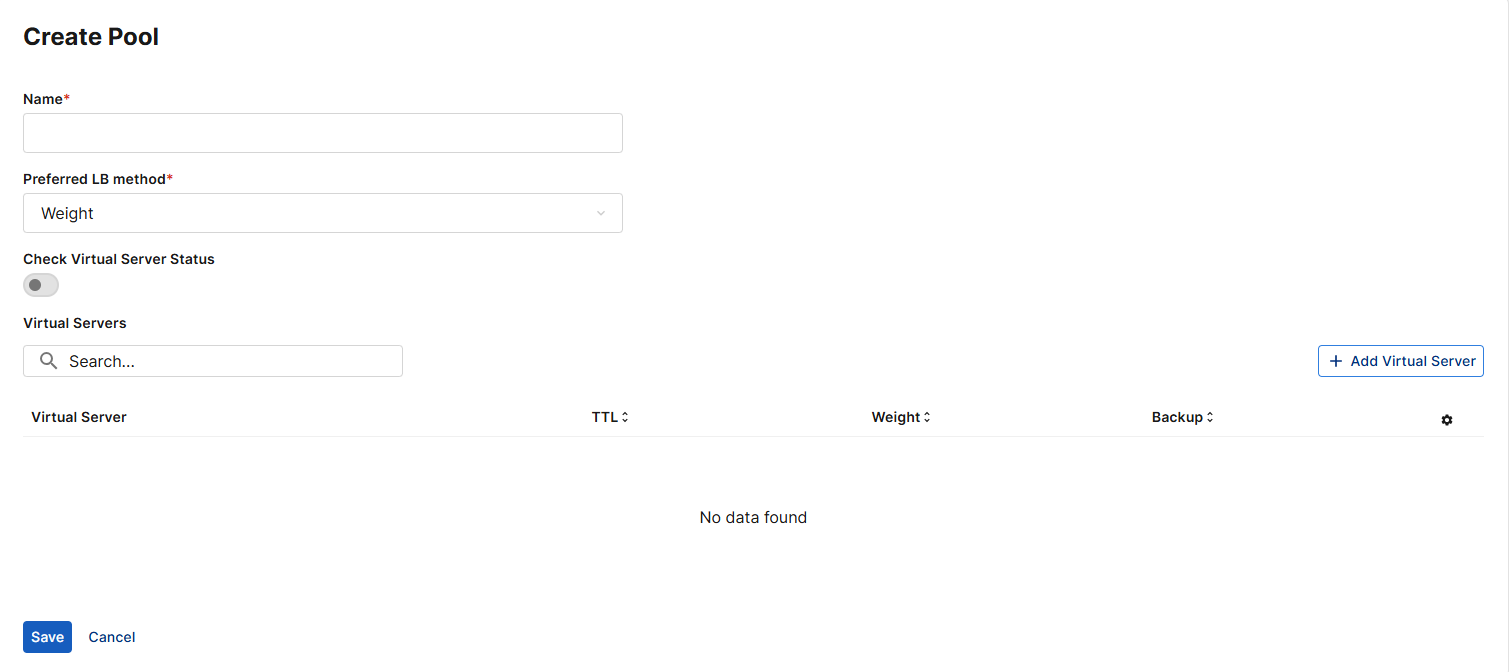
- Navigate to Service > FQDN and click Add FQDN. Enter FQDN information and save. For detailed configuration information, please see Creating an FQDN.
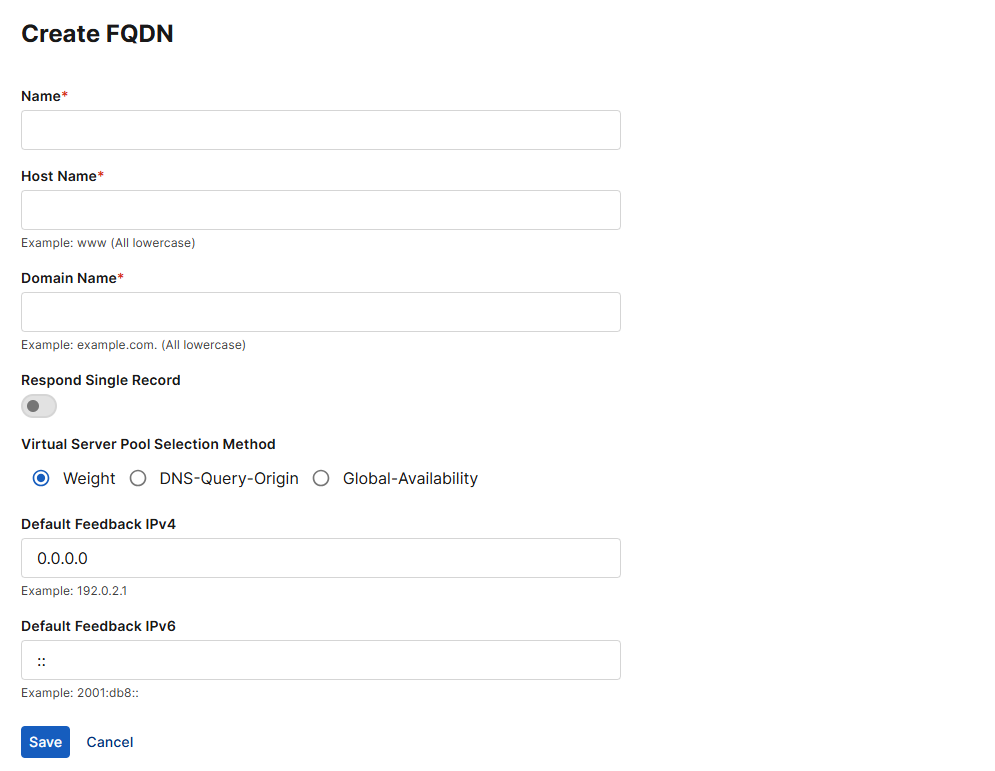
-
On the GSLB > Service > FQDN page, click the three dots in the corner of the newly created FQDN to expand the action menu, and select Manage Virtual Server Pool.
Settings
Guidelines
Virtual server pool
Select a virtual server pool that can handle requests for this FQDN.
Weight
Assigns relative preference among virtual servers—higher values are more preferred and are assigned connections more frequently.
Valid values range from 1 (default) to 255.
This setting applies only when the system selects the virtual server pool using the Weight method. Otherwise, it does not affect pool selection.
Location List
Bind a location for the pool. A location list configuration consists of a list of locations you select.
Note: The any location object is a default configuration that includes all regions in the database. When the any location list is applied, all traffic that do not match the other locations will then match to any other region that has not been specified.Address Group
Bind an address group for the pool. An address group configuration consists of a list of IP/Netmasks or IP ranges.
Note: IP/Netmasks: 0.0.0.0/0 indicates all IPv4 IP addresses.
-
Click Add Virtual Sever Pool and configure the settings below to add a virtual server pool that will handle requests for this FQDN:
- Under Virtual Server select the connector you created in step 1.
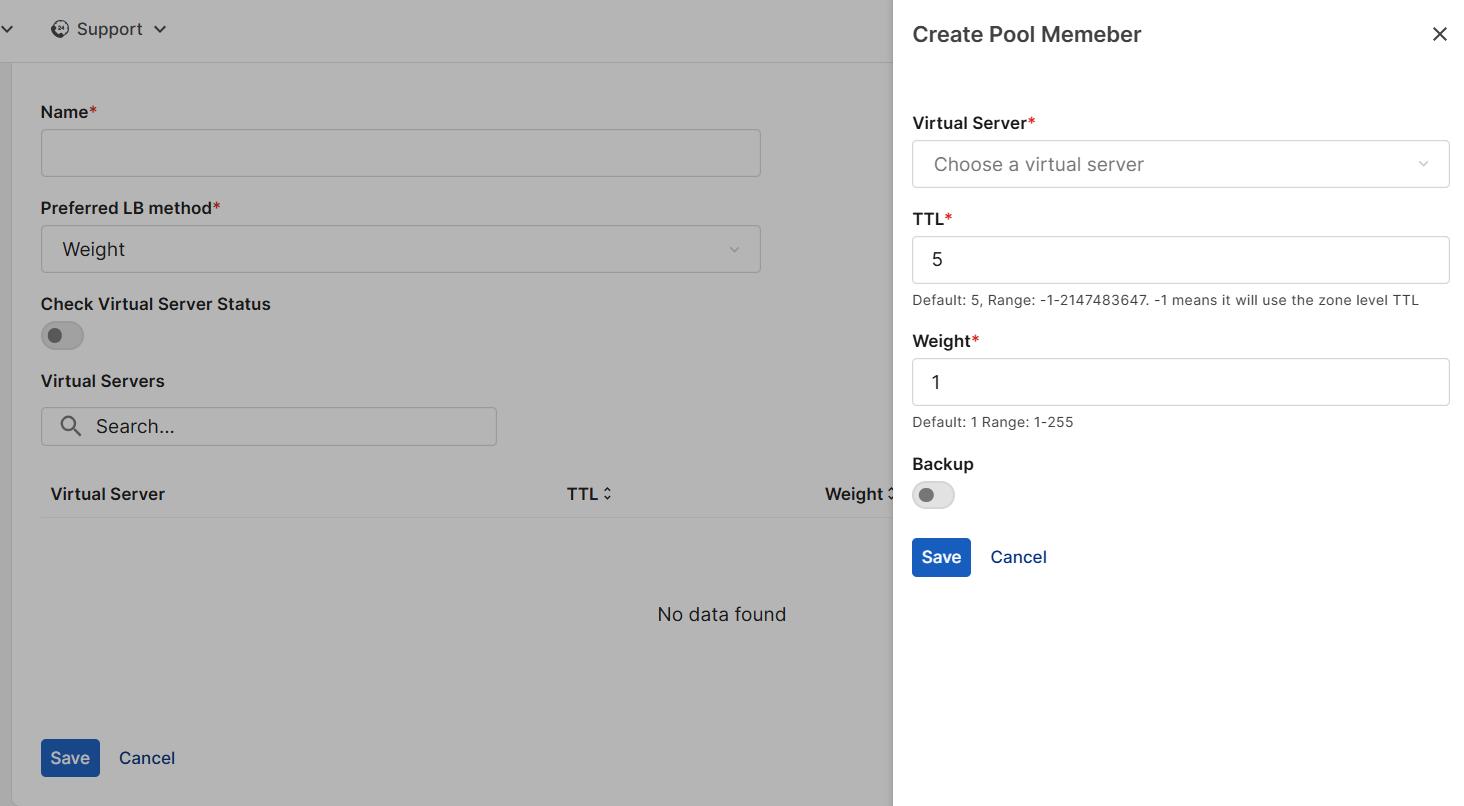
- The virtual server should be added to the pool. Click Save. The virtual server pool should also be added to the FQDN.