

Endpoints
Define the types of traffic allowed to access your application, such as HTTP or HTTPS, the specific TLS protocol versions supported, and the preferred cipher strengths.
Endpoint Configuration
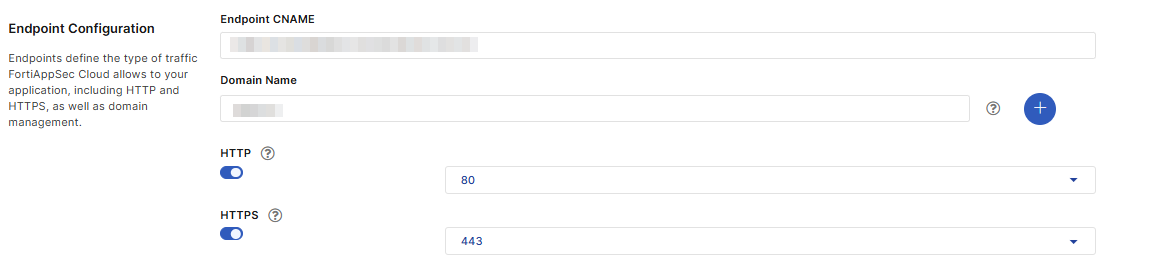
List the domains to protect. The protection policy configured for this application applies to all the domains.
- You can add up to 10 domains. They should belong to the same root domain, such as www.example.com and mail.example.com.
- Wildcard is supported except the first entry in the list. Make sure that the domain name entries do not overlap, for example, “www.example.com” can't be added together with “*.example.com” . The wildcard only matches with the string within the same domain level, for example, "a.example.com" matches with “*.example.com”, while "a.a.example.com" doesn't.
- Once the application is onboarded, you are not allowed to change the first domain. Highly recommend to use root domain for the first domain, e.g. example.com or www.example.com.
Select HTTP, HTTPS, HTTP/2
|
Field |
Description |
|---|---|
|
Endpoint CNAME |
This field is autopopulated from your DNS configuration, and is not editable. |
|
Domain |
List the domains to protect. The protection policy configured for this application applies to all the domains.
|
| HTTP |
Enable to allow HTTP traffic, and |
| HTTPS |
Enable to allow HTTPS traffic. The default value for HTTPS is 443. |
You can view the full, updated list of ports when adding an application under Network Settings, or on the WAF > Network > Endpoints page in the dropdown menus for HTTP and HTTPS.
Custom Ports
If the HTTP or HTTPS port number you want to use is not in the list, please contact FortiAppSec Cloud Support or your sales representative to customize the port number. Please note that not all non-standard ports can be used, and HTTP and HTTPS services must use different ports.
Multi-port
Multi-port applications allow you to direct traffic on your application across multiple HTTP or HTTPS ports. To enable multi-port functionality, create multiple applications with the same domain. For instructions on creating applications, see Onboard WAF applications.
When FortiAppSec Cloud detects multiple applications with the same domain, you will encounter a pop message in the top-right corner of your window when you click Test Origin Server on the Network tab. This indicates you are creating a multi-port application.
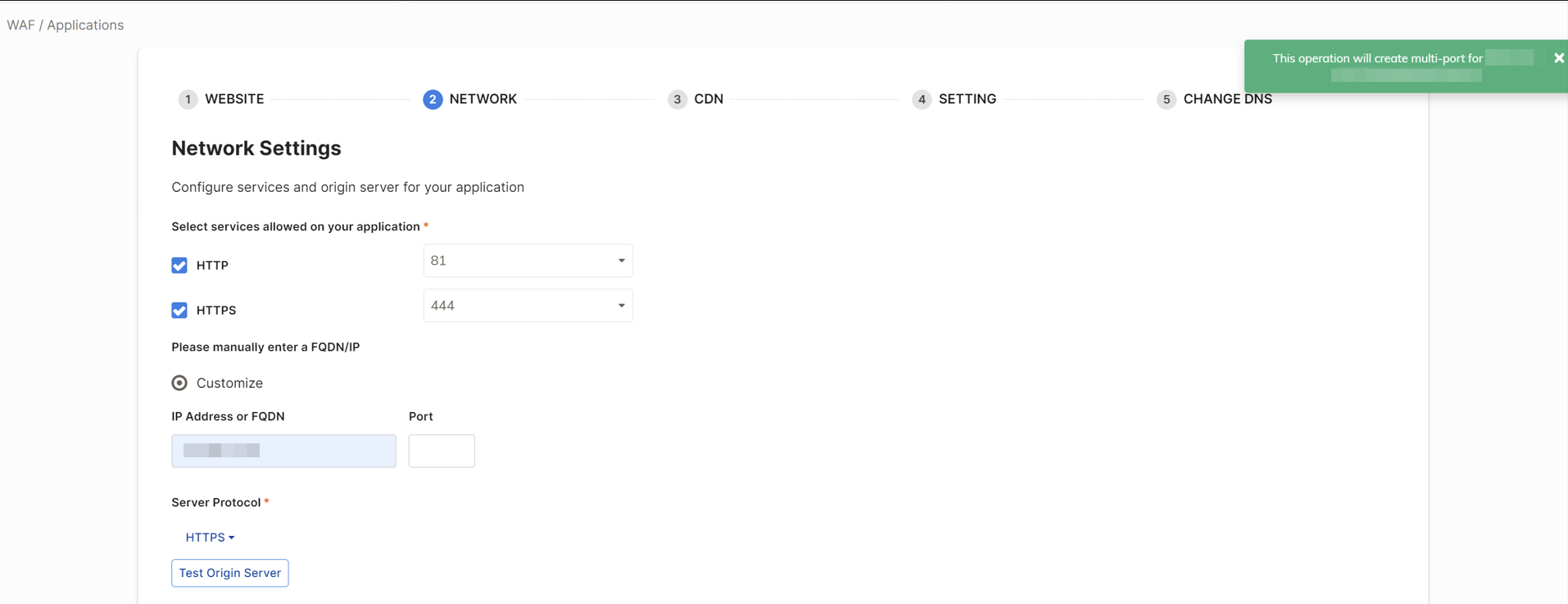
When configuring a multi-port application, please note the following:
-
You cannot change the region/CDN while multi-port is enabled.
-
To switch regions or CDNs, delete all multi-port applications of a domain, leaving only the original application. After changing the region, you will need to manually recreate the multi-port applications to resume traffic from other ports.
-
-
If you need to use a custom certificate on an application, please re-input the certificate for each multi-port.
-
Ensure that the first domain on the multi-port is the same as the first domain on the original application. This ensures that FortiAppSec Cloud will recognize the duplicate as a multi-port application.
-
When managing sub-domains with different port requirements, it is best to create them as separate applications. This approach ensures each sub-domain can independently manage its specific port settings without overlapping configurations.
SSL/TLS Certificate Management

SSL Certificate
The SSL certificate is used to encrypt the HTTPS connections between users and FortiAppSec Cloud. Without a valid certificate, users will see a certificate invalid warning when they visit your application.

|
FortiAppSec Cloud will not apply automatic certificate if your application uses AWS CloudFront service. |
|
SSL Certificate Option |
Description |
|---|---|
|
By default, FortiAppSec Cloud automatically retrieves SSL certificates from the Certificate Authority Let's Encrypt. If it fails, or if you would like to use your own certificate, you can manually upload it to FortiAppSec Cloud. Before selecting Automatic Certificate, ensure the following is done:
When using Automatic Certificate, it is recommended to select DNS Challenge for Challenge Type to simplify the verification process and support automatic certificate issuance. |
|
|
Custom Certificate |
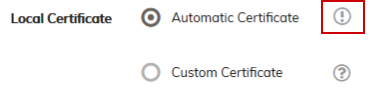
FortiAppSec Cloud may fail to retrieve the certificate for some reasons, for example, the HTTP traffic is not allowed on the endpoints. An exclamation mark will appear beside the Automatic Certificate option indicating the certificate fails to be retrieved.
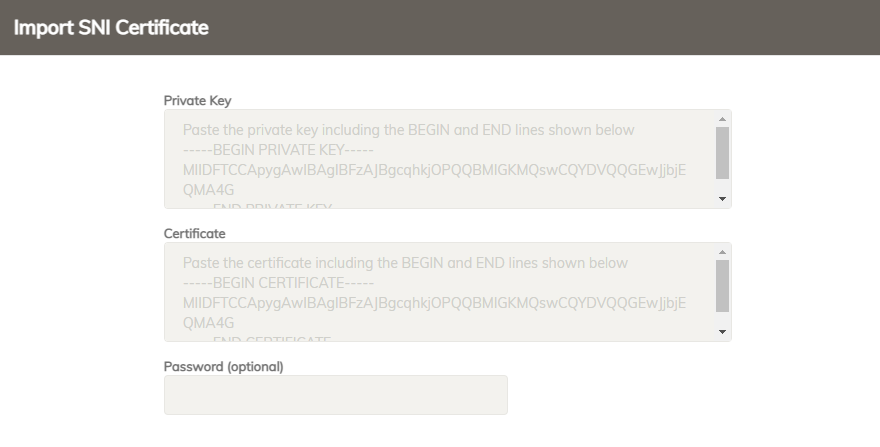
You can import at most 32 SNI certificates and intermediate certificates respectively. Submit a support ticket if you want to extend the limits.
|
Challenge Type
Let's Encrypt sends challenges to validate that you control the domain names you have listed while onboarding the application.
|
Challenge Type |
Description |
|---|---|
|
HTTP Challenge |
To pass the challenge, you must change all the DNS entries for the domains you listed. |
|
DNS Challenge |
To pass the challenge, you need to create a new CNAME record for automatic certificate as well as change the DNS entries for the domains you listed. To avoid users encounter the "certificate invalid" error, you can first create the CNAME record (beginning with "_acme-challenge") to get the automatic certificate. After DNS status turns to OK, which means the certificate is successfully installed, you can then change the DNS records for your application's domains to direct the traffic to FortiAppSec Cloud. Please note that DNS challenge will be used for the wildcard domains regardless which challenge type you have chosen. |
The challenge is automatically handled, but if you need to make more complex configuration decisions, it can be helpful to understand the process in more detail. For additional information, please see Challenge Types posted by Let's Encrypt.
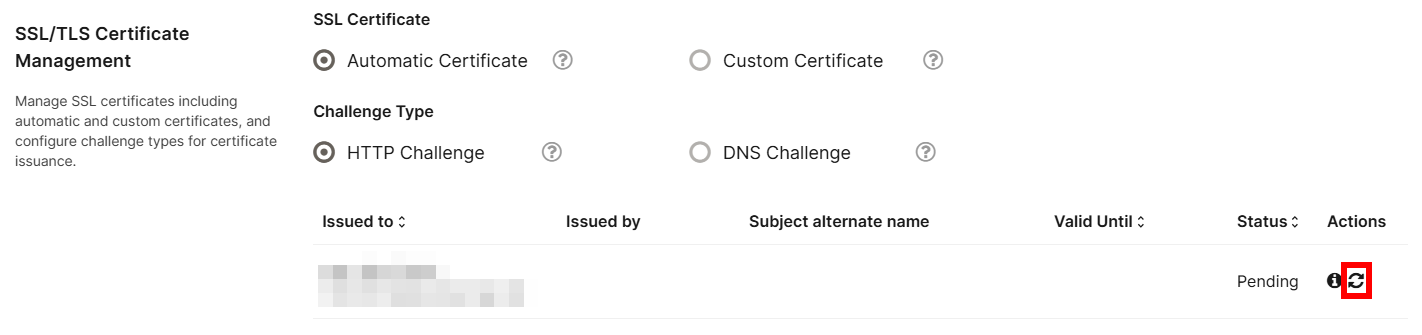
Several minutes after the challenge is successfully completed, FortiAppSec Cloud automatically obtains an SSL certificate from Let's Encrypt installs it on your application. It will be used in HTTPS connections to encrypt or decrypt the traffic. If FortiAppSec Cloud fails to retrieve the certificate, it will try again every 12 minutes on the 1st day, then once an hour on the 2nd and 3rd days. After that, the retry frequency reduces to once per day until the certificate is successfully retrieved.
To retrieve the certificate immediately, click the Refresh button under the Actions column to restore the interval count to the 1st day. FortiAppSec Cloud will then retrieves certificate every 12 minutes, and so on.
Thirty days before your certificate expires, FortiAppSec Cloud will re-verify that your DNS
TLS and Cipher Configuration
Select which versions of SSL or TLS protocols are allowed for the HTTPS connections between FortiAppSec Cloud and the clients.
For a complete list of the ciphers of each Encryption Level, see Supported cipher suites & protocol versions.
|
Setting |
Description |
|---|---|
|
SSL/TLS Encryption Level: The HTTPS traffic is encrypted or decrypted with ciphers. |
Controls how many ciphers are supported and the settings provide the following options:
|
|
TLS 1.3 |
Enable to allow TLS 1.3. |
|
TLS 1.2 |
Enable to allow TLS 1.2 |
|
TLS 1.1 |
Enable to allow TLS 1.1 |
|
HTTP Strict Transport Security (HSTS) |
Enable to combat MITM attacks on HTTP by injecting the RFC 6797 (http://tools.ietf.org/html/rfc6797) strict transport security header into the reply, such as: This header forces clients to use HTTPS for subsequent visits to this domain. If the certificate is invalid, the client’s web browser receives a fatal connection error and does not display a dialog that allows the user to override the certificate mismatch error and continue. If enabled, also configure the following: HSTS Max-age: Specify the time to live in seconds for the HSTS header. The HSTS enforcement will be lifted after the specified max-age. Subsequent visits will not be required to use HTTPS. Include Sub Domains: When enabled, the HSTS header will include the Redirect all HTTP traffic to HTTPS: Enable to redirect all HTTP traffic to HTTPS. |
|
Redirect all HTTP traffic to HTTPS (recommended) |
Select to automatically redirect all HTTP requests to the HTTPS service with the same URL and parameters. Do not enable this option if you have only one origin server and want FortiAppSec Cloud to communicate with the origin server over both HTTP and HTTPS protocols. If you want to provide different content over HTTP and HTTPS protocols, Please refer to Network settings for applications serving different content over HTTP and HTTPS |
Advanced Security and Protocol Settings
Configure advanced security features such as HTTP/2, client certificate authentication, and other protocol settings.
|
|
When HTTP/2 is enabled, only certain TLS 1.3 and TLS 1.2 ciphers will be supported for all SSL/TLS encryption levels. |
|
Setting |
Description |
|---|---|
| HTTP/2 | Enable to accept HTTP/2 traffic. |
|
Client Certificate Authentication |
Enable for FortiAppSec Cloud to require a client to provide a client certificate during the SSL handshake. When enabled, if a client doesn't provide a client certificate during the SSL handshake, the request will be rejected. Strictly Require Client CertificateWhen enabled, only clients presenting a valid certificate are allowed. CA CertificateClick Import to upload the trusted CA certificates so that FortiAppSec Cloud can authenticate client certificates. How to obtain CA certificate:
Note: Verify that your private CA’s certificate does not contain its private keys. Disclosure of private keys compromises the security of your network, and will require you to revoke and regenerate all certificates signed by that CA.、
Certificate Revocation Lists (CRL)Click Import to upload the Certificate Revocation Lists. To ensure that FortiAppSec Cloud validates only certificates that have not been revoked, you should periodically upload current certificate revocation lists (CRL) that may be provided by certificate authorities (CA). Client Certificate ForwardingEnable to forward the certificate to your backend server for authentication, user-specific permissions, and access control. Please note, this feature is only available for Advanced and Enterprise tier WAF plans. |
| IPv6 Service | If IPv6 is enabled, both IPv4 and IPv6 are allowed to your application. If disabled, only IPv4 traffic is allowed. |
| Secure flag for internal Cookie |
Enable to add the secure flag to cookies, which forces browsers to return the cookie only when the request is for an HTTPS page. When enabled, only the HTTPS request contains cookie, while the HTTP is cookieless. |
| HTTP Only flag for internal Cookie | Enable to add the "HTTP Only" flag to internal cookies, which prevents client-side scripts from accessing the cookie. |
| Custom Block Page |
Select the block page that FortiAppSec Cloud displays to your users. It contains the following messages:
The custom block page is configured in WAF > System Settings > Custom Block Pages. |