Fortinet white logo
Fortinet white logo

User Guide

Content Routing

Content Routing

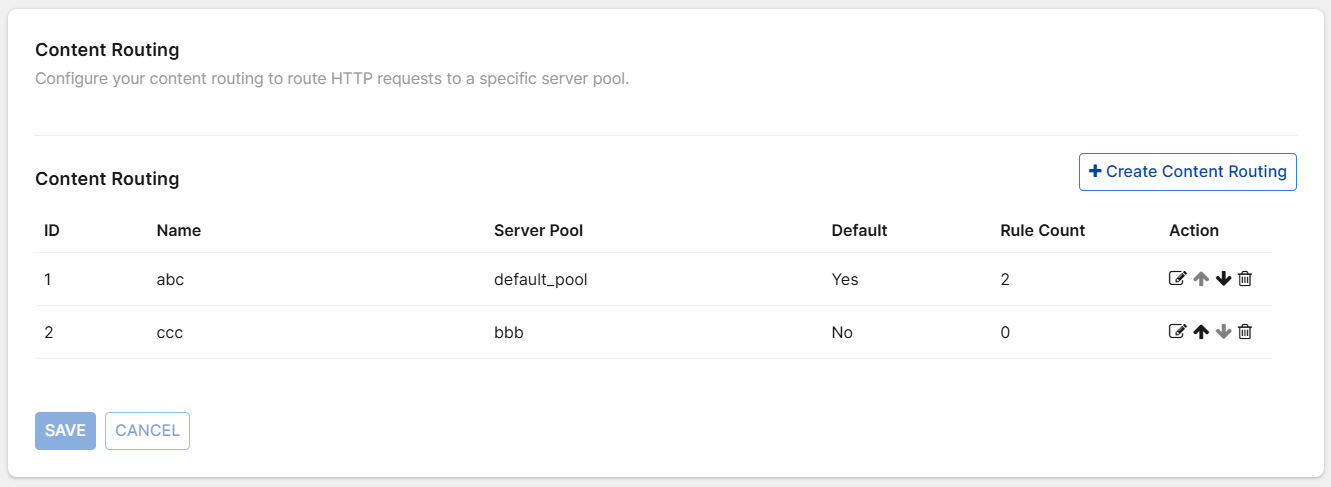
Configure content routing rules to direct traffic to origin servers based on URL, Header, Cookie, Parameter, or Source IP. Configuration for multiple server pools and content routings is supported.

  • Each application can have up to 32 content routings, with each content routing supporting up to 32 rules.

  • For those using licenses purchased from Fortinet, the number of content routings you enable directly corresponds to the application license requirement.

    For example, an application with one content routing enabled uses the license space for one application, while an application with two content routings enabled uses the space for two applications, and so forth.

Enable Content Routing

  1. Click Add Modules in the side navigation menu.

  2. Under Network, enable Content Routing.

Disabling Content Routing via the Add Modules wizard will do the following:

  • Permanently remove all existing content routing configurations

  • Delete all origin server pools except for the default server pool.

Once you enable Content Routing, you will be able to create server pools on Network > Origin Servers.

Please note, you cannot delete the default server pool. This ensures it remains available if you later disable the Content Routing module.

Create content routing rule

  1. In the side navigation menu, click Network > Content Routing.

  2. Click Create Content Routing.

    Please note, each application can have a maximum of 32 content routings, and each content routing can contain up to 32 rules.

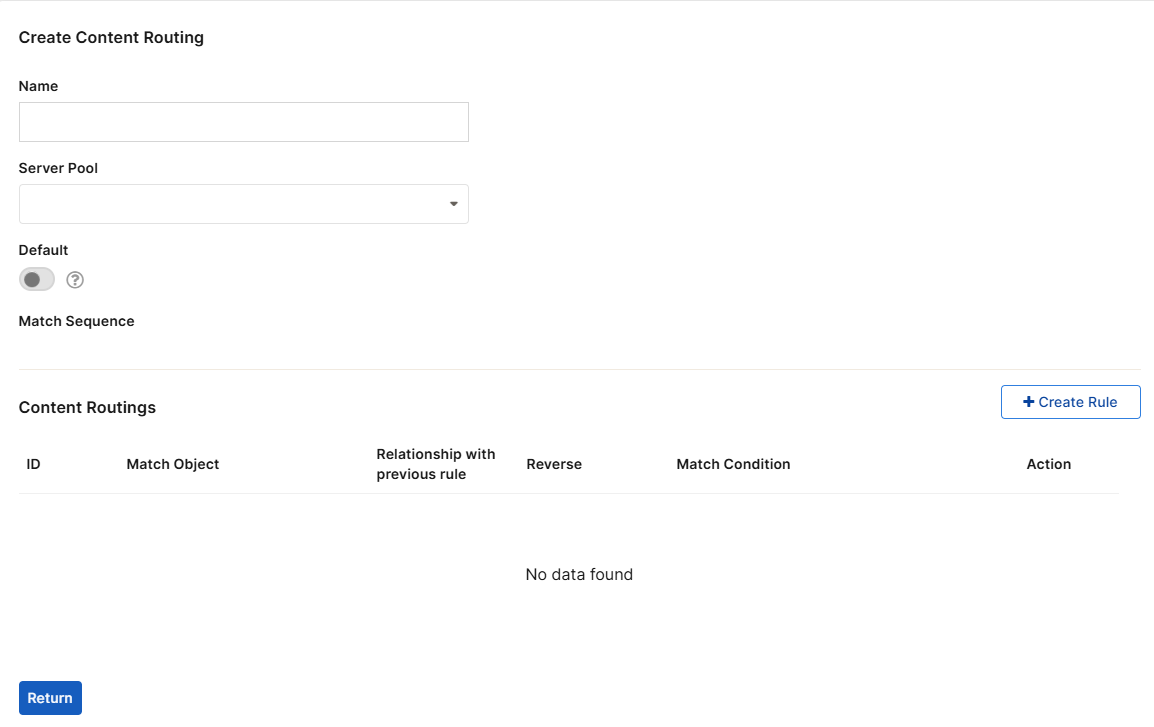
  3. Configure the following:

    Field

    Description

    Name

    Enter an identifiable name for your routing.

    Server Pool

    Select the Server Pool you would like to direct traffic to.

    Default

    When enabled, traffic that does not match the Rules in any content routing will be directed to the Server Pool in the current content routing. Configuring a default routing ensures that all traffic is processed by a server pool, avoiding dropped traffic.

    Each application can have one default routing.

  4. Click Create Rule to configure the desired traffic behavior under this routing.
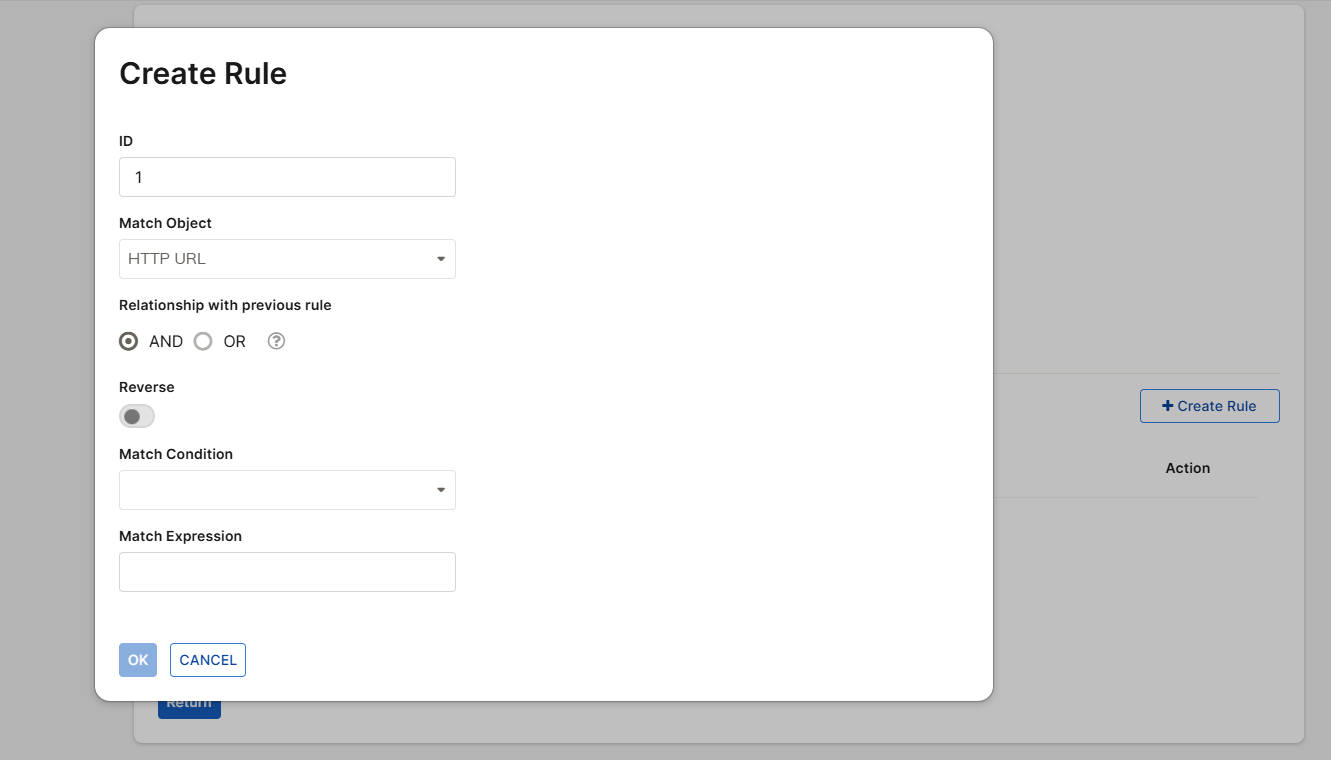
    Field

    Description

    ID

    A system-generated number that identifies the rule in its sequence within the content routing.

    Match Object

    The criteria used to base the rule for directing traffic.

    In this drop-down menu, you can select from the following options:

    • HTTP Host

    • HTTP URL

    • URL Parameter

    • HTTP Referer

    • HTTP Cookie

    • HTTP Header

    • Source IP

    • X509 Certificate Subject

    • X509 Certificate Extension

    • HTTPS SNI

    Note: To select X509 Certiifcate Subject or X509 Certificate Extension, you must first go to Network > Endpoints and enable Client Certificate Authentication.

    Relationship with previous rule

    Select whether the current rule should run concurrently with or as an alternative to the previous rule.

    For the first rule in a routing sequence, this field has no effect.

    Please note, rules bound by an AND relationship take precedence over those with OR relationships. This ensures all AND conditions must be met before considering OR conditions.

    Reverse

    If enabled, the rule will apply to all traffic that does not match the specified condition, rather than to all traffic that does match it.

    The following configuration options will vary based on the selected Match Object.

    If you set Match Object to URL Parameter, HTTP Cookie, or HTTP Header, configure the following:

    Field

    Description

    Name Match Condition

    Select an attribute in the traffic name that defines a match.

    • Is equal to — The rule applies to traffic names that fully match the specified value.

    • Match prefix — checks if the beginning of a string matches a specified prefix. For example, if the prefix is "api/", the condition will be true for strings like "api/v1/resource" but not for "web/v1/resource."

    • Match suffix — checks if the end of a string matches a specified suffix. For example, if the suffix is ".html", the "match suffix" condition will be true for URLs like "example.com/page.html" but not for "example.com/page.php".

    • Match contains — The rule applies to all traffic names that contains the specified value.

    • Regular Expression — The rule applies to all traffic names that match the specified regular expression.

    Name

    This field appears when Match Object is set to URL Parameter, HTTP Cookie, or HTTP Header.

    Enter what the Name Match Condition will use to match against.

    Value Match Condition

    Select an attribute in the traffic value that defines a match.

    • Is equal to — The rule applies to traffic values that fully match the specified value.

    • Match prefix — checks if the beginning of a string matches a specified prefix. For example, if the prefix is "api/", the condition will be true for strings like "api/v1/resource" but not for "web/v1/resource."
    • Match suffix — checks if the end of a string matches a specified suffix. For example, if the suffix is ".html", the "match suffix" condition will be true for URLs like "example.com/page.html" but not for "example.com/page.php".

    • Match contains — The rule applies to all traffic values that contains the specified value.

    • Regular Expression — The rule applies to all traffic values that match the specified regular expression.

    Value

    This field appears when Match Object is set to URL Parameter, HTTP Cookie, or HTTP Header.

    Enter what the Value Match Condition will use to match against.

    If you set Match Object to HTTP Host, HTTP URL, HTTP Referer, HTTPS SNI, configure the following:

    Field

    Description

    Match Condition

    Select the attribute in the match object that defines a match.

    • Is equal to — The rule applies to traffic values that fully match the specified value.
    • Match prefix — checks if the beginning of a string matches a specified prefix. For example, if the prefix is "api/", the condition will be true for strings like "api/v1/resource" but not for "web/v1/resource."
    • Match suffix — checks if the end of a string matches a specified suffix. For example, if the suffix is ".html", the "match suffix" condition will be true for URLs like "example.com/page.html" but not for "example.com/page.php".

    • Match contains — The rule applies when the match object contains the specified value.

    • Regular Expression — The rule applies when the match object matches the specified regular expression.

    • Match directory — The rule applies when the match object contains the specified string between delimiting characters (slash) in a domain name.
    • Match domain — The rule applies when the match object contains the specified string between the periods in a domain name.

    Match Expression

    Enter what the Match Condition will use to match against.

    If you set Match Object to Source IP, configure the following:

    Field

    Description

    Match Condition

    Select the attribute in the match object that defines a match.

    • IPv4 Address/Range — The rule applies when the match object is the specified IPv4 address or falls within the specified IPv4 address range.

    • IPv6 Address/Range — The rule applies when the match object is the specified IPv6 address or falls within the specified IPv6 address range

    • Import From CSV File — Instead of entering an IP range, upload a CSV file that contains a list of IP addresses. The rule will trigger when any of the listed IP addresses is detected in the match object.

    IP range

    Enter the IP range the Match Condition will use to match against.

    If you set Match Object to X509 Certificate Subject, configure the following:

    Field

    Description

    X509 Subject Name

    Select the attribute in the match object that defines a match.

    • Country Name (C)

    • Common Name (CN)

    • Email Address (E)

    • Locality Name (L)

    • Organization Name (O)

    • Organizational Unit Name (OU)

    • State or Province Name (ST)

    Value Match Condition

    Select an attribute in the traffic value that defines a match.

    • Is equal to — The rule applies to traffic values that fully match the specified value.

    • Match prefix — checks if the beginning of a string matches a specified prefix. For example, if the prefix is "api/", the condition will be true for strings like "api/v1/resource" but not for "web/v1/resource."
    • Match suffix — checks if the end of a string matches a specified suffix. For example, if the suffix is ".html", the "match suffix" condition will be true for URLs like "example.com/page.html" but not for "example.com/page.php".

    • Match contains — The rule applies to all traffic values that contains the specified value.

    • Regular Expression — The rule applies to all traffic values that match the specified regular expression.

    Match Expression

    Enter what the Match Condition will use to match against.

    If you set Match Object to X509 Certificate Extension, configure the following:

    Value Match Condition

    Select an attribute in the traffic value that defines a match.

    • Is equal to — The rule applies to traffic values that fully match the specified value.

    • Match prefix — checks if the beginning of a string matches a specified prefix. For example, if the prefix is "api/", the condition will be true for strings like "api/v1/resource" but not for "web/v1/resource."
    • Match suffix — checks if the end of a string matches a specified suffix. For example, if the suffix is ".html", the "match suffix" condition will be true for URLs like "example.com/page.html" but not for "example.com/page.php".

    • Match contains — The rule applies to all traffic values that contains the specified value.

    • Regular Expression — The rule applies to all traffic values that match the specified regular expression.

    Value

    Enter what the Match Condition will use to match against.

  5. Click OK to save the new rule.

  6. Click Save to apply changes.

Content Routing

Content Routing

Configure content routing rules to direct traffic to origin servers based on URL, Header, Cookie, Parameter, or Source IP. Configuration for multiple server pools and content routings is supported.

  • Each application can have up to 32 content routings, with each content routing supporting up to 32 rules.

  • For those using licenses purchased from Fortinet, the number of content routings you enable directly corresponds to the application license requirement.

    For example, an application with one content routing enabled uses the license space for one application, while an application with two content routings enabled uses the space for two applications, and so forth.

Enable Content Routing

  1. Click Add Modules in the side navigation menu.

  2. Under Network, enable Content Routing.

Disabling Content Routing via the Add Modules wizard will do the following:

  • Permanently remove all existing content routing configurations

  • Delete all origin server pools except for the default server pool.

Once you enable Content Routing, you will be able to create server pools on Network > Origin Servers.

Please note, you cannot delete the default server pool. This ensures it remains available if you later disable the Content Routing module.

Create content routing rule

  1. In the side navigation menu, click Network > Content Routing.

  2. Click Create Content Routing.

    Please note, each application can have a maximum of 32 content routings, and each content routing can contain up to 32 rules.

  3. Configure the following:

    Field

    Description

    Name

    Enter an identifiable name for your routing.

    Server Pool

    Select the Server Pool you would like to direct traffic to.

    Default

    When enabled, traffic that does not match the Rules in any content routing will be directed to the Server Pool in the current content routing. Configuring a default routing ensures that all traffic is processed by a server pool, avoiding dropped traffic.

    Each application can have one default routing.

  4. Click Create Rule to configure the desired traffic behavior under this routing.

    Field

    Description

    ID

    A system-generated number that identifies the rule in its sequence within the content routing.

    Match Object

    The criteria used to base the rule for directing traffic.

    In this drop-down menu, you can select from the following options:

    • HTTP Host

    • HTTP URL

    • URL Parameter

    • HTTP Referer

    • HTTP Cookie

    • HTTP Header

    • Source IP

    • X509 Certificate Subject

    • X509 Certificate Extension

    • HTTPS SNI

    Note: To select X509 Certiifcate Subject or X509 Certificate Extension, you must first go to Network > Endpoints and enable Client Certificate Authentication.

    Relationship with previous rule

    Select whether the current rule should run concurrently with or as an alternative to the previous rule.

    For the first rule in a routing sequence, this field has no effect.

    Please note, rules bound by an AND relationship take precedence over those with OR relationships. This ensures all AND conditions must be met before considering OR conditions.

    Reverse

    If enabled, the rule will apply to all traffic that does not match the specified condition, rather than to all traffic that does match it.

    The following configuration options will vary based on the selected Match Object.

    If you set Match Object to URL Parameter, HTTP Cookie, or HTTP Header, configure the following:

    Field

    Description

    Name Match Condition

    Select an attribute in the traffic name that defines a match.

    • Is equal to — The rule applies to traffic names that fully match the specified value.

    • Match prefix — checks if the beginning of a string matches a specified prefix. For example, if the prefix is "api/", the condition will be true for strings like "api/v1/resource" but not for "web/v1/resource."

    • Match suffix — checks if the end of a string matches a specified suffix. For example, if the suffix is ".html", the "match suffix" condition will be true for URLs like "example.com/page.html" but not for "example.com/page.php".

    • Match contains — The rule applies to all traffic names that contains the specified value.

    • Regular Expression — The rule applies to all traffic names that match the specified regular expression.

    Name

    This field appears when Match Object is set to URL Parameter, HTTP Cookie, or HTTP Header.

    Enter what the Name Match Condition will use to match against.

    Value Match Condition

    Select an attribute in the traffic value that defines a match.

    • Is equal to — The rule applies to traffic values that fully match the specified value.

    • Match prefix — checks if the beginning of a string matches a specified prefix. For example, if the prefix is "api/", the condition will be true for strings like "api/v1/resource" but not for "web/v1/resource."
    • Match suffix — checks if the end of a string matches a specified suffix. For example, if the suffix is ".html", the "match suffix" condition will be true for URLs like "example.com/page.html" but not for "example.com/page.php".

    • Match contains — The rule applies to all traffic values that contains the specified value.

    • Regular Expression — The rule applies to all traffic values that match the specified regular expression.

    Value

    This field appears when Match Object is set to URL Parameter, HTTP Cookie, or HTTP Header.

    Enter what the Value Match Condition will use to match against.

    If you set Match Object to HTTP Host, HTTP URL, HTTP Referer, HTTPS SNI, configure the following:

    Field

    Description

    Match Condition

    Select the attribute in the match object that defines a match.

    • Is equal to — The rule applies to traffic values that fully match the specified value.
    • Match prefix — checks if the beginning of a string matches a specified prefix. For example, if the prefix is "api/", the condition will be true for strings like "api/v1/resource" but not for "web/v1/resource."
    • Match suffix — checks if the end of a string matches a specified suffix. For example, if the suffix is ".html", the "match suffix" condition will be true for URLs like "example.com/page.html" but not for "example.com/page.php".

    • Match contains — The rule applies when the match object contains the specified value.

    • Regular Expression — The rule applies when the match object matches the specified regular expression.

    • Match directory — The rule applies when the match object contains the specified string between delimiting characters (slash) in a domain name.
    • Match domain — The rule applies when the match object contains the specified string between the periods in a domain name.

    Match Expression

    Enter what the Match Condition will use to match against.

    If you set Match Object to Source IP, configure the following:

    Field

    Description

    Match Condition

    Select the attribute in the match object that defines a match.

    • IPv4 Address/Range — The rule applies when the match object is the specified IPv4 address or falls within the specified IPv4 address range.

    • IPv6 Address/Range — The rule applies when the match object is the specified IPv6 address or falls within the specified IPv6 address range

    • Import From CSV File — Instead of entering an IP range, upload a CSV file that contains a list of IP addresses. The rule will trigger when any of the listed IP addresses is detected in the match object.

    IP range

    Enter the IP range the Match Condition will use to match against.

    If you set Match Object to X509 Certificate Subject, configure the following:

    Field

    Description

    X509 Subject Name

    Select the attribute in the match object that defines a match.

    • Country Name (C)

    • Common Name (CN)

    • Email Address (E)

    • Locality Name (L)

    • Organization Name (O)

    • Organizational Unit Name (OU)

    • State or Province Name (ST)

    Value Match Condition

    Select an attribute in the traffic value that defines a match.

    • Is equal to — The rule applies to traffic values that fully match the specified value.

    • Match prefix — checks if the beginning of a string matches a specified prefix. For example, if the prefix is "api/", the condition will be true for strings like "api/v1/resource" but not for "web/v1/resource."
    • Match suffix — checks if the end of a string matches a specified suffix. For example, if the suffix is ".html", the "match suffix" condition will be true for URLs like "example.com/page.html" but not for "example.com/page.php".

    • Match contains — The rule applies to all traffic values that contains the specified value.

    • Regular Expression — The rule applies to all traffic values that match the specified regular expression.

    Match Expression

    Enter what the Match Condition will use to match against.

    If you set Match Object to X509 Certificate Extension, configure the following:

    Value Match Condition

    Select an attribute in the traffic value that defines a match.

    • Is equal to — The rule applies to traffic values that fully match the specified value.

    • Match prefix — checks if the beginning of a string matches a specified prefix. For example, if the prefix is "api/", the condition will be true for strings like "api/v1/resource" but not for "web/v1/resource."
    • Match suffix — checks if the end of a string matches a specified suffix. For example, if the suffix is ".html", the "match suffix" condition will be true for URLs like "example.com/page.html" but not for "example.com/page.php".

    • Match contains — The rule applies to all traffic values that contains the specified value.

    • Regular Expression — The rule applies to all traffic values that match the specified regular expression.

    Value

    Enter what the Match Condition will use to match against.

  5. Click OK to save the new rule.

  6. Click Save to apply changes.