
Fortinet white logo
Fortinet white logo

User Guide

FortiCloud IAM Users

FortiCloud IAM Users

An IAM (Identity and Access Management) user with Organizational permissions has specific credentials and permissions, facilitating controlled access to FortiCloud resources and services.

Before creating an IAM user to use with FortiAppSec Cloud, you must first create a FortiAppSec Cloud portal Permission Profile.

Create a new FortiAppSec Cloud portal permission profile

  1. On the admin home page, go to Services > Assets&Accounts > IAM in the top navigation bar.
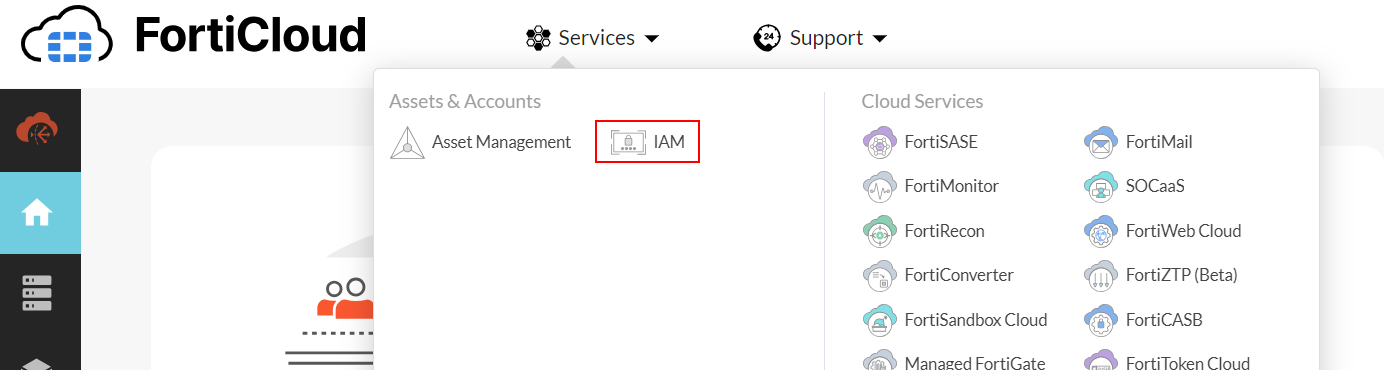
  2. Click on Permission Profiles in the left-hand navigation bar.

  3. Click Add New to create a new Permission profile.
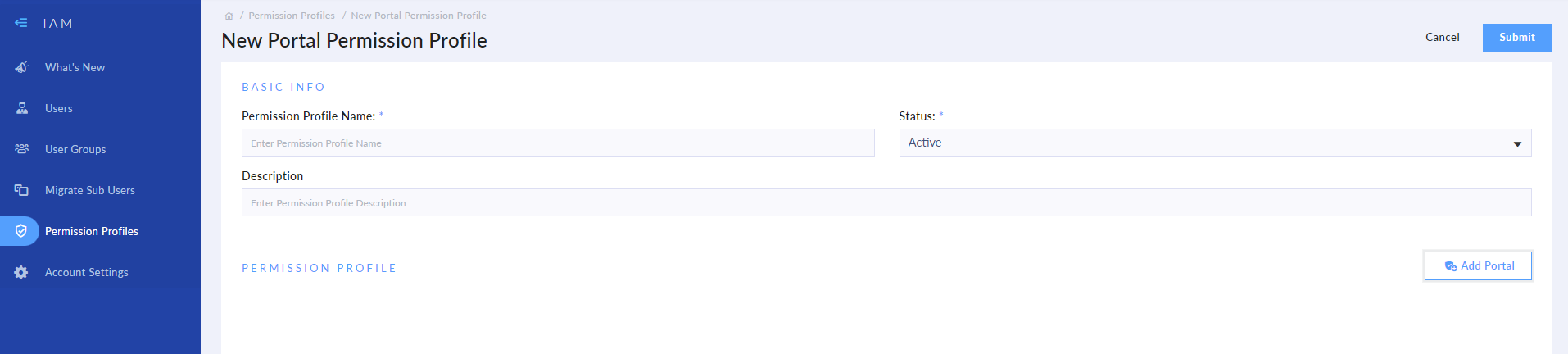
    1. Enter a name for the profile in the Permission Profile Name field.

    2. Set the Status to Active.

    3. Enter a description of the portal permissions in the Description field.

  4. Click Add Portal. A list of available portals is displayed.
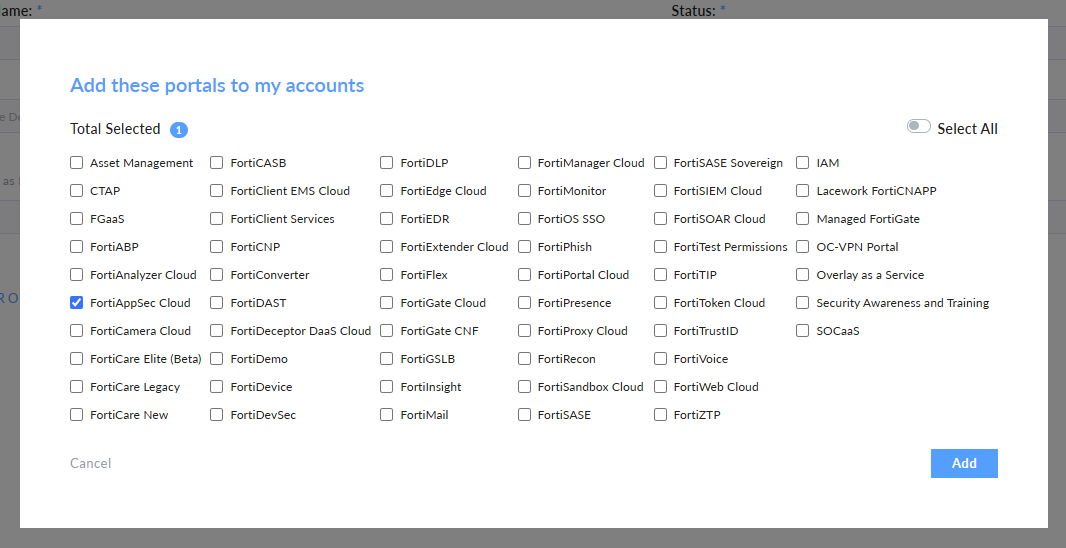
  5. To use this Permission Profile with FortiAppSec Cloud, select the FortiAppSec Cloud portal.

  6. Click Add. The new FortiAppSec Cloud portal displays as a card under Permission Profile

    • Click the switch under Access to enable the portal, then select your desired access settings for this profile.
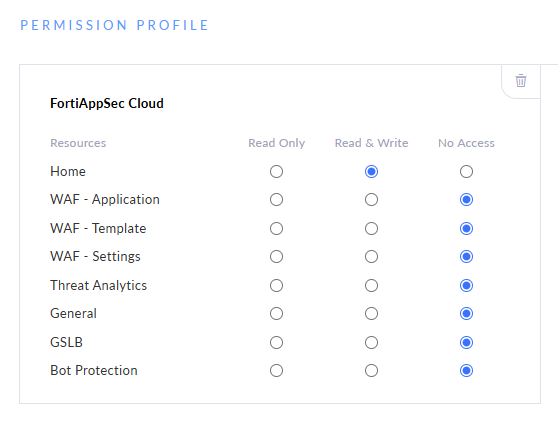
    • For other portals with role-based permissions, enable access and specify the portal Access Type and any Additional Permissions.

  7. Click Save. The permission profile is now available to be assigned to users.
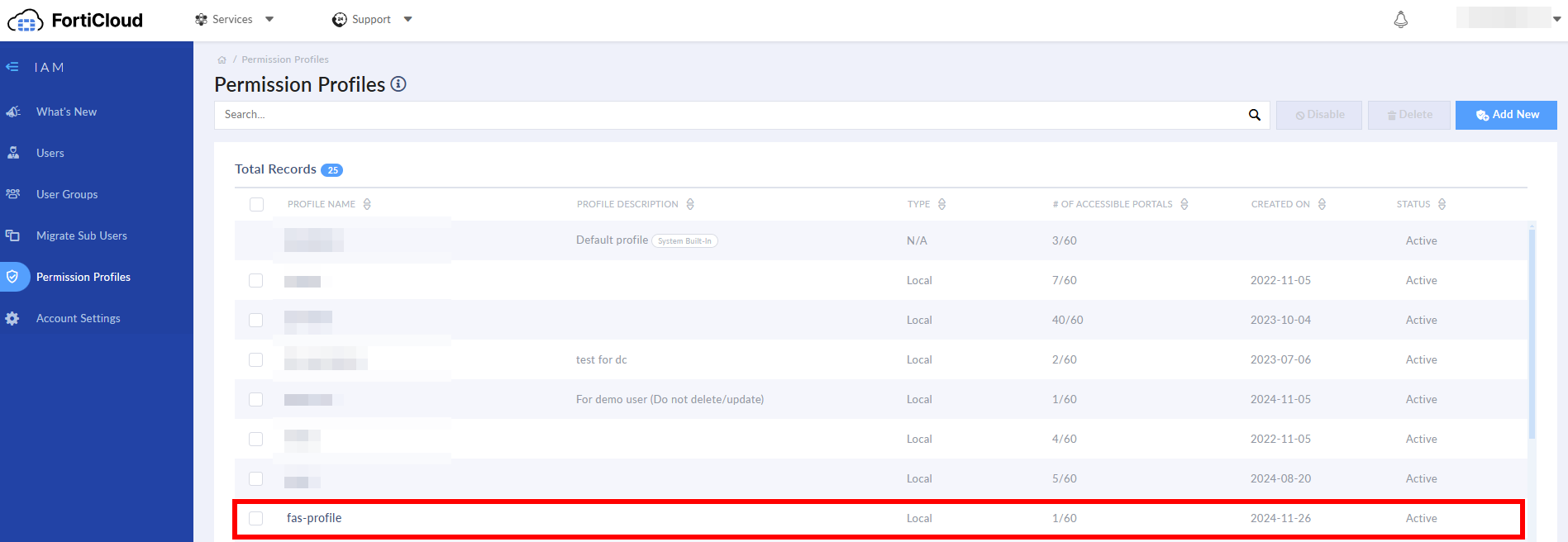
Add an IAM User to FortiAppSec Cloud

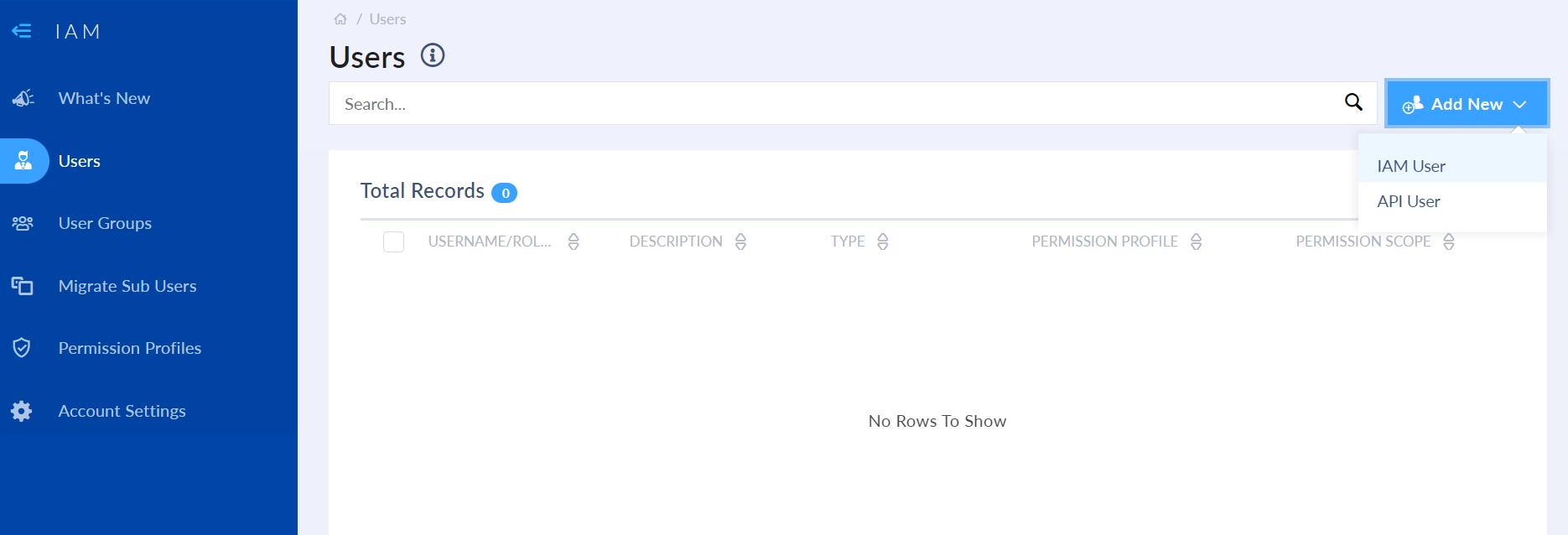
  1. Go to the Users page, click the Add New button, and click IAM User.
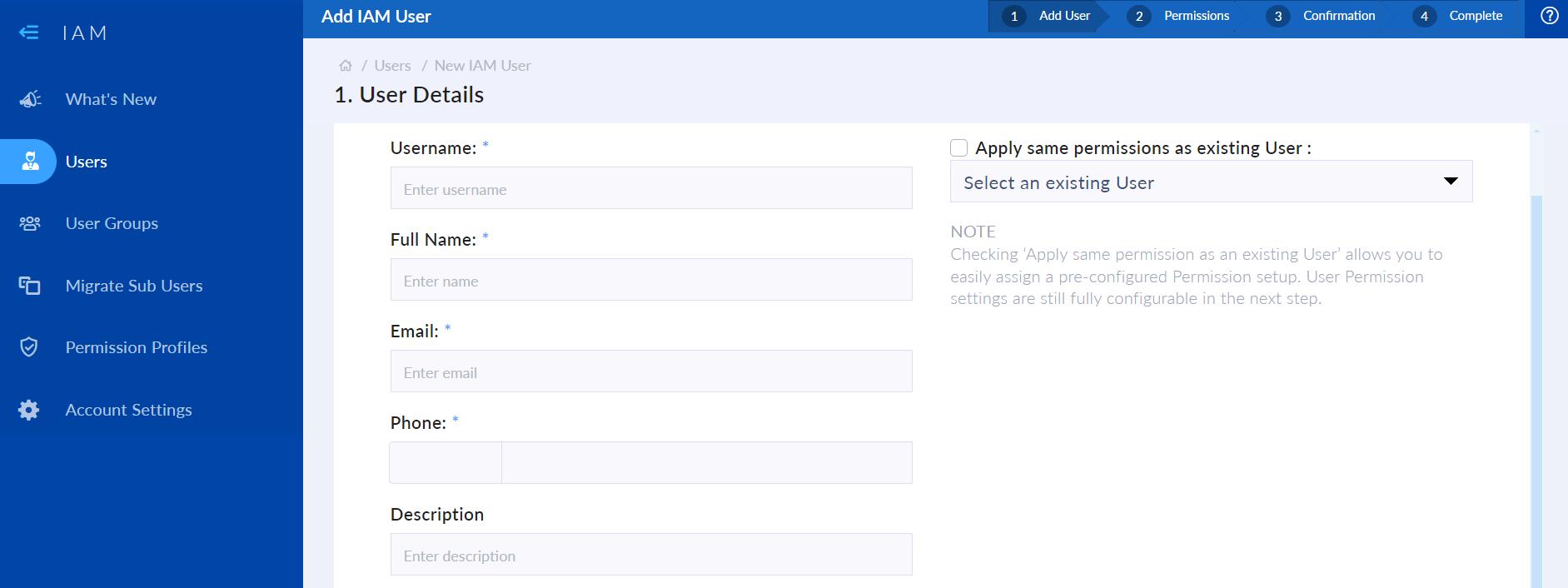
    1. Step 1: User Details - Fill in the basic fields and click Next.
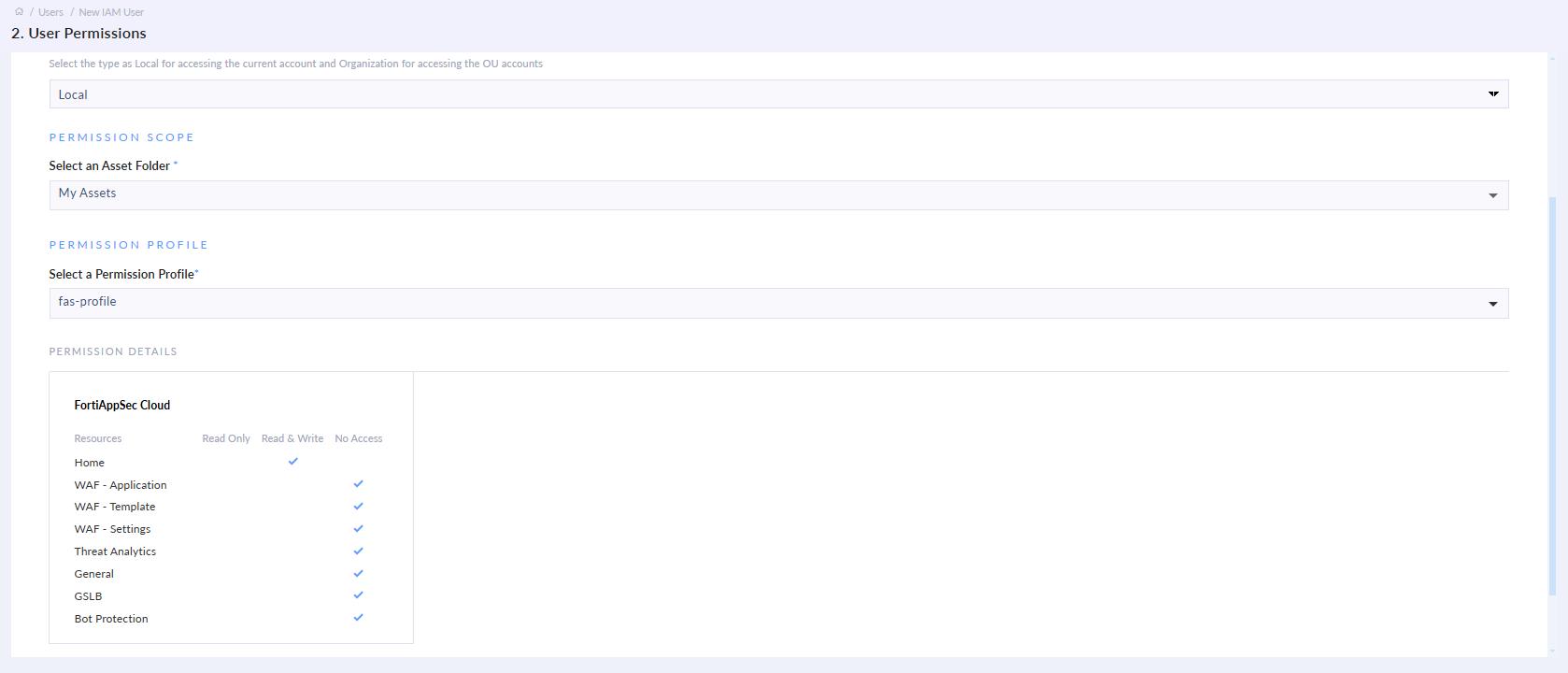
    2. Step 2: User Permissions
      1. Select any Asset Folder of your choice.
      2. Under the Permission Profile subsection, select a permission profile with a FortiAppSec Cloud portal. Click Next.
    3. Review the user information, and click Confirm. The user's details are displayed.
      1. Account credentials must be shared with the user. The account password can be configured using Generate Password. See Generating Password Reset Link for instructions on how to configure the account password and share user credentials.
  2. Return to the IAM Users page and find the newly added user listed.

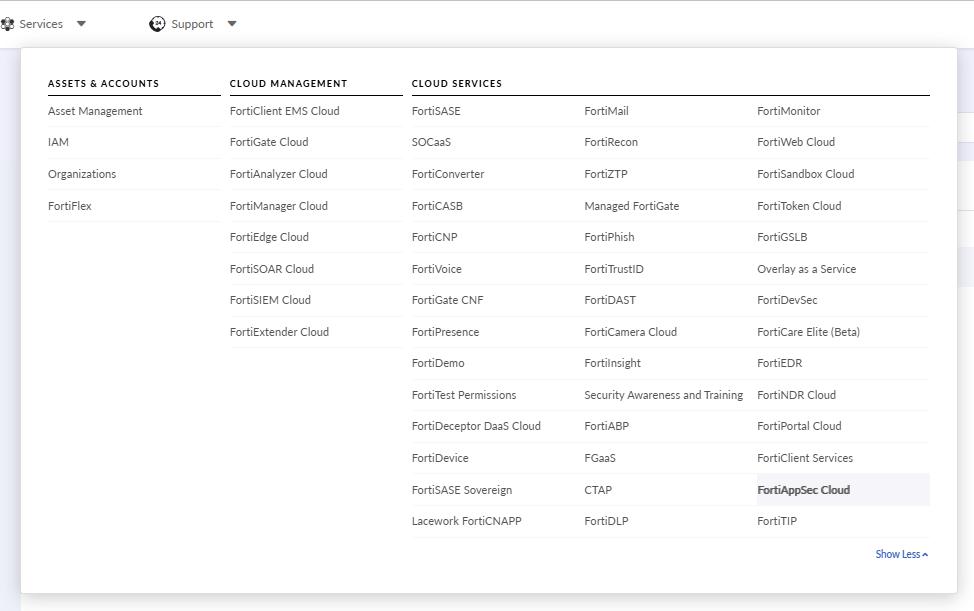
  3. Navigate to the top menu bar and click Services > FortiAppSec Cloud. You may need to click Show More to access this option.

    Please note, you must access FortiAppSec Cloud from here in order to see the newly added user.
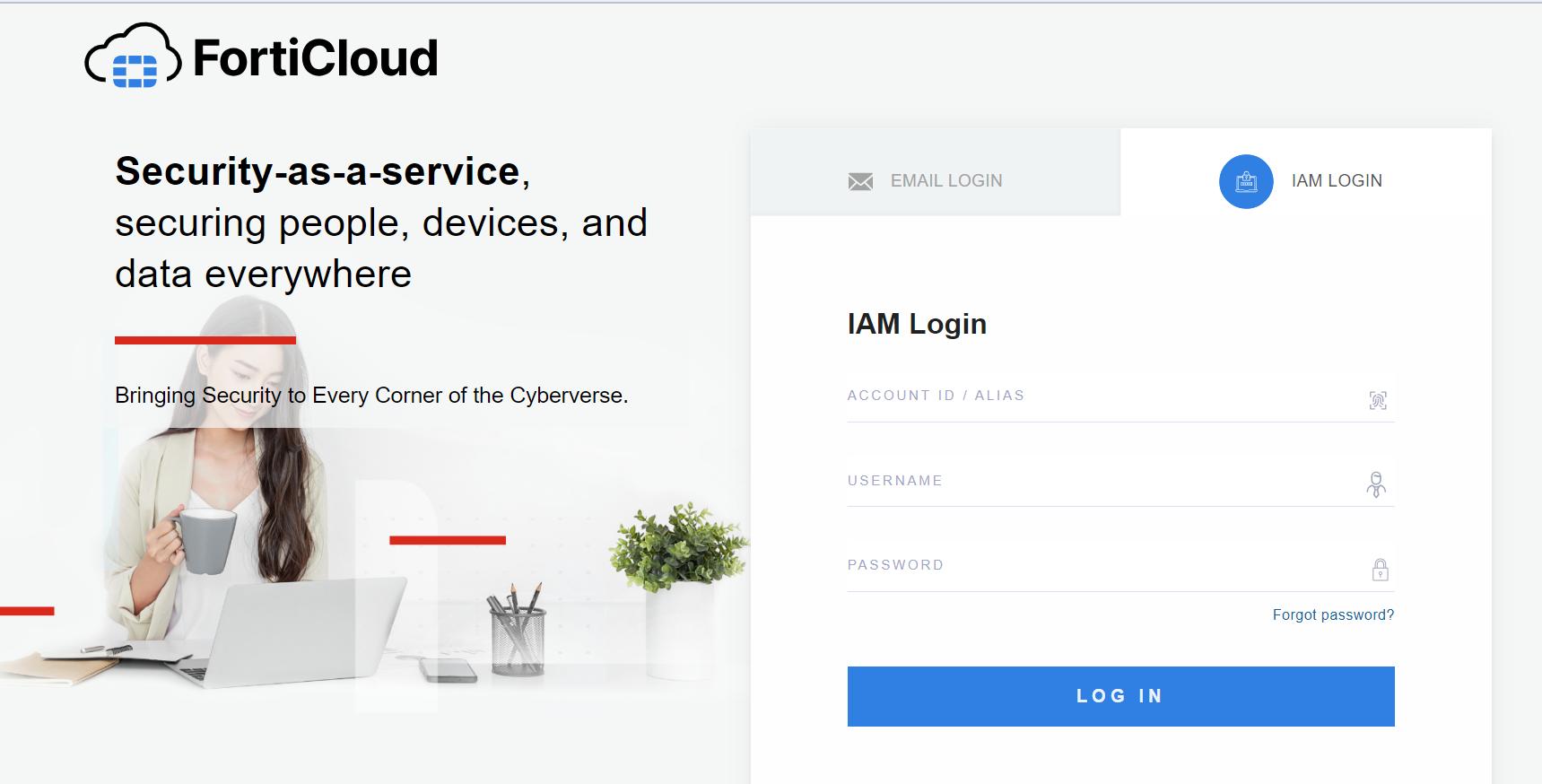
  4. The IAM user can log in by clicking Sign in as IAM user on the login page.
Manage IAM users

For updated information on managing IAM users, please refer to the latest FortiCloud documentation.

FortiCloud IAM Users

FortiCloud IAM Users

An IAM (Identity and Access Management) user with Organizational permissions has specific credentials and permissions, facilitating controlled access to FortiCloud resources and services.

Before creating an IAM user to use with FortiAppSec Cloud, you must first create a FortiAppSec Cloud portal Permission Profile.

Create a new FortiAppSec Cloud portal permission profile

  1. On the admin home page, go to Services > Assets&Accounts > IAM in the top navigation bar.

  2. Click on Permission Profiles in the left-hand navigation bar.

  3. Click Add New to create a new Permission profile.

    1. Enter a name for the profile in the Permission Profile Name field.

    2. Set the Status to Active.

    3. Enter a description of the portal permissions in the Description field.

  4. Click Add Portal. A list of available portals is displayed.

  5. To use this Permission Profile with FortiAppSec Cloud, select the FortiAppSec Cloud portal.

  6. Click Add. The new FortiAppSec Cloud portal displays as a card under Permission Profile

    • Click the switch under Access to enable the portal, then select your desired access settings for this profile.

    • For other portals with role-based permissions, enable access and specify the portal Access Type and any Additional Permissions.

  7. Click Save. The permission profile is now available to be assigned to users.

Add an IAM User to FortiAppSec Cloud

  1. Go to the Users page, click the Add New button, and click IAM User.
    1. Step 1: User Details - Fill in the basic fields and click Next.
    2. Step 2: User Permissions
      1. Select any Asset Folder of your choice.
      2. Under the Permission Profile subsection, select a permission profile with a FortiAppSec Cloud portal. Click Next.
    3. Review the user information, and click Confirm. The user's details are displayed.
      1. Account credentials must be shared with the user. The account password can be configured using Generate Password. See Generating Password Reset Link for instructions on how to configure the account password and share user credentials.
  2. Return to the IAM Users page and find the newly added user listed.
  3. Navigate to the top menu bar and click Services > FortiAppSec Cloud. You may need to click Show More to access this option.

    Please note, you must access FortiAppSec Cloud from here in order to see the newly added user.

  4. The IAM user can log in by clicking Sign in as IAM user on the login page.

Manage IAM users

For updated information on managing IAM users, please refer to the latest FortiCloud documentation.