
Fortinet white logo
Fortinet white logo

User Guide

FortiCloud Organizational Units

FortiCloud Organizational Units

FortiAppSec Cloud supports FortiCloud Organization, enabling centralized management and control of all Fortinet SaaS solutions through FortiCloud. This centralized account management service consolidates multiple FortiCloud accounts into a structured system of Organization/Organizational Units (OUs).

How to use FortiCloud Organization

  1. Turn on the Organization feature.

    1. Access the Organizational portal. Go to My Account > My Account (IAM version) > Account Preferences and click Enable Organization Feature.

  2. Create Organizations.

    1. Go to https://support.fortinet.com/organization.

    2. Please refer to Creating an organization for detailed steps on creating organizations.

  3. Create member accounts under Organizations.

    1. Member accounts are independent FortiCloud accounts linked to a primary account, each with its own billing, configuration, and resources. They allow different departments or business units to operate separately but remain associated with a central account.

    2. AM users and permission profiles created by a member account cannot have the OU (Organizational Unit) type. This means they cannot select OUs or manage other member accounts, even if those accounts belong to the same OU.

    3. Refer to Creating new member accounts for detailed steps on creating member accounts.

  4. Enable and create permission profiles.

    1. Permission profiles determine the level of access granted to users. These profiles must be created before you can assign them to users and user groups.

    2. For details on the distinction between users with Local and Organization access types, see

    3. Permission scope with Organizations.

    4. Please refer to Creating a permission profile for detailed steps on creating permissions.

  5. Create IAM users.

    1. IAM Users are identities created within a single FortiCloud account. The primary account manages their permissions and access to resources, providing fine-grained control over user access within the account.

    2. When creating an IAM user, you must assign them to permission profiles created in the previous step.

    3. Please refer to Creating a new IAM user for detailed steps on creating IAM users.

  6. Manage users.

    • To manage IAM users' access to FortiAppSec Cloud resources under different member accounts, you can either edit an existing IAM user and set their Type to Organization, or create a new Organization type IAM user.

    • An IAM user with Organization type can transfer products between different OUs and register assets to member accounts. For guidance on navigating the Asset Management portal, refer to the Viewing assets in the Organization.

    • Assigning IAM users with a local type to an organization on the FortiAppSec Cloud organization page will no longer be effective if the organization is associated with a member or root account. IAM users from the member or root account will always have the ability to manage resources under the account, as long as their permission profile allows it.

Switching between organizations in FortiCloud

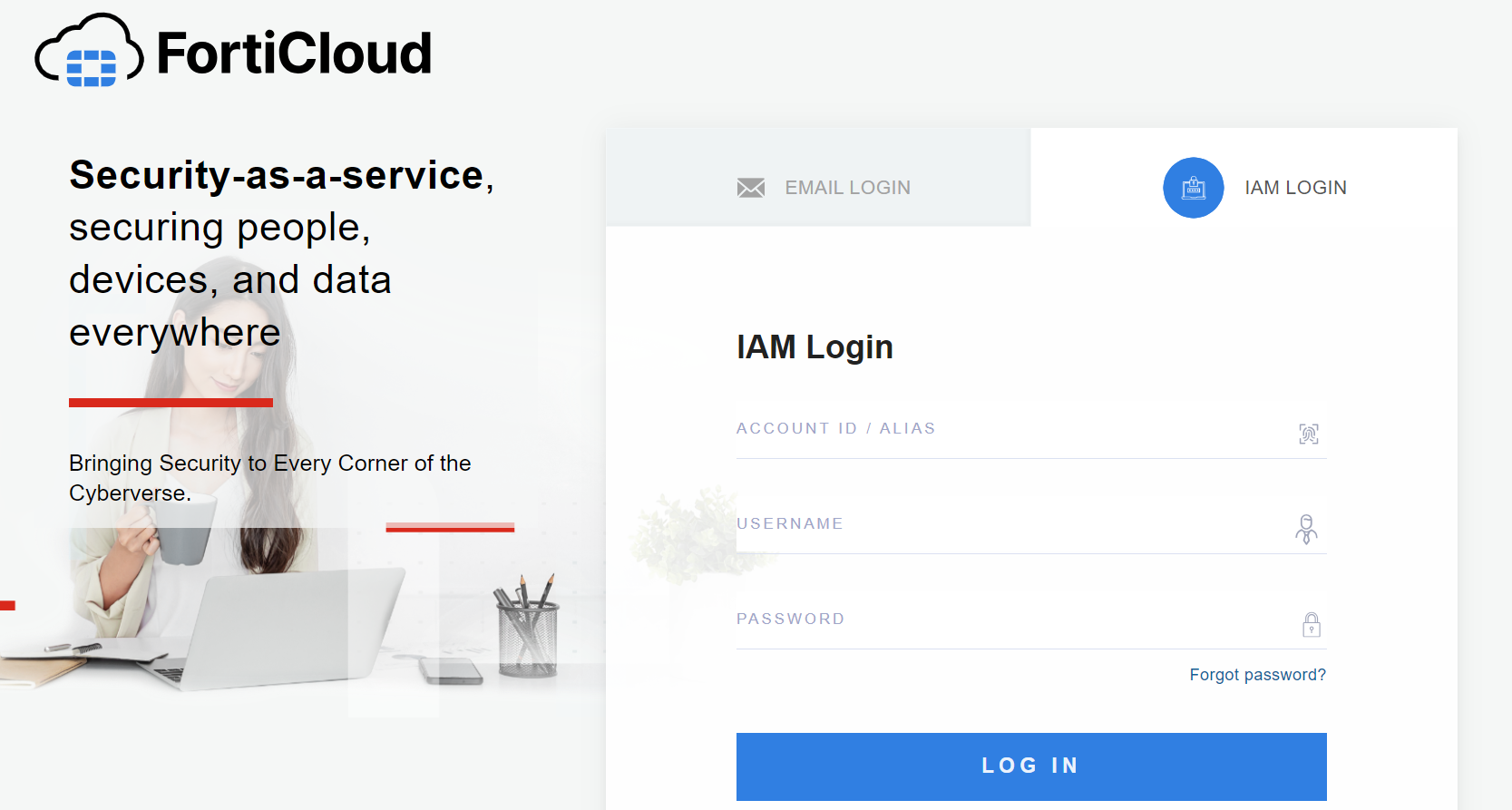
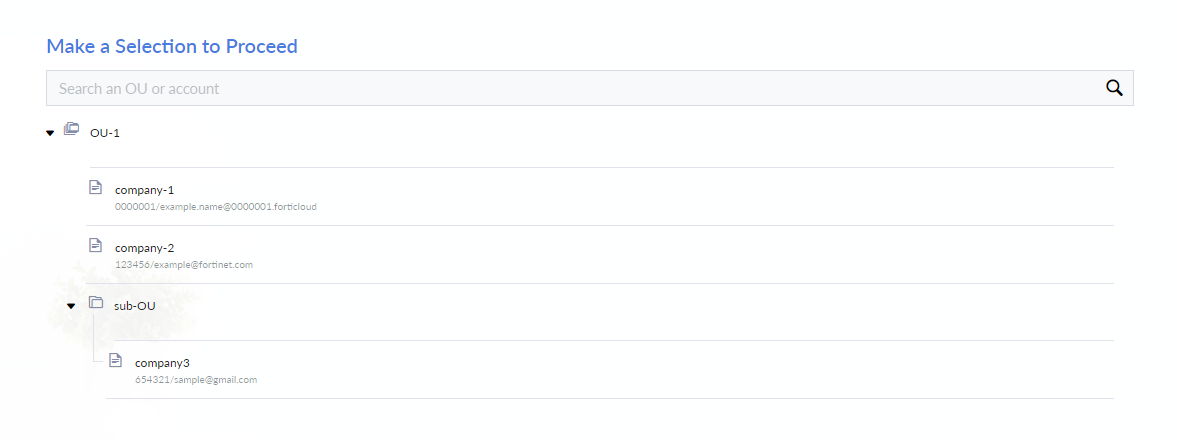
  1. Logging into the FortiAppSec Cloud portal as an IAM user with the Organization type will lead to a selection page where you must choose an account to proceed with resource operations.
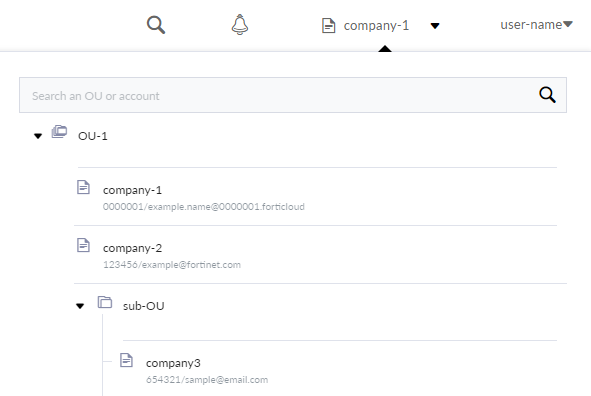
  2. After selecting an account, you can switch accounts using the dropdown menu in the top right corner.
FortiCloud Organizational Units

FortiCloud Organizational Units

FortiAppSec Cloud supports FortiCloud Organization, enabling centralized management and control of all Fortinet SaaS solutions through FortiCloud. This centralized account management service consolidates multiple FortiCloud accounts into a structured system of Organization/Organizational Units (OUs).

How to use FortiCloud Organization

  1. Turn on the Organization feature.

    1. Access the Organizational portal. Go to My Account > My Account (IAM version) > Account Preferences and click Enable Organization Feature.

  2. Create Organizations.

    1. Go to https://support.fortinet.com/organization.

    2. Please refer to Creating an organization for detailed steps on creating organizations.

  3. Create member accounts under Organizations.

    1. Member accounts are independent FortiCloud accounts linked to a primary account, each with its own billing, configuration, and resources. They allow different departments or business units to operate separately but remain associated with a central account.

    2. AM users and permission profiles created by a member account cannot have the OU (Organizational Unit) type. This means they cannot select OUs or manage other member accounts, even if those accounts belong to the same OU.

    3. Refer to Creating new member accounts for detailed steps on creating member accounts.

  4. Enable and create permission profiles.

    1. Permission profiles determine the level of access granted to users. These profiles must be created before you can assign them to users and user groups.

    2. For details on the distinction between users with Local and Organization access types, see

    3. Permission scope with Organizations.

    4. Please refer to Creating a permission profile for detailed steps on creating permissions.

  5. Create IAM users.

    1. IAM Users are identities created within a single FortiCloud account. The primary account manages their permissions and access to resources, providing fine-grained control over user access within the account.

    2. When creating an IAM user, you must assign them to permission profiles created in the previous step.

    3. Please refer to Creating a new IAM user for detailed steps on creating IAM users.

  6. Manage users.

    • To manage IAM users' access to FortiAppSec Cloud resources under different member accounts, you can either edit an existing IAM user and set their Type to Organization, or create a new Organization type IAM user.

    • An IAM user with Organization type can transfer products between different OUs and register assets to member accounts. For guidance on navigating the Asset Management portal, refer to the Viewing assets in the Organization.

    • Assigning IAM users with a local type to an organization on the FortiAppSec Cloud organization page will no longer be effective if the organization is associated with a member or root account. IAM users from the member or root account will always have the ability to manage resources under the account, as long as their permission profile allows it.

Switching between organizations in FortiCloud

  1. Logging into the FortiAppSec Cloud portal as an IAM user with the Organization type will lead to a selection page where you must choose an account to proceed with resource operations.

  2. After selecting an account, you can switch accounts using the dropdown menu in the top right corner.