
Fortinet white logo
Fortinet white logo

User Guide

Contracts

Contracts

On this page, you can view your active licenses, license history, and query usage.

For information on different types of contract options and instructions on purchasing the different license types, please refer to License & Contract.

View contracts
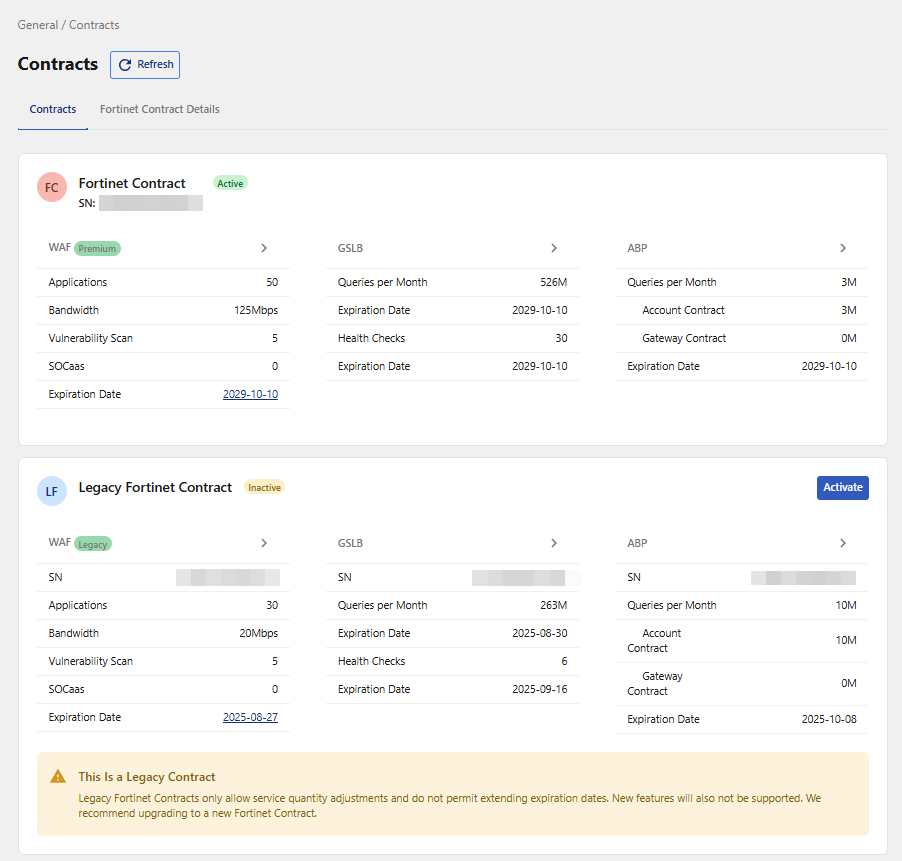
Change Contract
  1. Purchase a FortiAppSec Cloud contract by contacting your Fortinet reseller.

  2. After purchasing the new contract, please log into your FortiAppSec Cloud portal and navigate to General > Contracts.

    Only one contract can be active at a time. Before activating your new contract, your previous contract will remain active.

  3. Click Activate in the new contract to activate it.

Upgrade Plan

Click Upgrade Plan to switch to a contract plan with increased features, bandwidth, and/ or support.

For details on the offerings available for your contract type, please refer to its dedicated page.

Fortinet Contract Details

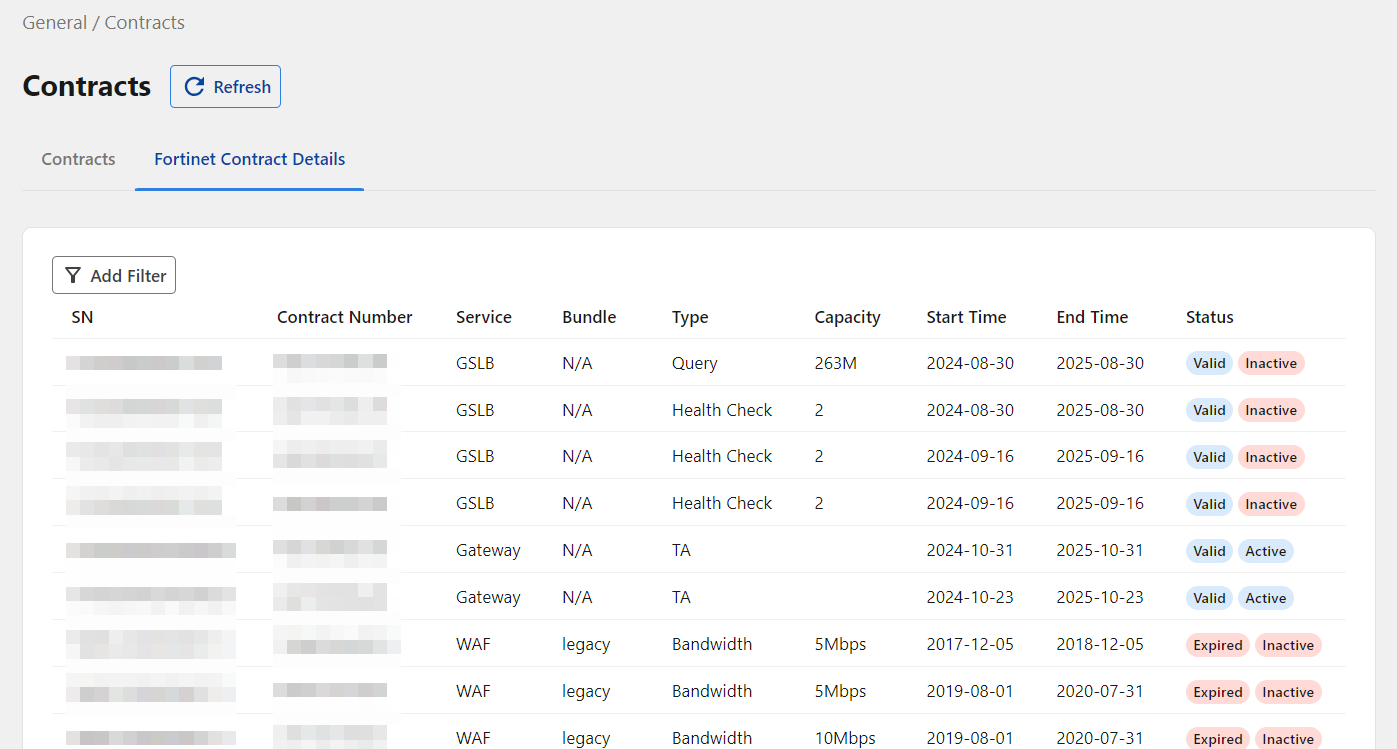
View the serial numbers, contract numbers, capacity, and additional details for all individual services associated with your license.
License Expiration

As your contract approaches its expiration date, you will receive an email notification providing the expiration date and the scheduled date for permanent data deletion.

  • If the contract is not renewed by the expiration date, your account will transition to read-only mode, restricting any configuration changes through the web portal.

  • If the contract is not renewed by the scheduled date for data deletion, all account data, including configurations and logs, will be permanently deleted.

To renew an existing FortiAppSec Cloud contract, please contact Fortinet Sales to adjust the quantity or expiration date of your contract.

If you would like to change contract types; such as from Standard to Advanced, or from a Legacy contract to a FortiAppSec Cloud contract; please contact Fortinet Sales to purchase the new FortiAppSec Cloud Fortinet Contract. Once you have obtained the new contract, activate it by navigating to General > Contract, and click Activate in the new contract.

Contracts

Contracts

On this page, you can view your active licenses, license history, and query usage.

For information on different types of contract options and instructions on purchasing the different license types, please refer to License & Contract.

View contracts

Change Contract
  1. Purchase a FortiAppSec Cloud contract by contacting your Fortinet reseller.

  2. After purchasing the new contract, please log into your FortiAppSec Cloud portal and navigate to General > Contracts.

    Only one contract can be active at a time. Before activating your new contract, your previous contract will remain active.

  3. Click Activate in the new contract to activate it.

Upgrade Plan

Click Upgrade Plan to switch to a contract plan with increased features, bandwidth, and/ or support.

For details on the offerings available for your contract type, please refer to its dedicated page.

Fortinet Contract Details

View the serial numbers, contract numbers, capacity, and additional details for all individual services associated with your license.

License Expiration

As your contract approaches its expiration date, you will receive an email notification providing the expiration date and the scheduled date for permanent data deletion.

  • If the contract is not renewed by the expiration date, your account will transition to read-only mode, restricting any configuration changes through the web portal.

  • If the contract is not renewed by the scheduled date for data deletion, all account data, including configurations and logs, will be permanently deleted.

To renew an existing FortiAppSec Cloud contract, please contact Fortinet Sales to adjust the quantity or expiration date of your contract.

If you would like to change contract types; such as from Standard to Advanced, or from a Legacy contract to a FortiAppSec Cloud contract; please contact Fortinet Sales to purchase the new FortiAppSec Cloud Fortinet Contract. Once you have obtained the new contract, activate it by navigating to General > Contract, and click Activate in the new contract.