
Fortinet white logo
Fortinet white logo

User Guide

Location Services

Location Services

The Location Services window displays the Project Name and Secret Key which are unique security credentials generated for FortiAIOps to authenticate communication from your access points. These credentials allow the FortiAP to send location telemetry to FortiAIOps.
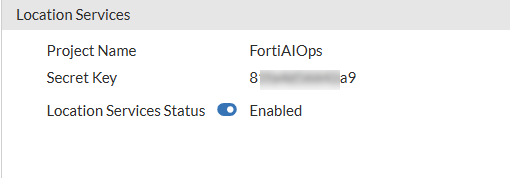
You must configure the FortiAIOps authentication details in the FortiAP profile before enabling the service. Once configured, enable the Location Service Status toggle button.

Use the following steps to configure the details in FortiAP profile:

  1. From the FortiGate GUI, navigate to WiFi & Switch Controller > FortiAP Profiles.

  2. Select the FortiAP profile you want to configure FortiAIOps for.

  3. Navigate to Location Based Services section and select the FortiPresence mode you want to use to enable the service.
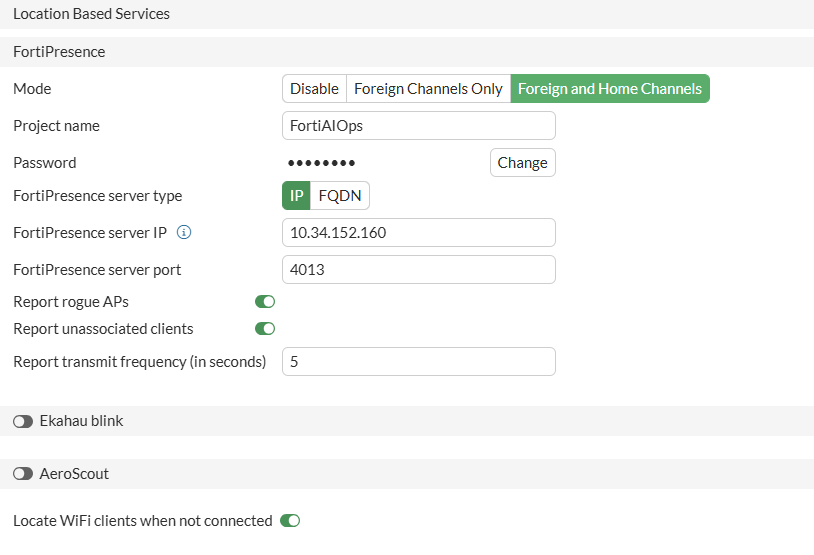
  4. Enter the Project name and Password from FortiAIOps (Use the Project Name and Secret Key from the FortiAIOps GUI System > Location Services).

  5. Enter the FortiPresence server IP as FortiAIOps IP address.

  6. Enter the FortiPresence server port as 4013.

  7. Enable Report rogue APs toggle button (If you want the Rogue AP location feeds to be reported in FortiAIOps).

  8. Configure the Report transmit frequency (in seconds) (Recommended: 30 seconds).

  9. Click OK and save the FortiAP Profile.

Note: that a minimum of 3 APs must be placed on the map for the locationing service to detect them.

For information on the FortiGate configuration, see the Configuration Guide.

Location Services

Location Services

The Location Services window displays the Project Name and Secret Key which are unique security credentials generated for FortiAIOps to authenticate communication from your access points. These credentials allow the FortiAP to send location telemetry to FortiAIOps.

You must configure the FortiAIOps authentication details in the FortiAP profile before enabling the service. Once configured, enable the Location Service Status toggle button.

Use the following steps to configure the details in FortiAP profile:

  1. From the FortiGate GUI, navigate to WiFi & Switch Controller > FortiAP Profiles.

  2. Select the FortiAP profile you want to configure FortiAIOps for.

  3. Navigate to Location Based Services section and select the FortiPresence mode you want to use to enable the service.

  4. Enter the Project name and Password from FortiAIOps (Use the Project Name and Secret Key from the FortiAIOps GUI System > Location Services).

  5. Enter the FortiPresence server IP as FortiAIOps IP address.

  6. Enter the FortiPresence server port as 4013.

  7. Enable Report rogue APs toggle button (If you want the Rogue AP location feeds to be reported in FortiAIOps).

  8. Configure the Report transmit frequency (in seconds) (Recommended: 30 seconds).

  9. Click OK and save the FortiAP Profile.

Note: that a minimum of 3 APs must be placed on the map for the locationing service to detect them.

For information on the FortiGate configuration, see the Configuration Guide.