

Modifying the Map
The Unlock Map/Lock Map options enables you to make any modifications to the floor map that is uploaded. You can make the following changes after you unlock a map:
-
Placing an Access Point – when you unlock a map, the available APs are listed that can be placed on the map.
-
Replacing an Access Point – replace an AP that is already added to a map with a different one.
-
Deleting an Access Point – delete an AP that is added to the map.
-
Replacing a Floor Map – replace the existing floor map with a different one.
Use the Lock Map option to save any changes made to the map during the Unlock Map phase.
Placing an Access Point
To place an AP on the floor map:
-
Navigate to the floor map and click Unlock Map.
-
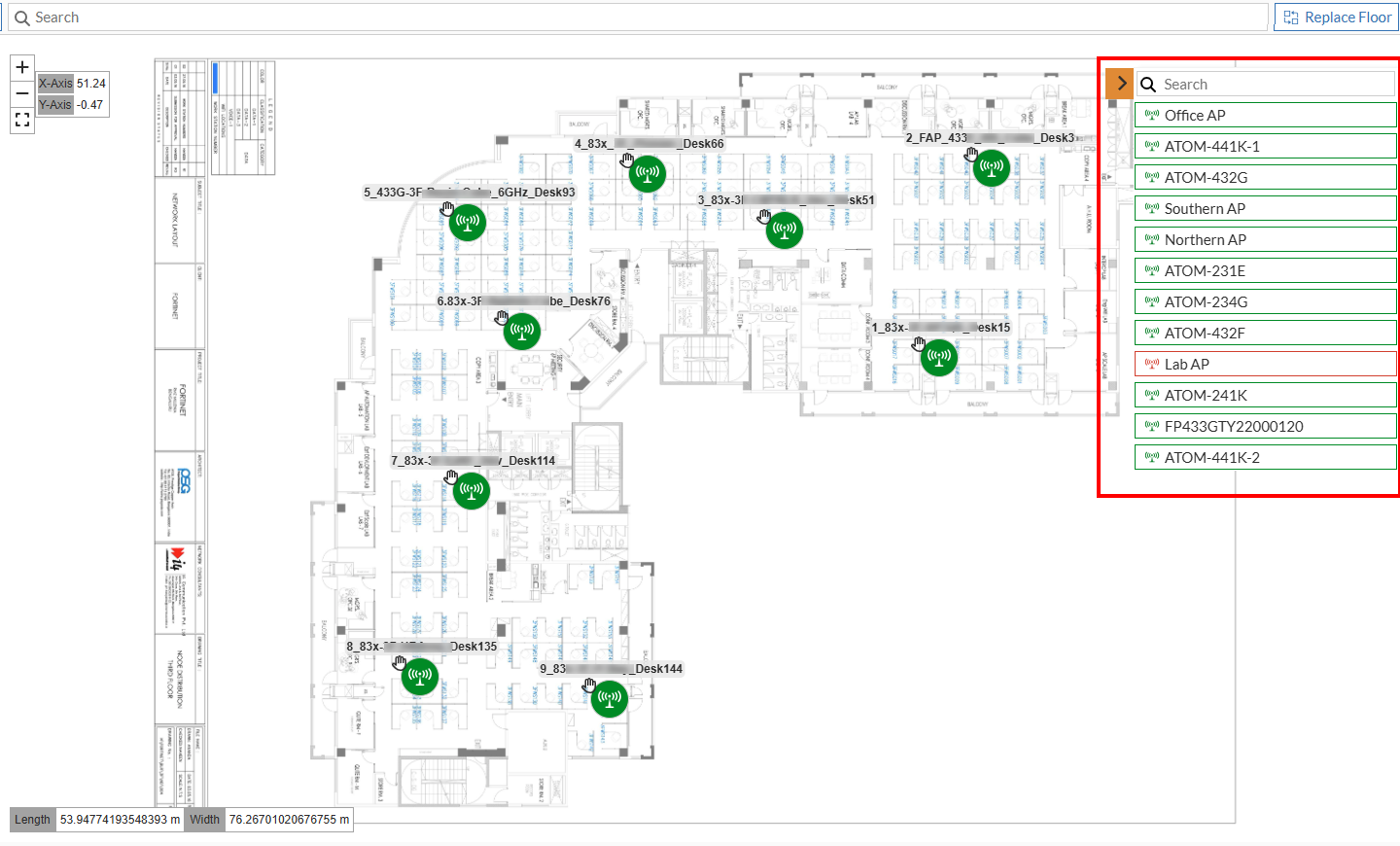
On the right pane, a list of APs that are not placed is displayed.
-
Drag and drop an AP at the desired location on the map.
-
Click Lock Map to save the changes.
Replacing an Access Point
To replace an existing AP with a different one on the floor map:
-
Navigate to the floor map and click Unlock Map.
-
On the right pane, a list of APs that are not placed is displayed.
-
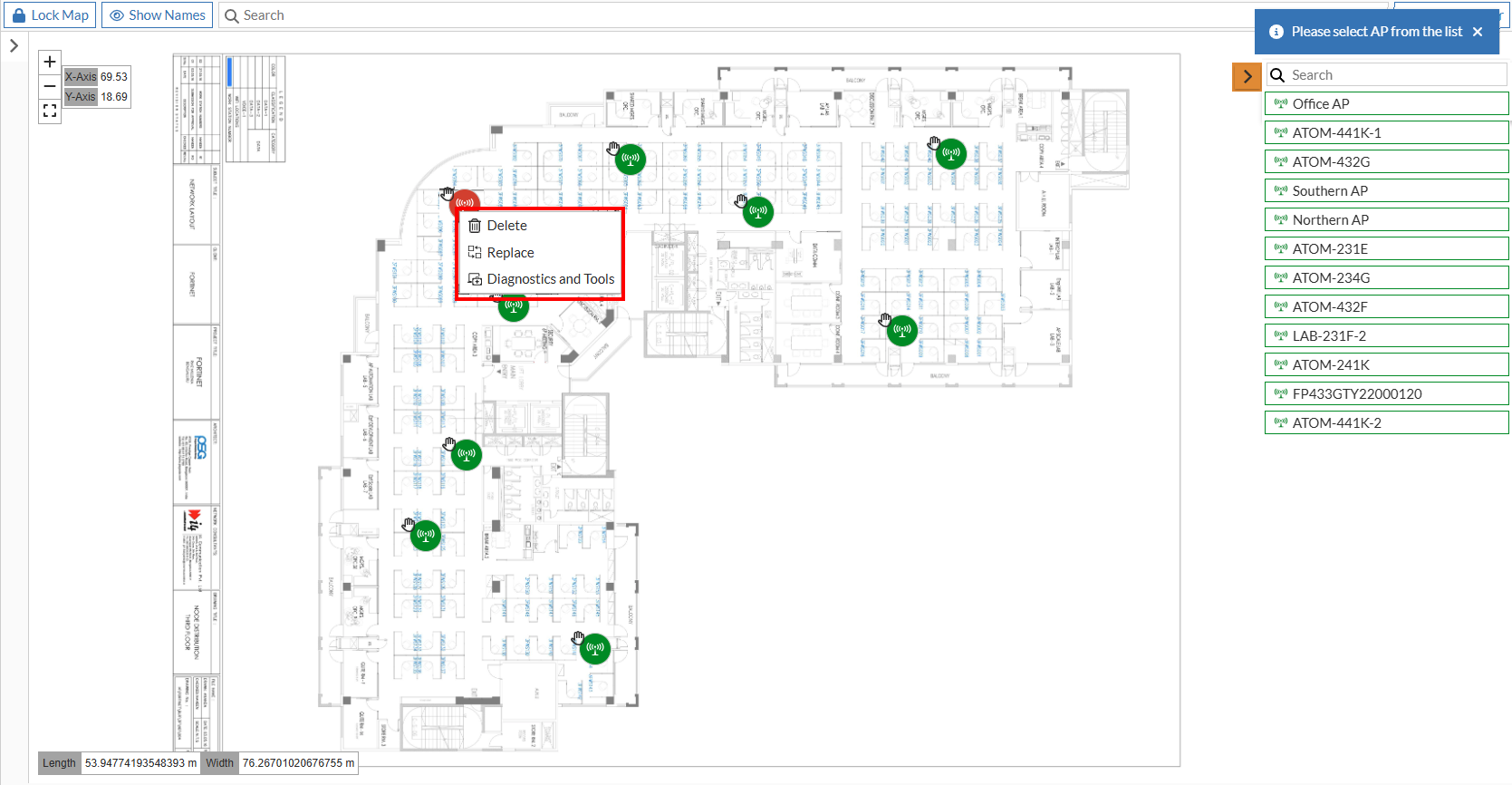
Click the AP that you want to replace on the map and select Replace.
-
Select the required AP from the list. The AP selected on the map is replaced with the AP selected from the list.
-
Click Lock Map to save the changes.
Deleting an Access Point
To delete an AP from a floor map:
-
Navigate to the floor map and click Unlock Map.
-
Click the AP that you want to delete and select Delete.
The deleted AP is displayed on the Unplaced Device(s) list and can be re-used as necessary. -
Click Lock Map to save the changes.
Replacing a Floor Map
To replace a floor map:
-
Navigate to the floor map and click Unlock Map.
-
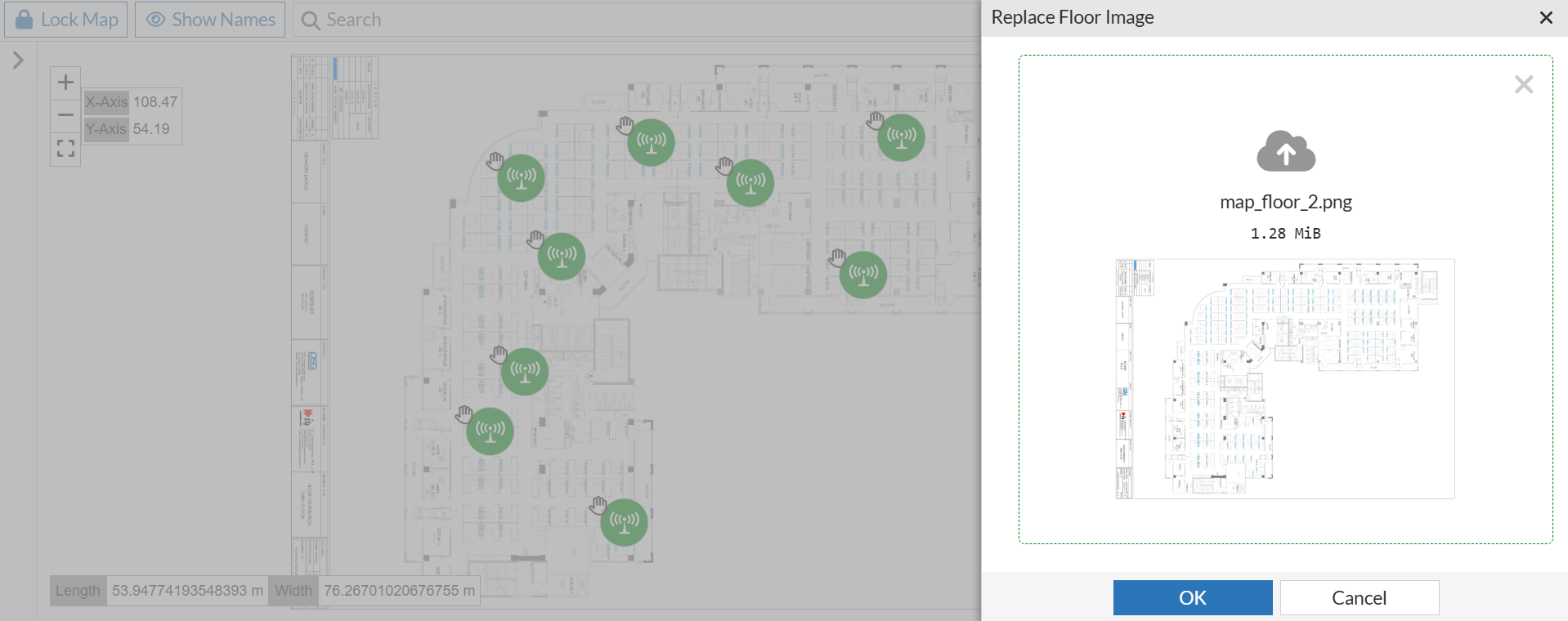
Click Replace Floor.
-
In the Replace Floor Image pane, upload the floor map in either .jpg, .png, or .jpeg format and click OK.
-
Click Lock Map to save the changes.