

Custom Dashboard
You can customize your dashboard experience—modify existing layouts by adding or deleting widgets, or create entirely new dashboards with your preferred widgets.
The following customizations are available:
Note: Customizations are saved across navigations, logouts, reboots, and upgrades, and are specific to each user.
The widget library has also been improved for a more seamless user experience. For more information, see Managing Dashboard Widgets.
Creating a New Dashboard
You can now create new custom dashboards and add widgets from the widget library.
To create a new dashboard:
-
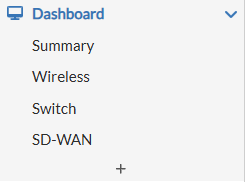
On the left navigation pane, select Dashboard and click +.
-
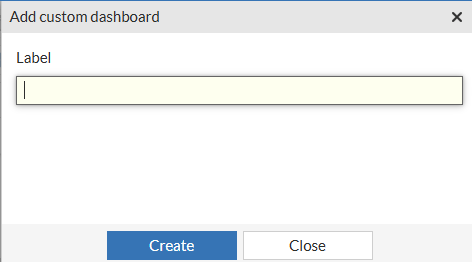
In the Add custom dashboard pane, enter a name for the dashboard in the Label field.
-
Click Create.
Add widgets to the newly created dashboard. See Modifying an Existing Dashboard.
Modifying an Existing Dashboard
You can customize both existing dashboards and default dashboards by adding/deleting widgets or renaming the dashboards.
Note: You can add a maximum of 20 widgets in a dashboard.
To add a widget to the dashboard:
-
Select the dashboard you want to modify.
-
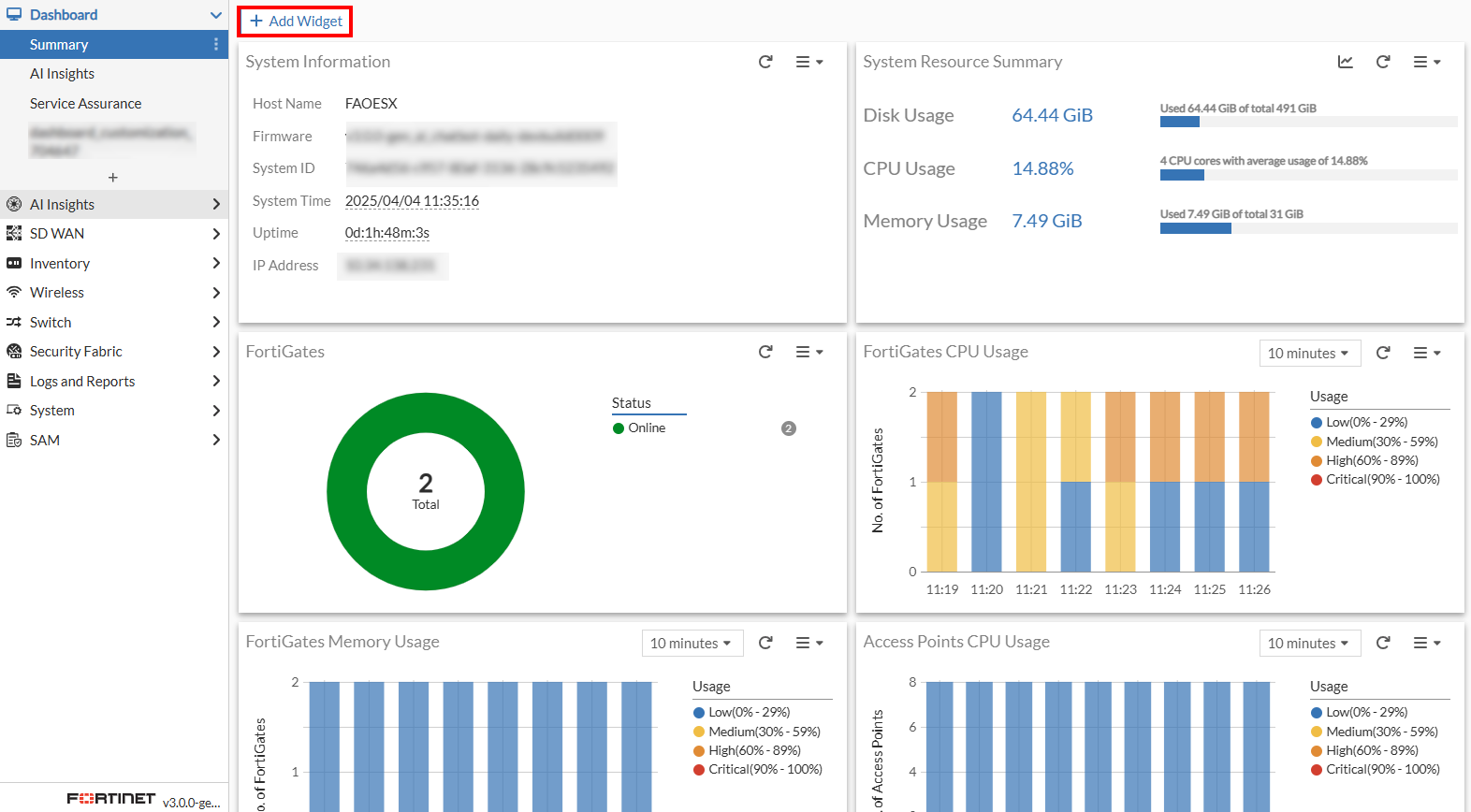
Click Add Widget to add required widgets from the widget library.
-
In the the Manage Dashboard Widgets pane, hover on the widget name to select the required widget and click +.
For more information on widget library, see Managing Dashboard Widgets -
Click Close to close the pane once the widgets are selected.
-
Click Reset dashboard layout to clear all the widgets added to the dashboard.
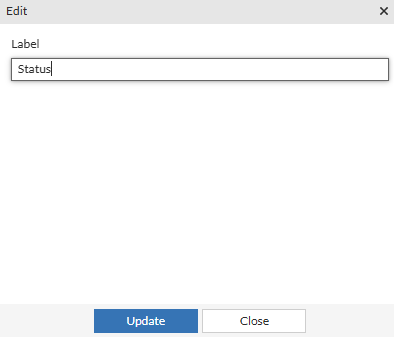
To change the name/label of the dashboard:
-
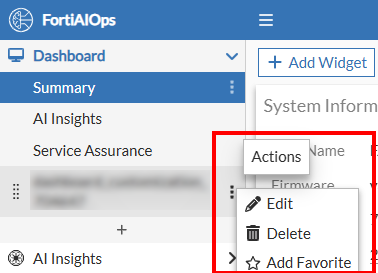
Select a dashboard and from the Actions menu click Edit.
-
Change the name of the dashboard in the Label field and click Update.
Deleting a Dashboard
Both default dashboards and user-added dashboards can be deleted.
Select the dashboard to be deleted and from the Actions menu click Delete.
Note: Dashboards once deleted cannot be recovered.
Rearranging the Dashboards
You can move a dashboard up or down to rearrange the dashboard list.
To rearrange your dashboards, click and drag a dashboard up or down in the list.
Resetting the Dashboard Section
You can remove all your customized dashboards and revert to the default view.
Hover over + and from the Actions menu, click Reset section.
