

Summary
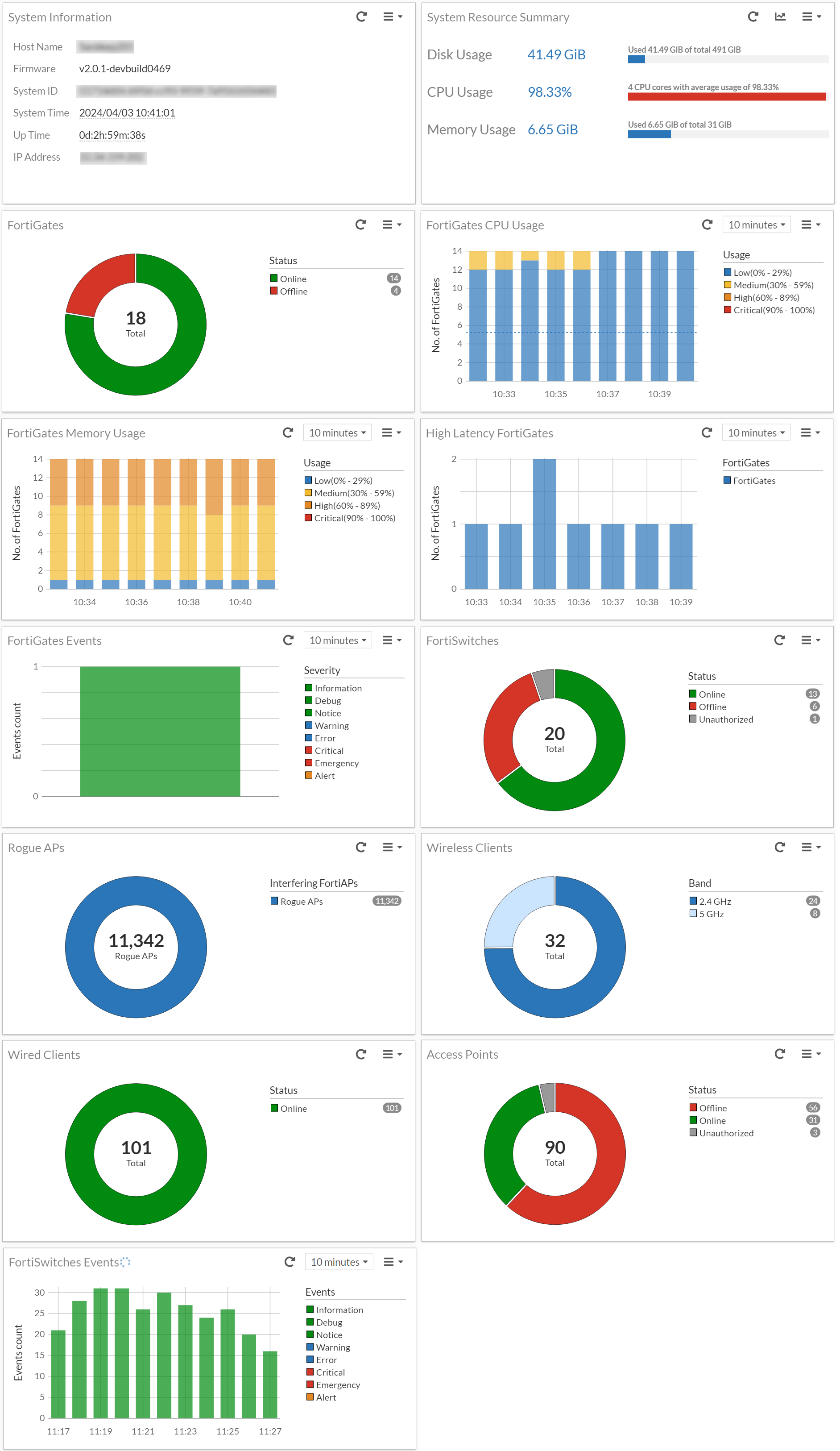
This dashboard provides visual summarization of key system information, network elements, and resource usage. The interactive graphs and charts allow you to navigate into detailed views of network statistics for analytical and monitoring purpose.
The data on this dashboard is automatically refreshed every 60 seconds; the following options are available to manage the auto-refresh feature for this page.
-
Click
 to manually refresh data.
 -
Click
 to pause the auto-refresh.
 -
Click
 to resume the auto-refresh.
Use the Add Widget option to manage the widgets displayed on the dashboard; you can choose to add or remove the widgets.
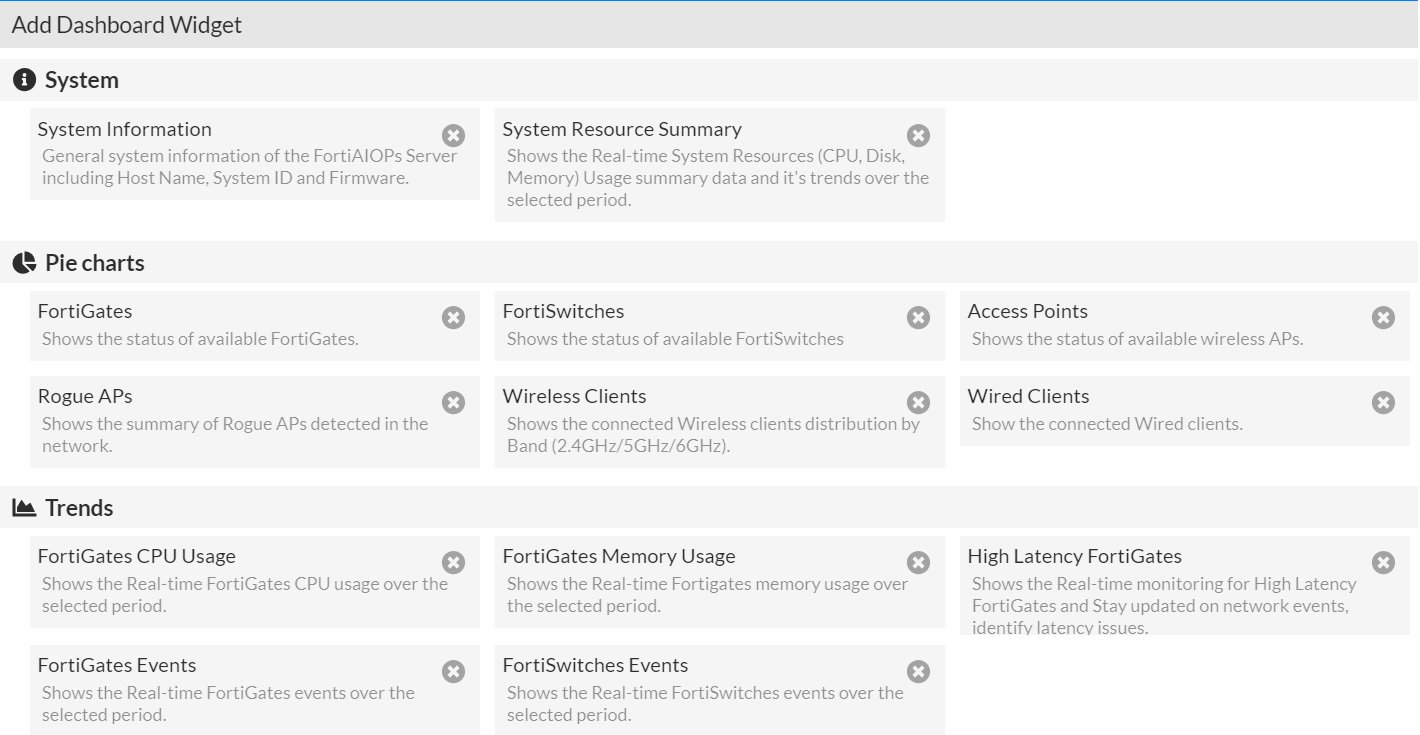
The following widgets provide network data on this dashboard.
-
System Information - This widget provides generic information about the FortiAIOps such as the host name, firmware version, system ID, current system time, uptime, and the IP address.
-
System Resource Summary - This widget provides an overview of the current system resource usage for FortiAIOps. The statistics include the total available and used disk space, the number of CPU cores used and the average usage, and total available and used memory.
-
Wireless Clients - Displays the total number of connected clients with their band categorization of 2.4GHz, 5GHz, and 6GHz. Click on the chart to navigate to Wireless > Clients.
-
Wired Clients - Displays the total number of connected clients with their status.
-
FortiGates - Displays the total number of FortiGate controllers in your network and their status (Online/Offline). Click on the chart to navigate to Inventory > Managed FortiGates.
-
FortiGates CPU Usage and FortiGates Memory Usage - Displays the real-time FotiGate CPU and memory usage at a given time and categorizes it as Low, Medium, High, and Critical. You can select the period to view the resource usage (10 or 30 minutes, 1 or 12 hours, or 1 day). Click on the graph to view the details.


-
High Latency FortiGates - This widget displays the FortiGates with high latency determined based on the timed out API request. Hover over the graph to view the number of FortiGates with high latency at a given period of time and click on the graph to view the details of the FortiGates. You can select the period to view the FortiGates (10 or 30 minutes, 1 or 12 hours, or 1 day).

Select a particular FortiGate and click View stats to view the details of the timed out APIs.

-
FortiGate Events - Displays the FortiGate events at a given time and categorizes them based on the severity level as, Information, Debug, Notice, Warning, Error, Critical, Emergency, and Alert. You can select the period to view the data (10 or 30 minutes, 1 or 12 hours, or 1 day).

-
Access Points - Displays the total number of access points in your network and their status (Online, Offine, Waiting for Authorization, or Unknown). Click on the chart to navigate to Wireless > Access Points.
-
FortiSwitches - Displays the total number of FortiSwitches in your network and their status (Online, Offine, Waiting for Authorization, or Unknown). Click on the chart to navigate to Switch > FortiSwitch.
-
FortiSwitches Events - Displays the FortiSwitch events at a given time and categorizes them based on the severity level as Information, Debug, Notice, Warning, Error, Critical, Emergency, and Alert. You can select the period to view the data (10 or 30 minutes, 1 or 12 hours, or 1 day).
-
Rogue APs - Displays the total number of rogue access points detected in your network. Click on the chart to navigate to Wireless > Rogue APs.