
Fortinet white logo
Fortinet white logo

Deployment in VxLAN Mode

Deployment in VxLAN Mode

The following example shows how the FortiADC connects with the Pod via the pod network when the service type is ClusterIP. To achieve the result, hybrid networking needs to be configured when creating the project.

OpenShift Project is the same as Kubernetes Namespace but with additional features.

Create the Project

Create the new project with the following YAML, and the FortiADC IP 172.23.133.171 and the remote gateway 10.132.100.10.

apiVersion: v1
kind: Namespace
metadata:
  name: fadgw
  annotations:
    k8s.ovn.org/hybrid-overlay-external-gw: 10.132.100.10
    k8s.ovn.org/hybrid-overlay-vtep: 172.23.133.171

Configure the Overlay Tunnel in FortiADC

Use the following CLI command to configure the overlay tunnel in FortiADC.

In the example below, note that the OpenShift Node IP is 172.23.133.173. The overlay tunnel interface IP should be the same as what is set in the namespace. The subnet should be 12 as the Pod IP would be under 10.128.0.0/14 subnet.

FortiADC-VM # show system overlay-tunnel openshift
config system overlay-tunnel
  edit "openshift"
    set interface port1
    set destination-ip-addresses 172.23.133.173  
    set vni 4097
    config remote-host
    end
  next
end

FortiADC-VM # show system interface openshift
config system interface
  edit "openshift"
    set type vxlan
    set vdom root
    set ip 10.132.100.10/12
    set allowaccess https ping ssh snmp http telnet
    set mtu 1450
    config  ha-node-ip-list
    end
  next
end

Create the Secret

Most of the resources are isolated between different projects in Openshift Container Platform 4. So, you will need to create a new secret to log into FortiADC when creating a new project.

oc create secret generic fad-login --from-literal=username=<FortiADC-username> --from-literal=password=<FortiADC-password> -n <project-name>

Deploy the Pod and Service

Deploy the deployment fad_app/.

The YAML file can be downloaded from here: https://github.com/fortinet/fortiadc-kubernetes-controller/tree/main/route_examples/fad_app/

oc apply –f fad_app

Check the result:

[root@ocpsandy openshift]# oc status
In project fadgw on server https://api.ocp4.ocpsandy.com:6443

svc/fad-app - 172.30.248.97:1234
  deployment/fad-app deploys hsandy123/simpleserver:1.0.0-002
    deployment #1 running for 23 hours - 3 pods

Note that the service can only expose one port. FortiADC Kubernetes Controller in OpenShift does not support services with multiple ports exposed.

Deploy the Routes

Deploy an unsecured Route with path basic_route_with_path.yaml.

apiVersion: route.openshift.io/v1
kind: Route
metadata:
  labels:
      name: fad-app
  name: fad-demo-app
  namespace: fadgw
  annotations: {
        "ingress-controller" : "fadc-ingress-controller",
        "fortiadc-ip" : "172.23.133.171",
        "fortiadc-login" : "fad-login",
        "fortiadc-vdom" : "root",
        "fortiadc-ctrl-log" : "enable",
        "virtual-server-ip" : "10.0.0.104",
        "virtual-server-interface" : "port2",
        "virtual-server-port" : "443",
        "load-balance-method" : "LB_METHOD_LEAST_CONNECTION",
        "load-balance-profile" : "LB_PROF_HTTPS"
  }
spec:
    host: testfad.com
    path: "/info"
    port:
        targetPort: 1234-tcp
    to:
        kind: Service
        name: fad-app

Deploy the Routes with the following command.

oc apply –f  fad_route.yaml

Describe Routes.

[root@ocpexp openshift]# oc describe route fad-demo-app
Name:           fad-demo-app
Namespace:      fadgw
Created:        54 seconds ago
Labels:         name=fad-app
Annotations:    fortiadc-ctrl-log=enable
                fortiadc-ip=172.23.133.171
                fortiadc-login=fad-login
                fortiadc-vdom=root
                ingress-controller=fadc-ingress-controller
                load-balance-method=LB_METHOD_LEAST_CONNECTION
                load-balance-profile=LB_PROF_HTTPS
                virtual-server-interface=port2
                virtual-server-ip=10.0.0.104
                virtual-server-port=443
Requested Host:         testfad.com
                           exposed on router default (host router-default.apps.ocp411.ocpexp.com) 54 seconds ago
Path:                   /info
TLS Termination:        <none>
Insecure Policy:        <none>
Endpoint Port:          1234-tcp

Service:        fad-app
Weight:         100 (100%)
Endpoints:      10.128.0.139:1234, 10.128.0.140:1234, 10.128.0.82:1234

FortiView

Check the deployed Routes with FortiView.
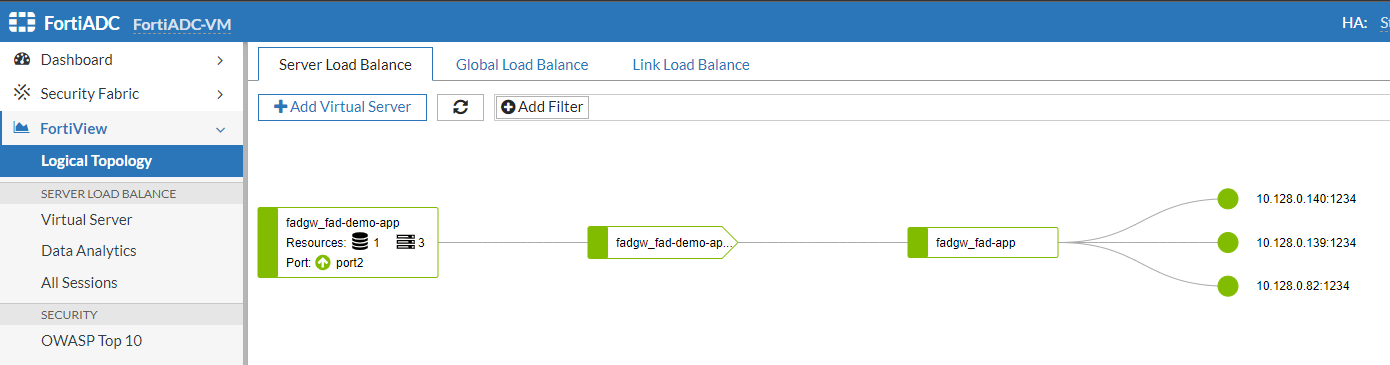
Try to access testfad.com with the browser.

Update or delete the Routes

To update Routes, you can edit the YAML file and apply the file again. This is similar to the process for updating and deleting Kubernetes Ingress. Alternatively, you can just edit the Routes.

oc edit route fad-demo-app

Delete the Routes with the following command.

oc delete route fad-demo-app

Update Endpoints

The Endpoints resources are automatically generated by OpenShift, which will automatically store the Pod’s IP address and port. You can view the Endpoints resource using the following command.

[root@ocpexp openshift]# oc get endpoints
NAME      ENDPOINTS                                                           AGE
fad-app   10.128.0.139:1234,10.128.0.140:1234,10.128.0.150:1234 + 1 more...   5d23h

Since FortiADC accesses the Pod via the pod network, FortiADC Kubernetes Controller monitors the Endpoints with the ClusterIP service instead of Nodes.

To update the Endpoints, you need to modify the replicas in the deployment.

You can either modify the deployment file and apply again, or just edit the deployment.

oc edit deployment fad-app

Deployment in VxLAN Mode

Deployment in VxLAN Mode

The following example shows how the FortiADC connects with the Pod via the pod network when the service type is ClusterIP. To achieve the result, hybrid networking needs to be configured when creating the project.

OpenShift Project is the same as Kubernetes Namespace but with additional features.

Create the Project

Create the new project with the following YAML, and the FortiADC IP 172.23.133.171 and the remote gateway 10.132.100.10.

apiVersion: v1
kind: Namespace
metadata:
  name: fadgw
  annotations:
    k8s.ovn.org/hybrid-overlay-external-gw: 10.132.100.10
    k8s.ovn.org/hybrid-overlay-vtep: 172.23.133.171

Configure the Overlay Tunnel in FortiADC

Use the following CLI command to configure the overlay tunnel in FortiADC.

In the example below, note that the OpenShift Node IP is 172.23.133.173. The overlay tunnel interface IP should be the same as what is set in the namespace. The subnet should be 12 as the Pod IP would be under 10.128.0.0/14 subnet.

FortiADC-VM # show system overlay-tunnel openshift
config system overlay-tunnel
  edit "openshift"
    set interface port1
    set destination-ip-addresses 172.23.133.173  
    set vni 4097
    config remote-host
    end
  next
end

FortiADC-VM # show system interface openshift
config system interface
  edit "openshift"
    set type vxlan
    set vdom root
    set ip 10.132.100.10/12
    set allowaccess https ping ssh snmp http telnet
    set mtu 1450
    config  ha-node-ip-list
    end
  next
end

Create the Secret

Most of the resources are isolated between different projects in Openshift Container Platform 4. So, you will need to create a new secret to log into FortiADC when creating a new project.

oc create secret generic fad-login --from-literal=username=<FortiADC-username> --from-literal=password=<FortiADC-password> -n <project-name>

Deploy the Pod and Service

Deploy the deployment fad_app/.

The YAML file can be downloaded from here: https://github.com/fortinet/fortiadc-kubernetes-controller/tree/main/route_examples/fad_app/

oc apply –f fad_app

Check the result:

[root@ocpsandy openshift]# oc status
In project fadgw on server https://api.ocp4.ocpsandy.com:6443

svc/fad-app - 172.30.248.97:1234
  deployment/fad-app deploys hsandy123/simpleserver:1.0.0-002
    deployment #1 running for 23 hours - 3 pods

Note that the service can only expose one port. FortiADC Kubernetes Controller in OpenShift does not support services with multiple ports exposed.

Deploy the Routes

Deploy an unsecured Route with path basic_route_with_path.yaml.

apiVersion: route.openshift.io/v1
kind: Route
metadata:
  labels:
      name: fad-app
  name: fad-demo-app
  namespace: fadgw
  annotations: {
        "ingress-controller" : "fadc-ingress-controller",
        "fortiadc-ip" : "172.23.133.171",
        "fortiadc-login" : "fad-login",
        "fortiadc-vdom" : "root",
        "fortiadc-ctrl-log" : "enable",
        "virtual-server-ip" : "10.0.0.104",
        "virtual-server-interface" : "port2",
        "virtual-server-port" : "443",
        "load-balance-method" : "LB_METHOD_LEAST_CONNECTION",
        "load-balance-profile" : "LB_PROF_HTTPS"
  }
spec:
    host: testfad.com
    path: "/info"
    port:
        targetPort: 1234-tcp
    to:
        kind: Service
        name: fad-app

Deploy the Routes with the following command.

oc apply –f  fad_route.yaml

Describe Routes.

[root@ocpexp openshift]# oc describe route fad-demo-app
Name:           fad-demo-app
Namespace:      fadgw
Created:        54 seconds ago
Labels:         name=fad-app
Annotations:    fortiadc-ctrl-log=enable
                fortiadc-ip=172.23.133.171
                fortiadc-login=fad-login
                fortiadc-vdom=root
                ingress-controller=fadc-ingress-controller
                load-balance-method=LB_METHOD_LEAST_CONNECTION
                load-balance-profile=LB_PROF_HTTPS
                virtual-server-interface=port2
                virtual-server-ip=10.0.0.104
                virtual-server-port=443
Requested Host:         testfad.com
                           exposed on router default (host router-default.apps.ocp411.ocpexp.com) 54 seconds ago
Path:                   /info
TLS Termination:        <none>
Insecure Policy:        <none>
Endpoint Port:          1234-tcp

Service:        fad-app
Weight:         100 (100%)
Endpoints:      10.128.0.139:1234, 10.128.0.140:1234, 10.128.0.82:1234

FortiView

Check the deployed Routes with FortiView.

Try to access testfad.com with the browser.

Update or delete the Routes

To update Routes, you can edit the YAML file and apply the file again. This is similar to the process for updating and deleting Kubernetes Ingress. Alternatively, you can just edit the Routes.

oc edit route fad-demo-app

Delete the Routes with the following command.

oc delete route fad-demo-app

Update Endpoints

The Endpoints resources are automatically generated by OpenShift, which will automatically store the Pod’s IP address and port. You can view the Endpoints resource using the following command.

[root@ocpexp openshift]# oc get endpoints
NAME      ENDPOINTS                                                           AGE
fad-app   10.128.0.139:1234,10.128.0.140:1234,10.128.0.150:1234 + 1 more...   5d23h

Since FortiADC accesses the Pod via the pod network, FortiADC Kubernetes Controller monitors the Endpoints with the ClusterIP service instead of Nodes.

To update the Endpoints, you need to modify the replicas in the deployment.

You can either modify the deployment file and apply again, or just edit the deployment.

oc edit deployment fad-app