
Fortinet white logo
Fortinet white logo

Getting started with the FortiZTP portal

Getting started with the FortiZTP portal

To access the FortiZTP portal, log in with your FortiCloud credentials.

FortiZTP provides region-specific portals. Each regional portal retains the data within the specified region. You can switch between regions from the top banner.

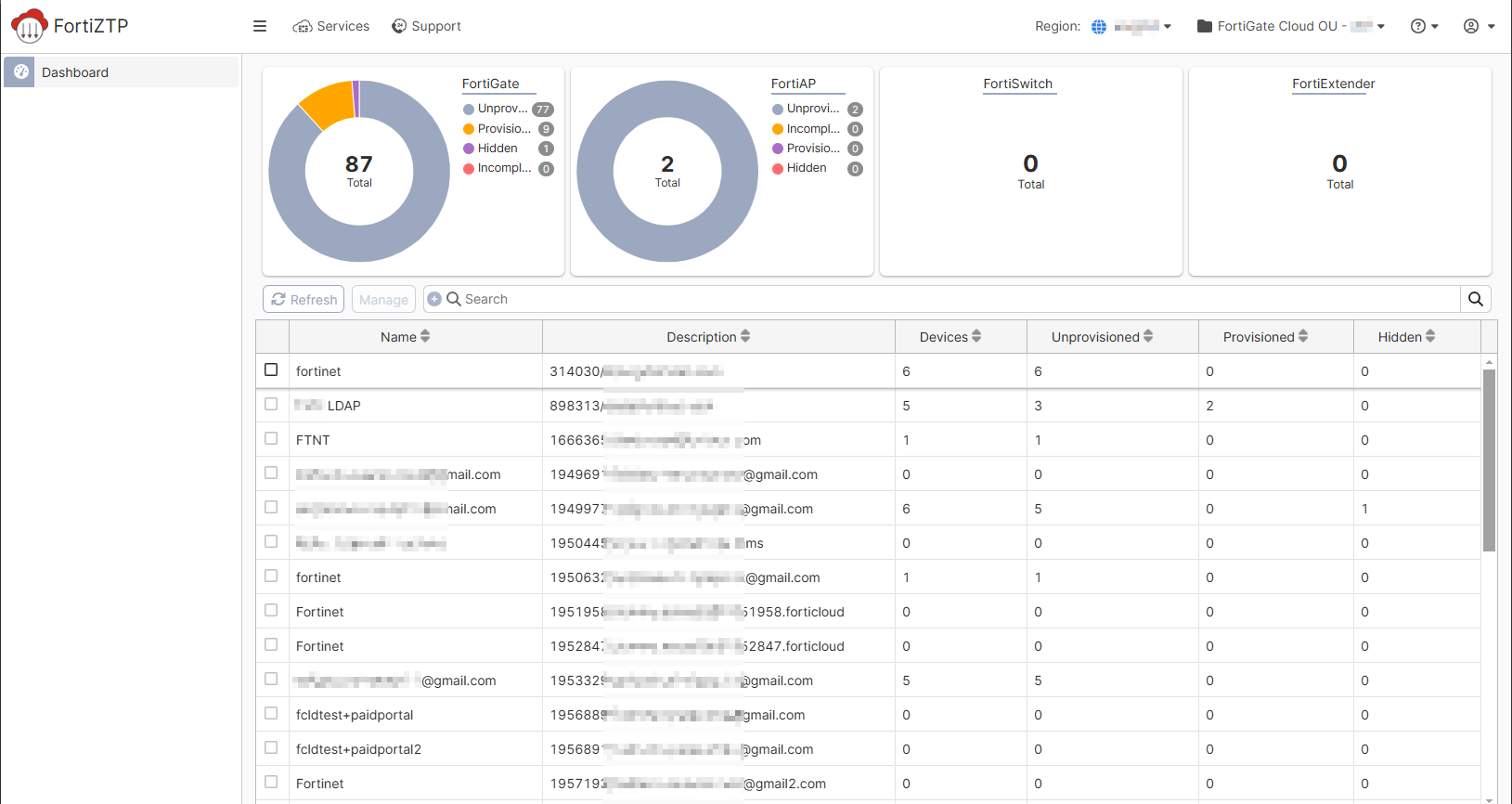
The top of the GUI displays how many devices are unprovisioned and hidden. It also displays how many devices are in the following states:

State

Description

Incomplete

Provisioning did not complete within 30 minutes due to one of the following reasons:

  • Device is offline.
  • Device cannot access the Internet.
  • Device cannot connect to destination service.
  • Device does not have required license.

Unprovisioned

Registered to Asset Management with same FortiCloud account used to access FortiZTP and available for provisioning to a Fortinet service.

Provisioned

Provisioned to a Fortinet service.

Hidden

Hidden from view in FortiZTP.

You can filter which devices display in the list. The list displays the following information for each device:

  • Device type
  • Model
  • Serial number
  • Name
  • Provisioning status
  • Provisioning target
  • Provisioning start date
  • Provisioning completion date

You can also search for the desired device.

If the device needs additional setup after provisioning, the Provisioning Status indicates that the device is (Not Setup). You can click (Not Setup) to go to the respective service to complete the setup.

If you are logged in to an organizational unit (OU), you can use the central pane to navigate to an account. The pane also displays the accounts in this OU and the number of devices in each account.
If you are logged in as an Identity & Access Management (IAM) user with read-only permissions, you can view the portal, but cannot provision or update any FortiZTP settings. Options are grayed out. You also only see devices that are registered in FortiCloud Asset Management, while non-IAM users can see FortiCloud-registered devices and FortiGate Cloud local inventory devices.

FortiZTP supports role-based access control using FortiCloud permission profiles. See Creating a permission profile.

Getting started with the FortiZTP portal

Getting started with the FortiZTP portal

To access the FortiZTP portal, log in with your FortiCloud credentials.

FortiZTP provides region-specific portals. Each regional portal retains the data within the specified region. You can switch between regions from the top banner.

The top of the GUI displays how many devices are unprovisioned and hidden. It also displays how many devices are in the following states:

State

Description

Incomplete

Provisioning did not complete within 30 minutes due to one of the following reasons:

  • Device is offline.
  • Device cannot access the Internet.
  • Device cannot connect to destination service.
  • Device does not have required license.

Unprovisioned

Registered to Asset Management with same FortiCloud account used to access FortiZTP and available for provisioning to a Fortinet service.

Provisioned

Provisioned to a Fortinet service.

Hidden

Hidden from view in FortiZTP.

You can filter which devices display in the list. The list displays the following information for each device:

  • Device type
  • Model
  • Serial number
  • Name
  • Provisioning status
  • Provisioning target
  • Provisioning start date
  • Provisioning completion date

You can also search for the desired device.

If the device needs additional setup after provisioning, the Provisioning Status indicates that the device is (Not Setup). You can click (Not Setup) to go to the respective service to complete the setup.

If you are logged in to an organizational unit (OU), you can use the central pane to navigate to an account. The pane also displays the accounts in this OU and the number of devices in each account.

If you are logged in as an Identity & Access Management (IAM) user with read-only permissions, you can view the portal, but cannot provision or update any FortiZTP settings. Options are grayed out. You also only see devices that are registered in FortiCloud Asset Management, while non-IAM users can see FortiCloud-registered devices and FortiGate Cloud local inventory devices.

FortiZTP supports role-based access control using FortiCloud permission profiles. See Creating a permission profile.