
Fortinet white logo
Fortinet white logo

Administration Guide

Interfaces

Interfaces

To view the interface list, go to System > Network > Interfaces.

The following information is shown:

Edit

Select to edit the selected interface.

Search

Enter a search term in the search text box then select Search to search the interface list.

Interface

The names of the physical interfaces on your FortiAuthenticator unit. The name, including number, of a physical interface depends on the model.

IPv4

The IPv4 address of the interface.

IPv6

The IPv6 address of the interface, if applicable.

Link status

The link status of the interface.

To edit an interface:
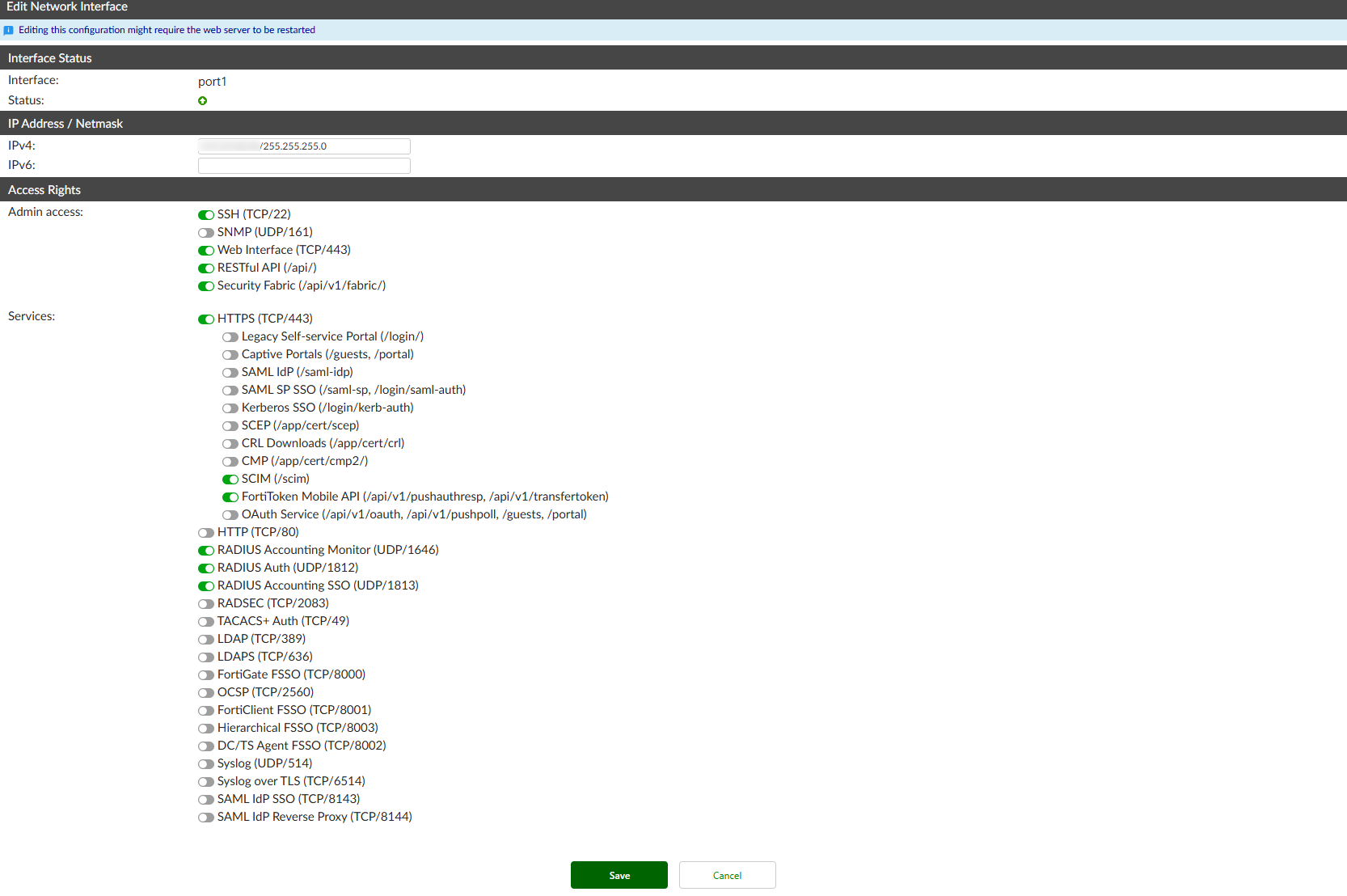
  1. In the interfaces list, select the interface you need to edit and select the Edit button, or select the interface name. The Edit Network Interface window opens.
  2. Edit the following settings as required.
    InterfaceThe interface name is displayed.

    Status

    The interface's current link status is displayed.

    IP Address / Netmask
    IPv4Enter the IPv4 address and netmask associated with this interface.
    IPv6

    Enter the IPv6 address associated with this interface.

    FortiAuthenticator only offers limited support for IPv6.

    FortiAuthenticator does not support incoming communication over IPv6 for most features.

    IPv6 support is available only for the following features:

    • Admin GUI access over IPv6.

    • FSSO:

      • Extract end-user IPv6 addresses from Syslog messages (received over IPv4).

      • Extract end-user IPv6 addresses from RADIUS accounting messages (received over IPv4).

      • Extract end-user IPv6 addresses from Windows event logs polling.

      • Create active end-user sessions for IPv6 addresses and send them to FortiGates.

    Access Rights
    Admin access

    Select the allowed administrative service protocols from: SSH (TCP/22), SNMP (UDP/161), Web Interface (TCP/443), RESTful API (/api/), and Security Fabric (/api/v1/fabric/).

    By default, only SSH (TCP/22), Web Interface (TCP/443), and RESTful API (/api/) are enabled on port1.

    Services

    Enable the services that you want FortiAuthenticator to act as a server for:

    • HTTPS (TCP/443)

    • HTTP (TCP/80)

    • RADIUS Accounting Monitor (UDP/1646)

    • RADIUS Auth (UDP/1812)

    • RADIUS Accounting SSO (UDP/1813)

    • RADSEC (TCP/2083)

    • TACACS+ Auth (TCP/49)

    • LDAP (TCP/389)

    • LDAPS (TCP/636)

    • FortiGate FSSO (TCP/8000)

    • OCSP (TCP/2560)

    • FortiClient FSSO (TCP/8001)

    • Hierarchical FSSO (TCP/8003)

    • DC/TS Agent FSSO (TCP/8002)

    • Syslog (UDP/514)

    • Syslog over TLS (TCP/6514)

    • SAML IdP SSO (TCP/8143)

    • SAML IdP Reverse Proxy: Enable/disable the IdP reverse proxy port on the selected network interface.

    When HTTPS is enabled, you can also specify access for the following services:

    • Legacy Self-service Portal (/login/)

    • Captive Portals (/guests, /portal)

    • SAML IdP (/saml-idp)

    • SAML SP SSO (/saml-sp, /login/saml-auth)

    • Kerberos SSO (/login/kerb-auth)

    • SCEP (/app/cert/scep)

    • CRL Downloads (/app/cert/crl)

    • CMP (/app/cert/cmp2/)

    • SCIM (/scim)

    • FortiToken Mobile API (/api/v1/pushauthresp, /api/v1/transfertoken)

    • OAuth Service (/api/v1/oauth, /api/v1/pushpoll, /guests, /portal)

    When HTTP is enabled, you can also specify access for the following services:

    • SCEP (/app/cert/scep)

    • CRL Downloads (/app/cert/crl)

    • CMP (/app/cert/cmp2/)

    • SAML IdP metadata (/saml-idp)

    • Kerberos SSO (/login/kerb-auth)

    Note that Syslog (UDP/514) is only available if Syslog SSO has been enabled. See Methods for more information.

    A disabled service will not answer queries as it is not active. Enabling the service but leaving it unconfigured will make the service respond to queries, even with incorrect responses. This will use resources and may cause a potential attack.

  3. Select Save to apply the edits to the network interface.
Interfaces

Interfaces

To view the interface list, go to System > Network > Interfaces.

The following information is shown:

Edit

Select to edit the selected interface.

Search

Enter a search term in the search text box then select Search to search the interface list.

Interface

The names of the physical interfaces on your FortiAuthenticator unit. The name, including number, of a physical interface depends on the model.

IPv4

The IPv4 address of the interface.

IPv6

The IPv6 address of the interface, if applicable.

Link status

The link status of the interface.

To edit an interface:
  1. In the interfaces list, select the interface you need to edit and select the Edit button, or select the interface name. The Edit Network Interface window opens.
  2. Edit the following settings as required.
    InterfaceThe interface name is displayed.

    Status

    The interface's current link status is displayed.

    IP Address / Netmask
    IPv4Enter the IPv4 address and netmask associated with this interface.
    IPv6

    Enter the IPv6 address associated with this interface.

    FortiAuthenticator only offers limited support for IPv6.

    FortiAuthenticator does not support incoming communication over IPv6 for most features.

    IPv6 support is available only for the following features:

    • Admin GUI access over IPv6.

    • FSSO:

      • Extract end-user IPv6 addresses from Syslog messages (received over IPv4).

      • Extract end-user IPv6 addresses from RADIUS accounting messages (received over IPv4).

      • Extract end-user IPv6 addresses from Windows event logs polling.

      • Create active end-user sessions for IPv6 addresses and send them to FortiGates.

    Access Rights
    Admin access

    Select the allowed administrative service protocols from: SSH (TCP/22), SNMP (UDP/161), Web Interface (TCP/443), RESTful API (/api/), and Security Fabric (/api/v1/fabric/).

    By default, only SSH (TCP/22), Web Interface (TCP/443), and RESTful API (/api/) are enabled on port1.

    Services

    Enable the services that you want FortiAuthenticator to act as a server for:

    • HTTPS (TCP/443)

    • HTTP (TCP/80)

    • RADIUS Accounting Monitor (UDP/1646)

    • RADIUS Auth (UDP/1812)

    • RADIUS Accounting SSO (UDP/1813)

    • RADSEC (TCP/2083)

    • TACACS+ Auth (TCP/49)

    • LDAP (TCP/389)

    • LDAPS (TCP/636)

    • FortiGate FSSO (TCP/8000)

    • OCSP (TCP/2560)

    • FortiClient FSSO (TCP/8001)

    • Hierarchical FSSO (TCP/8003)

    • DC/TS Agent FSSO (TCP/8002)

    • Syslog (UDP/514)

    • Syslog over TLS (TCP/6514)

    • SAML IdP SSO (TCP/8143)

    • SAML IdP Reverse Proxy: Enable/disable the IdP reverse proxy port on the selected network interface.

    When HTTPS is enabled, you can also specify access for the following services:

    • Legacy Self-service Portal (/login/)

    • Captive Portals (/guests, /portal)

    • SAML IdP (/saml-idp)

    • SAML SP SSO (/saml-sp, /login/saml-auth)

    • Kerberos SSO (/login/kerb-auth)

    • SCEP (/app/cert/scep)

    • CRL Downloads (/app/cert/crl)

    • CMP (/app/cert/cmp2/)

    • SCIM (/scim)

    • FortiToken Mobile API (/api/v1/pushauthresp, /api/v1/transfertoken)

    • OAuth Service (/api/v1/oauth, /api/v1/pushpoll, /guests, /portal)

    When HTTP is enabled, you can also specify access for the following services:

    • SCEP (/app/cert/scep)

    • CRL Downloads (/app/cert/crl)

    • CMP (/app/cert/cmp2/)

    • SAML IdP metadata (/saml-idp)

    • Kerberos SSO (/login/kerb-auth)

    Note that Syslog (UDP/514) is only available if Syslog SSO has been enabled. See Methods for more information.

    A disabled service will not answer queries as it is not active. Enabling the service but leaving it unconfigured will make the service respond to queries, even with incorrect responses. This will use resources and may cause a potential attack.

  3. Select Save to apply the edits to the network interface.