MCP Protocol
The Model Context Protocol (MCP) is an open standard that enables Large Language Models (LLMs) and AI agents to securely interact with external tools, data sources, and services. As AI applications become more integrated into enterprise workflows, they often rely on real-time, streaming communication—such as Server-Sent Events (SSE)—to deliver tokenized output or execute multi-step tool calls.
FortiWeb's MCP security module acts as a specialized inspection gateway for these interactions. By enforcing protocol constraints, FortiWeb ensures that the JSON-RPC messages exchanged between AI components are valid, authorized, and free of malicious injection attacks that target the underlying LLM or the tools it controls.
Why MCP Security Matters
AI agents often use tools to perform tasks like querying databases or fetching web content. This introduces new attack vectors:
-
The Risk: An attacker may use prompt injection to trick an LLM into sending malicious commands to a tool, such as a SQL injection attempt or a command execution hidden inside a tool argument.
-
The Solution: FortiWeb natively parses the Streamable HTTP and Server-Sent Events (SSE) used in MCP. It evaluates each message block in real time to detect signature matches, poisoning attempts, or schema violations before they reach your backend services.
MCP Security Placement
In the FortiWeb security stack, MCP Security is situated within the Protocol Constraints layer. This placement allows FortiWeb to validate the integrity of the communication channel before the traffic is passed to deeper inspection engines like the Web Application Firewall (WAF) or Data Loss Prevention (DLP).
FortiWeb acts as a reverse proxy between the MCP Client (the AI application) and the MCP Server (the tool provider). By intercepting traffic at this junction, FortiWeb performs real-time analysis of the bidirectional JSON-RPC exchange.
-
Upstream Protection (Client to Server): FortiWeb inspects tool calls and arguments sent by the client to prevent injection attacks on internal tools.
-
Downstream Protection (Server to Client): FortiWeb monitors tool descriptions and prompt content returned by the server to prevent poisoning attacks that manipulate LLM behavior.
How It Works
When an application uses MCP over Streamable HTTP or Server-Sent Events (SSE), FortiWeb identifies the traffic using the Accept: text/event-stream or Content-Type: text/event-stream headers. Instead of waiting for a complete response, FortiWeb parses each JSON message fragment as it arrives.
The inspection process applies the following functions:
-
Signature Detection:
Evaluates MCP fields for indicators of unsafe behavior, such as command injection, unauthorized shell references, and known exploit patterns. To ensure comprehensive coverage, FortiWeb inspects all values found within the
params.argumentsobject (specificallyparams.arguments.location). This exhaustive inspection is applied to each message block as it arrives, allowing FortiWeb to detect malicious instructions embedded within streamed or incremental MCP tool outputs. -
Poisoning Attack Protection:
Analyzes tool descriptions, parameters, and prompt content for adversarial patterns intended to manipulate LLM behavior. This includes identifying "jailbreak" prompts designed to override safeguards, exfiltrate sensitive data, or force the LLM to invoke tools in an unauthorized manner. The engine evaluates both structure and context, making it effective for complex workflows where LLMs generate multi-step tool calls or combine user input with external data sources.
-
JSON Schema Validation:
Validates each streamed MCP message against official MCP schema files retrieved from FortiGuard. This ensures that the message structure, required fields, and data types strictly adhere to the MCP specification. Because validation is performed incrementally, FortiWeb can identify malformed payloads in real-time, even when dealing with partial JSON fragments or deeply nested objects produced during active streaming.
Configuration Workflow
To deploy MCP Security, follow this sequence:
-
Define MCP Security Rules:
Establish baseline technical checks, such as message size limits and specific URL patterns. See Configuring MCP Security Rules.
-
Configure MCP Security Exceptions (Optional):
Identify trusted AI tools or prompt functions to be exempt from specific analysis. See Configuring MCP Security Policy Exceptions.
-
Build an MCP Security Policy:
Group your rules and exceptions and select which inspection engines to activate. See Configuring MCP Security Policies.
-
Apply to a Web Protection Profile:
Assign the final policy to a Web Protection Profile to enable active inspection.
Configuring MCP Security Rules
Use MCP Security Rules to define the specific AI endpoints and message parameters that FortiWeb must inspect.
-
Go to Web Protection > Protocol > MCP.
-
Click the MCP Security Rule tab.
-
Click Create New to display the configuration editor.
-
Configure the MCP Security Rules settings:
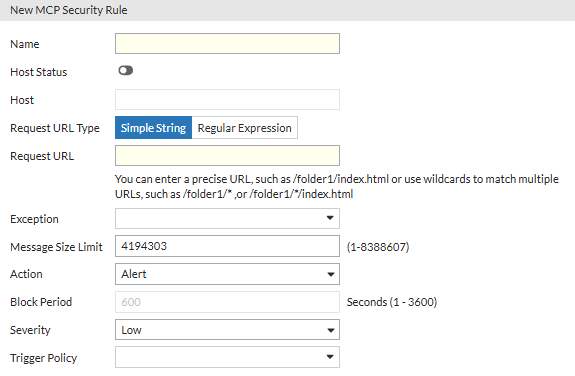
Setting
Description
Name Enter a unique name for the rule that can be referenced by other parts of the configuration. Host Status Enable this to restrict the rule to specific hostnames. If disabled, the rule applies to all hosts. Host Enter the specific hostname of the AI application or MCP server. Request URL Type Select whether the Request URL is a Simple String or a Regular Expression. Request URL Enter the URL path where MCP traffic is sent. You can use wildcards (e.g.,
/folder1/*) to match multiple URLs.Exception Select an existing MCP Security Exception to exclude trusted traffic from being scanned by this specific rule. Message Size Limit Specify the maximum allowed size (in bytes) for a streamed MCP message block. The range is 0 to 4,194,304, where 0 means no limitation. This limit applies to the response direction. Action
Select which action FortiWeb will take when it detects a violation of the MCP security policy:
- Alert—Accept the connection and generate an alert email and/or log message.
- Deny (no log)—Block the request (or reset the connection).
- Alert & Deny—Block the request (or reset the connection) and generate an alert and/or log message.
- Block Period—Block subsequent requests from the client for a number of seconds.
- Client ID Block Period—Block subsequent requests from the client based on the FortiWeb generated client ID for a number of seconds.
The default value is Alert.
Block Period
Enter the number of seconds that you want to block subsequent requests from the client after the FortiWeb appliance detects that the client has violated the rule.
This setting is available only if Action is set to Period Block or Client ID Block Period. The valid range is from 1 to 3,600 seconds (1 hour).
Severity
When rule violations are recorded in the attack log, each log message contains a Severity Level (
severity_level) field. Select which severity level to use when FortiWeb logs a violation of the rule:- Informative
- Low
- Medium
- High
Trigger Policy Select which trigger, if any, to use when FortiWeb logs and/or sends an alert email about a violation of the rule. For details, see Viewing log messages. -
Click OK to save the configuration.
Configuring MCP Security Policies
Use MCP Security Policies to activate specific inspection engines (Signature, Poisoning, or Schema) and link them to your security rules.
-
Go to Web Protection > Protocol > MCP.
The configuration page shows the MCP Security Policy tab. -
Click Create New to display the configuration editor.
-
Configure the MCP Security Policy settings:
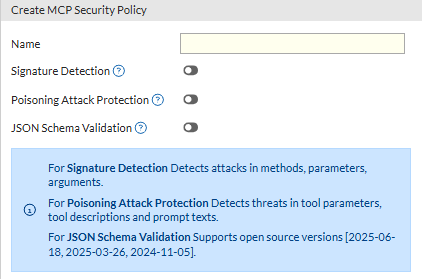
Setting
Description
Name Enter a unique name for the policy that can be referenced by other parts of the configuration. Signature Detection Enable to prevent attacks on the MCP server, such as injection or command execution. FortiWeb evaluates MCP fields including methods, tool names, and argument values for indicators of unsafe behavior. Poisoning Attack Protection Enable to prevent adversarial attempts to manipulate LLM behavior or steal sensitive information. This scans tool descriptions, tool parameters, and prompt content. JSON Schema Validation Enable to ensure each streamed MCP message meets the official specification provided by FortiGuard based on the MCP version. -
Click OK to save the configuration.
Once the configuration is saved, the Rules section becomes configurable to add the MCP Security Rules to the policy. -
Under the Rules section, Click Create New to display the configuration editor.
-
Add specific MCP Security Rules to this policy.
-
Click OK to save the rule selection.
-
-
Click OK again to save the final changes to the policy.
Configuring MCP Security Policy Exceptions
Use MCP Security Policy Exceptions to allowlist specific, trusted tool names or methods that may otherwise trigger false positives during Poisoning Attack scans.
-
Go to Web Protection > Protocol > MCP.
-
Click the MCP Security Policy Exception tab.
-
Click Create New to display the configuration editor.
-
Enter a unique Name for the exception.
-
Click OK to save the configuration.
Once the configuration is saved, the Rules section becomes configurable. -
Under the Rules section, click Create New to display the configuration editor.
-
Configure the Exception Rules settings:
Setting
Description
Exception Type Select whether the value is a Simple String or a Regular Expression. Exception Value Enter the specific string or pattern to be excluded from security scanning (for example, the name of a specific tool or prompt function). MCP Primitive Type Select the specific field to which the exception applies. Options include:
-
Tool Function Name: This matches the tool name found in the
tool->params->arguments->keyfield. -
Prompt Function Name: This matches the name of a specific prompt function within the MCP payload.
-
-
Click OK to save the rule configuration settings.
-
-
Click OK again to save the final changes to the exception.