
Fortinet white logo
Fortinet white logo

Administration Guide

Let's Encrypt certificates

Let's Encrypt certificates

Instead of uploading CA certificate from your local directory, an easier way is to configure FortiWeb to obtain a certificate from Let's encrypt on behalf of your application.

Let's Encrypt is a non-profit certificate authority run by Internet Security Research Group (ISRG) that provides X.509 certificates for Transport Layer Security (TLS) encryption at no charge.

Before adding a Let's Encrypt certificate, you must:
  • You must have changed the DNS entry to map your domain name with FortiWeb's IP address.
  • You should not block requests from United States in IP Protection > Geo IP Block, otherwise FortiWeb can't retrieve certificates from Let's Encrypt.
To use certificate issued by Let's Encrypt:

To access this part of the web UI, your administrator's account access profile must have Read and Write permission to items in the Admin Users category. For details, see Permissions.

  1. Go to Server Objects > Certificates > Letsencrypt.
  2. Click Create New.
  3. Enter a name for this certificate.
  4. Enter the domain name of your application. FortiWeb will then retrieve the certificate for this domain from Let's encrypt.
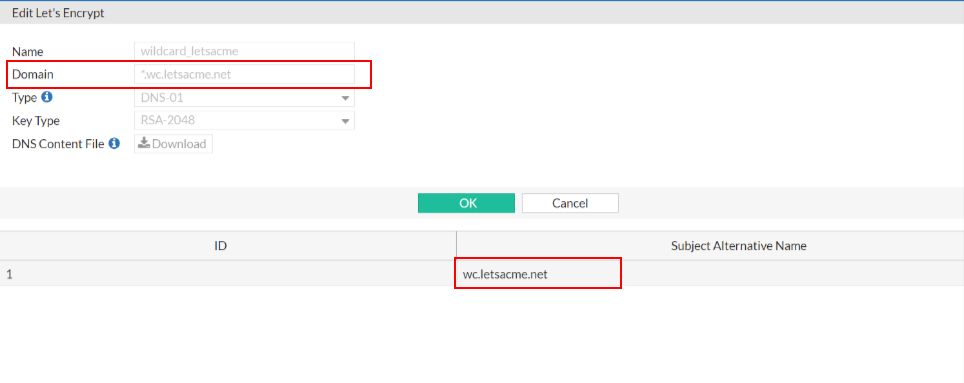
    • Wildcard is supported when the type is DNS-01. The wildcard only matches with the string within the same domain level, for example, "a.example.com" matches with “*.example.com”, while "a.a.example.com" doesn't.
    • It's allowed to add more domain names by creating Subject Alternative Names (SAN). Up to 99 SAN items are supported. Make sure the domain names in the two places do not overlap, for example, "*.wc_letsacme.net" can't be added together with "a.wc_letsacme.net".
  5. Select Type.
    • HTTP-01: Let's Encrypt will send HTTP request to FortiWeb for validation.
      When in RP mode, you must select HTTP service and uses port 80 for it in the server policy which uses the Let's Encrypt certificate.
      When in TTP mode, the back-end server which uses Letsencrypt certificate should have port 80 enabled.
      Redirect HTTP to HTTPS should not be enabled when the validation is in process.
    • TLS-ALPN: This method allows Let's Encrypt to send HTTPS requests to FortiWeb for validation. You must select HTTPS service in the server policy which uses the Let's Encrypt certificate.
    • DNS-01: This method allows Let's Encrypt to do validation through your DNS provider. FortiWeb will generate a TXT record, then you need to add this TXT record to the DNS record. Refer to Fulfilling the DNS-01 challenge.
  6. Select Key Type. RSA algorithm with different key length can be implemented and accepted by the Let’s Encrypt Server. Those key sizes are 2048, 3072, and 4096 bits. Please note that larger keys consume more computing resources, however, achieve better security.
  7. Set the Renew Period.
    The certificate expires every 90 days. The Renew Period specified how many days in advance that FortiWeb will renew the certificate from Let’s Encrypt before it expires. For example, if Renew Period is 10 days, then FortiWeb will renew the certificate 10 days before it expires.

    Certificates generated by the DNS-01 challenge cannot be renewed automatically. Please manually renew the certificate before it expires.

  8. Click OK.
  9. To add more domains, click Create New to add Subject Alternative Names (SAN).
    • Up to 99 SAN items are supported.
    • Make sure the domain names do not overlap, for example, "*.wc_letsacme.net" can't be added together with "a.wc_letsacme.net".
    • All domain names must point to the same public IP address.
  10. Refer the letsencrypt certificate:
    1. When in RP mode, refer it in server policy (see Configuring an HTTP server policy), or refer it through an SNI (see Let's Encrypt certificates) in server policy.
    2. When in TTP mode, refer it in back-end server, or refer it through an SNI (see Let's Encrypt certificates) when adding a back-end server. The back-end server should be in the server pool which is referenced in the desired server policy.

FortiWeb obtains an TLS certificate on your behalf from Let’s Encrypt and uses it for the HTTPS connections with the client to encrypt or decrypt the traffic. If FortiWeb fails to obtain the certificate, it will try again every 2 hours until the certificate is successfully obtained.

You can also manually obtain the certificate by clicking the Issue button. FortiWeb will obtain the certificate immediately.

To delete the certificate from FortiWeb, click the Revoke button.

Please note that Let's Encrypt only allows 5 times of certificate obtaining failure per hour for each hostname and account. If the following error message displays, it means you have retrieved the certificate too frequently.

"type": "urn:ietf:params:acme:error:rateLimited",

"detail": "Error creating new order :: too many failed authorizations recently: see https://letsencrypt.org/docs/rate-limits/"

After the certificate is successfully retrieved, you can refer it in the Server Policy settings.

In HA deployment, only active-passive mode supports Let's Encrypt certificate.

Fulfilling the DNS-01 challenge

The DNS-01 challenge asks you to prove that you control the DNS for your domain name by putting a specific value in a TXT record under that domain name.

After you have saved your Let's Encrypt certificate configuration, the DNS-01 challenge information is generated. With this information, you will configure your Public DNS Service to create the TXT record.

To obtain the TXT record:

  1. Follow the steps in "To use certificate issued by Let's Encrypt:" to create a Let's encrypt certificate using the DNS-01 challenge type. The DNS Content File isn't available to download while you are creating the certificate.
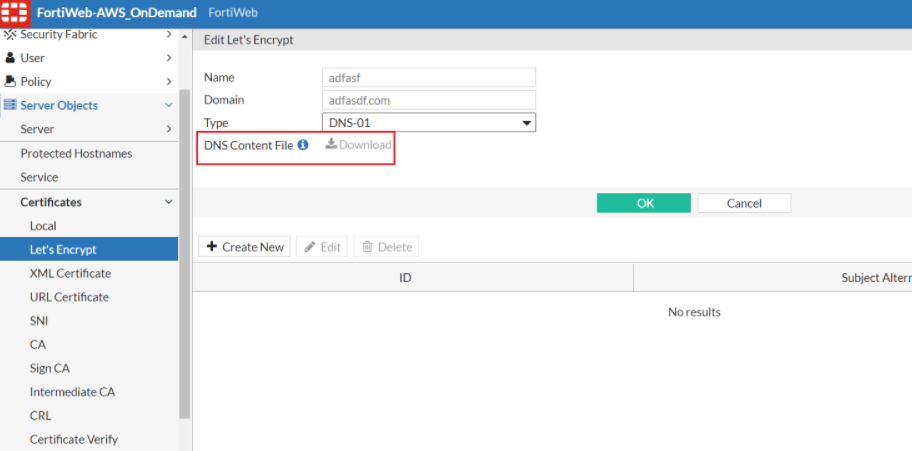
  2. After the certificate is created, go back to the main table, find the certificate you just created, then click the Issue button.

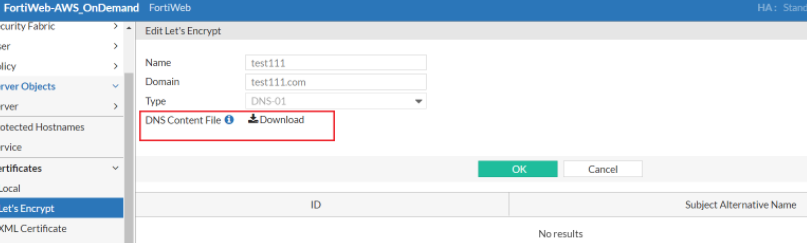
  3. After the Status of the certificate turning into yellow, which means "need user to proceed manually", double click this certificate to enter into the certificate editing page. You will see the DNS Content File is ready to be downloaded. It is a .txt file which contains the TXT record.
To add the record the DNS challenge information to the Public DNS Service:

  1. Log in to your DNS service provider and go to your DNS Domain management page.
  2. Add a record and input the challenge information into the corresponding fields.
    NameEnter your domain name prefixed with "_acme-challenge.", for example, " _acme-challenge.www.example.com".
    TypeSet the record type as TXT.
    TTLSet this to the default value.
    TargetPaste the content from your ACME DNS-01 challenge information.
  3. Save the changes.
    Let's Encrypt will then query the DNS system for that record to find a match. It's recommended to wait about 20 minutes for the challenge to complete.
  4. Log in to FortiWeb.
  5. Go to Server Objects > Certificates > Letsencrypt.
  6. Find the Let's Encrypt certificate, then click the Issue button. If the Let's Encrypt certificate passes validation, the certificate status will turn into OK.
    If it fails, most likely the reason is that your DNS record is not successfully updated with the TXT record. To troubleshoot, please first check with your DNS service to make sure the TXT record is added successfully.

It is recommended to set a longer challenge wait time to allow enough time for the DNS configuration changes to take effect. If the DNS configuration changes has not taken effect at the time Let's Encrypt queries the DNS system for the TXT record, then the validation will fail. Various factors may influence the speed of the DNS (such as the DNS service provider, network speed, network traffic), so the DNS configuration changes may take as long as 20 minutes to take effect.

Let's Encrypt certificates

Let's Encrypt certificates

Instead of uploading CA certificate from your local directory, an easier way is to configure FortiWeb to obtain a certificate from Let's encrypt on behalf of your application.

Let's Encrypt is a non-profit certificate authority run by Internet Security Research Group (ISRG) that provides X.509 certificates for Transport Layer Security (TLS) encryption at no charge.

Before adding a Let's Encrypt certificate, you must:
  • You must have changed the DNS entry to map your domain name with FortiWeb's IP address.
  • You should not block requests from United States in IP Protection > Geo IP Block, otherwise FortiWeb can't retrieve certificates from Let's Encrypt.
To use certificate issued by Let's Encrypt:

To access this part of the web UI, your administrator's account access profile must have Read and Write permission to items in the Admin Users category. For details, see Permissions.

  1. Go to Server Objects > Certificates > Letsencrypt.
  2. Click Create New.
  3. Enter a name for this certificate.
  4. Enter the domain name of your application. FortiWeb will then retrieve the certificate for this domain from Let's encrypt.
    • Wildcard is supported when the type is DNS-01. The wildcard only matches with the string within the same domain level, for example, "a.example.com" matches with “*.example.com”, while "a.a.example.com" doesn't.
    • It's allowed to add more domain names by creating Subject Alternative Names (SAN). Up to 99 SAN items are supported. Make sure the domain names in the two places do not overlap, for example, "*.wc_letsacme.net" can't be added together with "a.wc_letsacme.net".
  5. Select Type.
    • HTTP-01: Let's Encrypt will send HTTP request to FortiWeb for validation.
      When in RP mode, you must select HTTP service and uses port 80 for it in the server policy which uses the Let's Encrypt certificate.
      When in TTP mode, the back-end server which uses Letsencrypt certificate should have port 80 enabled.
      Redirect HTTP to HTTPS should not be enabled when the validation is in process.
    • TLS-ALPN: This method allows Let's Encrypt to send HTTPS requests to FortiWeb for validation. You must select HTTPS service in the server policy which uses the Let's Encrypt certificate.
    • DNS-01: This method allows Let's Encrypt to do validation through your DNS provider. FortiWeb will generate a TXT record, then you need to add this TXT record to the DNS record. Refer to Fulfilling the DNS-01 challenge.
  6. Select Key Type. RSA algorithm with different key length can be implemented and accepted by the Let’s Encrypt Server. Those key sizes are 2048, 3072, and 4096 bits. Please note that larger keys consume more computing resources, however, achieve better security.
  7. Set the Renew Period.
    The certificate expires every 90 days. The Renew Period specified how many days in advance that FortiWeb will renew the certificate from Let’s Encrypt before it expires. For example, if Renew Period is 10 days, then FortiWeb will renew the certificate 10 days before it expires.

    Certificates generated by the DNS-01 challenge cannot be renewed automatically. Please manually renew the certificate before it expires.

  8. Click OK.
  9. To add more domains, click Create New to add Subject Alternative Names (SAN).
    • Up to 99 SAN items are supported.
    • Make sure the domain names do not overlap, for example, "*.wc_letsacme.net" can't be added together with "a.wc_letsacme.net".
    • All domain names must point to the same public IP address.
  10. Refer the letsencrypt certificate:
    1. When in RP mode, refer it in server policy (see Configuring an HTTP server policy), or refer it through an SNI (see Let's Encrypt certificates) in server policy.
    2. When in TTP mode, refer it in back-end server, or refer it through an SNI (see Let's Encrypt certificates) when adding a back-end server. The back-end server should be in the server pool which is referenced in the desired server policy.

FortiWeb obtains an TLS certificate on your behalf from Let’s Encrypt and uses it for the HTTPS connections with the client to encrypt or decrypt the traffic. If FortiWeb fails to obtain the certificate, it will try again every 2 hours until the certificate is successfully obtained.

You can also manually obtain the certificate by clicking the Issue button. FortiWeb will obtain the certificate immediately.

To delete the certificate from FortiWeb, click the Revoke button.

Please note that Let's Encrypt only allows 5 times of certificate obtaining failure per hour for each hostname and account. If the following error message displays, it means you have retrieved the certificate too frequently.

"type": "urn:ietf:params:acme:error:rateLimited",

"detail": "Error creating new order :: too many failed authorizations recently: see https://letsencrypt.org/docs/rate-limits/"

After the certificate is successfully retrieved, you can refer it in the Server Policy settings.

In HA deployment, only active-passive mode supports Let's Encrypt certificate.

Fulfilling the DNS-01 challenge

The DNS-01 challenge asks you to prove that you control the DNS for your domain name by putting a specific value in a TXT record under that domain name.

After you have saved your Let's Encrypt certificate configuration, the DNS-01 challenge information is generated. With this information, you will configure your Public DNS Service to create the TXT record.

To obtain the TXT record:

  1. Follow the steps in "To use certificate issued by Let's Encrypt:" to create a Let's encrypt certificate using the DNS-01 challenge type. The DNS Content File isn't available to download while you are creating the certificate.
  2. After the certificate is created, go back to the main table, find the certificate you just created, then click the Issue button.
  3. After the Status of the certificate turning into yellow, which means "need user to proceed manually", double click this certificate to enter into the certificate editing page. You will see the DNS Content File is ready to be downloaded. It is a .txt file which contains the TXT record.

To add the record the DNS challenge information to the Public DNS Service:

  1. Log in to your DNS service provider and go to your DNS Domain management page.
  2. Add a record and input the challenge information into the corresponding fields.
    NameEnter your domain name prefixed with "_acme-challenge.", for example, " _acme-challenge.www.example.com".
    TypeSet the record type as TXT.
    TTLSet this to the default value.
    TargetPaste the content from your ACME DNS-01 challenge information.
  3. Save the changes.
    Let's Encrypt will then query the DNS system for that record to find a match. It's recommended to wait about 20 minutes for the challenge to complete.
  4. Log in to FortiWeb.
  5. Go to Server Objects > Certificates > Letsencrypt.
  6. Find the Let's Encrypt certificate, then click the Issue button. If the Let's Encrypt certificate passes validation, the certificate status will turn into OK.
    If it fails, most likely the reason is that your DNS record is not successfully updated with the TXT record. To troubleshoot, please first check with your DNS service to make sure the TXT record is added successfully.

It is recommended to set a longer challenge wait time to allow enough time for the DNS configuration changes to take effect. If the DNS configuration changes has not taken effect at the time Let's Encrypt queries the DNS system for the TXT record, then the validation will fail. Various factors may influence the speed of the DNS (such as the DNS service provider, network speed, network traffic), so the DNS configuration changes may take as long as 20 minutes to take effect.