
Feodo Tracker is a project of abuse.ch with the goal of sharing botnet C&C servers associated with the Feodo malware family (Dridex, Emotet/Heodo). It offers various blocklists, helping network owners to protect their users from Dridex and Emotet/Heodo.
This document provides information about the FeodoTracker connector, which facilitates automated interactions with FeodoTracker using FortiSOAR™ playbooks. Add the FeodoTracker connector, as a step in FortiSOAR™ playbooks and perform automated operations such as retrieving threat intelligence feeds of type IPv4 from FeodoTracker.
Use the Data Ingestion Wizard to easily ingest data into FortiSOAR™ by pulling IP threat intelligence feeds from FeodoTracker. Currently, the feeds ingested from FeodoTracker are mapped to "indicators" in FortiSOAR™. For more information, see the Data Ingestion Support section.
Connector Version: 1.0.0
FortiSOAR™ Version Tested on: 6.4.4-3164
Authored By: Fortinet
Certified: Yes
From FortiSOAR™ 5.0.0 onwards, use the Connector Store to install the connector. For the detailed procedure to install a connector, click here.
You can also use the following yum command as a root user to install connectors from an SSH session:
yum install cyops-connector-feodotracker
For the procedure to configure a connector, click here.
In FortiSOAR™, on the Connectors page, click the FeodoTracker connector row (if you are in the Grid view on the Connectors page), and in the Configurations tab enter the required configuration details:
| Parameter | Description |
|---|---|
| IPv4 List URL | URL using which you want to pull IPv4 type feeds from FeodoTracker. For example, https://feodotracker.abuse.ch/downloads/ipblocklist.csv. |
The following automated operations can be included in playbooks, and you can also use the annotations to access operations from version 4.10.0 and onwards:
| Function | Description | Annotation and Category |
|---|---|---|
| Get IPv4 Feeds | Retrieves threat intelligence feeds of type IPv4 from FeodoTracker. | get_blocklist_feed Investigate |
None.
The output contains the following populated JSON schema:
{
"last_updated": "",
"data": [
{
"Firstseen": "",
"DstIP": "",
"DstPort": "",
"Status": "",
"LastOnline": "",
"Malware": ""
}
]
}
The Sample - FeodoTracker - 1.0.0 playbook collection comes bundled with the FeodoTracker connector. These playbooks contain steps using which you can perform all supported actions. You can see bundled playbooks in the Automation > Playbooks section in FortiSOAR™ after importing the FeodoTracker connector.
Note: If you are planning to use any of the sample playbooks in your environment, ensure that you clone those playbooks and move them to a different collection since the sample playbook collection gets deleted during connector upgrade and delete.
Use the Data Ingestion Wizard to easily ingest data into FortiSOAR™ by pulling threat intelligence feeds from FeodoTracker. Currently, these "feeds" from FeodoTracker are mapped to "indicators" in FortiSOAR™. For more information on the Data Ingestion Wizard, see the "Connectors Guide" in the FortiSOAR™ product documentation.
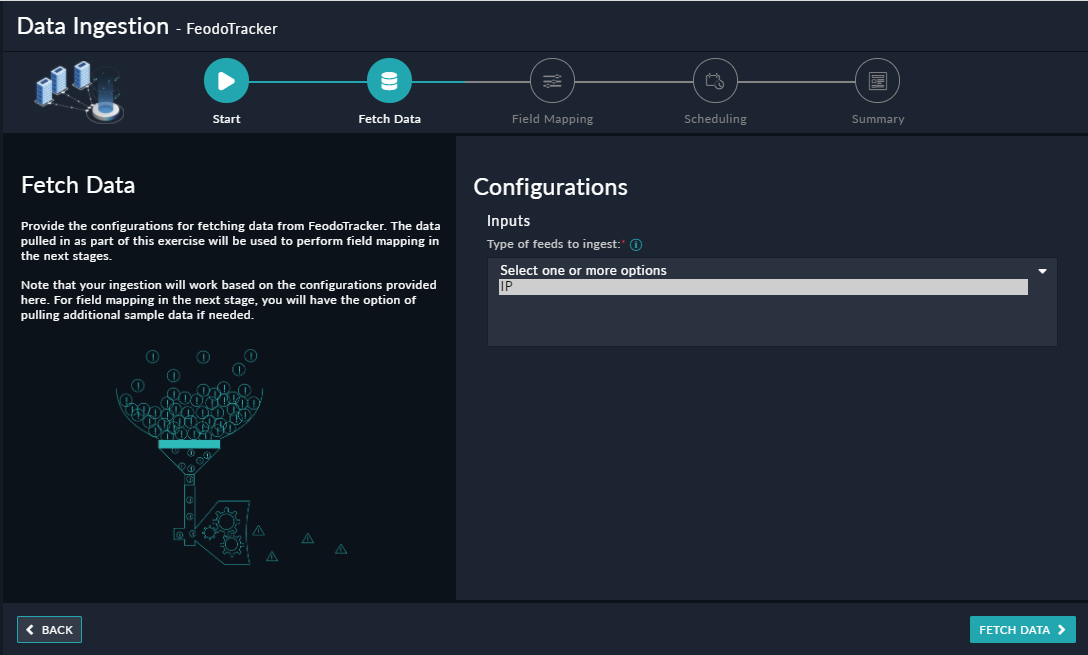
You can configure data ingestion using the “Data Ingestion Wizard” to seamlessly map the incoming FeodoTracker "IP Threat Intelligence Feeds" to FortiSOAR™ "Indicators".
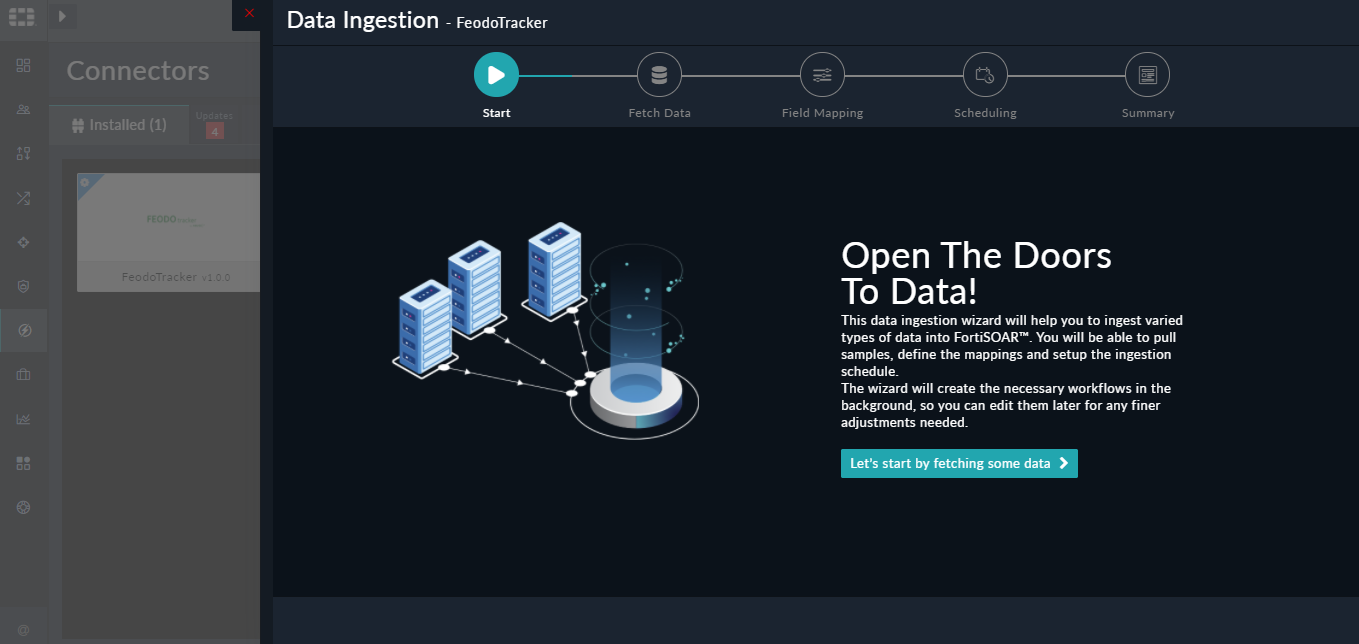
The Data Ingestion Wizard enables you to configure scheduled pulling of data from FeodoTracker into FortiSOAR™. It also lets you pull some sample data from FeodoTracker using which you can define the mapping of data between FeodoTracker and FortiSOAR™. The mapping of common fields is generally already done by the Data Ingestion Wizard; users mostly require to only map any custom fields that are added to the FeodoTracker feed.
On the Field Mapping screen, map the fields of a FeodoTracker feed to the fields of an indicator present in FortiSOAR™.
To map a field, click the key in the sample data to add the “jinja” value of the field. For example, to map the LastOnline parameter of a FeodoTracker feed to the Last Seen parameter of a FortiSOAR™ indicator, click the Last Seen field and then click the LastOnline field to populate its keys:
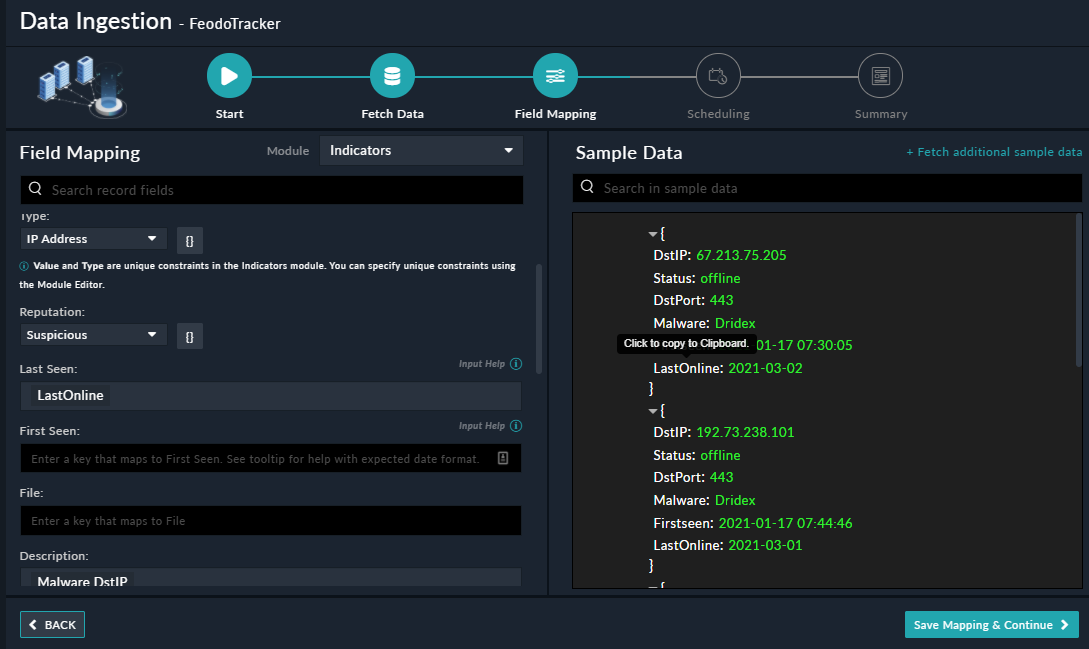
For more information on field mapping, see the Data Ingestion chapter in the "Connectors Guide" in the FortiSOAR™ product documentation. Once you have completed mapping fields, click Save Mapping & Continue.
Use the Scheduling screen to configure schedule-based ingestion, i.e., specify the polling frequency to FeodoTracker, so that the content gets pulled from the FeodoTracker integration into FortiSOAR™.
On the Scheduling screen, from the Do you want to schedule the ingestion? drop-down list, select Yes.
In the “Configure Schedule Settings” section, specify the Cron expression for the schedule. For example, if you want to pull data from FeodoTracker every 5 minutes, click Every X Minute, and in the minute box enter */5. This would mean that based on the configuration you have set up threat intelligence feeds will be pulled from MalSilo every 5 minutes.

Once you have completed scheduling, click Save Settings & Continue.
The Summary screen displays a summary of the mapping done, and it also contains links to the Ingestion playbooks. Click Done to complete the data ingestion, and exit the Data Ingestion Wizard.
Feodo Tracker is a project of abuse.ch with the goal of sharing botnet C&C servers associated with the Feodo malware family (Dridex, Emotet/Heodo). It offers various blocklists, helping network owners to protect their users from Dridex and Emotet/Heodo.
This document provides information about the FeodoTracker connector, which facilitates automated interactions with FeodoTracker using FortiSOAR™ playbooks. Add the FeodoTracker connector, as a step in FortiSOAR™ playbooks and perform automated operations such as retrieving threat intelligence feeds of type IPv4 from FeodoTracker.
Use the Data Ingestion Wizard to easily ingest data into FortiSOAR™ by pulling IP threat intelligence feeds from FeodoTracker. Currently, the feeds ingested from FeodoTracker are mapped to "indicators" in FortiSOAR™. For more information, see the Data Ingestion Support section.
Connector Version: 1.0.0
FortiSOAR™ Version Tested on: 6.4.4-3164
Authored By: Fortinet
Certified: Yes
From FortiSOAR™ 5.0.0 onwards, use the Connector Store to install the connector. For the detailed procedure to install a connector, click here.
You can also use the following yum command as a root user to install connectors from an SSH session:
yum install cyops-connector-feodotracker
For the procedure to configure a connector, click here.
In FortiSOAR™, on the Connectors page, click the FeodoTracker connector row (if you are in the Grid view on the Connectors page), and in the Configurations tab enter the required configuration details:
| Parameter | Description |
|---|---|
| IPv4 List URL | URL using which you want to pull IPv4 type feeds from FeodoTracker. For example, https://feodotracker.abuse.ch/downloads/ipblocklist.csv. |
The following automated operations can be included in playbooks, and you can also use the annotations to access operations from version 4.10.0 and onwards:
| Function | Description | Annotation and Category |
|---|---|---|
| Get IPv4 Feeds | Retrieves threat intelligence feeds of type IPv4 from FeodoTracker. | get_blocklist_feed Investigate |
None.
The output contains the following populated JSON schema:
{
"last_updated": "",
"data": [
{
"Firstseen": "",
"DstIP": "",
"DstPort": "",
"Status": "",
"LastOnline": "",
"Malware": ""
}
]
}
The Sample - FeodoTracker - 1.0.0 playbook collection comes bundled with the FeodoTracker connector. These playbooks contain steps using which you can perform all supported actions. You can see bundled playbooks in the Automation > Playbooks section in FortiSOAR™ after importing the FeodoTracker connector.
Note: If you are planning to use any of the sample playbooks in your environment, ensure that you clone those playbooks and move them to a different collection since the sample playbook collection gets deleted during connector upgrade and delete.
Use the Data Ingestion Wizard to easily ingest data into FortiSOAR™ by pulling threat intelligence feeds from FeodoTracker. Currently, these "feeds" from FeodoTracker are mapped to "indicators" in FortiSOAR™. For more information on the Data Ingestion Wizard, see the "Connectors Guide" in the FortiSOAR™ product documentation.
You can configure data ingestion using the “Data Ingestion Wizard” to seamlessly map the incoming FeodoTracker "IP Threat Intelligence Feeds" to FortiSOAR™ "Indicators".
The Data Ingestion Wizard enables you to configure scheduled pulling of data from FeodoTracker into FortiSOAR™. It also lets you pull some sample data from FeodoTracker using which you can define the mapping of data between FeodoTracker and FortiSOAR™. The mapping of common fields is generally already done by the Data Ingestion Wizard; users mostly require to only map any custom fields that are added to the FeodoTracker feed.
On the Field Mapping screen, map the fields of a FeodoTracker feed to the fields of an indicator present in FortiSOAR™.
To map a field, click the key in the sample data to add the “jinja” value of the field. For example, to map the LastOnline parameter of a FeodoTracker feed to the Last Seen parameter of a FortiSOAR™ indicator, click the Last Seen field and then click the LastOnline field to populate its keys:
For more information on field mapping, see the Data Ingestion chapter in the "Connectors Guide" in the FortiSOAR™ product documentation. Once you have completed mapping fields, click Save Mapping & Continue.
Use the Scheduling screen to configure schedule-based ingestion, i.e., specify the polling frequency to FeodoTracker, so that the content gets pulled from the FeodoTracker integration into FortiSOAR™.
On the Scheduling screen, from the Do you want to schedule the ingestion? drop-down list, select Yes.
In the “Configure Schedule Settings” section, specify the Cron expression for the schedule. For example, if you want to pull data from FeodoTracker every 5 minutes, click Every X Minute, and in the minute box enter */5. This would mean that based on the configuration you have set up threat intelligence feeds will be pulled from MalSilo every 5 minutes.
Once you have completed scheduling, click Save Settings & Continue.
The Summary screen displays a summary of the mapping done, and it also contains links to the Ingestion playbooks. Click Done to complete the data ingestion, and exit the Data Ingestion Wizard.
