

Importing Sigma Rules
This section shows how you can import a new SIGMA rule into FortiSIEM. FortiSIEM will automatically convert the SIGMA rule format to FortiSIEM Rule format. Currently, this works for Windows rules. Other rules may work partially - you can download them and make modifications.
You can import in one of 3 ways:
Importing via URL
For this method, you will provide the URL of the SIGMA Rule.
- Go to the GitHub SIGMA rule repository and click on the SIGMA rule you want to import, e.g. https://github.com/SigmaHQ/sigma/blob/master/rules/windows/create_remote_thread/create_remote_thread_win_hktl_cactustorch.yml
- Click the Raw icon on the right.
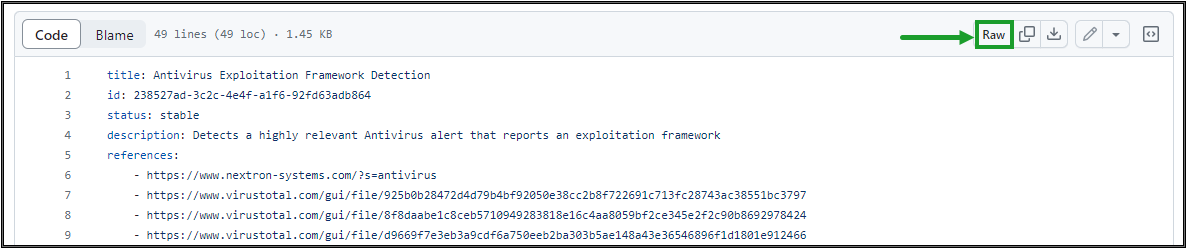
This will take you to a web page that provides a link to the raw rule, e.g. https://raw.githubusercontent.com/SigmaHQ/sigma/master/rules/windows/create_remote_thread/create_remote_thread_win_hktl_cactustorch.yml - Copy the link to your clipboard.
- Login to the FortiSIEM GUI.
- Navigate to Resources > Rules.
- From the More drop-down list, select Import Sigma Rule.
- Choose the URL option.
- Paste the link from your clipboard into the URL field.
- Click Import.
- If import succeeds, then you will see a message like "Import Rule <Rule XYZ> successful, view the rule?" Click Yes to save the file and be taken to Edit Rule page.
Note: You can click No to save the rule without reviewing the rule conditions, but you should make sure to check the rule conditions at some point. - Go through the 3 tabs and make sure the import captured all aspects of the SIGMA rule. Special importance should be given to Step 2: Define Condition > Filter. See Defining Rule Conditions for more information.
- Click Save.
- A "The Rule has been changed" window will appear. You can click OK to overwrite the existing imported rule, or you can modify the rule name, then click OK to save as a new rule.
Importing via File
For this method, you will provide the SIGMA Rule file. This may be useful if your Supervisor does not have access to the GitHub SIGMA Rule Repository.
- Go to the GitHub SIGMA rule repository and click on the SIGMA rule you want to import, e.g. https://github.com/SigmaHQ/sigma/blob/master/rules/windows/create_remote_thread/create_remote_thread_win_hktl_cactustorch.yml
- Click the Download raw file icon on the right.
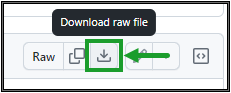
This will download the file onto your workstation. - Login to the FortiSIEM GUI.
- Navigate to Resources > Rules.
- From the More drop-down list, select Import Sigma Rule.
- Choose the File option and select the file you downloaded in Step 2.
- Click Import.
- If import succeeds, then you will see a message like "Import Rule <Rule XYZ> successful, view the rule?" Click Yes to save the file and be taken to Edit Rule page.
Note: You can click No to save the rule without reviewing the rule conditions, but you should make sure to check the rule conditions at some point. - Go through the 3 tabs and make sure the import captured all aspects of the SIGMA rule. Special importance should be given to Step 2: Define Condition > Filter. See Defining Rule Conditions for more information.
- Click Save.
- A "The Rule has been changed" window will appear. You can click OK to overwrite the existing imported rule, or you can modify the rule name, then click OK to save as a new rule.
Importing via Custom Input
For this method, you will enter a SIGMA rule in YAML format in the Custom Input edit box.
- Login to the FortiSIEM GUI.
- Navigate to Resources > Rules.
- From the More drop-down list, select Custom Input.
- Enter in the rule in SIGMA YAML file format as specified here (https://sigmahq.io/docs/basics/rules.html).
- Click Import.
- If import succeeds, then you will see a message like "Import Rule <Rule XYZ> successful, view the rule?" Click Yes to save the file and be taken to Edit Rule page.
Note: You can click No to save the rule without reviewing the rule conditions, but you should make sure to check the rule conditions at some point. - Go through the 3 tabs and make sure the import captured all aspects of the SIGMA rule. Special importance should be given to Step 2: Define Condition > Filter. See Defining Rule Conditions for more information.
- Click Save.
- A "The Rule has been changed" window will appear. You can click OK to overwrite the existing imported rule, or you can modify the rule name, then click OK to save as a new rule.