
Fortinet white logo
Fortinet white logo
7.2.0

3. Provisioning

3. Provisioning

Provision your FortiSASE instance to the desired locations close to your end users.

To initialize FortiSASE:
  1. Log in to the FortiSASE portal with your FortiCloud account.

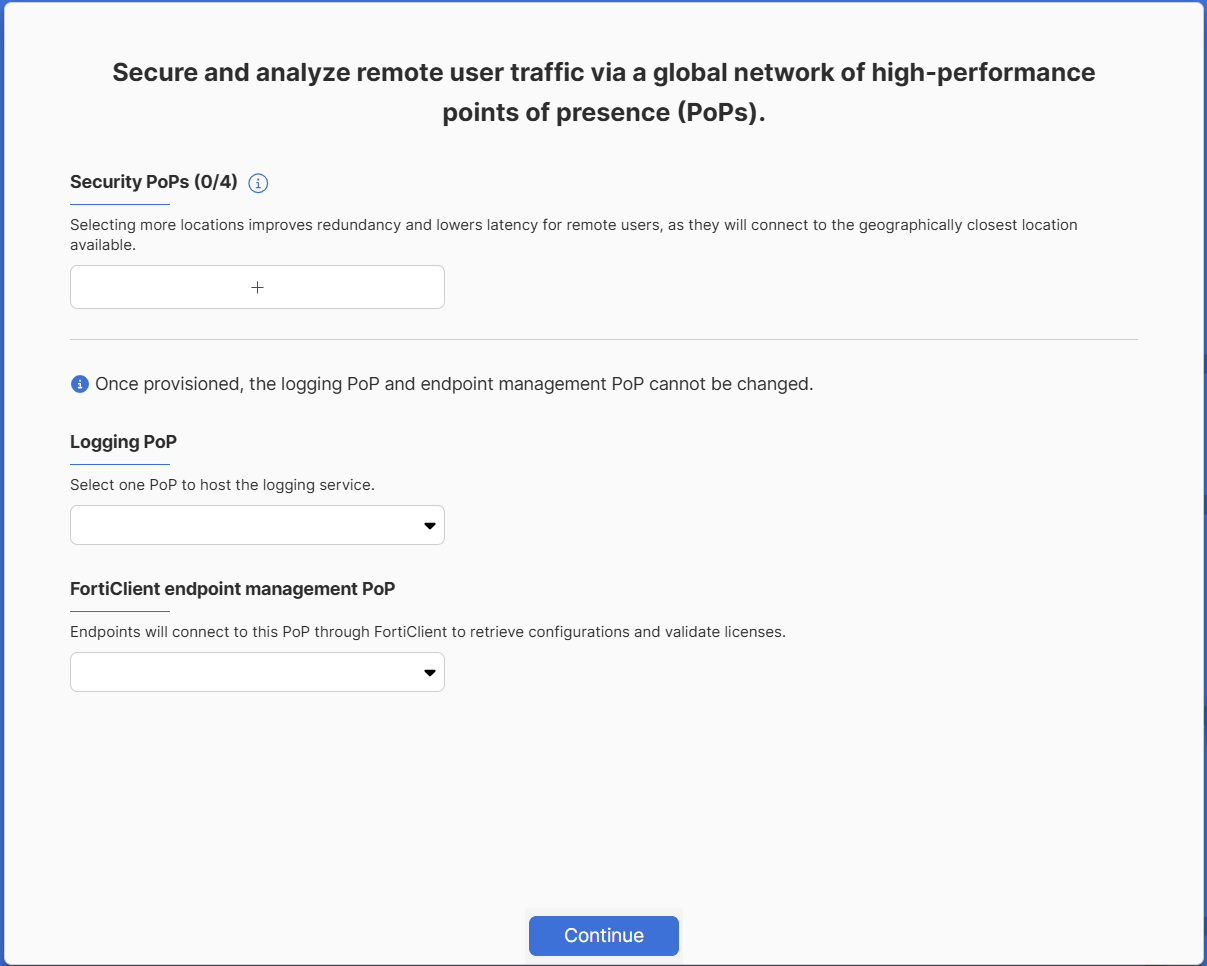
  2. Select the desired geographical locations for your security sites and log storage.

    FortiSASE has a high-performance and scalable cloud network with 100+ locations globally.

    During initial provisioning, you can select fewer security sites than the maximum you are entitled to. In this case, upon each login, the FortiSASE portal prompts you to select up to the maximum number of security sites.

    Security PoPs are listed in the format City, State (Country), such as Ashburn, Virginia (United States). However, depending on the Security PoP, the State may be excluded from the name. Hover over a Security PoP to view more details, such as regional information.

    Do one of the following:

    • Select up to the maximum number of entitled security sites and click Continue.

    • Simply click Continue without selecting any sites to acknowledge this prompt. It appears upon the next login.

    The dialog you see may differ from the following example based on your region or the FortiSASE version:
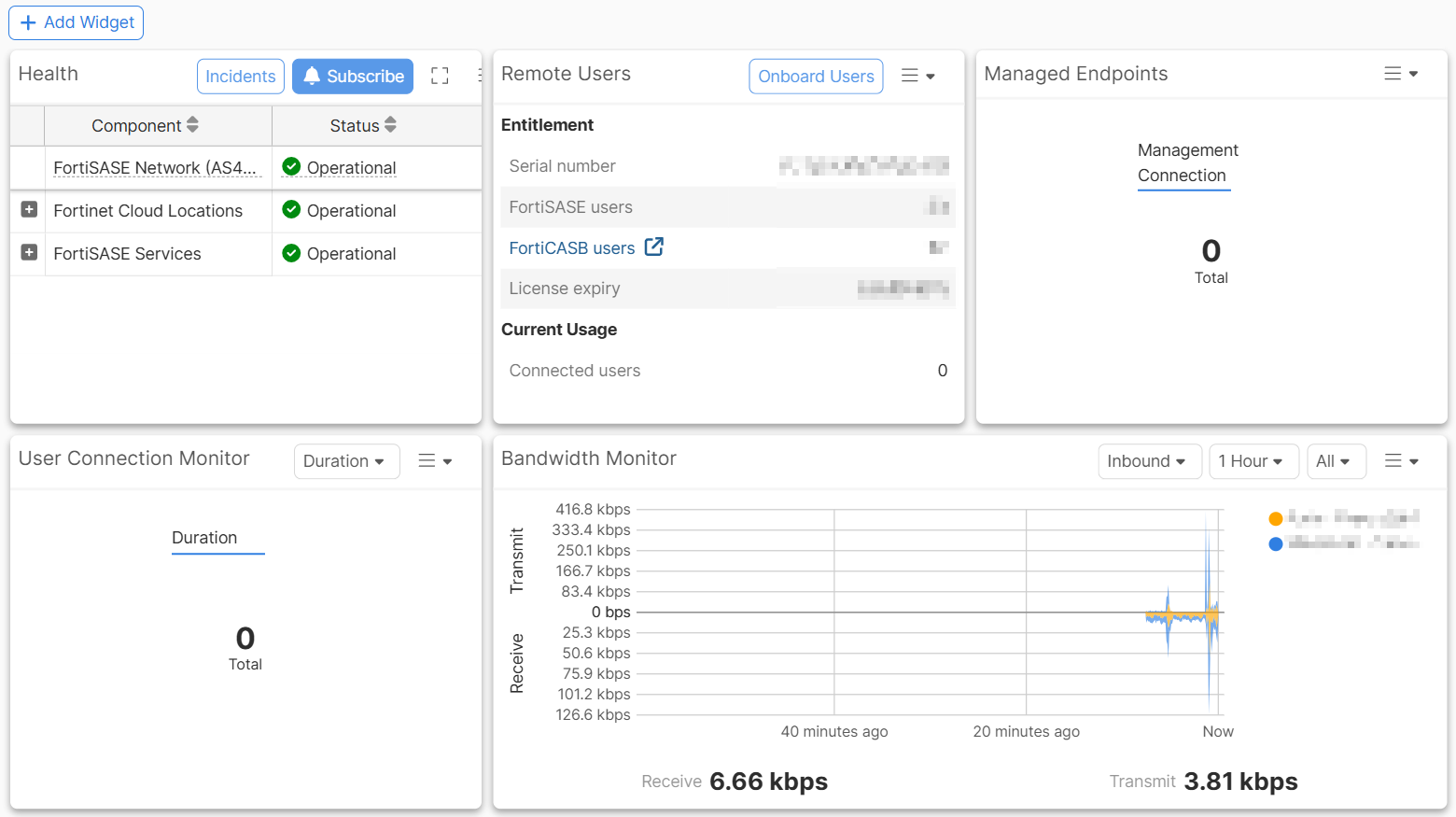
  3. Click Start Now for FortiSASE to provision your environment. This initialization may take up to 10 minutes. The FortiSASE Dashboard displays.
Troubleshooting

Initial provisioning failure

For your new FortiSASE instance, you may see the error message Error 21400.4: Failed to configure Security PoP during initial provisioning:
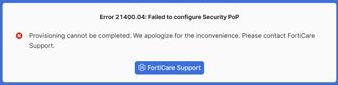
This error message indicates that provisioning could not be completed. You must contact FortiCare Support for further assistance.

Background provisioning notification

For your new FortiSASE instance, after logging into FortiSASE, you may see the notification Background provisioning: Provisioning for <security PoP location> is still in progress, please check back later.

You should not be concerned with this message, which indicates that FortiSASE has detected that a site provision has not completed successfully and triggers its recovery mechanism to handle this case. Site provisioning should complete successfully in the background after seeing this message.

3. Provisioning

3. Provisioning

Provision your FortiSASE instance to the desired locations close to your end users.

To initialize FortiSASE:
  1. Log in to the FortiSASE portal with your FortiCloud account.

  2. Select the desired geographical locations for your security sites and log storage.

    FortiSASE has a high-performance and scalable cloud network with 100+ locations globally.

    During initial provisioning, you can select fewer security sites than the maximum you are entitled to. In this case, upon each login, the FortiSASE portal prompts you to select up to the maximum number of security sites.

    Security PoPs are listed in the format City, State (Country), such as Ashburn, Virginia (United States). However, depending on the Security PoP, the State may be excluded from the name. Hover over a Security PoP to view more details, such as regional information.

    Do one of the following:

    • Select up to the maximum number of entitled security sites and click Continue.

    • Simply click Continue without selecting any sites to acknowledge this prompt. It appears upon the next login.

    The dialog you see may differ from the following example based on your region or the FortiSASE version:

  3. Click Start Now for FortiSASE to provision your environment. This initialization may take up to 10 minutes. The FortiSASE Dashboard displays.

Troubleshooting

Initial provisioning failure

For your new FortiSASE instance, you may see the error message Error 21400.4: Failed to configure Security PoP during initial provisioning:

This error message indicates that provisioning could not be completed. You must contact FortiCare Support for further assistance.

Background provisioning notification

For your new FortiSASE instance, after logging into FortiSASE, you may see the notification Background provisioning: Provisioning for <security PoP location> is still in progress, please check back later.

You should not be concerned with this message, which indicates that FortiSASE has detected that a site provision has not completed successfully and triggers its recovery mechanism to handle this case. Site provisioning should complete successfully in the background after seeing this message.