
Fortinet white logo
Fortinet white logo

User Guide

Viewing security issues

Viewing security issues

The Attack Surface Management > Security Issues page displays the number of active security issues and how many of the active security issues are rated critical, high, medium, and low based on FortiRecon severity rating.

You can use search and filters to change the list of reports that are displayed, and then click each report to display its details. See Filtering security issues.

To view security issues:
  1. Go to Attack Surface Management > Security Issues. Choose EASM using toggle, the respective security issues are displayed.
    The Issues bar at the top displays the total number of security issues, the number of exploited issues, and the count of active issues categorized by risk level (Critical, High, Medium, and Low).
    To filter the list, click the number next to Exploited or a specific risk level. Click the selected count again to remove the filter.

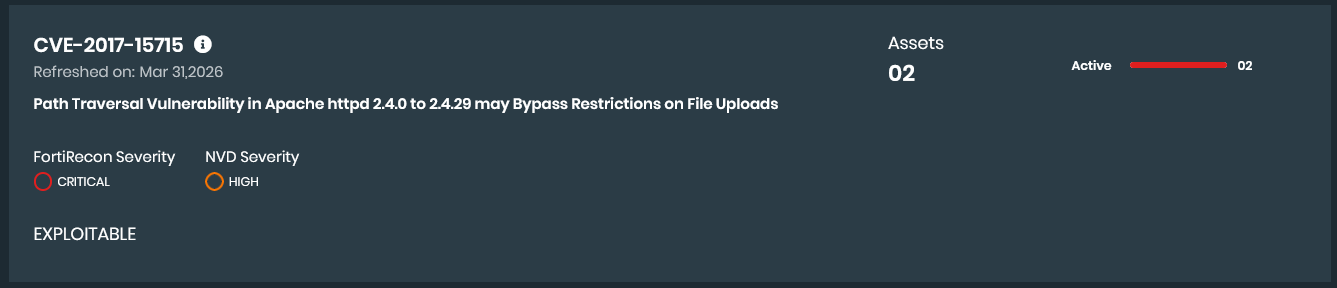
  2. For each report, the following information is displayed.
    1. The title of the security issue or the CVE ID.
    2. The total number of discovered assets and the number of active assets.

    3. FortiRecon and NVD severity rating.
    4. Exploitable tag and Indicators displayed when a CVE is exploitable. See Reviewing Exploitable Vulnerabilities.
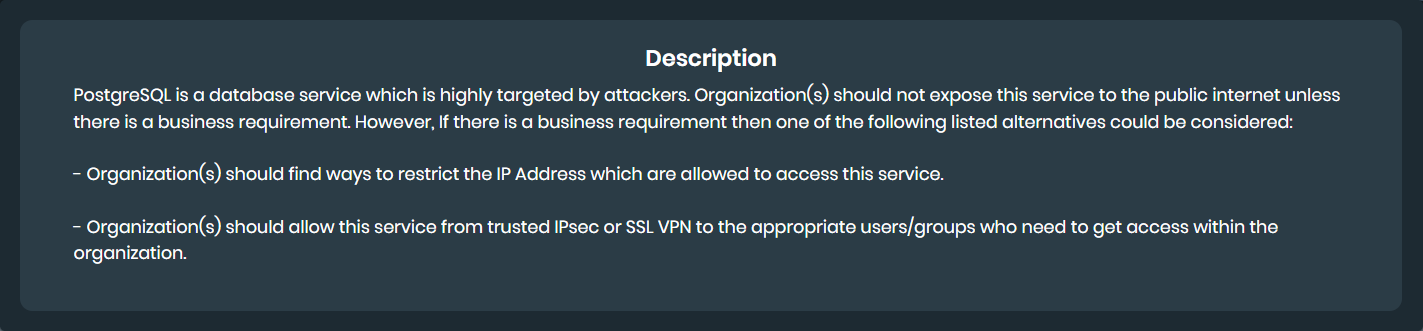
  3. For each report, click the i icon to display a description of the issue and suggested remediation steps.
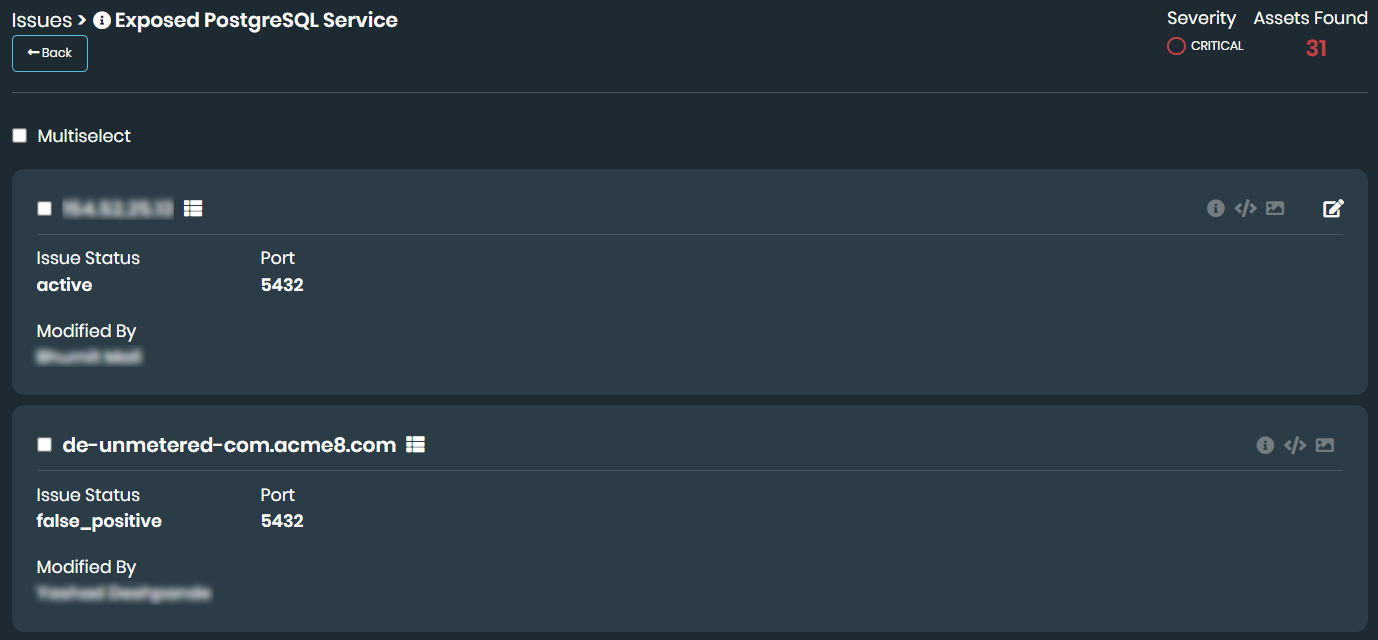
  4. Click the title of a report to display details about affected assets.
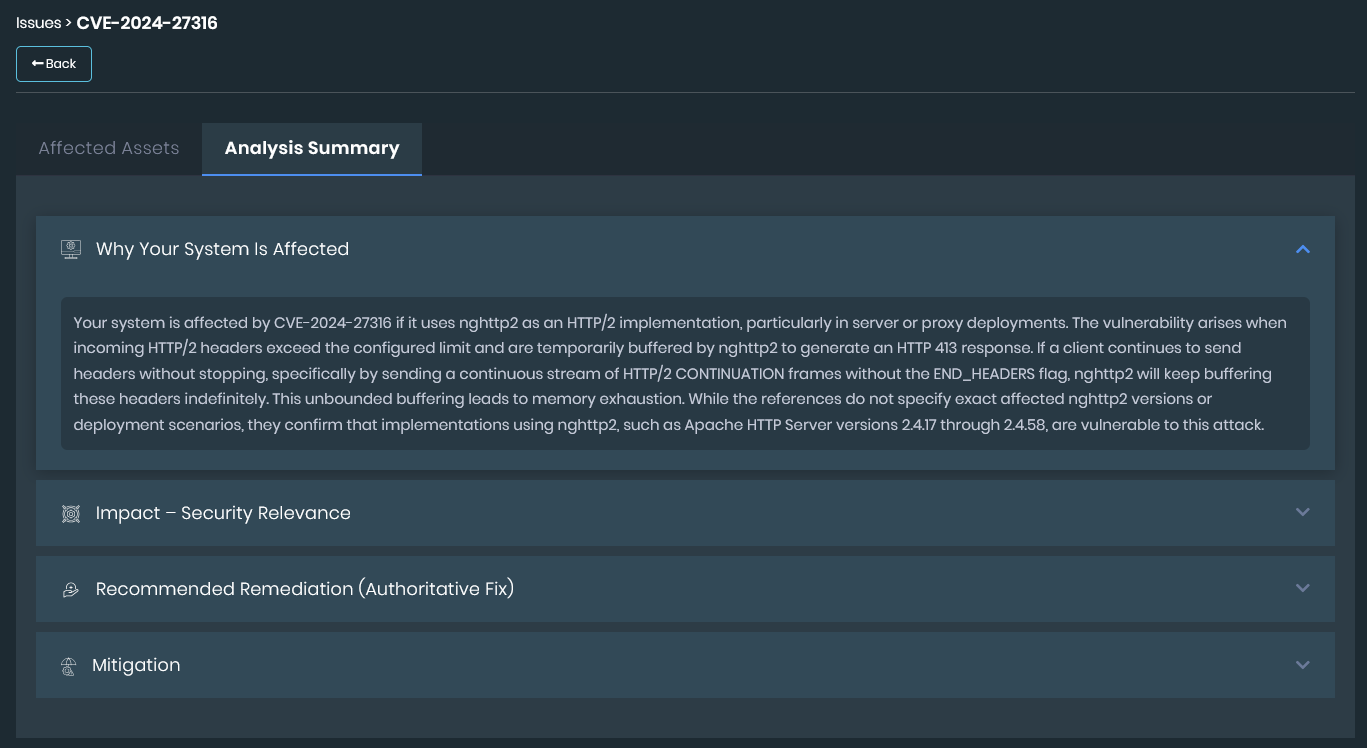
  5. For all identified CVEs Analysis Summary tab is available. This tab provides detailed context on why a system is affected, the security relevance of the impact, and actionable guidance through authoritative remediation and mitigation steps.
  6. If available, view the path used to discover the issue:
    1. Click the Discovery Path gear icon. The discovery path is displayed.
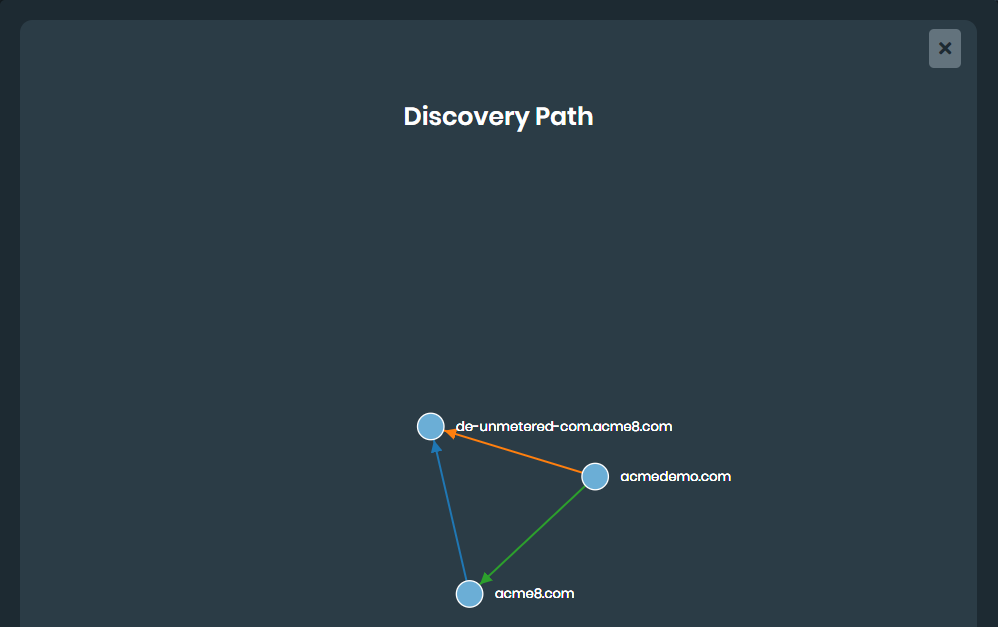
    2. Click the X in the top-right corner to close the window.
  7. When available, click the following icons:

    Additional Information

    Displays additional information about the security issue.

    Raw Data

    Displays raw data about the security issue.

    Actions

    Click to change the status of a security issue to reflect action taken by your organization to address the issue. See Changing the status of security issues.

    Click Run Automation to run playbooks. See Security Orchestration.

  8. Click the Back button.

Viewing security issues

Viewing security issues

The Attack Surface Management > Security Issues page displays the number of active security issues and how many of the active security issues are rated critical, high, medium, and low based on FortiRecon severity rating.

You can use search and filters to change the list of reports that are displayed, and then click each report to display its details. See Filtering security issues.

To view security issues:
  1. Go to Attack Surface Management > Security Issues. Choose EASM using toggle, the respective security issues are displayed.
    The Issues bar at the top displays the total number of security issues, the number of exploited issues, and the count of active issues categorized by risk level (Critical, High, Medium, and Low).
    To filter the list, click the number next to Exploited or a specific risk level. Click the selected count again to remove the filter.

  2. For each report, the following information is displayed.
    1. The title of the security issue or the CVE ID.
    2. The total number of discovered assets and the number of active assets.

    3. FortiRecon and NVD severity rating.
    4. Exploitable tag and Indicators displayed when a CVE is exploitable. See Reviewing Exploitable Vulnerabilities.
  3. For each report, click the i icon to display a description of the issue and suggested remediation steps.

  4. Click the title of a report to display details about affected assets.

  5. For all identified CVEs Analysis Summary tab is available. This tab provides detailed context on why a system is affected, the security relevance of the impact, and actionable guidance through authoritative remediation and mitigation steps.
  6. If available, view the path used to discover the issue:
    1. Click the Discovery Path gear icon. The discovery path is displayed.

    2. Click the X in the top-right corner to close the window.
  7. When available, click the following icons:

    Additional Information

    Displays additional information about the security issue.

    Raw Data

    Displays raw data about the security issue.

    Actions

    Click to change the status of a security issue to reflect action taken by your organization to address the issue. See Changing the status of security issues.

    Click Run Automation to run playbooks. See Security Orchestration.

  8. Click the Back button.