

Creating a FortiRecon entitlement in FortiFlex
Entitlements use the configuration to create the service. FortiFlex points begin to be consumed once an entitlement is activated for the first time.
Perform the following steps to create a FortiRecon entitlement.
-
If not logged in, log in to https://support.fortinet.com/ using your pAdmin account.
-
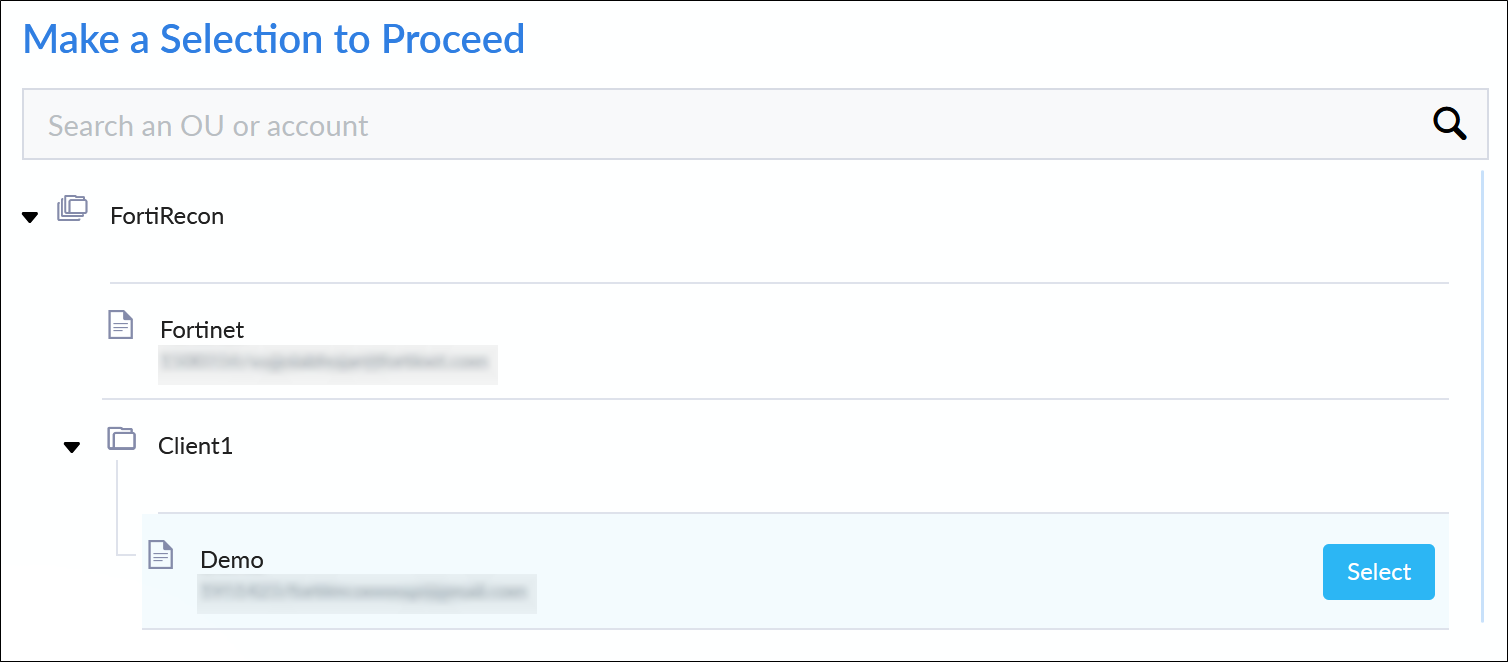
In the Make Selection page, select the sub-organization member account.
-
Go to Services > FortiFlex.
-
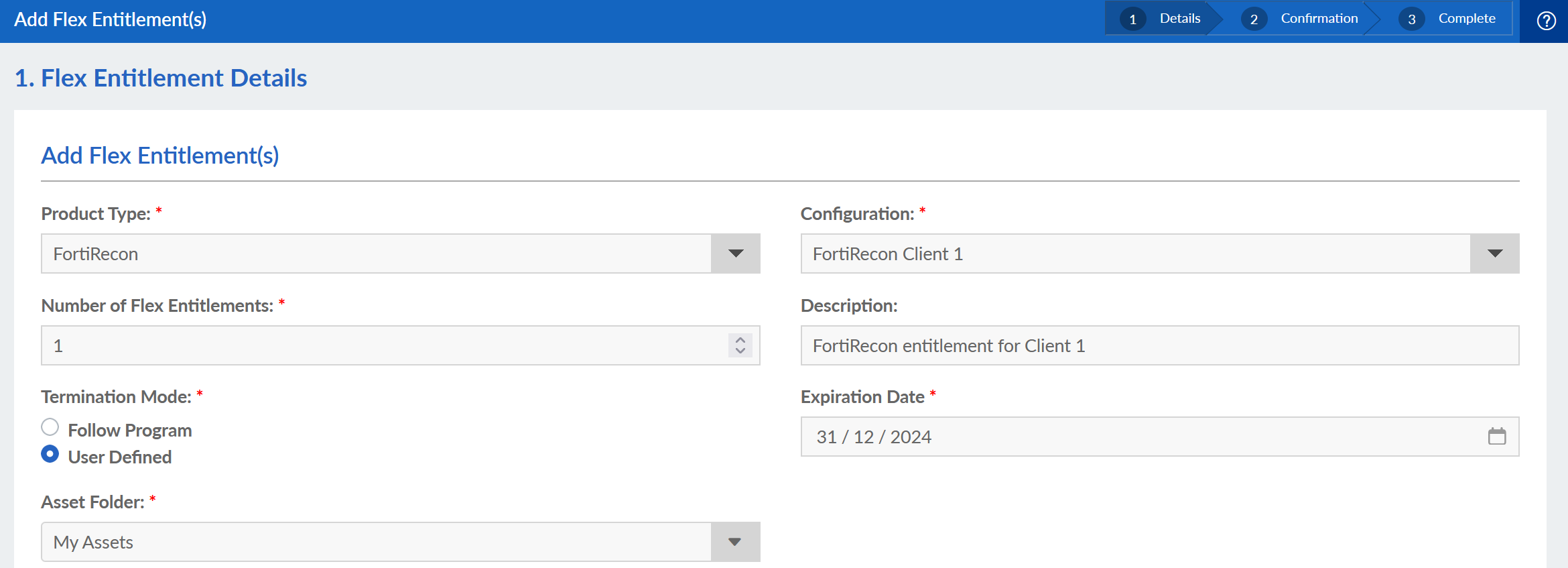
Go to Flex Entitlements, and click New Flex Entitlement. The Add Flex Entitlement page opens.
-
Configure the Cloud entitlement and click Next.
-
Product Type - FortiRecon
-
Configuration - Select the previously created FortiRecon configuration from the list.
-
Number of Flex Entitlements - Enter the number of entitlements.
-
Description - Enter a description.
-
Termination Mode - Select Follow Program to terminate the machine when the program expires. Select User Defined, and select a date in the calendar to specify the termination date.

FortiRecon license generated through FortiFlex must have a minimum duration of 3 months.
-
Asset Folder - Assign the service to a folder in My Assets.
-
-
Review the Flex Entitlement Details and Program Information, and click Submit.
|
|
For more information on, see Creating Cloud service entitlements in FortiFlex Administration Guide. |